

Connecting a printer using its IP address solves common discovery issues when your computer cannot find the device automatically. This manual method ensures reliable network printing for offices and campuses where multiple users need consistent access.
You will learn exact steps to add a network printer on Windows and Mac systems using specific IP details. This guide covers finding correct addresses, selecting proper protocols, and troubleshooting failed connections quickly.
Verify Network Requirements Before Setup
Successful printer installation depends entirely on your current network connection status. You must be connected to an authorized network segment before attempting to add any device.
Check Authorized Network Access
Guest networks strictly block all printing functions for security reasons. You must connect your computer to the main corporate network, a wired Ethernet port, or the secure Eduroam Wi-Fi system.
If you are working remotely, ensure your virtual private network (VPN) is active and grants access to internal resources. Without this specific access level, your computer cannot communicate with the printer hardware.
Obtain Valid IP Address Ranges
Never guess the address of a network printer as this leads to connection failures. Contact your department administrator or IT support team to get the exact numerical address for your specific device.
Campus locations often use specific number ranges to identify devices. For example, Chicago campus networks typically use addresses starting with 165.124 while Evanston campus devices start with 129.105.
Add Printer on Windows Using IP

Windows provides a dedicated pathway for manually adding devices that do not appear in automatic scans. This process requires navigating through the Control Panel to input network data directly.
Locate Devices and Printers Menu
Press the Windows key and type “Devices and Printers” to open the control panel applet. This central hub manages all imaging devices connected to your local machine or network.
Click the “Add a printer” button located at the top of the window to begin the installation wizard. The system will immediately start searching for nearby devices using standard discovery protocols.
Initiate Manual Installation Mode
Wait for the search to complete and look for the link stating “The printer that I want isn’t listed” at the bottom. Clicking this option bypasses automatic detection and opens the manual configuration screen.
Select the radio button labeled “Add a printer using an IP address or hostname” and click Next. This tells Windows you have specific location data for the device you wish to install.
Configure IP Settings and Protocol
Type the full IP address provided by your administrator into the Hostname or IP address field. Set the Device type dropdown menu to “IPP Printer” which stands for Internet Printing Protocol.
This protocol is the modern standard for secure web-based printing in enterprise environments. Click Next to allow Windows to communicate with the device and verify the address is active.
Install Drivers and Print Test Page
Allow the operating system to detect the printer and install the necessary driver files automatically. If prompted, confirm that you want to use the installed driver to complete the setup process.
A dialog box will ask if you want to print a test page to verify functionality. Select Yes and walk to the physical printer to ensure the page prints without errors.
Pro Tip: If Windows cannot find a driver automatically, download the specific model driver from the manufacturer website. Use the “Have Disk” button during setup to point the installer to the downloaded file.
Set Up IP Printer on Mac

macOS handles network printers through the System Settings menu with a focus on standard protocols. The interface differs slightly from Windows but achieves the same direct connection result.
Access Printers and Scanners Settings
Click the Apple menu in the top left corner and select System Settings. Navigate to the Printers & Scanners section in the sidebar to manage your imaging devices.
Click the plus sign button to add a new printer to your list of available devices. This action opens a new window where you can choose between automatic and manual addition methods.
Select IP Connection Method
Look for the globe icon located at the top of the printer list window and click it. This icon represents IP printing and switches the interface to manual entry mode for network addresses.
Enter the full IP address of your target printer in the Address field provided. Ensure you type every number correctly as a single digit error will prevent connection.
Choose LPD Protocol and Driver
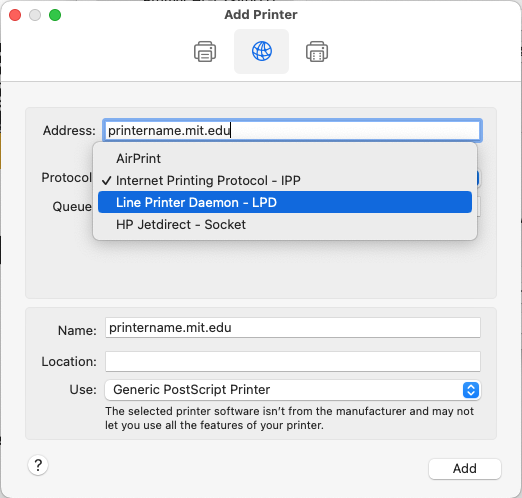
Select “Line Printer Daemon – LPD” from the Protocol dropdown menu. This legacy protocol remains highly reliable for connecting Mac computers to networked printing hardware.
Click the Add button to initiate the handshake between your Mac and the printer. The system will attempt to retrieve information about the device capabilities.
Confirm Driver Selection
Check the Use dropdown menu to see if macOS has automatically identified the correct printer model. If the correct model appears, you can proceed immediately to finish the installation.
If the model is missing, click “Select Software” and search the list for your specific printer model number. You may need to download a PostScript Printer Description (PPD) file from the vendor if the model is not listed.
Warning: Using an incorrect driver often causes formatting errors or complete print failures. Always verify the model number matches your physical device exactly before confirming.
Troubleshoot Common Connection Errors

Connection failures usually stem from simple configuration oversights or network restrictions. Systematic checking of these common issues resolves most printing problems quickly.
Diagnose No Response from Device
If the system reports it cannot find the printer, double-check the IP address for typos. Verify the printer is powered on and physically connected to the network infrastructure.
Ensure you are not connected to a guest Wi-Fi network which blocks printing traffic. Restarting both the printer and your computer can also clear temporary communication glitches.
Resolve Missing Driver Issues
Some specialized printers require manual driver installation before they function correctly. Visit the manufacturer support website and search for your specific model number.
Download the latest driver compatible with your operating system version. Re-run the addition process and use the manual driver selection option to point to the new file.
Clear Stuck Print Jobs
Print jobs sometimes get stuck in the queue if the initial connection was unstable. On Windows, restart the Print Spooler service via the Services management console.
Mac users can reset the printing system by right-clicking in the printer list and selecting reset. This clears all pending jobs and resets the printer configuration to default.
Frequently Asked Questions About IP Printer Setup
Can I connect to a printer using a guest Wi-Fi network?
No, guest networks typically block the ports required for printing to maintain security. You must connect your computer to the main corporate network, wired Ethernet, or secure Eduroam Wi-Fi.
What protocol should I use for Windows IP printing?
You should select “IPP Printer” as the device type when adding a printer on Windows. This protocol supports modern security features and is the standard for enterprise network printing.
Why does my Mac require the LPD protocol?
macOS uses the Line Printer Daemon (LPD) protocol as the primary method for IP-based printing. This standard protocol ensures compatibility with most networked printer hardware.
How do I know if my IP address range is correct?
Verify your address against campus standards such as 165.124.x.x for Chicago or 129.105.x.x for Evanston. Contact your IT administrator if you are unsure about the correct range.
What if the computer cannot find the driver automatically?
Download the specific driver or PPD file from the manufacturer website. Use the “Have Disk” option on Windows or “Select Software” on Mac to manually locate and install the file.
Key Takeaways for Connecting Printer Using IP Address

Successfully learning how to connect printer using IP address requires valid network access and accurate address information. Always verify you are on an authorized network like Eduroam or wired Ethernet before starting.
Select the correct protocol for your operating system, using IPP for Windows and LPD for Mac. These specific settings ensure your computer communicates effectively with the printer hardware.
Print a test page immediately after installation to confirm the connection works properly. If issues arise, check your IP address digits and ensure you have the correct drivers installed.


