

You just unboxed a new HP printer and want to start printing immediately without the clutter of messy cables. Many users prefer wireless connections for their flexibility, yet setup failures can quickly turn a simple task into a frustrating experience.
This guide explains exactly how to connect HP printer to computer wireless using proven methods for Windows and macOS. You will learn to prepare your network, use the HP Smart app, troubleshoot errors, and ensure a stable long-term connection.
Verify Printer Wi-Fi Capability and Network Readiness
A failed connection often stems from simple oversights like incorrect Wi-Fi selection or outdated hardware settings. Ensuring your equipment is ready before starting saves significant time during the setup process.
Check if Your HP Model Supports Wireless
Not every HP printer includes wireless connectivity features. Look for a wireless icon resembling radiating bars on the control panel or within the settings menu. Most HP LaserJet, ENVY, OfficeJet, and DeskJet models from the last decade support Wi-Fi functionality.
Confirm 2.4 GHz Network Availability
Your printer must connect to a 2.4 GHz Wi-Fi band to function correctly. Many modern routers broadcast both 2.4 GHz and 5 GHz networks, but most HP printers do not support the faster 5 GHz frequency. Ensure your router broadcasts a visible 2.4 GHz network name since printers cannot detect hidden networks.
Position Printer for Optimal Signal Strength
Place the printer within range of your Wi-Fi router, ideally no more than two rooms away with minimal obstructions. Plug in the device and wait for all lights to stabilize before attempting any connection steps. Avoid placing the printer near microwaves or large metal objects that interfere with the signal.
Use HP Smart App for Wireless Setup

The HP Smart app provides the easiest path to connect HP printer to computer wireless without manual configuration. This tool guides you through setup, installs necessary drivers, and manages printing from any device.
Download and Install HP Smart Application
Go to the official HP Smart app website or your device app store to begin the process. Search for “HP Smart” and download the application for Windows, macOS, iOS, or Android. Install the program and launch it to automatically detect nearby HP printers.
Add Printer Through the App Interface
Open the HP Smart app and select Add Printer or Set Up a New Printer to begin scanning. The application searches for available devices and displays your printer when found. Confirm the model number if prompted to proceed with the installation.
Follow the In-App Connection Wizard
The app guides you through connecting the printer to your Wi-Fi network by asking for your SSID and password. It sends this information to the printer via a temporary direct connection known as Wi-Fi Direct. Once connected, the printer restarts and joins your home network while the app confirms completion.
Manual Wireless Setup Using WPS Protocol
WPS (Wi-Fi Protected Setup) offers a quick alternative if you prefer not to use the HP Smart app or lack a smartphone. This method requires a router with WPS support and allows connection with a simple button press.
Enable WPS Mode on Your Router
Locate the WPS button on your router, which is usually labeled with two curved arrows. Press and hold this button for 2–3 seconds until the WPS indicator light begins blinking. This signals that the router is in pairing mode for the next two minutes.
Initiate WPS Sequence on HP Printer
Navigate to Settings > Network > Wireless Setup Wizard or Wi-Fi Protected Setup on your printer display. Select WPS Push Button mode so the printer searches for nearby WPS-enabled routers. Confirm the connection on the printer within two minutes of pressing the router button.
Confirm Successful Connection Status
Print a network configuration page from the printer settings menu after a successful WPS connection. This page displays the IP address and SSID to verify the printer joined the correct network. Try printing a test page from your computer to ensure full functionality.
Manual Setup Using Printer Control Panel
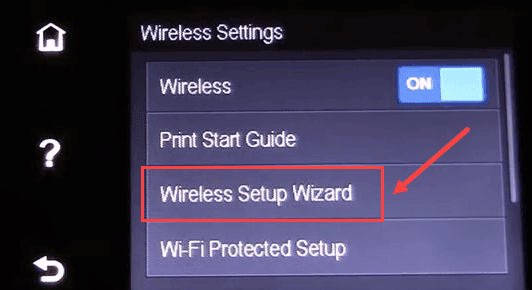
Use the printer’s control panel to manually enter Wi-Fi details when WPS is unavailable or fails. This method gives you direct control over network selection and password entry.
Access Wireless Settings Menu
Tap the Wireless icon on the printer display or go to Settings > Network > Wireless. Select Wi-Fi Setup or Setup Wizard and choose Manual Setup or Enter Credentials. The printer then scans for all available networks in the area.
Select Network and Enter Password
Choose your 2.4 GHz Wi-Fi SSID from the list of detected networks. If your network is hidden, select Enter SSID Manually and type the name exactly as it appears since it is case-sensitive. Enter your Wi-Fi password using the on-screen keyboard and double-check for accuracy.
Complete and Test Connection
The printer attempts to connect immediately after you enter the password. Wait up to two minutes for a confirmation message indicating success. Print a network summary page to verify the connection status if the printer fails to connect initially.
Install Printer Drivers on Computer
Your computer requires correct drivers to communicate with the printer even after establishing a wireless connection. Proper driver installation ensures full feature access and stable performance.
Automatic Driver Installation on Windows
On Windows 10 or 11, go to Settings > Bluetooth & Devices > Printers & Scanners. Click Add Device and wait for Windows to search for nearby printers. Select your HP printer when it appears and click Install to download drivers automatically.
Manual Driver Installation on macOS
Go to System Settings > Printers & Scanners on your Mac and click the + button. Your HP printer should appear under Nearby Printers for automatic driver detection. If not, click IP or Advanced, enter the printer’s IP address, and select the appropriate HP driver.
Download Drivers from HP Website
Visit the official HP support website and enter your printer model if automatic detection fails. Download the full feature driver package and run the installer while following the on-screen prompts. Choose Wireless as the connection type during installation and ensure your computer is on the same network.
Troubleshoot Common Connection Issues
Connectivity problems can occur even with careful setup, but most have simple solutions. Understanding these common issues helps you resolve them quickly without expert help.
Printer Not Found During Setup
Ensure both your computer and printer are on the same Wi-Fi network if detection fails. Restart the printer and router, then temporarily disable firewalls that might block device discovery. Run the built-in Printer Troubleshooter on Windows via Settings > Update & Security > Troubleshoot.
Intermittent Printing or Disconnections
Weak Wi-Fi signals often cause dropped connections and intermittent printing issues. Move the printer closer to the router and avoid using USB extension cables for power. Update the printer firmware via HP Smart or the HP website to fix known bugs.
Authentication or Password Errors
Recheck your Wi-Fi password if the printer fails to authenticate during setup. Avoid special characters like @ or # since some printers struggle with them during initial configuration. Ensure your router security type is set to WPA2-PSK (AES) for compatibility.
Maintain a Stable Wireless Connection
A one-time setup is not enough to guarantee long-term performance. Follow these best practices to keep your wireless printer running smoothly for years.
Keep Firmware Updated Regularly
HP regularly releases firmware updates that improve connectivity, security, and overall performance. Use HP Smart or visit the HP support site to check for updates monthly. Enable automatic updates if the option is available in your settings.
Assign Static IP to Printer
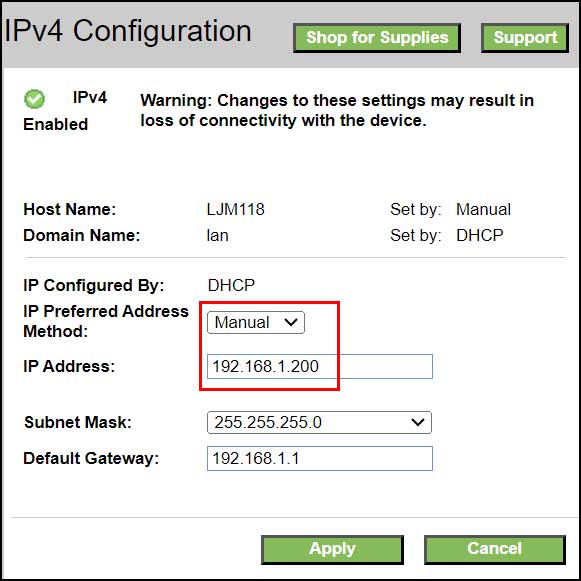
Printers receive a dynamic IP address by default that can change after a reboot and break the connection. Assign a static IP through your router’s admin panel or printer settings to ensure consistency. This ensures your computer always finds the printer at the same address.
Use Dual-Band Router Correctly
Disable the “band steering” feature if your router combines 2.4 GHz and 5 GHz under the same name. Create separate network names like “Home-WiFi-2G” and “Home-WiFi-5G” so your printer only sees the 2.4 GHz option. This prevents devices from trying to connect to the unsupported 5 GHz band.
Print Test Page to Confirm Setup
The final step in learning how to connect HP printer to computer wireless is verifying that everything works correctly. Printing a test page confirms successful communication between devices.
Print Document from Computer
Open any document on your computer and press Ctrl+P or Cmd+P to open the print dialog. Select your HP printer from the list and click Print to send the job. If the page prints successfully, your wireless setup is complete and ready for use.
Print Network Configuration Page
Go to Settings > Reports > Network Configuration Page on the printer control panel. This report confirms the printer maintains its connection and displays current network details. Keep a copy of this page for future troubleshooting reference.
Frequently Asked Questions About Connecting HP Printers Wirelessly
Why won’t my HP printer connect to my 5GHz Wi-Fi network?
Most HP printers only support the 2.4 GHz frequency band and cannot detect 5 GHz networks. You must ensure your router broadcasts a 2.4 GHz network with a visible name for the printer to connect.
What should I do if the HP Smart app cannot find my printer?
Ensure your phone or computer and the printer are on the same Wi-Fi network before starting the search. Restart both the printer and your router, then try the setup process again with Bluetooth enabled on your mobile device.
Can I connect my printer without using the HP Smart app?
Yes, you can use the WPS button on your router or manually enter network details via the printer control panel. These methods allow connection without needing a smartphone or the specific application.
How do I find the IP address of my wireless HP printer?
Print a network configuration page from the printer settings menu to view the current IP address. The page displays the IP address, SSID, and connection status for verification purposes.
Why does my printer disconnect from Wi-Fi frequently?
Weak signal strength or firmware issues often cause frequent disconnections from the wireless network. Move the printer closer to the router and update the firmware to resolve stability issues.
Key Takeaways for Connecting HP Printer to Computer Wireless
Connecting your HP printer wirelessly requires preparing your network, choosing the right setup method, and verifying the connection. Whether you use the HP Smart app, WPS, or manual entry, ensuring your router broadcasts a 2.4 GHz signal is critical for success.
Regular firmware updates and proper router configuration help maintain a stable connection over time. Follow the steps above to enjoy seamless wireless printing without the hassle of cables or recurring connection errors.


