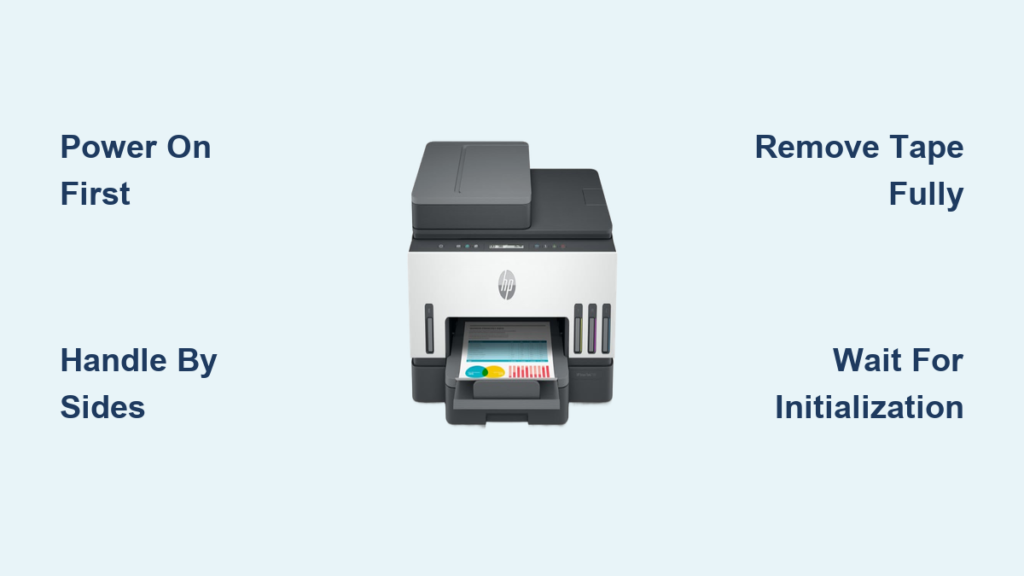
Your Epson printer shows a low ink warning, but the cartridge refuses to budge when you try to pull it out. Forcing it could spill ink or break the delicate printhead mechanism inside. Many users panic here, yet knowing how to remove ink cartridge from Epson printer models correctly prevents costly damage and messy errors. A single wrong move might misalign the carriage or trigger persistent error messages that stop printing entirely.
This guide provides clear steps to safely extract your ink cartridge without stress or spills. You will learn how to access the interior, identify the correct release method, and handle stuck cartridges across EcoTank, WorkForce, and Expression series. We cover specific actions to take before, during, and after removal to ensure your printer stays in top condition.
Access the Printer Interior Safely

Preparing your machine properly is the first critical step before touching any ink components. Rushing this stage often leads to mechanical jams or error codes that require professional repair.
Open the Cover and Wait for Alignment
Lift the scanner unit or top lid of your device to begin the process. Most Epson models automatically shift the print head to the center once the cover opens and the power is on. You must wait until the machine stops making noise and the indicator light remains steady. Never attempt to move the carriage by hand while the printer is active.
Note: On models like the EcoTank ET-2800 or Expression Home XP-4100, opening the cover triggers the ink holder to shift into the replacement position automatically.
Ensure the Printer Is Powered On
The device must be turned on because a powered-off printer locks the printhead in its parked position. If the ink holder does not move to the center after you open the cover, press the “Ink” or “Home” button if your model has one. This initiates the access mode required for safe removal.
- Do not unplug the device during removal since power keeps internal mechanisms aligned.
- Avoid sudden movements and let the printer complete its positioning cycle fully.
Locate and Identify the Correct Cartridge
Each Epson model uses a specific layout for its ink slots, so identifying the right one prevents confusion. Removing the wrong color can disrupt your color balance and waste supplies.
Check Color Labels and Slot Markings
Look inside the print head area where each slot is labeled with a color name or abbreviation. You will see labels for black, cyan, magenta, and yellow, often marked as BK, C, M, and Y. Match these labels carefully to the specific cartridge you intend to remove.
Tip: Take a photo of the empty slots before removal to help with reinsertion, especially on models with four or more colors.
Record the Cartridge Model Number
Check the label on the cartridge itself before pulling it out to note the model number. Common numbers include Epson 200, 212, 280, or T1270 series. Using the wrong replacement type can cause compatibility issues or poor print quality.
- Write down the number or snap a picture for reference before discarding the old unit.
- Verify the number matches your purchase order to avoid installation errors.
Execute Safe Ink Cartridge Removal
Now that the printer is ready and you have identified the target, proceed with the physical removal. Following the correct motion prevents ink leaks and protects the electrical contacts.
Press Down and Lift Straight Up
Grasp the cartridge firmly by its sides to ensure a stable grip. Press down slightly on the top center of the unit to release the internal latch found on most Epson models. Once you feel the latch release, lift the cartridge straight up out of the slot.
Warning: Do not tilt or wiggle the cartridge because ink can leak from the bottom nozzles if disturbed.
- Use both hands for stability if the cartridge feels loose.
- Place the unit on a paper towel immediately to catch any potential drips.
Handle Stuck Cartridges with Care
If the cartridge does not lift out easily, do not force it or use excessive strength. Sometimes the latch needs a firmer press, or dried ink might be blocking the release mechanism. Wait thirty seconds to ensure the printhead has fully aligned before trying again.
- Press down firmly on the top center to re-engage the release mechanism.
- Check for obstructions like dried ink or debris that may block the path.
- Wait for the printer to finish any remaining alignment movements.
Never use tools like pliers or screwdrivers as this damages electrical contacts and voids warranties.
Handle and Store the Removed Unit
Proper handling after removal prevents messes and keeps partially used cartridges viable for future use. Incorrect storage can dry out the nozzles or ruin your workspace.
Prevent Ink Leaks and Drying
Place the removed cartridge on a paper towel with the nozzle end facing upward. Do not lay it on its side or upside down because leaked ink can ruin the printhead or contaminate your work area. Keeping the nozzle up maintains pressure equilibrium within the unit.
Exception: If storing a partially used cartridge for reuse, seal the nozzle with a plastic cap or cling wrap tightly.
Dispose of or Reuse Properly
Recycle empty cartridges through Epson’s free mail-in program or at retail drop-off points like Staples. For temporary removal during cleaning, keep the unit covered and reinsert it within 24 hours to prevent the ink from drying out.
- Empty cartridges should go to recycling centers to reduce environmental waste.
- Temporary storage requires an airtight seal to maintain ink fluidity.
Troubleshoot Common Removal Issues
Even with careful handling, you might encounter resistance or error messages during the process. These solutions address the most frequent problems users face.
Cartridge Won’t Release from Slot
If the unit remains stuck despite pressing down, try power cycling the device. Turn the printer off, wait ten seconds, turn it back on, and open the cover to reset the mechanism. You can also try the press-and-lift motion a second time after the carriage moves.
- Power cycle the printer to reset the internal latches.
- Clean slot edges with a dry lint-free cloth to remove debris.
- Gently nudge the printhead left or right on older models to free a jam.
Printer Shows Error After Removal
You may see messages like “Ink Cartridge Not Recognized” or “Check Ink” after removing a unit. Reinsert the cartridge firmly until it clicks to ensure it is fully seated in the slot. These errors are normal and usually clear once the printer detects the unit is secure.
Never ignore errors as they can stop printing entirely until you resolve the issue.
Prepare for New Cartridge Installation
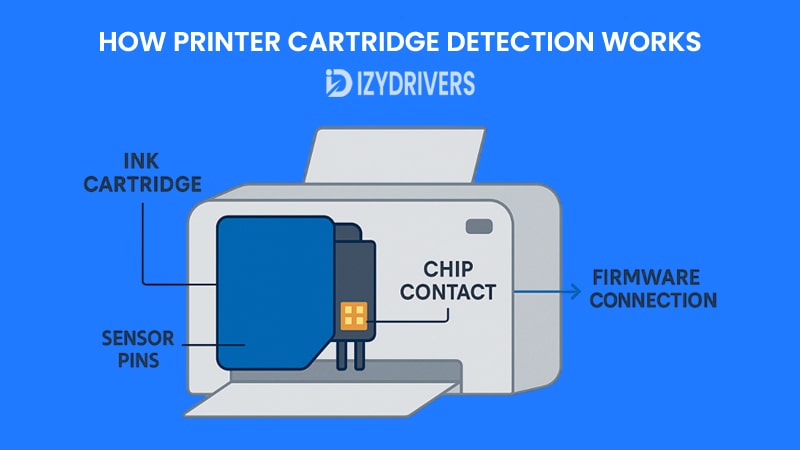
Removing the old unit is only half the job, so you must prepare the printer for the new one. Proper preparation ensures immediate recognition and high-quality output.
Clean the Contact Points
Inspect the metal contacts in the print head and on the new cartridge before insertion. Lightly wipe them with a dry, lint-free cloth if they appear dirty or dusty. Dirty contacts are a leading cause of recognition failures and print defects.
Why: Clean contacts ensure proper electrical communication between the printer and cartridge.
Unpack the New Cartridge Correctly
Remove the new cartridge from its packaging and peel off any protective tape or orange caps. Do not touch the nozzle or the golden contacts with your fingers. Most Epson cartridges come with a sealing tape that must be removed before insertion.
Warning: If you delay installation, keep the cartridge sealed because nozzles dry out quickly in open air.
Model-Specific Removal Tips
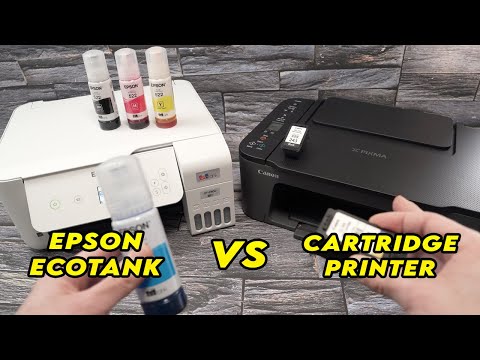
While the general process is similar, small differences exist between Epson series that affect how you remove the ink. Knowing your specific model helps you avoid confusion.
EcoTank Models (ET-2800, ET-3800)
These models typically use bulk ink tanks rather than standard cartridges. If you need to remove the printhead for deep cleaning, you must unlock it via the printer settings menu first. Standard cartridge removal steps do not apply to the main ink supply.
- Consult the manual for ink pad replacement as it is not user-serviceable on all models.
- Focus on maintenance modes rather than physical cartridge swapping.
WorkForce and Expression Series (WF-2830, XP-4100)
Standard cartridge removal applies to these popular home and office models. They often feature a specific “Cartridge Replacement” mode accessible via the control panel. Using this mode ensures the printhead centers perfectly for easy access.
- Access the replacement mode through the control panel for best results.
- Follow the on-screen prompts to move the carriage to the correct slot.
All-in-One and Photo Printers (WF-7710, XP-970)
Wider print heads on these models may hold extra cartridges like gray or photo black. Remove each color one at a time to maintain balance and prevent the carriage from shifting unexpectedly. Do not empty all slots at once unless performing a major repair.
- Remove colors individually to prevent carriage imbalance.
- Pay attention to extra slots designated for photo-specific inks.
Prevent Damage During Removal
Adopting a few simple habits protects your investment and extends the life of your printer. Careless handling is the primary cause of premature printer failure.
Avoid Touching Internal Components
Do not touch the metal contacts on the printhead or the white encoder strip behind the carriage. The encoder strip is a clear plastic band that tells the printer where the head is located. Oil from your skin can cause wear or reading errors on these sensitive parts.
- Keep fingers out of gear mechanisms to prevent oil buildup.
- Handle only the plastic casing of the cartridge itself.
Work in a Clean and Stable Area
Set up your workspace on a flat surface with good lighting to see what you are doing. Have paper towels and gloves ready before you start because spills can happen unexpectedly. Being prepared minimizes the mess if ink does leak.
Pro Tip: Place a tray under the printer to catch accidental drips during the removal process.
Frequently Asked Questions About Removing Epson Ink Cartridges
Why won’t my Epson ink cartridge lift out?
The cartridge likely has not unlocked because the printer is off or the head is not centered. Ensure the device is powered on and wait for the carriage to stop moving before pressing down to release the latch.
Can I remove ink cartridges when the printer is off?
No, turning the printer off locks the carriage in the parking station. You must power the unit on to move the print head to the replacement position, or you risk damaging the mechanism.
What should I do if ink leaks during removal?
Place the cartridge immediately on a paper towel with the nozzle facing up. Wipe any spilled ink from the printer interior with a dry, lint-free cloth and avoid touching the encoder strip.
How do I know which cartridge to remove?
Look at the color labels inside the printer or check the LCD screen for error messages indicating the specific empty color. Each slot is marked with a color name or abbreviation like BK for black.
Is it safe to touch the green chip on the cartridge?
You should avoid touching the green circuit chip or gold contacts. Oils from your skin can interfere with the electrical connection, causing the printer to fail to recognize the cartridge.
Key Takeaways for Removing Ink Cartridges from Epson Printers
Knowing how to remove ink cartridge from Epson printer units safely saves you time and prevents expensive hardware damage. Always power on the device, wait for the carriage to center, and press down firmly before lifting straight up. Avoid touching sensitive internal parts and handle cartridges with care to prevent leaks.
Your next step is to install your new cartridge following the reverse of these steps. Ensure you peel all protective tapes and seat the new unit firmly until it clicks. With your fresh ink installed, you can now resume printing high-quality documents and photos without interruption.