

You just unboxed a brand-new printer, but now the screen asks for a connection method you do not recognize. Learning how to set up a new printer correctly ensures you avoid common errors like missed drivers or failed wireless handshakes.
This guide details every step from power-up to your first successful test print. You will master USB and Wi-Fi connections while fixing frequent issues that stop jobs from printing.
Power On and Load Paper Correctly

Physical preparation is the most critical step before your computer can detect any hardware. Skipping these basics often leads to false error messages later in the process.
Connect Power and Activate Device
Plug the power cable firmly into the printer and a working wall outlet. Press the power button and wait for the device to complete its startup cycle, which may take up to a minute. If no lights appear, test the outlet with another device to rule out electrical failure.
Install Paper Without Jams
Open the input tray and adjust the width guides to match your paper size exactly. Fan the stack of paper to separate sheets, then insert them print-side down unless your manual states otherwise. Avoid overfilling the tray as this causes frequent feeding errors.
Secure USB Connection for Wired Models
Use the included USB cable to link the printer directly to your computer USB port. Most devices require a standard USB-A to USB-B connection for stable data transfer. Listen for the system sound confirming new hardware detection before proceeding.
Add Printer Through Operating System Settings
Modern computers often detect printers automatically, but manual selection ensures the correct driver installs. Follow the specific path for your operating system version.
Configure Printer on Windows Systems
Navigate to Settings > Devices > Printers & scanners on your Windows desktop. Click Add a printer or scanner and wait for your device name to appear in the list. Select it and follow the prompts, or choose The printer that I want isn’t listed to force a manual search.
Pro Tip: Users on Windows 7 or 8 should access Control Panel > Devices and Printers to find the add function.
Add Device on macOS
Open System Settings or System Preferences and select Printers & Scanners. Click the + symbol to view available devices on the network or cable. Choose your printer, ensure the driver says Recommended, and click Add to finish.
Note: If your Mac misses the printer, restart the printer and remove any old entries before trying again.
Verify Setup With a Test Print

Never assume installation is complete until you physically see ink on paper. This step confirms communication between your software and hardware.
Execute a Test Page Command
Launch the test function to verify basic connectivity without opening other applications.
* Windows: Select your printer in settings, click Manage, then choose Print a test page.
* Mac: Go to Options & Supplies, select the General tab, and hit Print Test Page.
You can also open any document, press Ctrl+P (Windows) or Command+P (Mac), select your new device, and click Print.
Inspect Output Quality Carefully
Examine the printed sheet for missing text, streaks, or color shifts. Good output shows sharp text with no blank spots or smudges. Faint lines often indicate a need for head cleaning or cartridge replacement.
Troubleshoot Common Printer Problems
Even perfect setups can encounter glitches. These solutions address the most frequent user complaints quickly.
Resolve Silent Printer Behavior
If the printer ignores your command, check that paper is loaded and no jams exist inside the unit. Open your computer print queue and cancel all pending jobs to clear the memory buffer. Restart both the printer and computer, then resend the document.
Warning: Never pull paper out by force while the machine is on to avoid gear damage.
Fix Computer Detection Failures
Try a different USB port or cable if the system does not recognize the device. Faulty cables are a leading cause of connection loss during initial setup. Reinstall drivers from the official manufacturer website if the issue persists.
Correct Faint or Light Text
Washed-out printing usually signals low ink levels or clogged nozzles. Run a print head cleaning cycle through your printer maintenance tools. Replace empty cartridges with compatible models listed in your user manual.
Establish Wireless Wi-Fi Connection
Wireless setup offers flexibility but requires precise network configuration. Follow these methods to connect without cables.
Utilize WPS for Fast Pairing
Press the WPS button on your wireless router if your network supports it. Within two minutes, press the Wi-Fi button on your printer control panel. Wait for the network light to become solid, indicating a successful link.
Configure Manual Network Settings
Access the Wireless Setup Wizard under network settings on the printer display. Select your specific Wi-Fi name from the list and enter the password using the arrow keys. Confirm the settings and print a network status page to verify the IP address.
Ensure Security Protocol Compatibility
Check that your printer supports your network security type like WPA2 or WPA3. Older models may fail to connect to newer WPA3 networks without a firmware update. Temporarily switch your router to WPA2 if connection errors occur during setup.
Install Official Driver Software Packages

Basic printing works with system drivers, but full software unlocks scanning and advanced features.
Download Full Feature Suites
Visit the support page for your specific brand like HP, Canon, or Epson. Download the full driver and software package to access firmware updates and mobile tools. Avoid third-party driver sites as they may contain unsafe software.
Use Included Installation Media
Insert the provided CD if your computer has an optical drive and follow the on-screen wizard. Always check online for updates immediately after installation since discs often contain older software versions. This ensures you have the latest bug fixes.
Enable Mobile and Cloud Printing Features
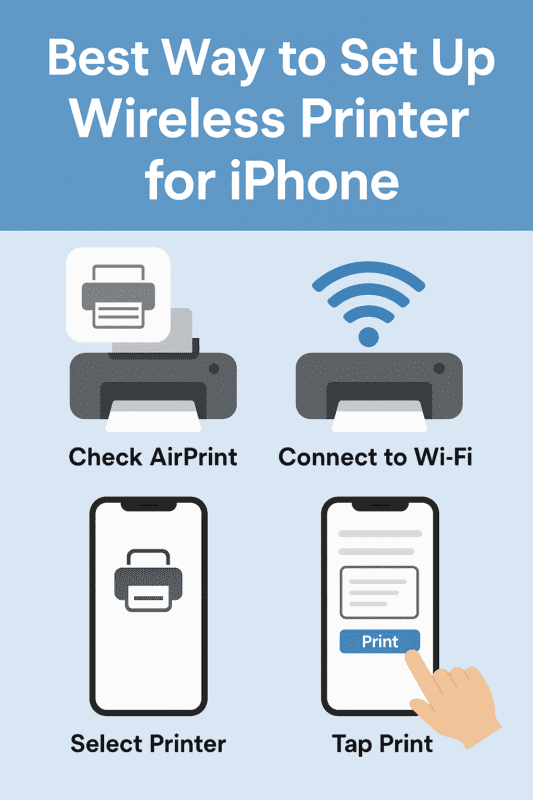
Modern printers allow printing from phones and tablets without a computer nearby.
Activate Apple AirPrint for iOS
Ensure your iPhone and printer share the same Wi-Fi network for instant discovery. Open any app, tap Share, then select Print to see available devices. Most modern printers support this feature natively without extra apps.
Set Up Brand Specific Mobile Apps
Download the official app for your printer brand such as HP Smart or Epson iPrint. Sign in to your account and follow the prompts to add your device for remote access. These apps enable photo printing and document scanning from anywhere.
Maintain Printer Performance Long Term
Regular maintenance prevents costly repairs and ensures consistent print quality over time.
Clean Print Heads Monthly
Run the built-in cleaning tool once a month to prevent nozzle clogs. Access this via your printer software or the device control panel menu. Repeat the cycle two or three times if streaks persist, but avoid excessive cleaning to save ink.
Update Firmware Periodically
Manufacturers release updates to fix bugs and improve wireless stability. Check for updates under Device Update in your printer settings menu. Alternatively, use the desktop software to scan for and install the latest firmware version.
Store Ink Cartridges Properly
Keep spare cartridges sealed and upright in a cool, dry place. Avoid extreme temperatures that can dry out the ink or damage internal components. Use opened cartridges within six months for the best print results.
Final Verification Checklist for New Printers
Run through this list to ensure your how to set up a new printer process is fully complete.
* Printer powers on and loads paper smoothly
* USB or Wi-Fi connection remains stable
* Computer lists the printer as ready
* Test page prints with clear quality
* Mobile printing functions correctly
If all items are checked, your device is ready for daily use.
Frequently Asked Questions About Printer Setup
Why won’t my computer find my new printer?
Check that the USB cable is tight or that both devices share the same Wi-Fi network. Restarting the printer and computer often resolves detection glitches. Ensure you selected the correct “Add Printer” option in your system settings.
How do I print from my phone to the new printer?
Connect your phone and printer to the same wireless network first. Open the document on your phone, select the print icon, and choose your printer from the list. You may need to download the manufacturer’s specific app for full functionality.
What should I do if the printed text is too light?
This usually means the ink cartridge is low or the print heads are clogged. Run a cleaning cycle from your printer maintenance menu. If the problem continues, replace the ink cartridge with a new one.
Can I set up my printer without the original CD?
Yes, you can download the latest drivers directly from the manufacturer’s website. Modern operating systems often install basic drivers automatically upon connection. Using the website ensures you get the most current software version.
Is it better to use USB or Wi-Fi for setup?
USB is generally faster and more reliable for initial driver installation. Wi-Fi offers greater flexibility for mobile printing once the device is configured. You can switch to wireless after the initial software setup is complete.
Key Takeaways for Setting Up Your New Printer
Successful setup requires powering the device, loading paper, and installing the correct drivers for your system. Whether using USB or Wi-Fi, always run a test print to confirm quality before relying on the machine. Regular maintenance like head cleaning and firmware updates will extend the life of your device.
Start by connecting your printer and running the installation steps outlined above today. With your device fully configured, you can now enjoy seamless printing from any connected gadget in your home or office.


