
You’re ready to print an important document, but when you hit “Print,” nothing happens—or worse, the printer jams. One of the most common causes? Incorrectly loaded paper. Knowing how to put paper in a printer properly is essential for smooth, reliable printing, whether you use a basic home model or a multifunction office machine. Loading paper may seem straightforward, but small mistakes like overfilling the tray, misaligning the edges, or using the wrong paper type can lead to frustrating errors.
This guide walks you through every step of loading paper into most common printer types, including inkjet, laser, and all-in-one models, so you avoid jams, feed issues, and error messages. You’ll learn how to adjust the paper guides, choose the right settings, and maintain consistent print performance. Whether you’re setting up a new printer or troubleshooting recurring problems, mastering this simple skill makes a big difference.
Printer Tray Types Explained
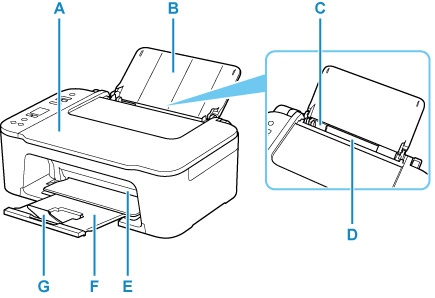
Different printers use different paper handling systems. Understanding your printer’s tray design helps you load paper correctly the first time.
Front-Load vs. Rear-Load Trays
Many inkjet printers, especially all-in-one models, have a front-loading tray that pulls out from beneath the output slot. These often include adjustable side and back guides. To load paper, pull out the tray, adjust the guides, insert the stack, and slide it back in.
Laser printers and some office models use a rear-feed or multipurpose tray. This is typically a small, folding tray at the back of the printer. It holds fewer sheets but allows manual feeding of specialty paper like envelopes or thick cardstock.
Manual Feed Slot Usage
Some printers include a top or front manual feed slot for single sheets. This bypasses the main tray and is ideal for printing on labels, photo paper, or custom sizes. Always fan the sheet before inserting and feed it slowly to prevent jams.
Prepare Your Paper Correctly
Using the right paper and preparing it properly prevents misfeeds and ensures clean output.
Choose the Right Paper Type
Check your printer’s manual or control panel settings for compatible paper types. Most printers handle plain paper, photo paper, envelopes, labels, and cardstock. Use only paper that matches your printer’s specifications to avoid damage.
Never mix paper types or weights in the same tray. For example, don’t combine 20 lb. standard paper with 28 lb. premium or photo paper. This can cause uneven feeding and jams.
Fan and Align the Stack
Before loading, fan the paper to separate the sheets. Static cling causes multiple pages to feed at once, leading to jams. Hold the stack in one hand and use your other hand to flip through the edges like a deck of cards.
Then, tap the stack on a flat surface to align the edges. Uneven stacks skew during feeding, triggering misalignment errors. Only load as many sheets as the tray’s capacity allows, usually marked with a line or symbol.
Load Paper Step by Step
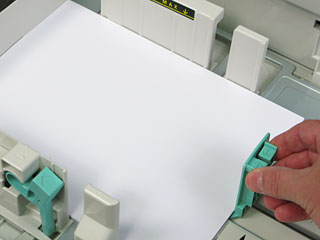
Follow these universal steps to load paper into any standard printer tray.
Open and Adjust the Paper Tray
Pull out the paper tray fully. Adjust the side guides so they’re snug against the paper without bending it. Loose guides let paper shift during feeding, while too-tight guides cause resistance and jams.
If your tray has a rear paper stop, slide it to match the paper length. Some trays have movable tabs for letter, legal, or A4 sizes. Position it correctly so the paper feeds straight into the rollers.
Insert Paper Smoothly
Place the paper stack in the tray with the print side down for most front-load inkjet printers. For rear-feed or manual trays, the print side often faces up, so check your model’s icon indicators.
Push the tray back in gently until it clicks. Don’t force it. If the tray won’t close, check for misaligned paper or overfilling.
Set Printer Paper Settings
Loading paper isn’t enough. You must match the printer’s software settings to the paper in the tray.
Select Paper Size and Type
On your computer or printer display, go to Print Settings. Choose the correct paper size (e.g., Letter, A4, Legal) and paper type (e.g., Plain, Photo, Envelope). This adjusts the printer’s feed speed and ink application.
For example, photo paper requires slower drying and higher ink saturation. If settings don’t match the actual paper, you get smudges, curling, or poor quality.
Use the Correct Input Source
Set the paper source to match where you loaded the paper, such as “Tray 1,” “Rear Feed,” or “Manual Feed.” If your printer has multiple trays, selecting the wrong source causes errors or blank pages.
Troubleshoot Common Paper Issues
Even with proper loading, problems can occur. Here’s how to fix them fast.
Paper Jams and Misfeeds
If the printer jams, turn it off before removing paper. Open access doors and gently pull the sheet straight out without tearing it. Check for small fragments left inside.
To prevent jams:
– Don’t overfill the tray
– Use undamaged, non-curling paper
– Replace worn pickup rollers if jams persist
Multiple Sheets Feed at Once
This usually means the paper wasn’t fanned or is too damp. Remove the stack, fan thoroughly, and reload. Also, clean the pickup roller with a lint-free cloth if it’s slippery or dirty.
Printer Doesn’t Recognize Paper
Some printers have sensors that detect paper presence. If the printer says “out of paper” despite a full tray:
– Ensure the tray is fully inserted
– Clean the paper sensor (usually a small plastic tab or optical sensor inside the tray path)
– Reboot the printer
Maintain Consistent Performance
Regular maintenance keeps paper feeding smoothly over time.
Clean Paper Feed Rollers
Dust and paper debris reduce grip on rollers. Every few months, run a cleaning cycle if available, or use a dry, lint-free cloth to wipe rollers. Refer to your printer’s manual for access instructions.
Store Paper Properly
Keep unused paper in a cool, dry place, sealed in its original packaging. Humidity causes curling and static, both of which lead to feeding issues.
Avoid storing paper near windows, heaters, or damp basements.
Special Paper Handling Tips

Printing on non-standard media requires extra care.
Print on Envelopes
Use envelopes without clasps or windows. Load them into the manual feed slot or rear tray, one at a time. Adjust printer settings to “Envelope” and select the correct size.
Feed slowly and watch for jams. Thick or rigid envelopes may not work with all models.
Use Photo or Thick Paper
For glossy photo paper or cardstock, load only a few sheets at a time (3–5). These papers require more precise feeding and drying time.
Always follow the printer’s recommended orientation. Some models need photo paper face up, while others require face down.
Frequently Asked Questions About Loading Paper in a Printer
Which way does paper go into the printer?
The print side typically faces down in front-load trays and up in rear-feed or manual trays. Check the tray icon or your printer’s manual for the correct orientation for your model.
How many sheets of paper can I put in the printer tray?
Load only up to the tray’s marked capacity line. Overfilling causes misfeeds, jams, and roller wear. Most home trays hold 100 to 250 sheets of plain paper.
Why does my printer keep jamming after loading paper?
Common causes include overfilling the tray, using curled or damp paper, dirty rollers, or misadjusted guides. Remove the paper, fan and reload it, clean the rollers, and ensure the guides fit snugly.
Can I mix different paper types in the same tray?
No. Mixing weights or types causes uneven feeding and jams. Use one paper type and size per tray for best results.
How do I stop multiple pages from feeding at once?
Fan the stack thoroughly before loading to reduce static. Keep paper dry and stored properly, and clean the pickup roller if the problem continues.
Do I need to change printer settings after loading new paper?
Yes. Always update the paper size, type, and source in your print settings to match the loaded paper. This ensures proper feed speed, ink use, and print quality.
Key Takeaways for Loading Paper Correctly
Learning how to put paper in a printer the right way eliminates most common printing problems. Always match your paper type and size to the tray, adjust the guides snugly without bending the stack, and fan sheets to prevent multi-feeds. Update your printer’s software settings to reflect what’s in the tray, and store unused paper in a cool, dry place to avoid curling and static.
Take a minute to inspect the tray, clean the rollers occasionally, and confirm the print orientation before each job. These small habits prevent jams, extend your printer’s life, and keep every print job running smoothly. Save or print this guide for quick reference the next time you set up a new tray or troubleshoot a stubborn jam.


