
Your Zebra ZP450 printer suddenly stops printing barcodes, leaves awkward gaps between labels, or cuts off important text mid-line. These frustrating issues often signal the need for a reprogramming session to restore proper function. Reprogramming clears out corrupted settings and realigns the printer’s internal sensors with your label stock. This guide covers everything you need to reprogram your ZP450 printer, from hardware resets to software reconfiguration. You will learn how to trigger a four-flash reset, restore factory defaults, and adjust label dimensions through your computer’s print settings.
Perform a ZP450 Factory Reset Through the Feed Button
A hardware reset is the fastest way to clear temporary glitches and reinitialize your ZP450 printer. This method forces the internal media sensor to recalibrate itself based on the loaded labels.
Execute the Four-Flash Reset Sequence
The four-flash reset is the primary reprogramming method for the ZP450. Follow these steps carefully:
- Power on the printer and allow it to fully initialize.
- Press and hold the feed button without releasing.
- Watch the status LED closely as it cycles through flashes.
- Wait for the sequence: one flash, then two flashes, then three flashes, then four flashes.
- Release the feed button immediately after the fourth flash.
- The printer will automatically print a configuration label to confirm the reset.
Note: Timing matters here. Releasing too early prevents the reset from registering properly.
After the configuration label prints, send a test print job to verify that barcodes now appear correctly and alignment issues are resolved.
Reload Factory Default Settings
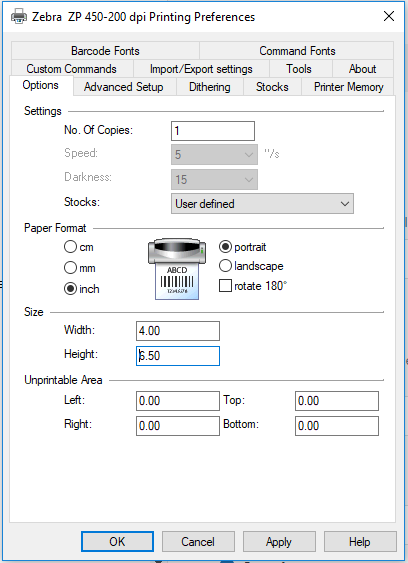
Sometimes a hardware reset alone is not enough. If barcodes still fail to print, resetting the software-level defaults ensures all parameters return to their original values before you reconfigure them.
Access Printing Preferences and Defaults
Resetting through your computer requires navigating to the correct settings menu. Here is how to access and adjust them:
- Open the Control Panel on your Windows computer.
- Navigate to Devices and Printers.
- Right-click your Zebra ZP450 printer icon.
- Select Printing Preferences from the context menu.
- Click the Advanced tab at the top of the window.
- Select Printing Defaults to open the default configuration screen.
- Verify that the label size matches your physical label stock exactly.
- Click Apply to save any changes you make.
Both the Printing Preferences and Printing Defaults screens will look similar, and you should check the size settings in both locations to ensure consistency.
Pro Tip: Always adjust defaults after completing the hardware reset. This prevents conflicting settings from interfering with your new configuration.
Confirm Label Size Settings
Accuracy in label dimensions prevents cutoff issues and ensures clean prints. Double-check these values:
- Label width matches your physical labels
- Label height is set to the correct measurement
- Media type is configured for thermal printing
- Print density is set to medium unless prints appear too faint
Fix Missing Barcodes After Reprogramming

Even after a successful reset, barcodes sometimes remain invisible on printed labels. This typically points to software or driver-level problems rather than hardware faults.
Diagnose Why Barcodes Disappear
Several factors can cause barcodes to vanish from your printed output:
- Generic printer drivers replacing Zebra’s official driver
- Incorrect darkness settings making barcodes too light to scan
- Scaling issues in label design software pushing content beyond printable boundaries
- Outdated firmware limiting the printer’s barcode rendering capabilities
Recalibrate the Media Sensor
If you notice gaps between labels or shifting content, recalibrating the media sensor helps the printer detect label boundaries accurately. Perform a quick recalibration by pressing the feed button once after loading a fresh roll of labels. The printer will advance and auto-detect the gap or black mark on your media.
Reconfigure Communication and Port Settings
Proper reprogramming extends beyond internal printer settings. Your ZP450 must also communicate effectively with your computer or network.
Verify Port Configuration
Incorrect port settings prevent print jobs from reaching the printer. Check your configuration by accessing Printer Properties and selecting the Ports tab. Ensure the selected port matches your physical connection type, whether USB or TCP/IP for network setups.
Reinstall the Official Zebra Driver
Third-party or outdated drivers often strip away advanced reprogramming options. Installing the latest official driver from Zebra’s support site restores full functionality and ensures compatibility with the ZP450’s complete feature set.
Prevent Future ZP450 Programming Issues
Maintaining a reprogrammed ZP450 requires ongoing attention to settings and maintenance. Proactive care prevents the most common printing problems from returning.
Establish a Reset Schedule
Regular resets keep your printer running smoothly, especially in high-volume environments. Consider performing a four-flash reset monthly if you use the printer daily. Additionally, always reset after switching between different label types, such as moving from die-cut to continuous media.
Standardize Label Configuration
Create a simple checklist for anyone using the ZP450 to follow. Confirm media size in Printing Preferences before each job, run calibration after loading new label rolls, and print a test label before starting batch operations.
Keep Firmware Updated
Outdated firmware can limit reprogramming success and introduce compatibility issues. Check Zebra’s support site periodically for ZP450 firmware updates, and use Zebra Setup Utilities to flash any new versions to your device.
Troubleshoot Persistent Programming Failures
When standard reprogramming methods do not resolve your issues, deeper investigation may be necessary. Some problems require more advanced solutions.
Rule Out Hardware Faults
Certain symptoms indicate hardware failure rather than software problems. Watch for warning signs like no LED activity when powered on, a feed motor that fails to engage, or unusual noises during operation. These issues require professional service rather than reprogramming.
Test on a Different Computer
PC-specific configuration conflicts can mimic printer problems. Connect your ZP450 to another computer with a clean driver installation, then send a basic test label. If the printer works correctly on the alternate machine, your original computer has software conflicts that need resolving.
Frequently Asked Questions About Reprogramming the ZP450 Printer
What does the four-flash reset do on a ZP450 printer?
The four-flash reset clears temporary settings, recalibrates the media sensor, and reinitializes the printer’s internal configuration. After completing this reset, the printer prints a configuration label to confirm the process worked successfully.
Why is my ZP450 printer not printing barcodes after reprogramming?
Missing barcodes usually result from incorrect label size settings in Printing Preferences or Printing Defaults, outdated drivers, or insufficient print density. Verify your label dimensions match your physical stock and ensure you are using Zebra’s official driver.
How do I access factory default settings on the ZP450?
Navigate to Control Panel, then Devices and Printers, right-click your ZP450, select Printing Preferences, click the Advanced tab, and choose Printing Defaults. From there, you can verify and adjust all factory default values.
How often should I reprogram my ZP450 printer?
Performing a four-flash reset once per month is sufficient for daily-use printers. Always reset after changing label types or if you notice alignment or barcode issues developing.
Can incorrect driver installation prevent successful reprogramming?
Yes, generic or third-party drivers often hide advanced settings needed for full reprogramming. Installing Zebra’s official ZP450 driver from their support site ensures all configuration options remain accessible.
Key Takeaways for Reprogramming Your ZP450 Printer
Reprogramming your ZP450 printer starts with the four-flash hardware reset through the feed button, which clears most temporary configuration errors. If barcodes still fail to print, verify your label size settings in both Printing Preferences and Printing Defaults under the Advanced tab. Installing the correct Zebra driver and keeping firmware updated prevents recurring issues. For ongoing reliability, perform monthly resets and calibrate the media sensor whenever you change label stock. If problems continue after full reprogramming, test the printer on another computer or contact Zebra support for hardware diagnostics.




