
You plug in a new all-in-one printer and notice a “Fax” button on the control panel. You pause, wondering: how does fax work on a printer when most communication happens online? Faxing still plays a role in healthcare, legal services, and government offices, where document verification and legal compliance often require it. Modern printers with built-in fax features combine scanning, copying, printing, and faxing into one machine, letting you send paper documents without a separate fax device.
Traditional faxing works by converting your printed document into audio signals that travel through a phone line. Your printer scans the page, turns the image into digital data, then encodes that data into tones a telephone line can carry. A receiving fax machine or another multifunction printer decodes those tones and prints the document. In this guide, you will learn how the technology works inside your printer, the difference between phone line faxing and internet faxing, how to set everything up, and how to solve common issues.
Fax-Enabled Printers and Their Core Components
What Makes a Printer Capable of Faxing
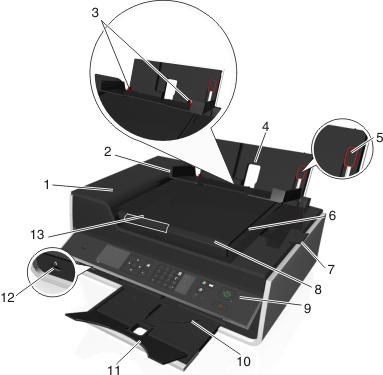
A fax-enabled printer, also called a multifunction or all-in-one printer, contains the hardware and software needed to scan, encode, and send documents over a telephone line. It relies on three core components working together:
- A built-in fax modem that converts digital data into analog audio signals
- A telephone line jack (RJ-11 port) to connect to a landline
- A document feeder or flatbed scanner to capture the original page
When you press “Send Fax,” the printer scans your document into a black-and-white image, usually at standard resolution of 204 x 98 dpi. It compresses that image, then uses the modem to transmit it as a series of high-pitched tones through the phone line. Those tones represent the pixels on the page, essentially turning your document into sound.
Types of Fax-Ready Printers
Not all printers labeled “fax” operate the same way. The main categories include:
- Traditional Fax Printers: Require a physical landline connection through an RJ-11 cable. Examples include the HP OfficeJet 5255 and Canon PIXMA TR4720.
- Internet Fax (FoIP) Printers: Use Voice over IP networks and require compatible routers. Some Brother and Epson models support this method.
- Cloud Fax Printers: Send faxes through email or web applications without a phone line. HP Smart Tank printers allow faxing through HP’s cloud service.
Traditional faxing remains the most reliable option, while VoIP and cloud faxing offer flexibility for remote workers and offices without landlines.
Connecting Your Printer to a Phone Line
Physical Setup Using a Wall Jack
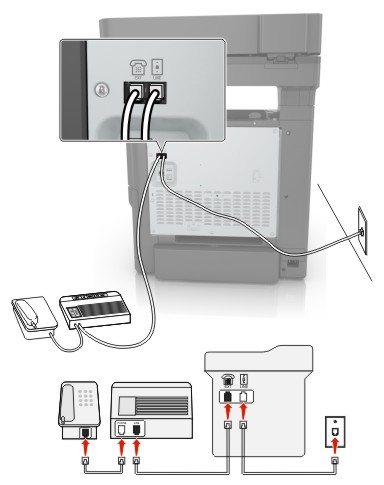
Your printer must connect to a working phone line to send and receive traditional faxes. Follow these steps:
- Locate the LINE port on your printer, often labeled “Line In” or “Wall Jack.”
- Plug one end of a standard RJ-11 phone cable into the LINE port.
- Connect the other end to a telephone wall jack.
- If you want to share the line with a phone, use a telephone splitter and plug the phone into the “Phone” port on the printer.
Confirm the phone line has a dial tone before testing the fax function. Most printers include a “Test Line” or “Fax Test” option in the settings menu.
Why Fax Fails on VoIP Services
Many users try connecting fax-enabled printers to VoIP services like Vonage or Ooma and run into problems. Here is why:
- Compression: VoIP systems compress voice data to save bandwidth, which distorts the precise audio tones fax machines depend on.
- Latency: Delays in signal transmission disrupt the handshake between sender and receiver.
- Jitter: Inconsistent packet delivery causes data loss and errors.
The result is error messages like “No dial tone,” “Failed to connect,” or garbled pages. You can solve this by using a fax-compatible VoIP service, switching to a traditional landline, or enabling T.38 fax relay on your router. T.38 bypasses compression and preserves signal integrity.
Sending a Fax Step by Step
Preparing Your Document for Transmission
Proper preparation prevents jams and transmission errors. Before sending:
- Place the document face-down on the scanner glass or face-up in the automatic document feeder.
- Align the edges with the paper guides.
- Remove staples, paper clips, and tape.
- Smooth out wrinkles or folds.
For multi-page faxes, use the automatic document feeder to maintain correct page order and prevent jams.
Dialing and Transmitting the Fax
Once your document is loaded, follow these steps:
- Press the Fax button on your printer’s control panel.
- Enter the recipient’s fax number using the keypad. Include the area code and country code for international faxes.
- Press Start or Send.
Your printer will scan each page, dial the number, wait for a handshake signal from the receiving machine, transmit the document as encoded audio, and print a confirmation report. Transmission time averages about one minute per page on older machines, while newer models complete a page in 15 to 30 seconds.
Confirming Successful Delivery
Most printers generate a transmission report that shows:
- The time and date of transmission
- The recipient’s fax number
- The delivery status, such as Success, Failed, or Busy
- Any error codes if the fax did not go through
If the report shows a failure, check the phone line connection, verify the fax number, and look for paper jams. Many printers offer automatic redial if you enable the feature in settings.
Receiving Faxes Automatically
Enabling Auto-Answer Mode
To receive faxes without manually answering each call, set up auto-answer:
- Navigate to Fax Settings or Receive Settings in your printer’s menu.
- Select Ring Settings.
- Turn Auto Answer on.
- Choose the number of rings before the printer picks up, typically two to four rings.
When a fax call arrives, the printer listens for fax tones. If it detects them, it answers and receives the document. If the call is a voice call, you can pick up the connected phone before the printer answers.
Managing Incoming Faxes
Incoming faxes print automatically unless the printer runs out of paper, ink, or memory. Some models store received faxes in memory when supplies run low and print them once you refill the paper or replace the cartridge. Others can forward received faxes to an email address if you configure that feature in the settings.
Troubleshooting Common Fax Problems
Fixing No Dial Tone Errors
A “No Dial Tone” error usually points to a loose cable, a dead phone line, or an incorrect port connection. Try these fixes:
- Confirm the cable is plugged into the LINE port, not the “Phone” port.
- Test the wall jack with a regular phone to verify dial tone.
- Replace the RJ-11 cable if it appears damaged.
- Run the printer’s built-in Line Test utility to diagnose the issue.
Resolving Failed Transmissions
Failed transmissions can result from a busy line, a wrong number, poor line quality, or an offline receiver. You can address these issues by:
- Retrying during off-peak hours when phone traffic is lower.
- Double-checking the fax number before sending.
- Enabling Error Correction Mode (ECM) in settings to reduce errors on noisy lines.
- Disabling ECM when sending to older fax machines that cannot process it.
Fixing Garbled or Blank Pages
Fuzzy text, missing lines, or blank output often stem from low contrast on the original, a dirty scanner glass, or incompatible resolution settings. Clean the scanner with a soft, lint-free cloth, rescan the document with higher contrast, and send in Standard or Fine resolution. Avoid Super Fine resolution on poor phone lines, since it requires more bandwidth and is more prone to errors.
Fax Over IP and Cloud-Based Alternatives
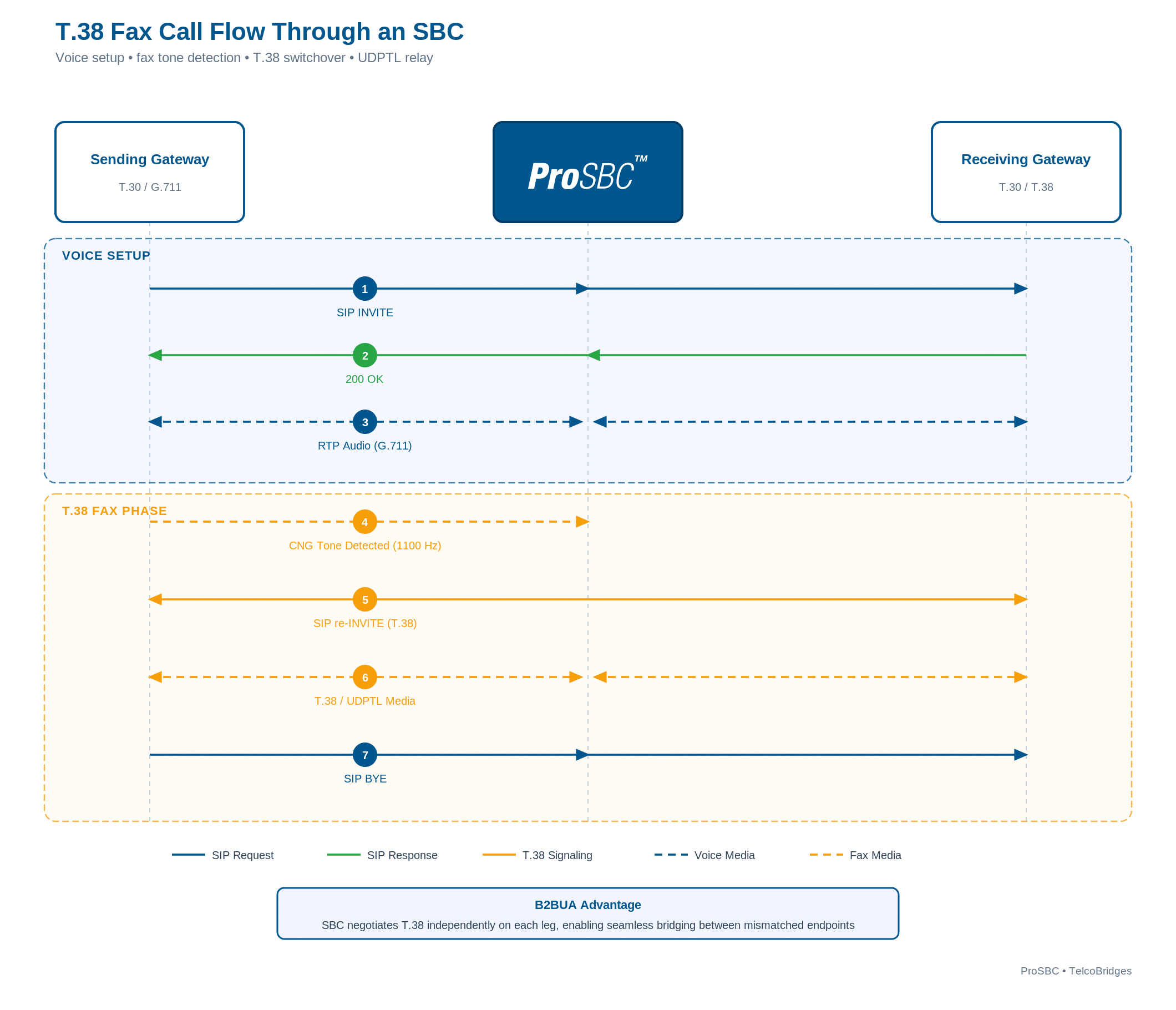
Understanding FoIP and the T.38 Protocol
Fax over IP (FoIP) allows fax signals to travel over internet networks using the T.38 protocol. Unlike standard VoIP, T.38 transmits fax data in real time without compression, which preserves the integrity of the audio tones. To use T.38, confirm that your network supports it, enable T.38 passthrough on your router, and update your printer’s firmware. Many Brother, Lexmark, and Xerox multifunction devices support T.38.
Internet Fax Services for Any Printer
If you do not have a landline, online fax services offer a practical alternative. Popular options include eFax, MyFax, HelloFax, and Fax.Plus. These services work with any printer and let you send faxes in three simple steps:
- Print or save your document as a PDF.
- Email the PDF to your fax service using a special address format, such as 1234567@efaxsend.com.
- Let the service deliver the document to the recipient’s fax number.
These services require no extra hardware, work from mobile devices, offer encrypted delivery, and often include cloud storage for your sent and received faxes.
Maintenance Tips for Reliable Fax Performance
Cleaning the Scanner and Rollers
Dust and grime reduce scan quality and cause paper jams. Clean your printer every one to two months by wiping the scanner glass with glass cleaner and a soft cloth, using roller cleaning sheets designed for your model, and avoiding alcohol-based cleaners on plastic components.
Updating Firmware Regularly
Manufacturers release firmware updates to fix bugs, improve compatibility, and patch security vulnerabilities. Check your printer brand’s website periodically or use the built-in updater in your printer’s settings menu.
Using Fresh Paper and Ink
Low ink produces faint or missing text, while paper jams disrupt both sending and receiving. Load standard 8.5” x 11” paper, avoid recycled or wrinkled sheets, and replace ink cartridges before they run completely empty.
Is Printer Faxing Still Reliable Today?
Advantages of Built-In Fax
A fax-enabled printer offers several benefits:
- All-in-one convenience with no extra machine required
- Immediate physical printouts for record-keeping
- Legal acceptance in industries that require faxed signatures
- Low cost per page after the initial setup
Limitations in the Current Market
Printer faxing does have drawbacks:
- Dependence on landlines, which fewer homes and offices have
- Slower transmission compared to email and digital alternatives
- No ability to edit or recall a fax once sent
- Security risks if sensitive documents print unattended
For occasional use, a fax-enabled printer works well. For high-volume needs, digital faxing offers better speed, tracking, and security.
The Future of Fax in Printer Technology
Declining Hardware Support
Printer manufacturers are gradually phasing out fax modems. New HP, Canon, and Epson models increasingly omit the RJ-11 port due to declining consumer demand, the rise of cloud and mobile printing, and a focus on Wi-Fi, AirPrint, and app-based workflows.
The Shift Toward Digital Fax Solutions
The future of faxing is software-based. You can send faxes from email, mobile apps, or web portals, store documents in encrypted cloud storage, and integrate faxing with Google Drive, Dropbox, or CRM systems. Even without a fax machine, you can send a fax from your smartphone or laptop using services that simulate traditional faxing with improved security and tracking features.
Frequently Asked Questions About Fax on Printers
Do All Printers Have Fax Capability?
No, only multifunction or all-in-one printers include fax capability. Standard single-function printers do not have a fax modem or telephone line port, so they cannot send or receive faxes.
Can I Fax Without a Phone Line?
Yes, you can fax without a phone line by using internet fax services, FoIP with T.38 support, or cloud-based fax features built into some modern printers. These methods send faxes over the internet instead of a landline.
Why Does My Printer Say No Dial Tone When Sending a Fax?
A “No Dial Tone” error usually means the phone line is not connected, the cable is in the wrong port, or the wall jack is not active. Check the RJ-11 cable connection, confirm the wall jack works with a regular phone, and run the printer’s line test to diagnose the issue.
How Long Does It Take to Fax One Page?
Transmission time depends on the printer model and phone line quality. Older machines take about one minute per page, while newer models send a page in 15 to 30 seconds under good line conditions.
Is Faxing Over the Internet Secure?
Internet faxing can be secure when you use services that offer encryption, password protection, and secure storage. Traditional phone line faxing is less secure because the signal travels over an unencrypted line and can be intercepted.
Key Takeaways for Understanding Fax on a Printer
Faxing through a printer combines scanning, encoding, and transmitting audio tones over a phone line. You need a fax-enabled printer, a working landline or compatible VoIP setup, and proper configuration to send and receive documents. Troubleshooting common issues like no dial tone, failed transmissions, and garbled pages usually involves checking cables, verifying numbers, and adjusting resolution settings. As landlines decline, digital fax services and FoIP solutions are becoming the preferred choice for secure, flexible document transmission.


