

Warped corners, stringing across detailed prints, and first layers that refuse to stick are the classic symptoms of a poorly tuned machine. Most failed prints are not caused by bad filament or bad luck. They are caused by skipping calibration steps. How to calibrate a 3D printer properly is the difference between hours of frustration and consistent, repeatable results on every job.
This guide walks through a complete, step-by-step process based on the well-known Teaching Tech calibration method. It covers mechanical checks, firmware tuning, and slicer adjustments. You will not need a lab full of equipment, just basic tools like a ruler, a feeler gauge, calipers, and a piece of paper. Follow the steps in order, since each one builds on the previous, and your printer will be running at its full potential by the end.
Inspect the Frame and Mechanical Components
Before touching any software settings, verify that the physical machine is sound. A loose screw or a dry rod can cause problems that no amount of software tuning can fix.
Check All Fasteners
Move around the printer and inspect every nut and bolt. Pay close attention to the print head gantry, hot end mount, stepper motor brackets, and bed attachment points. Tighten anything loose using the proper Allen key or spanner. A wobbly print head or shifting bed will lead to layer shifting and poor dimensional accuracy.
Adjust V-Roller Tension
Most Cartesian and CoreXY printers use V-slot wheels riding on V-slot extrusions. Each wheel has an eccentric nut that controls tension. When wheels are too loose, wobble appears on prints as surface artifacts. When wheels are too tight, the assembly becomes tense and wears the V-rollers prematurely. Spin the gantry by hand. It should move smoothly without binding or excessive play.
Lubricate Moving Parts
Apply SuperLube Synthetic Grease to any hardened rods, linear rails, and lead screws. Dry components cause stuttering and layer artifacts. Wipe off excess grease to avoid attracting dust, and plan to re-lubricate monthly or after heavy use.
Inspect Belts, Nozzle, and Fans
Belts should be tight and produce a high-pitched twang when plucked. Check that the grub screws on the pulleys connecting belts to stepper motors are tight. Heat the nozzle and push filament through to confirm extrusion is even and free of partial clogs. For bowden setups, make sure the PTFE tube is fully inserted into the coupler and consider a PTFE clip to keep it seated. Finally, check that all fans spin freely, including the hotend heatsink fan, part cooling fan, mainboard fan, and PSU fan. Replace any that are noisy or wobbly.
Run PID Autotune on Hotend and Bed

Stable temperatures are essential for consistent extrusion and bed adhesion. PID tuning optimizes how the heaters respond to setpoint changes, eliminating temperature swings that cause under-extrusion or warping.
Tune the Hotend
Using terminal software like Pronterface or OctoPrint, send the following command to start the tuning cycle:
M303 E0 S200 U1
The S200 value sets the target temperature and should match your most common printing temperature, such as 205 for PLA. The U1 flag stores the result in RAM. After the cycle completes, save the new values to EEPROM with:
M500
If your printer does not support EEPROM saving, add the resulting M301 line to your slicer start gcode.
Tune the Heated Bed
For the bed, make sure PIDTEMPBED is enabled in your firmware, then send:
M303 E-1 S60 U1
The E-1 flag selects the bed, and S60 is typical for PLA. Save to EEPROM with M500, or use the M304 command in your start gcode if EEPROM is not available.
Match Real Printing Conditions
Always run PID tuning with conditions as close to actual printing as possible. That means filament loaded and the part cooling fan at your normal speed. You can set the fan manually using M106 S255. Repeat PID tuning any time you change the hotend, add a silicone sock, or swap the bed surface.
Level the Print Bed
A level bed is the foundation of every successful print. Whether you use manual leveling or auto bed leveling (ABL), the goal is even first-layer adhesion across the entire surface.
Manual Bed Leveling Procedure
- Home the printer with G28
- Heat the bed to printing temperature
- Move the nozzle to each corner using the jog controls
- Slide a standard piece of office paper between the nozzle and bed
- Adjust the leveling knob until you feel slight resistance
- Repeat for all four corners and the center
Perform this process with the bed at printing temperature, since thermal expansion changes distances. Doing it with the nozzle near printing temperature, but cool enough to prevent oozing, is even better.
Set Z Offset with ABL Sensors
If you are using a BLTouch, inductive probe, or similar sensor, level the bed manually first to get everything in the ballpark. ABL is not a replacement for a level bed, only a way to compensate for minor warping. Then set the Z offset by probing the bed with G29, starting a first-layer test, and using babystepping to fine-tune in real time. When the first layer looks correct, save the offset with M500. Newer versions of Marlin include a Z offset wizard that handles this automatically.
Confirm Consistent Triggering
Make sure the probe triggers the same way across the bed. Clean the bed surface and check for warping, since magnetic spring steel sheets must make full contact with the heated plate to probe accurately.
Calibrate First Layer Height

Even with a level bed, the Z distance can be slightly off. A quick calibration print reveals whether the first layer is properly squished onto the surface.
Print the Five-Square Test
Generate a 25mm by 25mm five-square test pattern (one in the center, one in each corner) using the calibration gcode generator. Slice it with these settings:
- Layer height of 0.2mm
- One perimeter
- No infill
- 100% flow
Read the Results Visually
Watch the extrusion as the test prints. If the nozzle is too close, you will see scratching, thin lines, or skipped steps. If the nozzle is too far, gaps, lifting, and poor adhesion will appear. The ideal first layer shows slight squish, smooth continuous lines, and no gaps or bulging. Use visual guides to compare your print to the perfect result, then reposition the nozzle and retest until all five squares look consistent.
Calibrate E-Steps for Accurate Extrusion
E-steps tell the firmware how many stepper motor pulses equal one millimeter of filament movement. If this value is wrong, the printer will over- or under-extrude regardless of slicer settings.
Find the Current E-Step Value
Send M92 in the terminal. If that only returns ok, use M503 instead and look for the M92 line. Note the number after E, for example 93.00.
Run the Filament Pull Test
- Heat the hotend to your normal printing temperature plus 10°C
- Switch to relative movement with G91 (or M83 for Klipper and RepRap Firmware)
- Mark the filament 120mm from the extruder entrance
- Extrude 100mm slowly with G1 E100 F50
- Measure the remaining distance from the mark to the extruder
If exactly 20mm remains, the E-steps are correct. Less means over-extrusion. More means under-extrusion.
Calculate and Save the New Value
Use this formula:
New E-steps = (Old E-steps × 100) / Actual extruded mm
For example, if your old E-steps were 93 and you extruded 97mm, the new value is 95.87. Enter it with M92 E95.87 and save with M500. Some Prusa printers have EEPROM saving disabled, so you may need to add the M92 command to your slicer start gcode instead. Switch back to absolute mode with G90 (or M82 for Klipper) when finished.
Calibrate Slicer Flow Rate
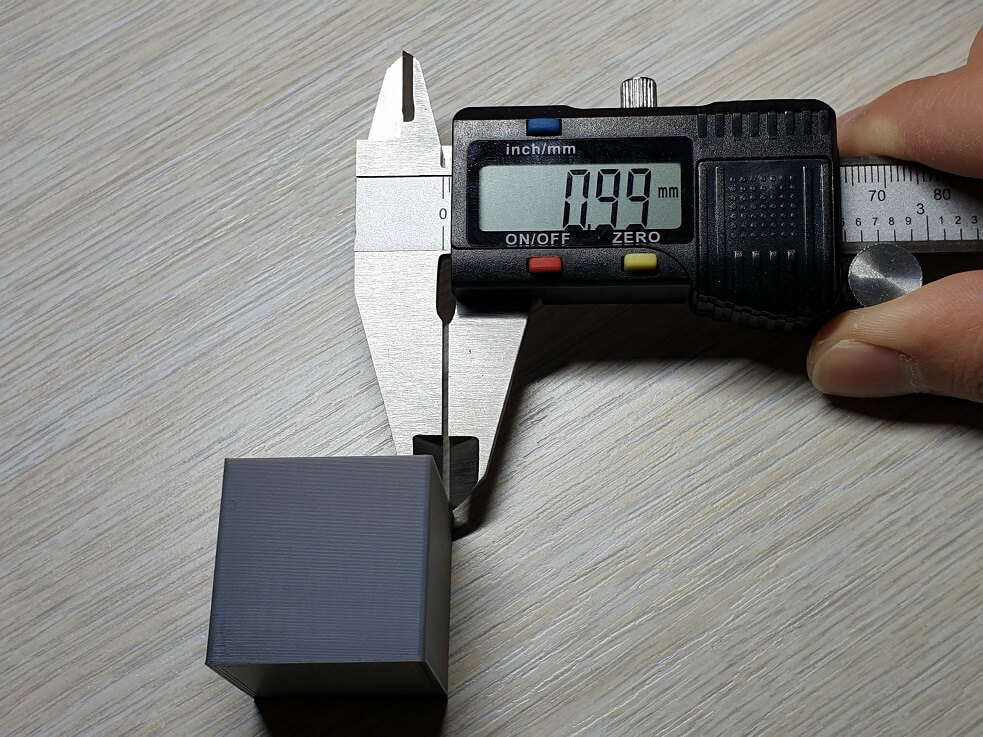
Once the firmware is correct, the slicer flow setting must match. The flow rate controls how much filament the slicer tells the printer to extrude, and every slicer needs its own adjustment.
Print a Single-Wall Calibration Cube
Slice a 20mm hollow cube with these settings:
- 0% infill
- 0 top and bottom layers
- Wall thickness equal to your nozzle size, such as 0.4mm
- One perimeter
- Flow set to 100%
Enable vase or spiral mode if your slicer supports it. Avoid vase mode in Cura since testing shows it increases flow and skews results.
Measure and Adjust
Use digital calipers to measure the wall thickness on all four sides and average the results. Compare the average to your target wall thickness. If the measurement is too low, increase flow. If it is too high, decrease it. Calculate the new flow rate with:
New Flow = (Target ÷ Measured) × Current Flow
Apply the result under the appropriate slicer setting:
- Cura: Flow
- Simplify3D or PrusaSlicer: Extrusion Multiplier
Trust Visual Inspection Over Math
After calculating, look at the print. If walls show gaps, nudge the flow higher. If there are blobs or oozing, reduce it. Holding the cube up to a light source is a fast way to spot under-extrusion gaps. Remember that what you see with your eyes is more important than any number on a calculator.
Tune Retraction to Eliminate Stringing
Retraction pulls filament back during travel moves to prevent oozing and stringing. Too little leaves strings behind. Too much causes grinding, clogs, and under-extrusion.
Print a Retraction Tower
Generate a tower with increasing retraction distances, for example 0.5mm to 7mm. Print and observe each segment. Find the lowest distance that eliminates stringing without causing clogs or grinding.
Typical starting values are 0.5 to 2mm for direct drive extruders and 4 to 7mm for bowden setups. Enter the final value in your slicer under the retraction distance setting. Test with a real model like a Benchy to confirm the result holds up in practice.
Dial In the Print Temperature
Temperature affects layer bonding, surface finish, and stringing. Every filament has a sweet spot, and guessing wastes time and material.
Print a Temperature Tower
Generate a tower with 5°C decrements, such as 220°C down to 190°C. Print and examine each segment. Too hot produces glossy, drooping surfaces and stringing. Too cold produces dull, gritty textures and weak layer adhesion. The ideal temperature gives a smooth surface, strong bonding, and minimal stringing. Set the final value in your slicer profile for the specific filament.
Optimize Speed and Acceleration
Once the printer is calibrated, you can push its mechanical limits safely. Printing too fast creates vibration, ringing (ghosting), and missed steps.
Test Print Speed
Print a tower with increasing speeds, starting around 40mm/s and going up to 120mm/s or more. Watch for vibration, ringing on the walls, and layer shifting. The maximum usable speed is the highest value before these artifacts appear.
Tune Acceleration
Gradually increase acceleration from a conservative 500mm/s² up toward 3000mm/s². Stop when motors start skipping, the print wobbles, or the noise becomes harsh. Set jerk and junction deviation conservatively if you are running Marlin or Klipper. Be cautious with very high values, since excessive speed or acceleration is the fastest way to cause mechanical wear and missed steps.
Run a Final Baseline Check
After all adjustments, print a baseline calibration cube like the 20mm XYZ cube from iDig3Dprinting. Measure the cube with calipers:
- X and Y should be 20.00mm
- Z should be around 20mm, allowing for first-layer squish
- Diagonals should be equal, which proves the frame is square
If dimensions are off, adjust the firmware steps per mm using the M92 command and save with M500. A clean, dimensionally accurate cube means your calibration is solid.
Maintain Your Calibration Over Time
Calibration is not a one-time event. Environmental changes, filament batches, and wear all gradually shift your settings. Build these habits into your routine:
- Recheck bed level weekly or whenever first-layer quality drops
- Clean the nozzle every 10 to 20 print hours
- Re-run E-step calibration after hotend upgrades
- Update PID values after any major hardware change
- Keep firmware and slicer software current
A calibration checklist taped to your printer is an easy way to remember each step before starting a major print.
Frequently Asked Questions About 3D Printer Calibration
How often should I calibrate my 3D printer?
Run a full calibration when you set up a new printer, change a major component, or notice persistent print quality issues. Spot checks like bed leveling should happen weekly or whenever the first layer starts failing. E-steps and PID values only need recalibration after hardware changes.
Do I need expensive tools to calibrate a 3D printer?
No. Most calibration steps only require a piece of office paper, a ruler, a permanent marker, and digital calipers. A feeler gauge helps for precise Z offset work, and terminal software like Pronterface or OctoPrint is free. The most expensive part is usually the filament you will use for test prints.
What is the most important calibration step?
The first layer is the foundation of every successful print. If the bed is not level and the Z offset is wrong, no other calibration will save the print. Start there, then work outward to E-steps, flow, retraction, and temperature.
Can I skip steps if my prints look good?
You can, but skipping steps hides problems. A print might look acceptable today and fail tomorrow when you change filament or ambient temperature. Following the full sequence ensures your settings are dialed in across all variables, not just the ones that happen to be in play right now.
What is the difference between E-steps and flow rate?
E-steps are a firmware setting that tells the stepper motor how to move filament. Flow rate is a slicer setting that tells the slicer how much filament to request. E-steps must be correct first. Flow rate fine-tunes the result to match your specific slicer, nozzle, and filament combination.
Why do my test prints still look wrong after calibration?
If results are consistently off, revisit the basics. Check belt tension, frame squareness, and the PTFE tube connection. Make sure you are running PID tuning with the part cooling fan at printing speed. Finally, confirm you are slicing the test prints yourself, since pre-sliced gcode from the internet may not match your setup.
Final Thoughts on Calibrating Your 3D Printer
Learning how to calibrate a 3D printer is a skill that pays back every time you press print. Start with the physical frame, then move to firmware, slicer, and finally temperature and speed. Keep notes on what you change and why. Over time, you will build a personal baseline that makes future adjustments faster and more intuitive. Pick one calibration step to run today, even if it is just a bed level check, and build from there.


