
Tapping “Print” on your iPad only to see zero printers appear is frustrating. Many users assume their device or printer is broken when really, the issue is just a missing step. The good news: you can connect iPad to printer in several reliable ways, even if your printer isn’t AirPrint-ready. No cables, no driver CDs, and no tech expertise required.
This guide covers how to connect iPad to printer using AirPrint, manufacturer apps, Bluetooth, a Mac as a print server, and network print servers. You’ll also get troubleshooting fixes and a quick decision chart to pick the right method for your setup. By the end, printing from your iPad will feel effortless.
Use AirPrint for Wireless Printing
AirPrint is Apple’s built-in wireless printing standard and the easiest way to connect iPad to printer. If your printer supports it, no apps or drivers are needed. Everything works directly from your iPad’s Share menu.
Confirm Your Printer Supports AirPrint
Before anything else, verify compatibility:
– Check the manufacturer’s website for “AirPrint-enabled” in product specs
– Look at the printer’s box or manual
– Most modern HP, Canon, Epson, Brother, and Lexmark models support it
Important: Printers connected via USB to an AirPort Base Station or via Bluetooth to a computer do not work with AirPrint.
Connect Both Devices to the Same Wi-Fi
AirPrint only works when both devices share the same network:
1. Power on your printer and connect it to Wi-Fi or Ethernet
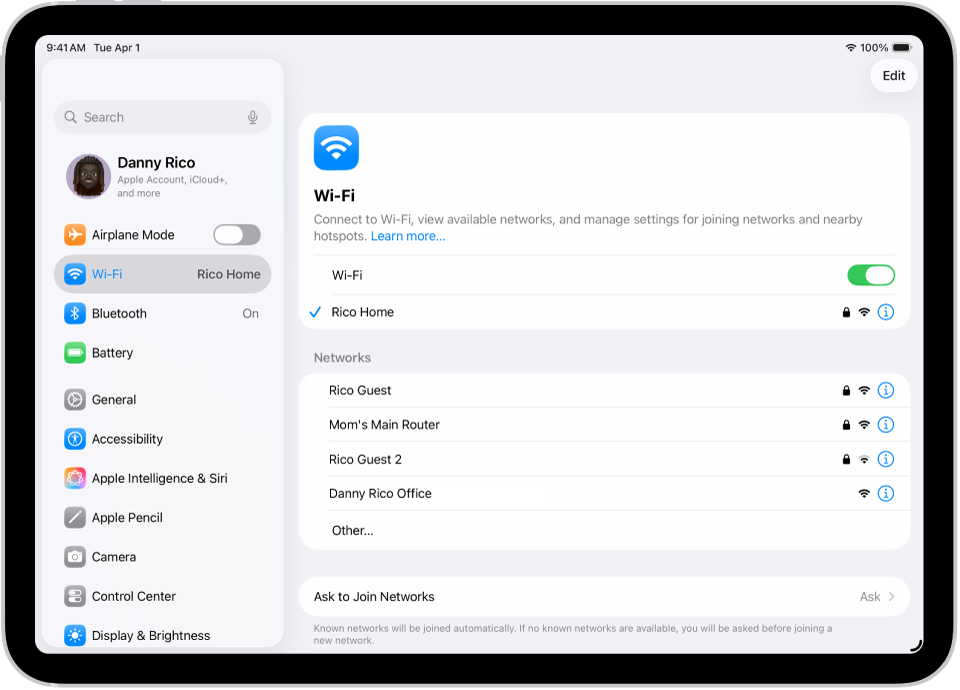
2. On your iPad, open Settings > Wi-Fi
3. Select the same network as your printer
Wait about 30 seconds for the printer to appear in AirPrint’s device list.
Print from Any App on Your iPad
Most apps support printing through the Share menu. Here’s the process:
1. Open the document, email, or photo
2. Tap the Share button (square with upward arrow)
3. Scroll down and tap Print
4. Tap Select Printer and choose your AirPrint device
5. Adjust copies, page range, and other settings
6. Tap Print in the top-right corner
If the Print option doesn’t appear, that specific app doesn’t support printing. Try the Files app, Mail, or Safari instead.
Connect Non-AirPrint Printers with Manufacturer Apps
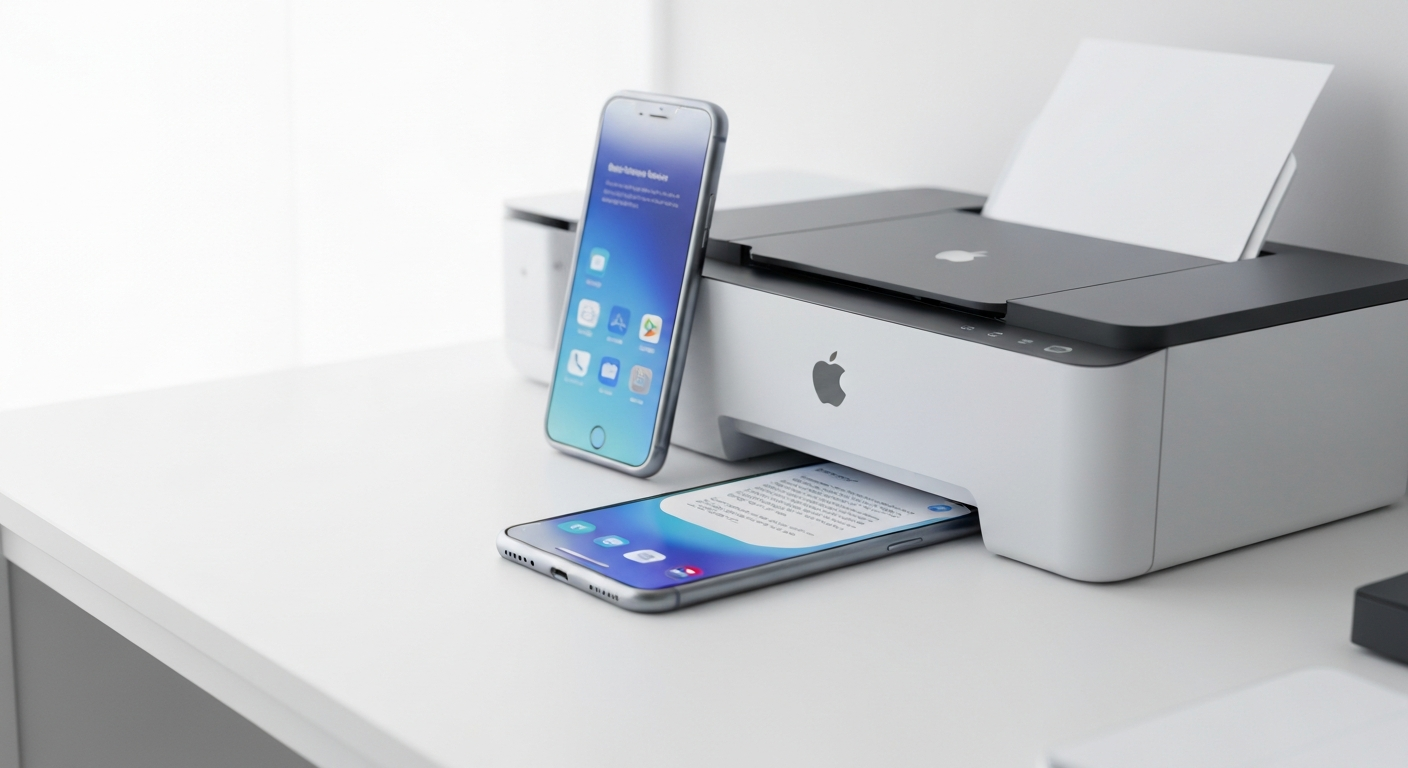
If your printer lacks AirPrint, manufacturer apps can save the day. Several major brands offer free iPadOS apps that handle wireless printing on their own.
Download the Right App for Your Printer Brand
Supported brands include:
– HP Smart for HP printers
– Epson iPrint for Epson models
– Canon PRINT for Canon devices
– Brother iPrint&Scan for Brother machines
Always check the printer manual or manufacturer’s site to confirm iPadOS app availability before downloading.
Set Up Printing Through the App
Once installed, follow these steps:
1. Download the manufacturer’s app from the App Store
2. Open the app and follow the on-screen setup
3. Connect the printer to Wi-Fi if required
4. Use the app to select and print your documents
These apps often include bonus features like ink level monitoring and mobile scanning.
Pro Tip: Some manufacturer apps also support scanning and cloud storage, making them useful even after your initial setup.
Share a USB Printer Using a Mac

Do you have an older USB printer and a Mac sitting nearby? You can turn that Mac into a bridge, letting your iPad print wirelessly through it.
What You’ll Need
- A USB printer
- A Mac running OS X 10.9 Mavericks or later
- Printopia (third-party app, around $19.95)
- Both the Mac and iPad on the same Wi-Fi network
Set Up Printopia on Your Mac
Follow these steps to enable wireless printing:
1. Plug the USB printer into your Mac
2. Install Printopia from the official website
3. Launch Printopia and select your printer
4. On your iPad, open any app and tap Share > Print
5. Your shared printer will appear in the list
Key Limitation: The Mac must stay powered on and connected to Wi-Fi for printing to work.
Pair Bluetooth Printers Directly
Bluetooth printers are common in retail, food service, and mobile businesses. These connect directly to your iPad without Wi-Fi.
Enable Pairing Mode on the Printer
Prepare your printer first:
– Plug it into power and load paper or labels
– Put it in pairing mode (usually by holding a specific button; check the manual)
Connect Through iPad Bluetooth Settings
Now pair the devices:
1. On iPad, go to Settings > Bluetooth
2. Turn Bluetooth on
3. Wait for the printer to appear under Other Devices
4. Tap the printer name to pair
If it doesn’t appear, try restarting both devices, ensuring pairing mode is active, and moving closer to reduce interference.
Configure the Printer in Your App
Many apps require manual setup:
1. Open the app
2. Tap the printer icon in the top-right corner
3. Choose Label Printer or Receipt Printer
4. Select your paired Bluetooth printer
Test the Connection
Verify the setup works:
– Go to the Completed Sales tab (in POS apps)
– Reprint a past receipt or label
– Or use the Test Print option if available
For advanced settings like print density or speed, download the manufacturer’s app from the App Store.
Bridge Old Printers with a Network Print Server

If your printer lacks Wi-Fi and AirPrint, a network print server can bridge the gap. These small devices make non-wireless printers accessible over your network.
Use a Router with USB Printing
Some routers include a USB port that supports printers:
1. Plug the printer into the router’s USB port
2. Access router settings via web browser
3. Enable USB printer sharing
4. Ensure the printer supports IPP (Internet Printing Protocol)
Once enabled, the printer should appear in AirPrint on your iPad.
Add an External Print Server
Dedicated print servers (like IOGEAR or StarTech models) work similarly:
1. Connect the printer to the print server via USB
2. Link the server to your network via Ethernet
3. Power on the device
4. Wait for it to appear on the network
Your iPad will detect it as an AirPrint-compatible printer.
Expert Note: Look for devices labeled “AirPrint-compatible” or “IPP-supported” when shopping for a print server.
Fix Common Connection Issues
Even with the right setup, problems happen. Here are quick fixes for the most common issues.
Printer Won’t Appear in AirPrint
Check these first:
– Both iPad and printer are on the same Wi-Fi network
– Printer is powered on and connected
– Restart both the printer and iPad
– AirPrint is enabled in printer settings
Advanced fixes:
– Reset network settings on iPad (Settings > General > Transfer or Reset iPad > Reset > Reset Network Settings)
– Update printer firmware via the manufacturer’s website
– Temporarily disable firewall or guest network isolation on your router
App Doesn’t Support Printing
If the Print option is missing:
1. Open the file in Files or Safari
2. Tap Share > Print
3. If it works, the original app lacks print support
Use file-sharing to move documents to a compatible app.
Bluetooth Printer Not Detected
If pairing fails:
– Confirm the printer is in pairing mode
– Forget the device on iPad (Settings > Bluetooth > Info icon > Forget This Device), then retry
– Avoid interference from microwaves, cordless phones, or thick walls
Some Bluetooth printers only pair with specific apps, so check app requirements.
Choose the Right Method for Your Printer
Use this quick guide to pick the best connection method:
| Printer Type | Best Method | Why It Works |
|---|---|---|
| AirPrint-enabled | AirPrint | Fastest setup, no extras needed |
| Wireless but no AirPrint | Manufacturer App | Free, easy, brand-specific |
| USB printer with Mac | Printopia + Mac | Turns any USB printer wireless |
| Bluetooth printer | Bluetooth Pairing | No Wi-Fi needed, ideal for mobile |
| Old printer without Wi-Fi | Network Print Server | Makes non-wireless printers network-ready |
Prevent Future Printing Problems
Keep your setup running smoothly with these habits:
Keep All Devices Updated
- Update iPadOS regularly (Settings > General > Software Update)
- Install printer firmware updates from the manufacturer’s website
- Update third-party apps like Printopia or HP Smart
Maintain a Strong Wi-Fi Signal
- Place your router centrally in your home or office
- Avoid thick walls between iPad and printer
- Use the 2.4 GHz band for better range if your printer doesn’t support 5 GHz
Label Your Printers
In offices with multiple printers:
– Rename printers in your router or Printopia settings
– Use clear names like “Office_LaserJet” or “Kitchen_Receipt”
This avoids confusion when sending print jobs.
Frequently Asked Questions About Connecting iPad to Printer
Can you connect an iPad to a printer with a USB cable?
No, direct cable printing from iPad to printer is not supported. All iPad printing must be done wirelessly through Wi-Fi, Bluetooth, or a networked print server.
How do I print from my iPad without AirPrint?
You can use a manufacturer app (like HP Smart or Epson iPrint), pair a Bluetooth printer directly, share a USB printer through a Mac using Printopia, or connect via a network print server that supports IPP.
Why is my printer not showing up on my iPad?
The most common causes are being on different Wi-Fi networks, AirPrint being disabled in printer settings, or the printer lacking AirPrint support. Restart both devices, confirm the same network, and check printer compatibility.
What printers work with iPad?
Any AirPrint-enabled printer works directly. HP, Canon, Epson, Brother, and Lexmark all offer AirPrint-compatible models. Non-AirPrint printers can still work using manufacturer apps or workarounds like a Mac print server.
Do I need an app to print from iPad?
Only if your printer doesn’t support AirPrint. AirPrint works without additional apps. For non-AirPrint printers, downloading the manufacturer’s dedicated app is usually the simplest solution.
Can I print from iPad to a printer on a different Wi-Fi network?
Generally, no. AirPrint and most wireless methods require the iPad and printer to be on the same network. Remote printing requires cloud-based services or specific manufacturer apps with remote access features.
Key Takeaways for Connecting iPad to Printer
AirPrint is the fastest and simplest method for compatible printers, requiring no extra apps or hardware. For non-AirPrint printers, manufacturer apps offer a free, reliable workaround. USB printers can join your wireless network through a Mac running Printopia, while Bluetooth printers pair directly for mobile and retail use.
The most important rule: direct cable printing from iPad is impossible, so always rely on wireless solutions. Match your connection method to your printer type, and always run a test print before relying on the setup for important jobs. With the right approach, your iPad becomes a powerful mobile printing hub for home, office, or on-the-go use.


