

Want to print photos and documents straight from your iPhone to your Canon printer? You are in the right place. With the free Canon PRINT app, wireless printing from iOS devices is faster than ever. No cables, no complicated network settings, just a few taps and you are ready to go.
This guide covers everything you need to know about how to connect Canon printer to iPhone. You will learn how to install the app, pair your devices over Wi-Fi, print from your camera roll, scan documents back to your phone, and fix common connection problems.
Install Canon PRINT on Your iPhone
Download from the App Store
Open the App Store on your iPhone and search for “Canon PRINT.” Look for the app published by Canon Inc. and tap Get to install it. The download takes less than a minute and works on any device running iOS 17.0 or later, including iPhone, iPad, and Apple Vision.
Note: The app was previously called “Canon PRINT Inkjet/SELPHY.” If you have an older version, update to the latest release for full compatibility.
Check Printer Compatibility
Before you begin, confirm your Canon printer works with the app. Supported models include:
- Inkjet printers: PIXMA TS, TR, MG, MX, G, E, GM, PRO, MP, iP, and iX series, plus MAXIFY MB, iB, GX, and BX series
- Laser printers: imageFORCE, imagePRESS, imageRUNNER ADVANCE, Color imageRUNNER, imageRUNNER, Satera, imageCLASS, and i-SENSYS series
- Compact photo printers: SELPHY CP900, CP910, CP1200, CP1300, and CP1500
Some models may not support every feature. If your printer is not listed, visit Canon’s website for firmware updates or alternative apps.
Connect Your Canon Printer to Wi-Fi
Activate Wi-Fi on the Printer
Most modern Canon printers have a dedicated Wi-Fi button on the control panel. Press and hold this button for about three seconds. A blinking blue light means the printer is ready to connect. A solid blue light confirms the printer is already linked to a wireless network.
Join Your Home Network
If your printer is not yet connected to Wi-Fi, you have two simple options:
- Standard setup: Press and hold the Wi-Fi button until the light blinks. Within two minutes, press the Color Start or Black Start button. The printer will search for nearby networks.
- WPS setup: Press the WPS button on your router, then press and hold the printer’s Wi-Fi button for three seconds. The devices will pair automatically.
Pro tip: Keep your printer within 10 to 15 feet of your router. Walls and distance weaken Wi-Fi signals and cause connection drops.
Pair iPhone with Your Canon Printer
Open the App and Add Printer
Launch Canon PRINT and tap Add Printer on the home screen. The app will scan your network for compatible Canon devices. Make sure your iPhone is connected to the same Wi-Fi network as your printer before scanning.
Important: If your router broadcasts both 2.4GHz and 5GHz bands, connect both devices to the 2.4GHz network. Many Canon printers do not support 5GHz.
Select Your Device
When your printer appears in the list, tap its name. The app may display a PIN on your printer screen for verification. Confirm the match, and your devices are now paired. You can also register multiple printers if you have more than one Canon device at home or in your office.
Print from iPhone to Canon Printer
Print Photos and Documents
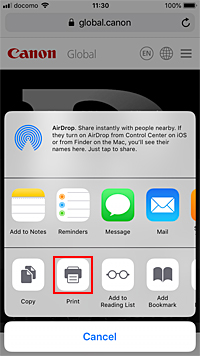
You can print directly from the iOS Share menu without opening the Canon PRINT app:
- Open the photo, email, PDF, or web page you want to print.
- Tap the Share icon (the square with an arrow).
- Scroll down and select Print.
- Tap Select Printer and choose your Canon device.
- Adjust paper size, color, and copy count.
- Tap Print in the top-right corner.
Best for photos: Use the Canon PRINT app for advanced options like borderless prints, index sheets, and custom layouts.
Scan and Check Ink Levels in Canon PRINT

Scan Documents to Your iPhone
The app turns your printer into a wireless scanner. Tap Scan on the home screen, place your document on the scanner glass, and choose a scan type. Save the file to your phone or share it through email, Notes, or cloud storage.
Monitor Ink and Supplies
Tap your printer’s name on the app home screen to view current ink levels for each cartridge. You will see clear indicators for color and black ink. Replace cartridges when levels run low or print quality starts to fade.
Fix Common Connection Problems

Printer Not Found During Setup
If the app cannot detect your printer, try these steps in order:
- Restart all devices: Power off the printer, router, and iPhone. Turn them back on in this order: router, printer, iPhone.
- Recheck the network: Confirm both devices are on the same 2.4GHz Wi-Fi band.
- Reinstall the app: Delete Canon PRINT, redownload it, and try again.
- Update firmware: Open the app, go to Settings, and check for available updates.
Print Jobs Stuck or Failing
When documents refuse to print, work through this checklist:
- Toggle Wi-Fi off and on in iPhone Settings.
- Forget the network and reconnect.
- Reset network settings under Settings > General > Transfer or Reset iPhone > Reset > Reset Network Settings.
Note: Resetting network settings erases saved Wi-Fi passwords. Have them ready before you proceed.
Privacy and Security Tips
Canon PRINT may collect device IDs and usage data for analytics and advertising. To limit tracking on your iPhone, open Settings > Privacy & Security > Tracking and turn off app tracking requests. You can also disable personalized ads under Apple Advertising settings. Your actual print jobs and documents stay on your local network and are not stored on Canon servers.
Avoid connecting your printer to public Wi-Fi in cafes, hotels, or airports. Open networks increase security risks and often block communication between devices.
Keep Your Setup Running Smoothly
Update the Canon PRINT app regularly through the App Store. The latest version (3.7.0) includes performance improvements and support for new printer models. You can also enable automatic updates under App Store > Account > Automatic Downloads.
Frequently Asked Questions About Connecting Canon Printer to iPhone
Do I need a computer to set up my Canon printer with an iPhone?
No. The Canon PRINT app handles the entire setup process wirelessly from your iPhone. You do not need a Mac or PC to pair your devices or start printing.
Why is my iPhone not finding my Canon printer?
The most common cause is a mismatched Wi-Fi network. Make sure both your iPhone and printer connect to the same 2.4GHz band. Restarting the router, printer, and phone often resolves detection issues.
Can I print without Wi-Fi?
Yes, but only through a direct USB connection using a Lightning to USB adapter. Wireless printing requires both devices to share the same Wi-Fi network.
Which Canon printers work with the iPhone app?
The app supports most PIXMA, MAXIFY, imageCLASS, imageRUNNER, Satera, and SELPHY models released in recent years. Check the compatibility list above or visit Canon’s website for the full database.
Does Canon PRINT collect my personal data?
The app collects device IDs and usage data for analytics and marketing. You can limit tracking through your iPhone’s privacy settings. Print jobs themselves remain on your local network.
Is the Canon PRINT app free to use?
Yes. The app is completely free to download from the App Store, with no in-app purchases required for core printing and scanning features.
Final Thoughts on Connecting Your Canon Printer to iPhone
Learning how to connect Canon printer to iPhone is simple when you follow the right steps. Start by installing the Canon PRINT app, link your printer to a 2.4GHz Wi-Fi network, and pair both devices through the app. From there, you can print photos, documents, and web pages straight from your iPhone in just a few taps.
Keep the app updated, place your printer near the router, and use the built-in scanning and ink monitoring tools for the best experience. If you run into problems, a quick restart of all devices usually clears up most connection issues. Once everything is set up, you will enjoy fast, reliable wireless printing every time you need it.


