
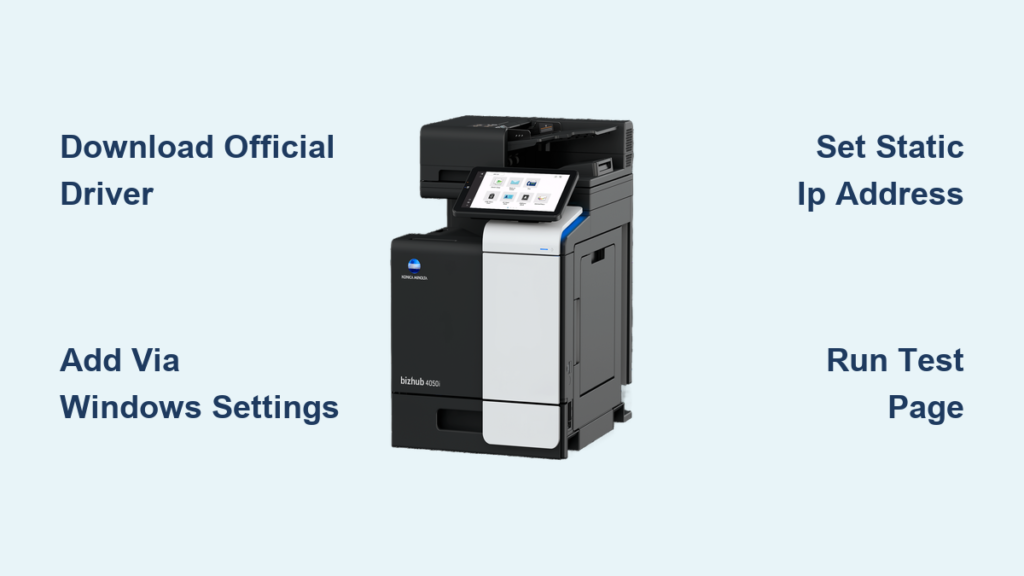
Your Konica Minolta printer is powered on, but nothing prints. Before you blame the hardware, the real culprit is usually a misconfigured connection. Whether you own a bizhub C284e, C220, or another model, learning how to connect to a Konica Minolta printer correctly is the first step toward reliable performance. This guide covers every method available, from driver installation to wireless setup, so you can stop troubleshooting and start printing. You’ll also get proven fixes for the most common connection errors.
Download the Official Konica Minolta Driver
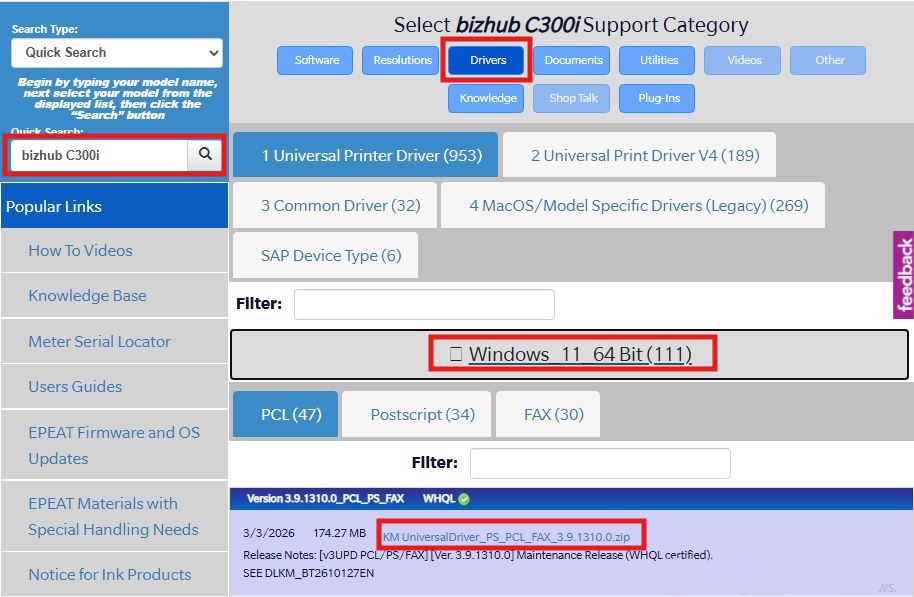
Official drivers unlock every feature your printer offers and prevent compatibility headaches. Always start with this step, especially during first-time setup.
Find and Download Your Driver
- Visit konicaminolta.com
- Click Support or Downloads
- Type your exact model number (e.g., bizhub C284e)
- Select your operating system (Windows 10, Windows 11, or macOS)
- Download the latest driver package available
Run the Installer Correctly
- Locate the downloaded
.zipfile in your Downloads folder - Extract the contents
- Double-click
setup.exe - Accept the license agreement
- Follow the on-screen prompts
Pro Tip: Look for “PCL” drivers for everyday office printing or “PS” (PostScript) drivers for graphic-heavy work.
Add Your Printer Through Windows Settings
After installing the driver, you need to register the printer in Windows so it appears in your print menu.
Access the Printers Menu
- Press Windows + R, type
control printers, and press Enter
Or navigate to Settings > Devices > Printers & scanners - Click Add a printer or scanner
- Wait for Windows to scan for available devices
Complete the Setup
- If your Konica Minolta appears in the list, select it and click Add device
- For USB connections, plug in the cable before starting this step
- For network models, confirm both your computer and printer share the same network
Verify With a Test Page
- Right-click the printer in your devices list
- Choose Printer properties
- Click Print Test Page
✅ Test page printed? You’re ready to go.
❌ No output? Jump to the troubleshooting section below.
Set Up Wireless on the bizhub C284e
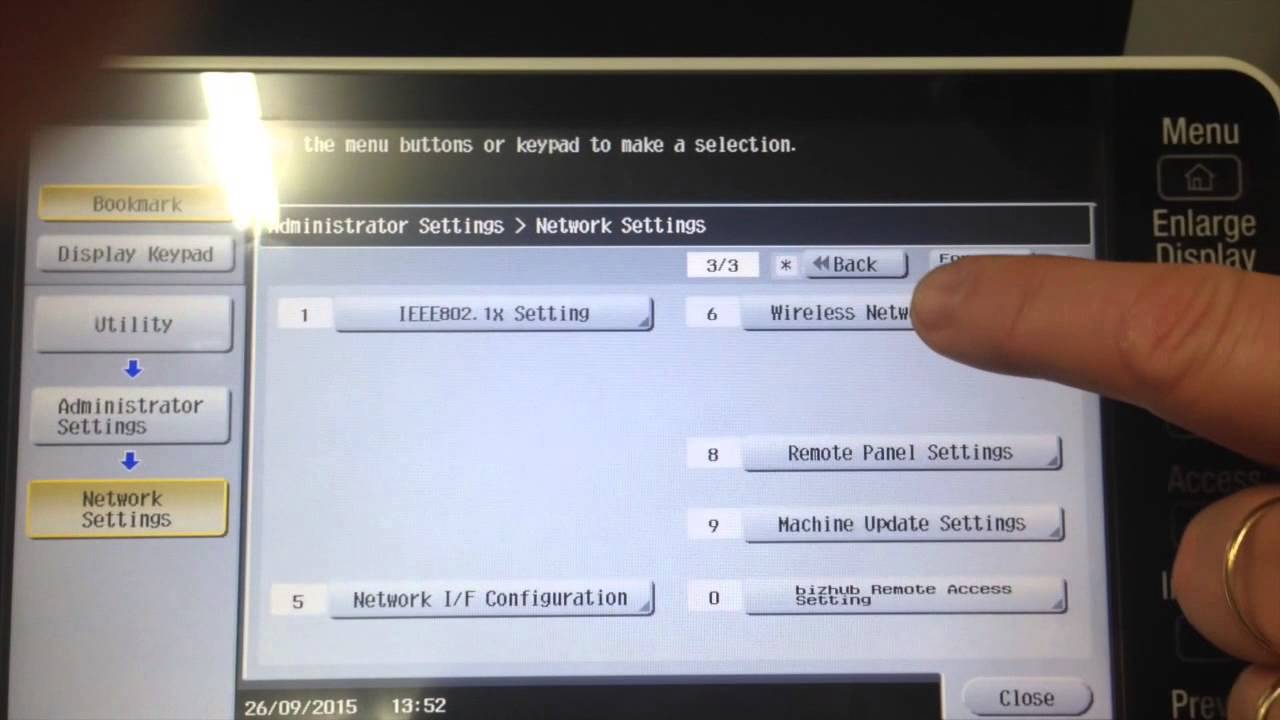
The bizhub C284e supports Wi-Fi, but only if the optional Wireless Network Option hardware is installed. Without it, wireless menus won’t appear.
Open Network Settings
- Tap Utility on the printer’s control panel
- Select Admin Settings (admin login required)
- Choose Network Settings
- Swipe to Page 3 of 3
- Tap Network Interface Configuration
Choose Your Connection Mode
- Wireless Only: Disables Ethernet and uses Wi-Fi exclusively
- Dual-mode: Keeps both wired and wireless active (recommended for offices)
- Wired Only: Disables Wi-Fi entirely
Assign a Static IP Address
- Return to Page 1 of 3
- Go to IP Settings > IP Version 4
- Enter a static IP (example:
192.168.1.105)
– Pick an address outside your router’s DHCP range
– If DHCP runs from.100to.150, choose something like.160
✅ Static IPs prevent connection drops caused by address changes.
Connect to Your Wi-Fi Network
Go back to Page 3 of 3 and select Wireless Network Setting (Option 6).
WPS Method (Fastest)
- Push Button: Press the WPS button on your router, then select this option on the printer within two minutes
- PIN Method: Enter the 8-digit PIN shown on the printer into your router’s WPS settings
Manual Setup (Most Reliable)
- Choose Manual Setting (Option 3)
- Tap Access Point List to scan nearby networks
- Select your SSID or enter it manually
- Swipe to Page 2 of 2
- Type your Wi-Fi password carefully (passwords are case-sensitive)
🔐 Use WPA2 or WPA3 security. Avoid outdated WEP encryption.
Confirm the Connection
- In Wireless Network Setting, tap Connection Status (Option 4)
- Check for these indicators:
– Green status light
– Status reads “Connected” (or “Connection,” a known UI quirk)
– Strong signal (3–4 bars)
– Valid IP address displayed
Troubleshoot Common Connection Problems
Even with proper setup, issues can pop up. Use these targeted fixes to resolve them quickly.
Printer Not Detected in Windows
For USB connections:
– Try a different USB port on your computer
– Swap the cable (some cables are charge-only and won’t transfer data)
– Reinstall the driver
For network printers:
– Confirm both devices are on the same network
– Open Command Prompt and type ping 192.168.1.105 (use your printer’s IP)
– No reply means the printer isn’t reachable
Wi-Fi Keeps Failing
Quick checklist:
– Is the Wireless Network Option installed on your C284e?
– Is the SSID spelled correctly?
– Is the password accurate?
Signal problems:
– Move the printer closer to your router
– Remove obstacles like walls, metal furniture, or microwaves
– Consider a Wi-Fi extender for large spaces
Driver Installation Errors
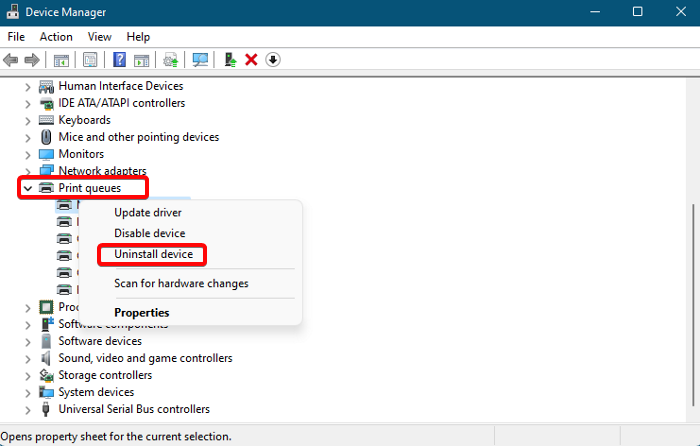
Reinstall through Device Manager:
- Right-click Start and select Device Manager
- Expand the Printers section
- Right-click your Konica Minolta device
- Choose Uninstall device
- Reinstall using the official driver
🧹 Check “Delete the driver software” during uninstall to remove corrupted files.
Connect via Wired Ethernet
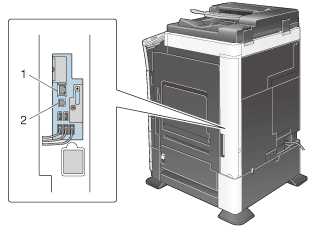
For stable, high-volume printing, Ethernet is the gold standard.
Set Up the Connection
- Connect an Ethernet cable from the printer to your router or switch
- Power on the printer
- Assign a static IP through Network Settings > IP Version 4
- Match the subnet mask (usually
255.255.255.0) - Enter your router’s IP as the default gateway (example:
192.168.1.1)
Add the Printer by IP in Windows
- Open Settings > Printers & scanners
- Click Add device
- Select Add a printer using TCP/IP address
- Enter the printer’s IP
- Choose your installed driver when prompted
💡 Name your printer clearly (like “Sales Floor C284e”) for easy identification.
Best Practices for Long-Term Reliability
Prevent future headaches with these simple habits.
Stick With Official Drivers
Third-party drivers often miss features or cause errors. Download updates every six months directly from Konica Minolta.
Reserve the Printer’s IP Address
Instead of static IP, set a DHCP reservation in your router:
- Log in to your router’s admin page
- Find DHCP Reservation or Address Reservation
- Enter the printer’s MAC address and desired IP
- Save the settings
This combines static IP stability with easy network management.
Monitor Connection Status Monthly
Check Connection Status regularly. Look for IP changes, weak signals, or unexpected disconnections. Reboot the printer if performance slows.
Frequently Asked Questions About Connecting to a Konica Minolta Printer
Why is my Konica Minolta printer not connecting to my computer?
Connection failures usually stem from three causes: an outdated driver, a loose or faulty USB cable, or mismatched network settings. Reinstall the official driver, test with a different cable, and confirm both devices share the same network.
How do I find my Konica Minolta printer’s IP address?
Access the printer’s control panel, go to Utility > Admin Settings > Network Settings, and check IP Version 4 on Page 1. The current IP address is displayed there.
Do all Konica Minolta printers support wireless?
No. Wireless capability requires specific hardware. For example, the bizhub C284e needs the optional Wireless Network Option installed. Check your model’s specifications before attempting wireless setup.
Can I connect my Konica Minolta printer without installing software?
Yes, you can add the printer through Windows Settings if a generic driver works. However, official Konica Minolta drivers provide full feature access and better performance.
What should I do if the test page won’t print?
Start by confirming physical connections. For network printers, ping the IP address to check reachability. If the ping fails, restart both the printer and router. If the ping succeeds, reinstall the driver through Device Manager.
Is WPA2 better than WEP for my printer’s Wi-Fi?
Yes. WPA2 and WPA3 use modern encryption that protects your network. WEP is outdated and vulnerable to security breaches. Always choose WPA2 or WPA3 when configuring wireless security.
Final Takeaways for Connecting Your Konica Minolta Printer
Connecting your printer successfully comes down to three essentials: the official driver, correct network settings, and proper verification. For USB and Ethernet setups, physical connections and driver installation handle most of the work. For wireless models like the bizhub C284e, take time to assign a static IP and confirm strong signal strength. When issues arise, work through the troubleshooting checklist methodically. Your next step: pick your connection method, install the official driver, and run a test page to confirm everything works.


