
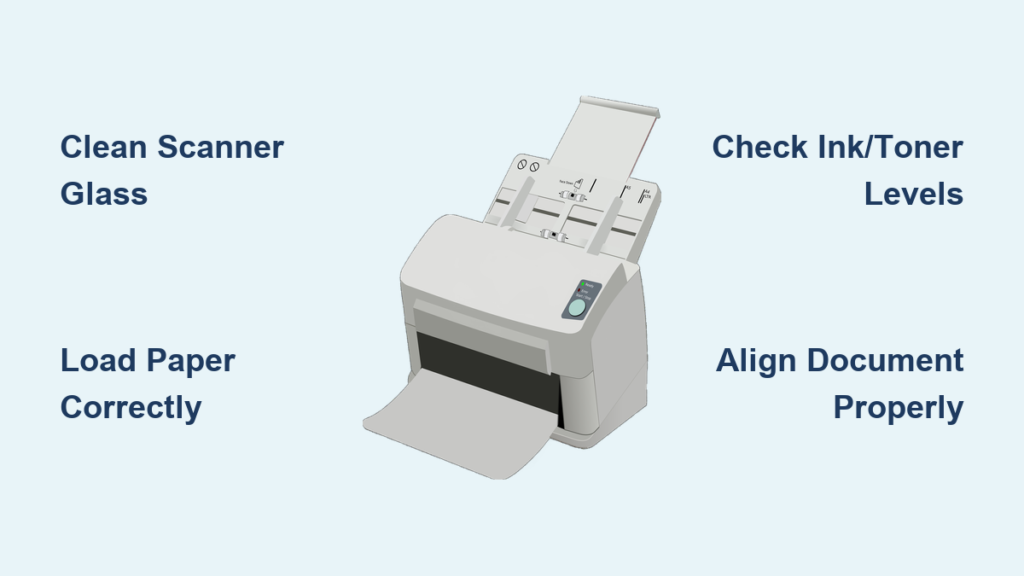
You stand before a silent machine with a document in hand, needing immediate duplicates but unsure which button to press first. Knowing exactly how to make copies on a printer transforms this stressful moment into a quick, effortless task for your home or office.
This guide reveals the precise steps to generate perfect copies without a computer or complex setup. You will learn essential preparation checks, brand-specific workflows, and troubleshooting tricks to fix blurry images or paper jams instantly.
Prepare Your Printer for Successful Copying

Proper preparation prevents wasted paper and ensures your final output looks professional and clear. Skipping these initial checks often leads to jams, streaks, or misaligned text that requires re-printing.
Verify Power and Load Paper Correctly
Ensure your device is plugged in and fully powered on before attempting any operations. Open the input tray and fan your stack of paper to separate sheets and prevent multiple feeds. Adjust the side guides so they touch the paper edges gently without causing the sheets to curl. Most standard jobs require letter-size or A4 paper, so confirm your tray matches your document needs.
Clean the Scanner Glass Surface
Lift the main lid to expose the glass scanning bed where you place your original document. Inspect the surface closely for dust particles, fingerprint smudges, or dried correction fluid residue. Wipe the glass gently using a microfiber cloth slightly dampened with water to remove any debris. Never spray liquid directly onto the glass as it can drip inside and damage internal electronics.
Check Ink and Toner Levels
Low consumable levels result in faint text or missing colors on your duplicated pages. Look at the control panel display for warnings such as “Low Ink” or “Replace Toner.” If your printer uses toner, remove the cartridge and shake it horizontally to redistribute the powder evenly. Replace empty cartridges immediately to avoid damaging the drum unit or print head.
Execute the Copy Process Step by Step

Once your machine is prepped, follow this universal workflow to create high-quality duplicates efficiently. While button placement varies by model, the logical sequence remains consistent across all brands.
Position Your Document Properly
Place your original page face-down on the scanner glass for single-sheet jobs. Align the top edge of the paper with the arrow or corner marker usually found in the top-left section. If you have a multi-page document and an Automatic Document Feeder (ADF), load the pages face-up into the top tray instead. Close the lid firmly but gently to ensure the document lies flat against the glass.
Activate the Copy Function
Locate the button labeled Copy on the control panel, often depicted by two overlapping sheets of paper. Press this button once to wake the scanning unit and access the copy menu. The screen will illuminate with default settings showing the number of copies and current color mode. This step initiates the internal camera system ready to capture your image.
Customize Your Copy Settings
Use the navigation arrows or touchscreen to adjust parameters before printing begins. Common adjustments include:
- Quantity: Enter the desired number of duplicates using the numeric keypad.
- Color Mode: Select “Color” for photos or “Black & White” for text documents.
- Density: Increase brightness for dark originals or decrease it for faint text.
- Zoom: Choose a percentage like 50% or 200% to resize the output.
- Paper Source: Select the specific tray if your printer has multiple options.
Review your selections carefully to ensure they match your desired outcome.
Start the Copy Job
Press the green Start button or the icon resembling a play triangle to begin the process. The scanner light will sweep across the glass while the machine prints your duplicate. Wait patiently until the page ejects completely before lifting the lid or removing the original. If using an ADF, the machine may automatically pull the next page to continue the job.
Brand-Specific Copying Instructions

Major manufacturers design their interfaces differently, requiring slight variations in how you operate them. Understanding these nuances helps you navigate HP, Canon, Epson, and Brother machines with confidence.
HP Printers: Touchscreen Navigation
HP OfficeJet and LaserJet models typically rely on a central touchscreen interface for all functions. Press the Copy icon, then choose between Black or Color to begin your setup. Use the Reduce/Enlarge feature to fit content perfectly onto a single page without cutting off edges. HP devices often default to standard quality, so select Best mode when duplicating photos or graphics.
Canon PIXMA: Auto Detection Features
Canon PIXMA series printers often include an Auto Copy mode that analyzes your document type automatically. After pressing Copy, the machine scans the page and decides whether to optimize for text or photographs. Select the 1-Sheet 2-Sided option if you need to create double-sided duplicates from single-sided originals. Use the Borderless setting to eliminate white margins when copying images.
Epson WorkForce: Rapid Multi-Copy Jobs
Epson models feature dedicated Start Copy Black and Start Copy Color buttons for immediate single-touch operation. Load multiple pages into the ADF and press the corresponding color button to start a batch job. The display screen often provides an estimated time remaining for large copying tasks. This efficiency makes Epson ideal for offices handling high volumes of documents daily.
Brother Machines: Advanced Layout Options
Brother laser printers excel at office tasks with features like N-in-1 Copy to shrink multiple pages onto one sheet. Access this under the Layout menu to save paper when duplicating presentations or slides. For ID cards, engage the ID Copy mode which prompts you to scan the front, flip the card, and scan the back on one page.
Troubleshoot Common Copying Problems

Even simple tasks can encounter errors, but most issues have quick fixes you can perform yourself. Addressing these problems immediately saves time and prevents further damage to your device.
Fix Blurry or Faded Output
Blurry copies usually indicate a dirty scanner glass or a document that was not lying flat. Clean the glass thoroughly and ensure the lid closes completely during the scan. If the image appears too light, access the settings menu and increase the Density or Darkness level. Laser printer users should check if the toner cartridge is nearing depletion.
Remove Streaks and Lines
Vertical lines running down your page suggest a scratch or stubborn spot on the scanner glass. Wipe the glass again with a lint-free cloth and inspect for permanent damage. Horizontal streaks often point to a dirty drum unit in laser printers or clogged nozzles in inkjets. Run the Clean Print Head utility found in the maintenance menu to clear blockages.
Resolve Paper Jams
Open the designated access door and gently pull the jammed paper in the direction of the paper path. Never pull backwards or yank the paper as this can tear it and leave fragments inside. Check the paper tray to ensure you have not overfilled it beyond the maximum fill line. Inspect the rollers for small bits of torn paper that might cause recurring jams.
Correct Cut-Off Edges
If your content gets cut off, the original document was likely misaligned on the scanner bed. Slide the paper firmly against the top-left corner guide before closing the lid. Disable any Auto Fit or Borderless features if you need to preserve exact margins. Set your zoom level to 100% to ensure the output size matches the original exactly.
Optimize Copy Quality and Efficiency
Small adjustments to your workflow can significantly improve the speed and quality of your duplicating tasks. These expert strategies help you get the most out of your equipment.
Utilize Quick Copy Modes
Many modern printers offer a Quick Copy setting that bypasses preview scans for faster production. This mode is perfect for high-volume text jobs where speed matters more than perfect color calibration. Engaging this feature reduces the wait time between each page significantly.
Save Custom Default Settings
Save your preferred brightness, paper size, and color settings as the new default profile. Look for a Save Settings or Set as Default option in the copy menu after making your adjustments. This eliminates the need to reconfigure the machine for every single job you run.
Enable Duplex Copying
Switch to double-sided copying to reduce paper consumption and create professional booklets. If your printer lacks automatic duplexing, follow the on-screen prompts to manually flip and re-feed pages. Some models allow 2-Sided to 1-Sided copying to compile booklet pages onto single sheets.
Maintain Your Printer for Longevity
Regular maintenance keeps your printer running smoothly and ensures consistent copy quality over time. Ignoring these steps can lead to costly repairs or premature replacement of the unit.
Clean Scanner Glass Weekly
Wipe the scanner glass with a dry microfiber cloth once a week to remove dust accumulation. For heavy-use environments, clean the glass biweekly with a mixture of water and isopropyl alcohol. This prevents specks from appearing on every copy you make.
Update Firmware Regularly
Check the settings menu or manufacturer app for available firmware updates. These updates often improve copy speed, stability, and the responsiveness of the touch interface. Keeping software current ensures compatibility with new features and security patches.
Replace Worn Components Promptly
Swap out worn rollers, damaged drums, or expired cartridges as soon as errors appear. Delaying replacement can degrade copy quality and strain other mechanical parts. Follow the maintenance schedule in your user manual for optimal performance.
Frequently Asked Questions About Making Copies
Can I make copies without a computer?
Yes, you can make copies directly from the printer using only the control panel and scanner. Simply place your document on the glass, select your settings, and press start to print duplicates immediately.
Why are my copies coming out black?
A completely black copy usually means the scanner lid was open during scanning or the document was placed face-up. Ensure the document is face-down on the glass and the lid is closed tightly before starting.
How do I copy both sides of an ID card on one page?
Use the ID Copy feature found on many Brother, HP, and Canon models to scan both sides onto a single sheet. If your printer lacks this, copy the front, then manually place the card again to copy the back on the same page.
What causes streaks on my copied pages?
Streaks are typically caused by dirt on the scanner glass or a depleted toner cartridge. Clean the glass thoroughly and check your ink levels to resolve vertical or horizontal lines.
Can I enlarge or reduce the size of my copy?
Yes, most printers allow you to zoom in or out using the Zoom or Resize setting in the copy menu. You can select preset percentages like 50% or 200% or enter a custom value.
Key Takeaways for Making Copies on a Printer

Mastering how to make copies on a printer requires only basic preparation and knowledge of your specific model’s interface. By keeping your scanner glass clean, aligning documents correctly, and adjusting settings like density and zoom, you ensure professional results every time.
Remember to troubleshoot simple issues like streaks or jams by cleaning components and checking paper alignment. Take action today by testing these steps on your current machine to streamline your workflow and eliminate copying errors.


