

Is your Brother printer refusing to print, stuck with a paper jam, or failing to connect to your network? You are not alone. Millions of users rely on Brother printers for their speed and reliability, yet even these durable machines encounter hardware glitches or software hiccups that disrupt daily workflows.
This comprehensive Brother printer troubleshooting guide delivers proven solutions for common hardware, software, and connectivity issues. You will learn clear, step-by-step fixes for toner errors, scanning failures, and Wi-Fi dropouts without needing technical jargon or expensive repairs.
Resolve Paper Jams Safely and Effectively
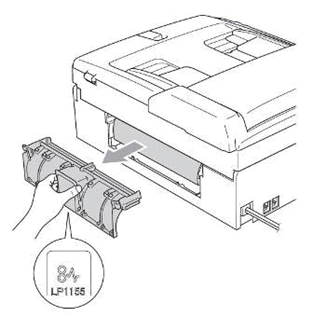
Paper jams are frequent issues that can damage internal components if handled incorrectly. Follow these specific steps to clear blockages and prevent recurrence.
Locate and Remove Jammed Paper Safely
Power off the printer immediately to ensure safety and prevent mechanical damage. Open the front cover or rear panel to locate the stuck paper, then gently pull it out in the direction of the paper path using both hands. Never force the paper, as tearing it can leave fragments that cause future jams.
Inspect for Residual Paper Fragments
Small scraps left inside the machine often trigger repeated error messages. Use a flashlight to inspect the paper feed area, output tray, and drum unit for any remaining pieces. Remove all debris carefully to ensure the paper path is completely clear before restarting.
Prevent Future Paper Jams
Proper loading techniques significantly reduce the risk of future blockages. Adopt these habits for smooth operation:
- Fan paper stacks before loading to separate sheets and prevent multiple feeds.
- Adjust paper guides snugly against the paper edges without bending them.
- Avoid overfilling the tray beyond the maximum capacity mark.
- Use recommended paper types and weights specified in your user manual.
- Clean feed rollers monthly with a dry, lint-free cloth to maintain grip.
Improve Print Quality Instantly

Blurry text, streaks, or faded output often stem from simple maintenance oversights. Diagnose and fix these quality issues quickly.
Fix Faded or Light Prints
Faded prints usually indicate low toner levels or incorrect density settings. Check your ink or toner levels via the control panel and replace cartridges if necessary. Increase the print density in your printer properties or run a cleaning cycle to clear clogged nozzles.
Eliminate Streaks and Lines on Pages
Vertical streaks often point to a dirty drum unit or excess toner buildup. Clean the printheads or toner drum to remove debris causing the lines. If cleaning fails, inspect the drum for physical damage and replace the unit if scratches are visible.
Correct Color Inconsistencies
Color mismatches require calibration to ensure accurate reproduction. Run the printer’s built-in calibration tool to align colors properly. Ensure you are using high-quality, compatible ink or toner cartridges, as劣质 supplies often cause color shifts.
Restore Wireless Network Connectivity
Connectivity problems prevent printing from computers and mobile devices. Use these steps to reconnect your Brother printer to the network.
Fix Printer Not Detected on Network
When your computer cannot find the printer, start by checking physical connections. Ensure Ethernet cables are secure or verify the Wi-Fi signal strength is stable. Restart your router, printer, and computer in that specific order to refresh the network handshake.
Reconnect to Wi-Fi Network
If the printer lost its connection, access the control panel to reconnect manually. Navigate to the network settings, select your SSID, and enter the password again. Confirm the IP address matches your network subnet by printing a network configuration page.
Adjust Firewall and Driver Settings
Security software sometimes blocks printer communication. Temporarily disable your firewall or antivirus to test the connection. If this works, adjust your security settings to allow printer traffic and reinstall the latest drivers from the official website.
Resolve Ink and Toner Cartridge Errors

Cartridge recognition issues and low warnings can halt production. Here is how to address them effectively.
Address Low Toner Warnings
Printers often warn of low toner before the cartridge is actually empty. Purchase genuine replacement cartridges from a trusted supplier to ensure compatibility. Install the new cartridge following the manual instructions to reset the internal counter.
Fix Printer Not Recognizing Cartridge
If the display shows “No Cartridge,” remove the unit and check for protective tape. Clean the gold contacts on the cartridge and inside the printer with a lint-free cloth. Reinstall the cartridge firmly and restart the printer to see if recognition improves.
Stop Toner Smearing on Documents
Smudged text suggests the fuser is not heating properly or the toner is old. Replace old cartridges that may have degraded over time. If the issue persists with new toner, the fuser unit may need professional replacement to bond ink to paper correctly.
Troubleshoot Scanning and Fax Failures

Scanning and faxing functions rely on specific connections and settings. Fix these common failures with targeted steps.
Fix Scanner Not Working
Connection issues often cause scanner failures. Verify that your printer and computer share the same network or try a different USB port and cable. Update your scanner drivers from the support site and clean the scanner glass to remove dust affecting image quality.
Improve Poor Scan Quality
Blurry or streaky scans usually result from dirty glass or low resolution settings. Wipe the scanner glass with a soft cloth and increase the DPI setting in your scanning software. If problems continue, check the automatic document feeder rollers for debris.
Resolve Fax Sending and Receiving Issues
Fax failures often stem from phone line problems. Ensure the line is connected to the correct “Line” port and not the “Ext” port. Test the line with a standard phone to confirm a dial tone exists. Power cycle the printer and check that auto-receive mode is enabled.
Diagnose Driver and Software Failures
Software glitches can make a functional printer appear offline. Reinstalling drivers often resolves these conflicts.
Reinstall Brother Printer Drivers
Corrupted drivers are a leading cause of printing errors. Uninstall the current printer from your device settings completely. Download the full driver package matching your model and operating system from the official website. Run the installer and follow the prompts to reconnect.
Clear Stuck Print Jobs
Stuck documents in the queue prevent new jobs from printing. Access the print spooler on your computer and cancel all pending documents. Restart the print spooler service or reboot your computer to clear the memory completely.
Perform Regular Maintenance Tasks
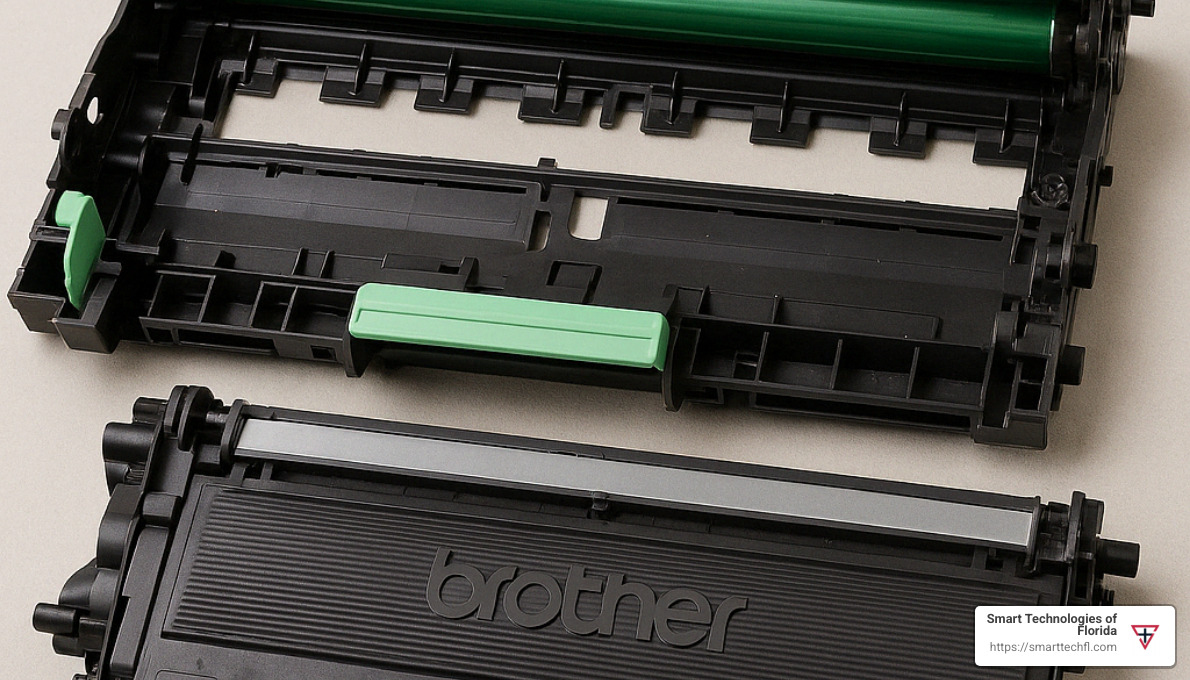
Preventive maintenance extends the life of your printer and reduces downtime.
Clean Internal Components Regularly
Dust and toner residue accumulate over time. Wipe paper feed rollers monthly and clean the scanner glass every six months. Replace the drum unit after approximately 10,000 pages or when print quality declines noticeably.
Update Firmware for Performance
Outdated firmware can cause bugs and connectivity drops. Visit the support website to check for firmware updates specific to your model. Download and install updates via USB or network connection to ensure optimal performance.
When to Contact Brother Customer Support
Some hardware failures require professional intervention beyond basic troubleshooting.
Check Warranty Status and Coverage
Verify if your printer is still under warranty by entering the serial number on the website. Warranties typically cover manufacturing defects but exclude damage from misuse or non-genuine supplies. Contact support with your model and serial numbers ready for assistance.
Access Online Help Resources
The Brother Online Help Center offers interactive guides and FAQs. Search by your model number to find specific manuals and video tutorials. Use the live chat feature during business hours for real-time guidance on complex issues.
Request Professional Service
If self-help steps fail, initiate a service request through the support portal. Prepare your printer for transport by removing loose cartridges and packing it securely. Authorized service centers will repair or replace the unit based on warranty terms.
Frequently Asked Questions About Brother Printer Troubleshooting
Why does my Brother printer say it is offline?
This often results from connectivity glitches or incorrect driver settings. Restart your router and printer, then check that the printer status is set to “Use Online” in your computer’s printer settings.
How do I clear a paper jam without tearing the paper?
Power off the device, open all accessible covers, and gently pull the paper in the direction of the feed path using both hands. Avoid pulling at an angle to prevent tearing.
What causes streaks on printed pages?
Streaks usually indicate a dirty drum unit, clogged printheads, or low toner. Run a cleaning cycle from the maintenance menu or replace the drum and toner cartridges if cleaning fails.
Why won’t my Brother printer connect to Wi-Fi?
Ensure the printer supports your network frequency (2.4GHz vs 5GHz) and that the password is correct. Reinstalling the wireless driver or using the WPS button on your router can also resolve connection drops.
How often should I replace the drum unit?
Drum units typically last for about 10,000 to 15,000 pages depending on the model. Replace the unit when you notice declining print quality, streaks, or when the printer displays a “Replace Drum” message.
Key Takeaways for Effective Brother Printer Troubleshooting
Most Brother printer issues resolve quickly with basic maintenance and correct settings. Regular cleaning of rollers and drums prevents the majority of paper jams and print quality defects. Always use genuine supplies and update drivers to maintain optimal performance.
Start your diagnosis with a simple power cycle and connection check before attempting complex repairs. If hardware failure is suspected, consult your warranty status and contact Brother support for professional service options.




