

If your Brother printer is not printing or connecting as expected, you are not alone. Millions of users rely on Brother DCP, HL, and MFC series models for fast performance but only when set up correctly. This guide walks you through every essential step to use your Brother printer efficiently from unboxing to wireless printing.
We will cover setup, printing, scanning, copying, and network configuration using official user guide data. You will learn how to print from any device, scan documents to email or PDF, configure Wi-Fi, and maintain your machine for long-term reliability without frustration.
Load Paper Correctly to Prevent Jams
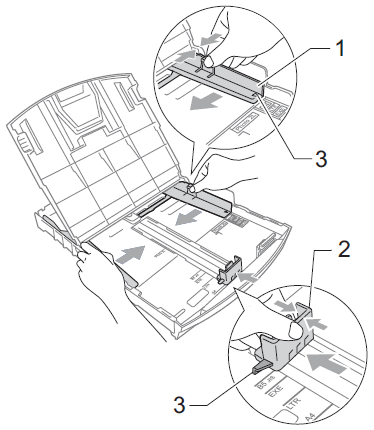
Proper paper handling prevents jams and ensures clean prints. Your Brother printer supports multiple paper types, but loading them correctly is critical for smooth operation.
Use the Main Paper Tray
- Pull out the paper tray completely.
- Adjust the side and rear guides to fit your paper size like Letter or A4.
- Fan the stack of paper to prevent sheets from sticking together.
- Load up to 250 sheets of plain paper with the print side facing down.
- Push the tray back in until it clicks securely into place.
Tip: Do not exceed the paper fill line. Use only recommended paper types like plain, recycled, thin, or thick paper up to 220 g/m².
Load Paper in Manual Feed Slot
Use this slot for envelopes, labels, or thick paper that does not fit in the main tray.
- Open the manual feed slot cover located on the front of the machine.
- Insert one sheet at a time with the print side down and leading edge first.
- Gently push the paper until the printer rollers grab it automatically.
Warning: Never insert multiple sheets or force the paper. Misfeeds may occur if you ignore this step.
Connect to Wi-Fi Network Wirelessly
Wireless connectivity lets you print from laptops, phones, and tablets. Use one of these proven methods to get online quickly.
Use WPS One-Touch Setup
If your router supports Wi-Fi Protected Setup (WPS), this is the fastest method.
- Press and hold the WLAN button on the printer control panel for 2 seconds.
- Within 2 minutes, press the WPS button on your wireless router.
- Wait for the Wi-Fi light to stop blinking, which may take up to 2 minutes.
Success sign: The LCD screen shows “Connected” or displays a solid WLAN indicator light.
Set Up Wi-Fi Using Control Panel
Use this method for networks without a WPS button or for hidden SSIDs.
- Press Menu then navigate to Network > WLAN > Setup Wizard.
- Select your network name (SSID) from the displayed list.
- Enter your Wi-Fi password using the on-screen keyboard or dial pad.
- Confirm the settings and wait for the connection to establish.
Need help? Print a Network Configuration Report via Menu > Report > Network Report to verify your IP address.
Install Brother Printer Drivers on PC

To print from your computer, you must install the correct drivers based on your operating system.
Install on Windows Systems
- Visit the official Brother support website.
- Enter your specific model number like MFC-L2720DW.
- Download the full driver package known as MFL-Pro Suite.
- Run the installer file and follow the on-screen prompts carefully.
- Choose Wireless or USB connection when the software asks.
Pro Tip: During installation, enable ControlCenter4 for easy scanning and status monitoring directly from your desktop.
Install on Mac Computers
- Go to Apple Menu > System Settings > Printers & Scanners.
- Click the + symbol to add a new printer.
- Select your Brother model from the list if detected over Wi-Fi or USB.
- macOS will automatically install the driver or prompt you to download it.
Note: If the printer is not detected, download the driver manually from the Brother Mac support page.
Print from Windows or Mac Devices
Once installed, printing is simple, but knowing advanced settings helps save toner and paper.
Print a Basic Document on Windows
- Open your file such as Word or PDF.
- Press Ctrl + P to open the print dialog box.
- Select your Brother printer from the dropdown list.
- Choose the number of copies, page range, and layout preferences.
- Click Print to start the job.
Change Print Settings on Mac
- Open the document and press Cmd + P.
- Click Show Details if the full options are hidden.
- Adjust settings like Two-Sided, Scale, Media Type, and Resolution.
- Select 600 dpi for standard text or 1200 dpi for high-quality graphics.
Save time: Create a custom print profile for frequently used settings like double-sided or toner save mode.
Use Advanced Printing Features
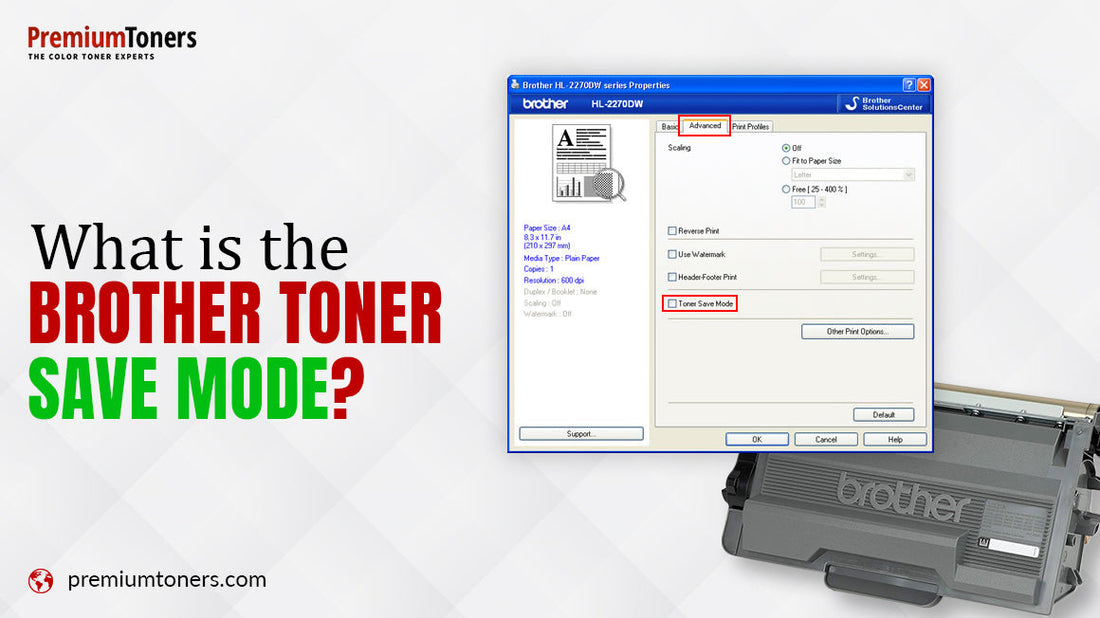
Maximize efficiency with built-in Brother printer functions designed for business and home use.
Print in Toner Save Mode
This mode reduces toner usage by lowering density, which is ideal for drafts.
On Windows:
* Open print dialog and select Properties.
* Go to the Paper/Quality tab.
* Check the box for Toner Save Mode.
On Mac:
* In the print dialog, select Media & Quality.
* Choose Toner Save under the Print Mode section.
Warning: This mode is not recommended for final documents or photos requiring high contrast.
Print Multiple Pages per Sheet
Fit 2, 4, or more pages on one sheet to save paper.
Steps for Windows:
* Open Print dialog > Properties > Layout tab.
* Select 2 in 1 or 4 in 1 from the options.
* Choose page order as horizontal or vertical.
Best for: Creating handouts, note-taking sheets, or saving paper on internal drafts.
Enable Double-Sided Printing
Save paper automatically when your model supports duplex printing.
Windows:
* Print dialog > Properties > Layout tab.
* Select Print on Both Sides if available.
* Choose Flip on Long Edge for standard documents.
Mac:
* In the print dialog, change Two-Sided from Off to On.
Check: If the option is grayed out, verify your specific printer model supports automatic duplex.
Scan Documents Easily to PDF
Your Brother machine can scan to email, PDF, cloud, or computer with ease.
Scan Using the Control Panel
- Place your document face-down on the scanner glass or in the ADF.
- Press the Scan button on the control panel.
- Select your destination like Scan to Email or Scan to Folder.
- Press Color or Black and then Start to begin.
Setup Required: You must configure scan profiles via ControlCenter4 on Windows or ControlCenter2 on Mac first.
Scan to PDF on Windows
- Open ControlCenter4 from your desktop or Start menu.
- Click Scan and then select Scan to File.
- Choose your file format such as PDF or JPEG.
- Select color or black and white and click Scan.
Bonus: Use Advanced Mode to scan directly to SharePoint or convert to editable Word text.
Scan on Mac Using Image Capture
- Open Image Capture found in the Applications folder.
- Select your Brother printer from the device list.
- Choose scan mode, color settings, and resolution.
- Click Scan and save the file as a PDF.
Troubleshooting: If not listed, ensure the printer is on the same Wi-Fi network and drivers are installed.
Copy Documents in Seconds
No computer is needed to use the all-in-one copying feature of your machine.
Make a Basic Copy
- Place the document on the scanner glass or load it into the ADF.
- Press Copy on the control panel.
- Use the + or – buttons to adjust the number of copies up to 99.
- Press Start in either black or color.
Adjust settings: Press Menu > Copy > Copy Settings to change contrast, zoom, or N-in-1 options.
Send and Receive Faxes
Faxes remain vital for legal, medical, and government communications.
Send a Fax from the Machine
- Load your document in the ADF or place it on the scanner glass.
- Press the Fax button.
- Dial the number using the keypad or select from the address book.
- Press Start to send the document.
Shortcut: Store frequent numbers in Speed Dial or the Address Book for faster access.
Receive Faxes Automatically
Set your machine to answer incoming calls without manual intervention.
- Press Menu > Fax > Receive Mode.
- Choose FAX ONLY to always answer as a fax.
- Select TEL/FAX to let the machine detect fax or voice calls.
- Choose MANUAL if you answer all calls yourself.
Ring Delay: Set how many rings occur before the machine answers, such as 4 rings.
Troubleshoot Common Issues
Fix problems fast with these proven solutions from the user guide.
Printer Not Responding Over Wi-Fi
Try this fix sequence:
1. Reboot both your router and the printer.
2. Print a Network Configuration Report to check status.
3. Confirm the IP address is assigned and not starting with 169.254.
4. On Windows, use the Network Connection Repair Tool in MFL-Pro Suite.
Still not found? Temporarily connect via USB to reinstall drivers and reset network settings.
Paper Jams Clear Them Safely
If paper jams occur:
1. Turn off the printer immediately.
2. Open the front cover and gently pull out jammed paper without tearing.
3. Check the paper tray, output area, and back panel.
4. Close all covers and power the machine back on.
Never use sharp objects to remove paper. Damaging internal rollers voids your warranty.
Poor Print Quality Fixes
Clean these parts to restore quality:
* Corona wire: Slide the cleaning lever inside the toner unit 5–6 times.
* Scanner glass: Wipe with a dry, lint-free cloth.
* Paper rollers: Run Clean Pick-up Rollers via the maintenance menu.
Test: Print a test page via Menu > Maintenance > Test Print to verify results.
Maintain Your Brother Printer

Regular upkeep extends the life of your machine and prevents unexpected downtime.
Replace Toner Cartridge
When the “Toner Low” message appears, follow these steps.
- Open the front cover of the printer.
- Remove the old toner cartridge assembly.
- Shake the new toner side-to-side 5–6 times to distribute powder.
- Insert the new unit until it clicks into place.
- Close the front cover securely.
Reset: If the message persists, reset the toner counter via Menu > Machine > Clear > Toner.
Replace Drum Unit
Replace the drum every 3–4 toner cartridges or when streaks appear.
- Open the front cover and remove the toner and drum assembly.
- Press the green lock lever to release the toner from the old drum.
- Insert the toner into the new drum unit until it locks.
- Slide the assembly back into the printer.
Reset Counter: Press Menu > Machine > Clear > Drum after replacement.
Secure Printer Settings
Prevent unauthorized use or data leaks with built-in security features.
Enable Setting Lock
- Press Menu > Security > Setting Lock.
- Set a 4-digit password using the keypad.
- Turn Setting Lock On to activate protection.
Result: Users must enter the password to change network or fax settings.
Use TX Lock for Fax Security
Stop unauthorized faxes from being sent from your machine.
- Set a TX Lock Password in the security menu.
- Enable TX Lock On.
- Only authorized users with the code can send faxes.
Final Tips for Best Performance
Mastering how to use your Brother printer means leveraging its full potential. You now know how to handle setup, daily use, and troubleshooting like a pro.
- Update firmware regularly via Web Based Management.
- Use genuine Brother toner to avoid leaks or drum damage.
- Print a configuration report monthly to monitor usage.
- Enable Deep Sleep Mode to save energy automatically.
Refer to the official Brother online manual for model-specific details or contact customer support for further assistance.
Frequently Asked Questions About How to Use Brother Printer
How do I connect my Brother printer to Wi-Fi without a cable?
Press Menu > Network > WLAN > Setup Wizard on the printer. Select your network name and enter the password using the control panel keys.
Why is my Brother printer not printing even though it is connected?
Check if the printer status is “Offline” in your computer settings. Restart the printer and router, then ensure the correct driver is selected as default.
How do I scan a document to email on my Brother printer?
Configure the scan-to-email profile in ControlCenter4 (Windows) or ControlCenter2 (Mac). Then press Scan on the printer and select Scan to Email.
What does “Drum End Soon” mean on my Brother printer?
This message indicates the drum unit is nearing the end of its life. You should order a replacement drum unit and reset the counter after installation.
Can I print double-sided automatically with my Brother printer?
Most MFC and DCP-L series models support automatic duplex printing. Select Print on Both Sides in your print dialog settings to enable it.
How do I clean the corona wire on my Brother printer?
Open the front cover, remove the toner and drum assembly, and slide the green cleaning lever back and forth 5–6 times inside the drum unit.
Key Takeaways for Using Your Brother Printer
You have learned the essential steps to set up, operate, and maintain your Brother printer effectively. From loading paper correctly to configuring secure wireless networks, these actions ensure reliable performance. Regular maintenance like cleaning the corona wire and replacing toner promptly will extend your machine’s lifespan.
Start by checking your current setup against this guide to optimize your workflow today.


