

Your Epson printer shows full ink yet refuses to print a single line. This frustrating scenario often points to clogged nozzles or software glitches rather than empty cartridges.
You can resolve most flow issues in under 15 minutes using specific cleaning cycles and driver updates. This guide provides the exact steps to restore your printing capabilities immediately.
Diagnose Clogged Printheads Causing No Output

A blocked printhead is the primary reason an Epson printer full ink not printing issue occurs. Dried ink seals the microscopic nozzles when the device sits idle for days.
Identify Symptoms of Dried Ink
Look for these specific signs that indicate a blockage:
* Prints appear faded or have horizontal white streaks
* Entire pages emerge completely blank despite running cycles
* Specific colors are missing from test patterns
If your printer has not been used in a week, dried ink is the likely culprit. Do not replace cartridges yet as this will not solve a flow blockage.
Execute Built-in Head Cleaning Cycle
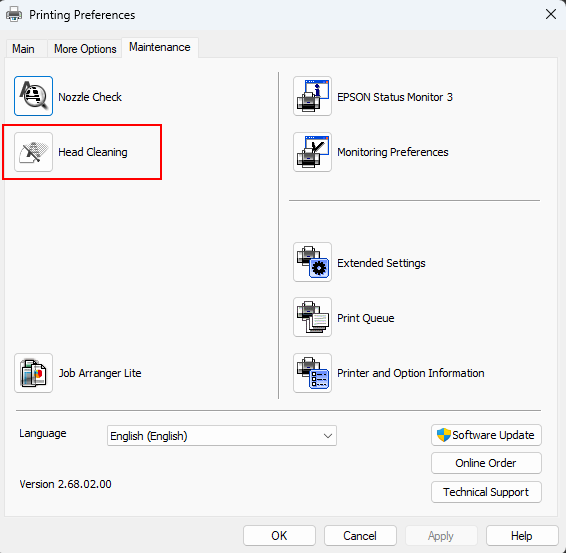
- Open Control Panel on your computer and select Devices and Printers.
- Right-click your Epson model and choose Printer Properties.
- Click the Maintenance tab and select Head Cleaning.
- Wait for the process to finish, which usually takes about two minutes.
Print a Nozzle Check Pattern immediately after. If lines are broken, repeat the cleaning cycle up to two more times.
Pro Tip: Never run more than three cleaning cycles in a row. Excessive cleaning wastes ink and can damage the internal pump.
Remove Air Bubbles Blocking Ink Flow
Air pockets trapped inside the cartridge or feed tubes prevent ink from reaching the paper. This often happens after replacing cartridges or moving the printer.
Dislodge Trapped Air Pockets
- Power on the printer and wait for the carriage to center.
- Gently remove the suspect cartridge without tilting it excessively.
- Shake the cartridge lightly side-to-side to move air bubbles away from the outlet.
- Reinstall the cartridge firmly and run a head cleaning cycle.
This simple maneuver restarts the capillary action required for proper ink delivery.
Reinstall Cartridges to Ensure Proper Connection
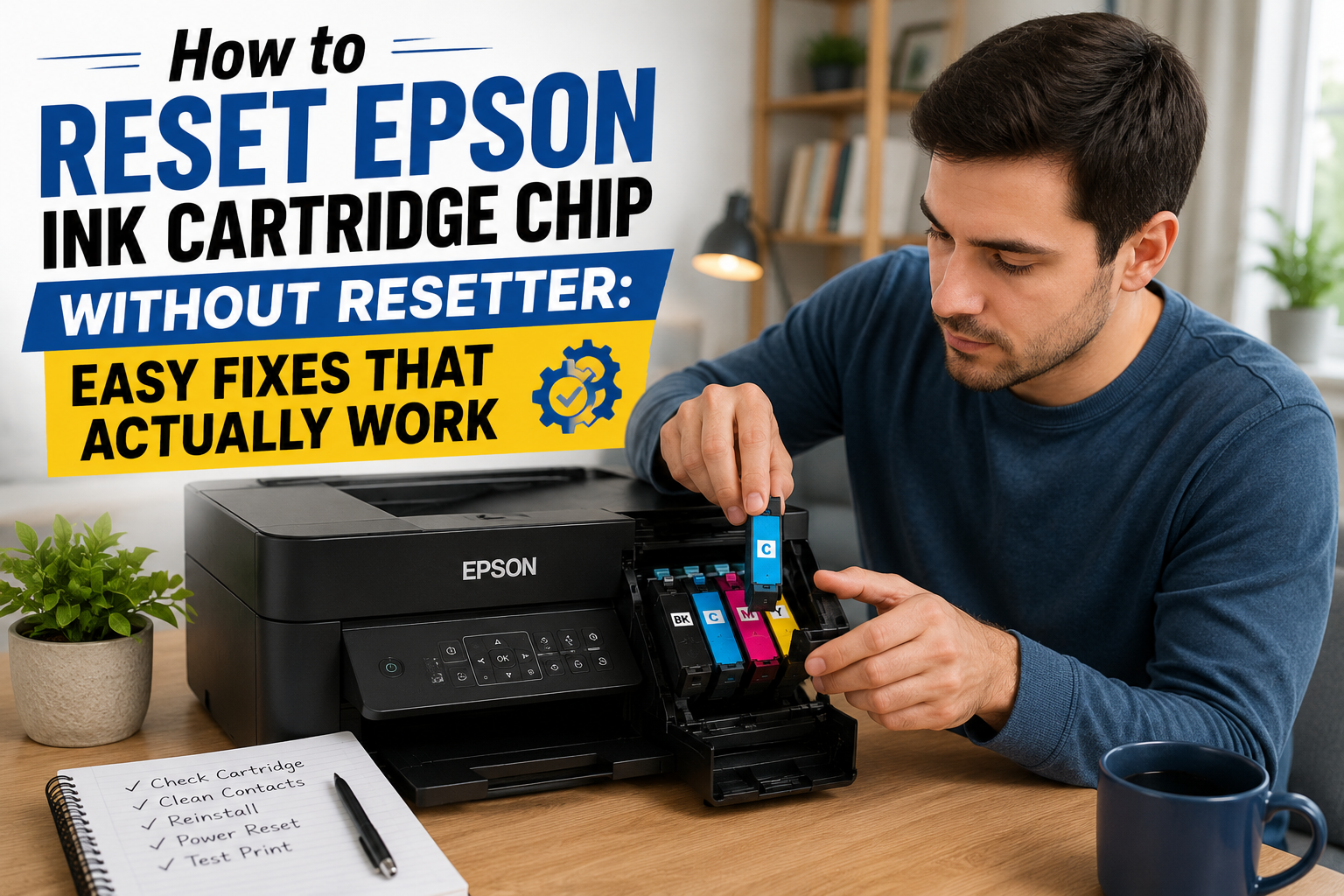
Your Epson printer full ink not printing problem may stem from poor electrical contact. The device cannot fire ink if it does not detect the cartridge correctly.
Verify Cartridge Seating Steps
- Open the scanner unit and locate the ink carriage.
- Press the tab on the cartridge to release it from the slot.
- Wipe the gold contact chips with a dry, lint-free cloth.
- Insert the cartridge back until you hear a distinct click.
Ensure the cartridge sits flush with no wobbling. A loose fit breaks the circuit needed to initiate printing.
Update Drivers to Fix Communication Errors

Outdated drivers cause your computer to send incorrect commands to the hardware. The printer may appear ready but fails to execute the print job.
Install Latest Driver Software
- Visit the official Epson support website.
- Enter your specific printer model number.
- Download the latest driver and firmware package for your operating system.
- Run the installer and follow the on-screen prompts.
- Restart both your computer and the printer.
Check for firmware updates directly in the printer settings menu as well. Updated software ensures compatibility with current operating systems.
Clear Stuck Print Queue Jobs
A frozen job in the queue blocks all subsequent tasks. Your screen says “Printing,” but the printer remains silent because it is waiting for a corrupted file to clear.
Reset the Print Spooler Service
- Press Windows + R, type
services.msc, and hit Enter. - Locate Print Spooler in the list and right-click to Stop it.
- Navigate to
C:\Windows\System32\spool\PRINTERS. - Delete all files in this folder to clear pending jobs.
- Return to the Services window and Start the Print Spooler again.
Mac users should open System Settings, select Printers & Scanners, and cancel all jobs in the queue. This resets the communication link between devices.
Verify Print Settings Before Every Job
Incorrect configuration in your document settings can mimic a hardware failure. Selecting the wrong paper type or color mode often results in blank output.
Check Critical Print Parameters
Review these settings before clicking print:
* Printer Selection: Ensure your Epson model is the active device.
* Paper Type: Match the setting to the loaded paper (e.g., Plain vs. Photo).
* Color Mode: Confirm it is set to Color if you expect color output.
* Source Tray: Select the correct input tray or manual feed option.
Print a test page directly from printer properties to isolate application-specific errors. If the test page works, the issue lies within your document software settings.
Prevent Future Printing Failures with Maintenance
Consistent care prevents the Epson printer full ink not printing dilemma from recurring. Small habits keep the ink flowing and nozzles clear.
Establish a Weekly Routine
- Print a test page once a week to keep ink moist.
- Run the nozzle check utility monthly even without issues.
- Store spare cartridges upright in a cool environment.
- Use genuine Epson ink to avoid chemical clogging.
- Enable automatic firmware updates in your settings.
Avoid leaving the printer powered off for extended periods if possible. Regular use is the best defense against dried ink blockages.
Determine When Professional Repair Is Needed
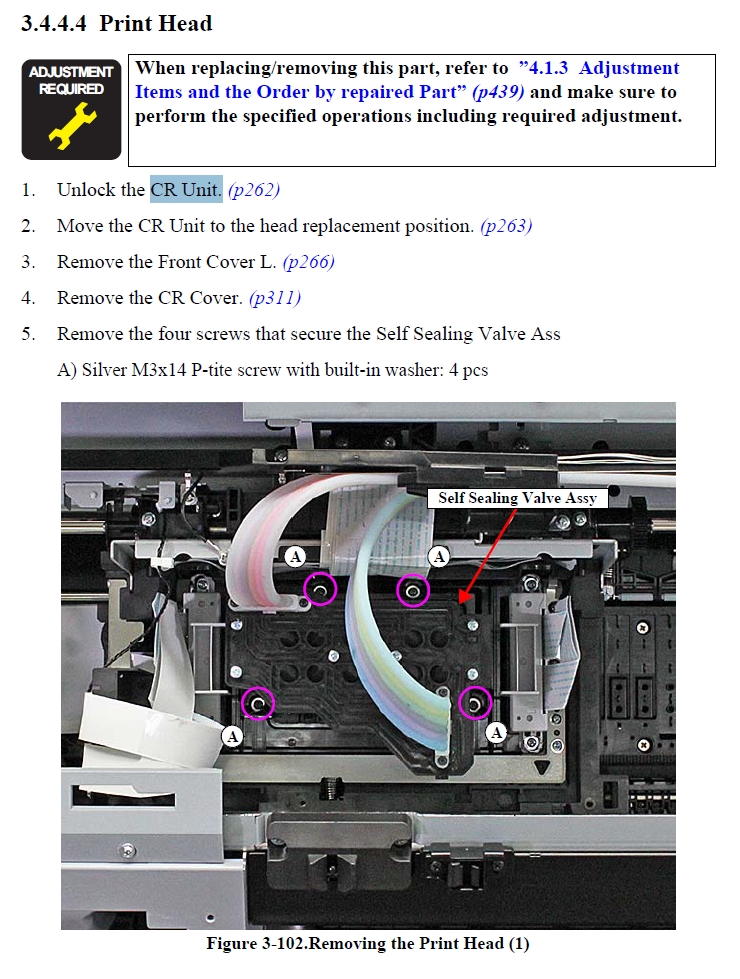
Some issues require expert intervention if basic troubleshooting fails. You may need professional help if the printhead is physically damaged.
Signs You Need Expert Help
Contact support if you experience:
* No improvement after three deep cleaning cycles.
* Persistent blank pages despite new cartridges.
* Unusual grinding noises during operation.
* Error codes that do not clear after resetting.
Technicians can perform deep vacuum cleaning or replace the printhead assembly. For older models, compare repair costs against the price of a new unit.
Frequently Asked Questions About Epson Printing Issues
Why does my Epson printer print only part of the page?
Partial printing usually indicates clogged nozzles in specific color channels. Run the head cleaning utility to clear dried ink from the affected nozzles. Check that your paper size settings match the loaded stock.
What causes blank pages despite full ink levels?
Blank pages typically result from air bubbles blocking the feed or a severely clogged printhead. Verify cartridges are seated correctly and run a deep cleaning cycle. Ensure the protective tape was removed from new cartridges.
How often should I clean my Epson printhead?
Run a cleaning cycle only when print quality declines or lines appear missing. Frequent unnecessary cleaning wastes ink and reduces the life of your waste ink pad. Regular weekly printing is a better preventive measure.
Can wrong drivers stop my Epson printer from working?
Yes, outdated or corrupted drivers prevent proper communication between your computer and printer. Always download the latest drivers from the official Epson website. Restart your system after installation to apply changes.
Why does my print queue get stuck frequently?
Stuck queues often occur due to large file sizes or interrupted connections. Clear the print spooler service regularly to prevent buildup. Ensure your USB or network connection is stable during large jobs.
Key Takeaways for Fixing Epson Full Ink Issues
Resolving an Epson printer full ink not printing error usually requires clearing clogs or updating software. Most users fix the problem by running head cleaning cycles and reinstalling cartridges properly.
Regular maintenance and driver updates prevent these interruptions from happening again. Start with a nozzle check today to identify the specific blockage affecting your device.




