You are printing a crucial document when the page emerges with frustrating streaks, faded patches, or missing lines. This common headache usually points to clogged ink cartridges rather than a broken machine. Learning how to clean printer ink cartridges is a simple skill that saves you money and restores sharp print quality instantly.
Most clogs happen because printers sit idle too long or ink dries on the nozzles. This guide walks you through safe, step-by-step methods to clear blockages using built-in tools or manual cleaning techniques. You will discover exactly what supplies you need and how to avoid mistakes that damage your printer.
Run Built-in Cleaning Cycles to Clear Minor Clogs
Your first step should always be the easiest one. Modern printers include powerful self-cleaning utilities designed to flush out minor blockages without any disassembly.
Access Printer Maintenance Tools
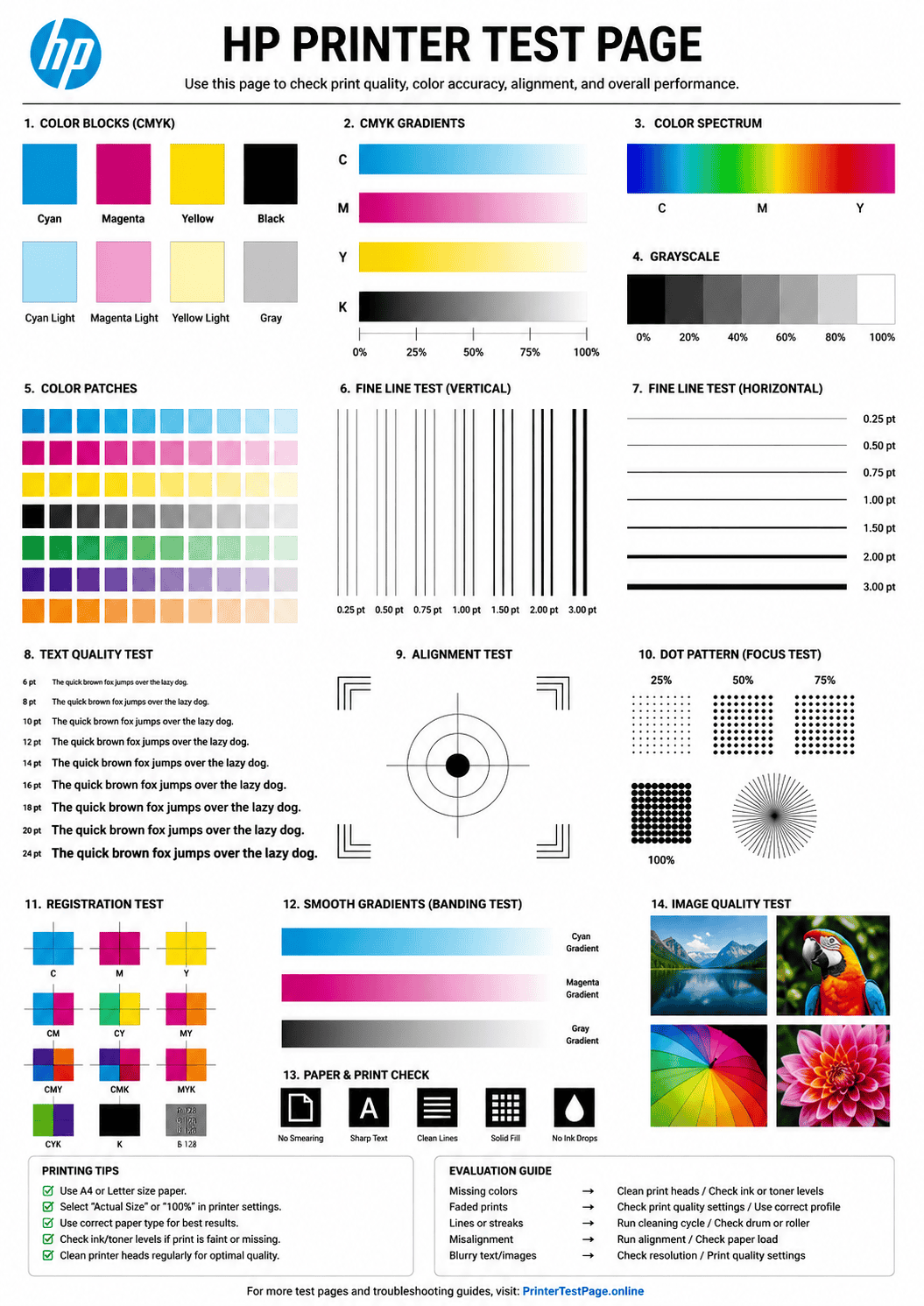
Open the printer software on your computer or check the display panel on the device itself. Look for tabs labeled “Maintenance,” “Tools,” or “Settings” depending on your brand like HP, Canon, or Epson. Select the “Nozzle Check” option first to print a test pattern. This pattern reveals exactly which colors or sections are blocked before you start cleaning.
Perform Automatic Cleaning Cycles
Choose the “Clean Print Head” or “Deep Cleaning” option in the menu. The printer will run a cycle that forces ink through the nozzles to dislodge dried particles. Wait for the process to finish completely, which usually takes a few minutes. Do not run more than three cycles in a row, as this wastes ink and can flood the internal pads.
Pro Tip: Wait at least 15 minutes between automatic cleaning attempts. This pause allows the ink to soften naturally, making the next cycle more effective.
Prepare Your Workspace for Manual Cleaning
If automatic cycles fail to fix the issue, you must remove the cartridges for manual cleaning. Proper preparation prevents messes and protects delicate components.
Gather Essential Cleaning Supplies
You need specific items to clean safely without causing damage. Gather the following supplies before you begin:
* Distilled water (tap water contains minerals that cause clogs)
* Lint-free cloths or coffee filters
* Cotton swabs
* Shallow dish or bowl
* Paper towels
* Rubber gloves to keep hands clean
Remove Cartridges Safely
Turn off your printer and unplug it from the power source. Open the cartridge access door and wait for the carriage to stop moving completely. Gently press the release tab or lift the cartridge to remove it. Place the cartridge nozzle-side up on a paper towel immediately. If you cannot clean it right away, cover the nozzles with a damp cloth to prevent further drying.
Soak and Wipe Cartridge Nozzles

The nozzle plate is the most critical part of the cartridge. You must clean it gently to avoid permanent damage to the tiny holes that spray the ink.
Soak Nozzles in Warm Distilled Water
Pour a small amount of warm distilled water into your shallow dish. Lower the cartridge so only the nozzle plate touches the water surface. Let it soak for 5 to 10 minutes to soften hardened ink. For severe clogs, you can extend this to 20 minutes, but never leave it longer than 30 minutes.
Warning: Never submerge the entire cartridge or get water on the copper contacts. Moisture on the electronics can short-circuit the chip and ruin the cartridge.
Wipe Nozzles with Damp Swabs
Remove the cartridge from the water and place it on a fresh paper towel. Dampen a cotton swab with distilled water and gently wipe the nozzle plate. Use light circular motions to lift away softened ink residue. Inspect the nozzles under a bright light to ensure they look clear and moist.
Use Isopropyl Alcohol for Stubborn Ink
Water sometimes cannot dissolve old, crusty ink. Mix equal parts distilled water and isopropyl alcohol (90% concentration or higher) for a stronger solution. Dip a swab lightly into this mixture and dab the nozzle plate carefully. The alcohol evaporates quickly and breaks down tough residue that water misses.
Caution: Do not soak the cartridge in alcohol. It can degrade plastic seals and internal sponges, leading to leaks.
Clean Electrical Contacts for Better Recognition

Dirty contacts often cause printers to say a cartridge is empty or missing even when it is full. Cleaning these points ensures proper communication between the cartridge and the machine.
Inspect Copper Contact Points
Look at the back or side of the cartridge for a row of shiny gold or copper squares. These are the electrical contacts that tell the printer ink levels and color data. Check for dried ink smudges, fingerprints, or gray oxidation that might block the signal.
Wipe Contacts Gently
Dampen a lint-free cloth slightly with distilled water. Wipe the contacts in one smooth direction without scrubbing back and forth. Dry the area immediately with a clean, dry part of the cloth. If you see heavy oxidation, you can lightly buff the contacts with a clean pencil eraser before wiping away the debris.
Expert Note: Always hold cartridges by their sides. Oils from your fingers accelerate corrosion on the contact points over time.
Reinstall Cartridges and Test Print Quality
Once your cartridges are clean and dry, it is time to put them back and verify the results. Proper installation is key to avoiding new errors.
Insert Cartridges Correctly
Align each cartridge with its corresponding color-coded slot in the printer carriage. Press down firmly until you hear a distinct click, indicating it is locked in place. Close the access door securely before powering the device back on.
Run Alignment and Test Print
Your printer may automatically prompt you to align the print head after installation. Follow the on-screen instructions to complete this calibration. Print a new nozzle check page to inspect the results. You should see solid lines and vibrant colors with no gaps. If streaks remain, repeat the manual cleaning process one more time.
Prevent Future Clogs with Regular Maintenance

Stopping clogs before they start is much easier than fixing them later. Simple habits keep your printer running smoothly for years.
Print Weekly Maintenance Pages
Ink dries out when it sits still for too long. Set a reminder to print a colorful test page or a simple document at least once a week. This regular flow keeps the ink liquid and the nozzles clear.
Store Spare Cartridges Properly
Keep unused cartridges in their original sealed packaging until you need them. Store them upright in a cool, dark place away from direct sunlight. Extreme heat or cold can alter the ink chemistry and increase clogging risks.
Use High-Quality Ink Formulas
Cheap third-party inks often contain inconsistent pigments that clog easily. Stick to reputable brands or high-quality refill kits designed specifically for your printer model. Good ink flows better and lasts longer inside the cartridge.
Troubleshoot Persistent Printing Issues
Sometimes cleaning does not solve the problem, and you need to diagnose deeper issues. Knowing when to stop saves you time and frustration.
Cartridge Not Recognized Errors
If the printer still does not see the cartridge, remove it and check the contacts again. Reinstall it firmly to ensure a good connection. If the error persists, the chip on the cartridge may be damaged, requiring a replacement.
Color Bleeding or Blotching
Excess moisture from cleaning can cause temporary smearing on your pages. Run several blank pages through the printer to absorb the extra ink. If blotching continues, the cartridge might be overfilled or leaking internally.
Printer Still Prints Poorly
If new and cleaned cartridges produce bad results, the issue may be inside the printer itself. The internal print head or ink tubes could be blocked. Consult your user manual for deep cleaning procedures or contact professional support.
Frequently Asked Questions About Cleaning Printer Ink Cartridges
Can I use tap water to clean my ink cartridges?
No, you should never use tap water. It contains minerals and impurities that leave deposits inside the nozzles, causing worse clogs. Always use distilled water for safe and effective cleaning.
How often should I clean my printer ink cartridges?
You only need to clean them when you notice streaks, fading, or missing colors. For prevention, printing a test page once a week is usually enough to keep nozzles clear without manual cleaning.
Is it safe to clean cartridges with alcohol?
Yes, but only in moderation. A 50/50 mix of distilled water and high-concentration isopropyl alcohol works well for stubborn dried ink. Never soak the cartridge in pure alcohol as it can damage internal parts.
What should I do if my printer says the cartridge is empty after cleaning?
This often means the electrical contacts are still dirty. Clean the copper contacts gently with a lint-free cloth and reinstall the cartridge. If the message remains, the cartridge chip may be faulty.
Can I reuse paper towels to clean my cartridges?
It is better to use lint-free cloths or coffee filters. Paper towels can leave behind tiny fibers that get stuck in the nozzles and create new blockages.
Key Takeaways for How to Clean Printer Ink Cartridges
Mastering how to clean printer ink cartridges extends the life of your supplies and ensures professional-looking documents. Start with automatic cleaning cycles, move to gentle manual soaking with distilled water if needed, and always keep electrical contacts spotless. Regular use and proper storage are your best defenses against frustrating clogs.
Take action today by running a nozzle check on your printer. If you see gaps, gather your distilled water and cotton swabs to restore your print quality immediately.