
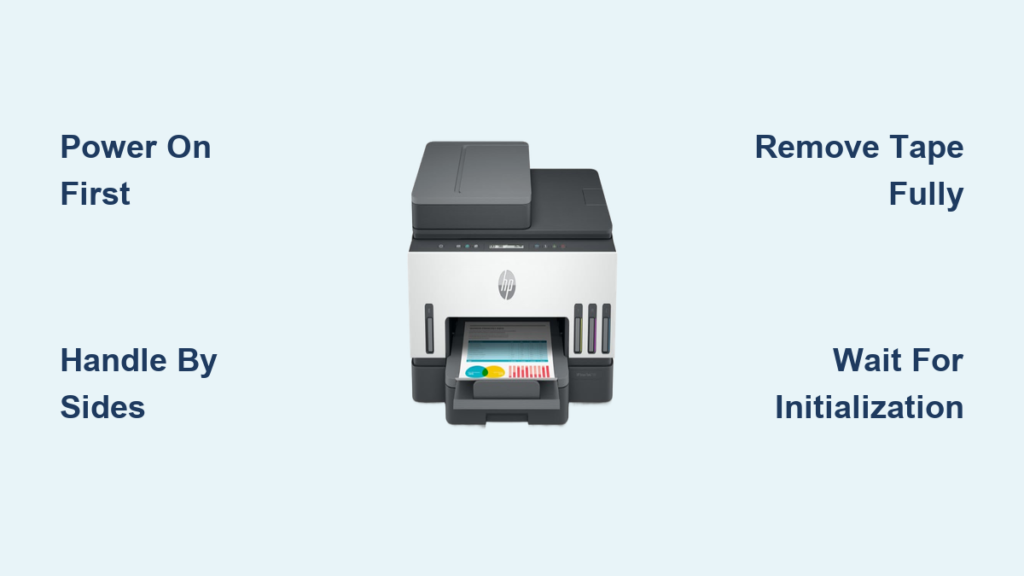
Running out of ink at a critical moment creates unnecessary stress, especially when your HP printer flashes warnings or produces faded documents. Knowing exactly how to load ink into HP printer models properly prevents damage to the print head and ensures your next job prints perfectly.
This guide provides precise steps to install cartridges in DeskJet, ENVY, and OfficeJet series without error. You will learn safe handling techniques, model-specific installation paths, and how to troubleshoot common recognition issues quickly.
Power On Your HP Printer Before Accessing Cartridges
Your printer must be fully powered on to move the ink carriage into the replacement position safely. Attempting to access the cartridge area while the unit is off can damage internal gears or leave the carriage locked.
Why the Printer Must Be On
The internal mechanism requires electricity to slide the carriage to the center access point. Plug your device directly into a wall outlet rather than a power strip to ensure stable voltage during this process. Once powered, open the access door and wait approximately three seconds for the carriage to move.
Resetting the Carriage Mechanism
If the carriage does not move immediately, close the access door completely and open it again. This action often resets the sensor and triggers the positioning sequence. Never force the carriage manually as this can break the drive belt.
Handle Ink Cartridges Without Damaging Contacts
Proper handling is the most critical factor in preventing “cartridge not recognized” errors and clogged nozzles. Your skin contains oils that can interfere with electrical connections and ink flow.
Hold Cartridges by the Sides Only
Grasp the cartridge strictly by its plastic sides during installation. Avoid touching the copper electrical contacts on the back or the ink nozzles on the bottom. Contamination from fingers is a leading cause of communication failures between the printer and the ink supply.
Remove All Protective Tape Carefully
New cartridges come with orange pull-tabs or plastic clips sealing the vent slots. Peel these off completely before insertion to allow proper airflow. If you see ink leaking during unpacking, place the cartridge face-up on a paper towel immediately.
Verify Your Specific Cartridge Model
Using the wrong cartridge model can cause physical damage or poor print quality. Check your printer manual or the label on your old cartridge to confirm compatibility.
* DeskJet 2700/2800/4200: Uses HP 67, 67 XL, or 67 XXL.
* ENVY 6100/6500: Uses HP 67 or 67 XL.
* OfficeJet 6900 Series: Uses HP 902 cartridges.
* OfficeJet Pro 9015: Uses HP 962 cartridges.
Install Ink in HP DeskJet 2700 and 4200 Series

These compact printers utilize a dual-door system that requires a specific opening sequence to access the carriage safely.
Open the Dual-Door Access System
Press down or pull the slot on the main front door to open it. Locate the secondary inner door inside the unit and pull it down gently to expose the carriage area. Wait for the carriage to slide to the center before touching any components.
Replace Old Cartridges with New Ones
Press down firmly on the top of the old cartridge to release the latch, then pull it straight out. Prepare your new HP 67 cartridge by removing the orange tape. Insert the color cartridge (magenta top) into the left slot and the black cartridge into the right slot.
Secure Cartridges Until They Click
Angle the cartridge slightly and push upward on the top until you hear a distinct click. This sound confirms the unit is locked in place. Close the inner door first, then shut the main front door to begin the priming process.
Load Ink into HP ENVY 6100 and 6500 Printers
The ENVY series features an automatic alignment process that activates immediately after you install new ink cartridges.
Access the Ink Compartment
Open the dedicated ink access door on the front of the printer. The carriage will move to the center automatically. If it remains stationary, close and reopen the door to reset the motor.
Insert Cartridges into Color-Coded Slots
Remove the old cartridges by pressing down and pulling out. Insert the new color cartridge into the slot marked with color indicators and the black cartridge into the black-marked slot. Push each one upward until it snaps securely.
Complete the Automatic Alignment
Close the access door to trigger the automatic printing of an alignment page. Place this page face-down on the scanner glass, aligning it with the top-left corner marker. Close the lid and tap Scan on the control panel to calibrate print quality.
Replace Cartridges in OfficeJet 6900 Series

The OfficeJet 6900 series uses individual cartridges for each color and features a top-loading access design.
Check Ink Levels via Control Panel
Touch the ink icon on the home screen to identify which specific colors are low. This allows you to replace only the necessary cartridges rather than the entire set.
Lift Top Cover and Remove Old Units
Lift the top cover of the printer and wait for the carriage to center. Gently push the front tab of the empty cartridge to pop it out, then lift it away from the slot.
Install New HP 902 Cartridges
Unpack the new cartridge and remove the plastic clip and vent tab. Match the cartridge color to the corresponding slot in the printhead. Slide it in gently until it clicks, then close the lid to start initialization.
Install HP 962 Ink in OfficeJet Pro 9015
This high-volume printer uses a front-loading mechanism with a physically larger black cartridge.
Open the Front-Right Access Door
Ensure paper is loaded in the tray before starting. Locate the slot on the front-right side of the device and pull down the cover. The carriage will automatically move to the center position.
Remove Old Cartridge and Prepare New One
Push the front of the installed cartridge to release it, then slide it toward you to remove. Unpack your new HP 962 cartridge and inspect the gold chip for dust. Wipe it with a lint-free cloth if necessary.
Insert Cartridge into Correct Slot
Note that the black cartridge is larger than the color ones and will not fit in other slots. Hold by the sides and push the cartridge into its color-coded slot until it clicks. Close the door and wait for the status light to indicate readiness.
Troubleshoot Cartridge Recognition Errors
Even with correct installation, printers may occasionally fail to recognize new ink immediately.
Clean Gold Electrical Contacts
If the printer displays a “missing cartridge” error, remove the unit and wipe the gold contacts with a dry cloth. Reinsert the cartridge firmly to ensure a solid connection. This simple step resolves most communication issues.
Reset the Printer Carriage
If the carriage does not move or lights do not turn on, check that the access door is fully closed. Open and close the door again to reset the carriage motor. Ensure no packing materials remain inside the unit from the initial setup.
Run Cleaning Cycle for Streaks
If prints have streaks or missing colors, navigate to Settings and select Tools. Choose Clean Cartridges and run the cycle up to two times. Avoid removing and reinserting cartridges repeatedly as this can introduce air bubbles.
Maintain Print Quality with Smart Habits
Extending the life of your printer involves simple maintenance routines between ink changes.
Store Unused Cartridges Properly
Keep spare cartridges sealed in their original packaging until you need them. Store them upright in a cool, dry place away from direct sunlight to prevent ink from drying out.
Use High-Yield Options for Volume
Switch to XL or XXL cartridges if you print frequently. These high-yield options contain more ink and reduce the frequency of changes, lowering your overall cost per page.
Print Test Pages Regularly
Run a test print every two to three weeks if the printer sits idle. This keeps the ink flowing through the nozzles and prevents clogging from dried ink.
Frequently Asked Questions About Loading HP Printer Ink
Why does my HP printer say the cartridge is missing?
This error usually occurs due to dirty electrical contacts or improper seating. Remove the cartridge, wipe the gold chip with a dry lint-free cloth, and reinsert it firmly until it clicks.
Can I use non-genuine HP ink cartridges?
Yes, you can use remanufactured cartridges, but the printer may display a “non-genuine” warning. This message does not stop printing, and you can usually select OK or Continue to proceed.
How long does the printer take to initialize after loading ink?
The initialization and priming process typically takes between 30 seconds and one minute. Wait for the status light to turn solid green or white before attempting to print.
What should I do if the alignment page fails to scan?
Ensure the page is placed face-down and aligned with the corner marker on the scanner glass. If it fails again, try running the Print Quality Test from the settings menu on your control panel.
Do I need to replace all ink cartridges at once?
No, you only need to replace the specific color that is empty or low. The printer will alert you when individual cartridges need attention via the control panel or computer software.
Key Takeaways for Loading Ink into HP Printer Successfully

Mastering how to load ink into HP printer models ensures consistent print quality and extends the life of your device. Always power on the unit before opening access doors, handle cartridges by the sides to avoid oil contamination, and wait for the initialization cycle to complete.
Follow the specific steps for your DeskJet, ENVY, or OfficeJet model to avoid mechanical errors. If you encounter recognition issues, cleaning the contacts and resetting the carriage usually resolves the problem quickly. Keep your printer maintained by running regular test prints and using high-yield cartridges for heavy workloads.


