Running out of ink doesn’t mean you need to buy a new cartridge, especially if you own a Brother printer. Many Brother ink cartridges are refillable, helping you save money and reduce plastic waste. But if you’ve never tried it, refilling a Brother printer cartridge can feel intimidating. Will it leak? Can it damage your printer? What if the chip blocks printing afterward?
The good news is that with the right supplies and careful steps, refilling a Brother cartridge is safe, clean, and effective. This guide covers everything you need: identifying refillable models, gathering tools, injecting ink, resetting chips, and restoring full print quality. Whether you print occasionally at home or run a busy office, mastering this skill will cut your printing costs and keep your printer running smoothly.
Check Cartridge Compatibility Before You Begin
Not every Brother cartridge works well for refilling. Starting with the wrong model wastes time, ink, and money.
Identify Refillable Brother Cartridge Series
Brother cartridges labeled LC103, LC203, LC301, LC305, LC401, and LC405 are commonly refillable. Most have a rubber plug or small fill holes on top, which signals easy access. Look at your cartridge carefully before buying supplies.
Skip Cartridges with Sealed Designs
Some newer models use integrated print heads or one-time smart chips. These may not reset properly after refilling, leaving you with persistent low-ink warnings. Always verify your specific model online before investing in refill ink.
Gather Your Refilling Supplies

Having the right tools on hand prevents spills, clogs, and messy mistakes. Don’t start without these essentials.
Tools and Materials Checklist
• Bottled ink matched to your cartridge (pigment or dye-based, as specified)
• Syringe with blunt needle (10–12 ml size works best)
• Rubber gloves to keep hands stain-free
• Paper towels for quick cleanup
• Disposable tray or mat to catch stray drops
• Small pin or flathead screwdriver for opening plugs
• Masking tape to seal fill holes afterward
Always use ink designed for Brother printers. Cheap third-party ink can clog nozzles and damage internal components permanently.
Prepare the Cartridge for Refilling
Careful preparation protects your printer and ensures a clean refill. Rushing this step often causes leaks.
Remove the Cartridge Safely
Turn off your Brother printer and open the access door. Wait until the print head stops moving completely. Gently pull out the cartridge and place it on a paper towel with the nozzle plate facing up. Never rest it face-down, as ink can leak into the print head.
Locate the Color Fill Holes
Most refillable Brother cartridges have 3–4 small holes on top labeled for cyan, magenta, yellow, and black. These holes are usually sealed with rubber stoppers or small plastic caps. Peel back the rubber plugs carefully or pry off plastic caps with a small screwdriver. Avoid damaging the surrounding plastic, as broken seals lead to air leaks and poor ink flow.
Refill Each Ink Chamber Correctly
Precision matters here. Overfilling causes pressure buildup and leaks, while underfilling triggers false low-ink alerts.
Inject Ink Slowly into Each Color
Draw 8–12 ml of ink into your syringe, depending on your cartridge model. Insert the needle into the matching color hole and press the plunger slowly. Watch the chamber fill gradually.
Pro Tip: Stop at about 80% capacity to leave room for air displacement. Overfilling is the number one cause of post-refill leaks.
Prevent Air Bubbles During Injection
Keep the needle tip submerged in the ink as the chamber fills. Pull it up slightly as the level rises so you don’t inject air. Pause every few seconds to let ink settle naturally. After filling, cover each hole with a small piece of masking tape or reinsert the rubber plug.
Reset the Ink Chip (If Required)
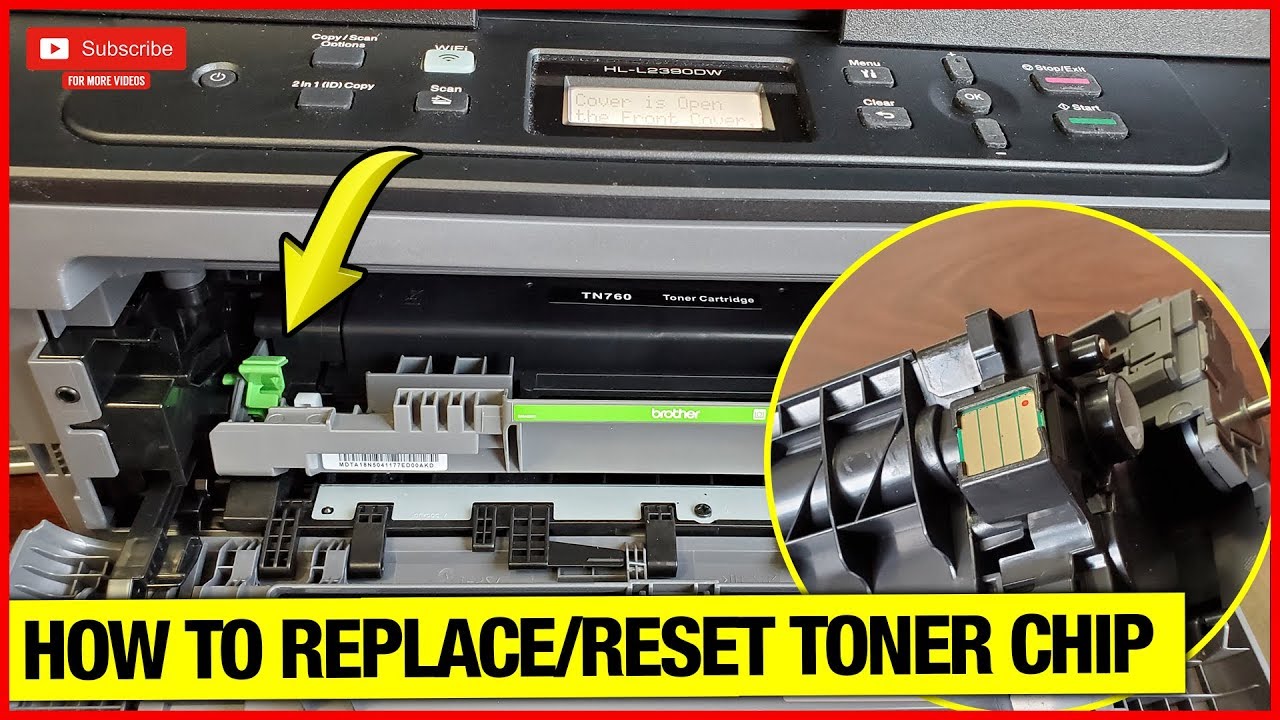
Many Brother cartridges use smart chips to monitor ink levels. Even after a successful refill, the chip may still report “empty.”
Try a Manual Printer Reset
For models like LC103XL or LC203, reinsert the cartridge and press the “Stop/Reset” button on your printer for 5–10 seconds. This often forces the printer to accept the refilled cartridge.
Use a Chip Resetter Tool for Stubborn Cartridges
If the manual reset doesn’t work, buy a chip resetter online. Place the tool over the cartridge’s chip contacts until the indicator light confirms a successful reset. This trick works on most non-resettable chips.
Bypass Persistent Low-Ink Warnings
If your printer still refuses to print, access the menu: Settings > Maintenance > Ink Management > Continue Despite Low Ink. This override allows printing even when the system reports low levels.
Reinstall the Cartridge and Test Print Quality
Proper reinstallation ensures the cartridge seats correctly and delivers optimal results.
Insert the Cartridge Securely
Slide the refilled cartridge back into its slot until you hear a click. Close the printer cover and power on the device. The printer may run an automatic alignment cycle. Let it finish without interruption.
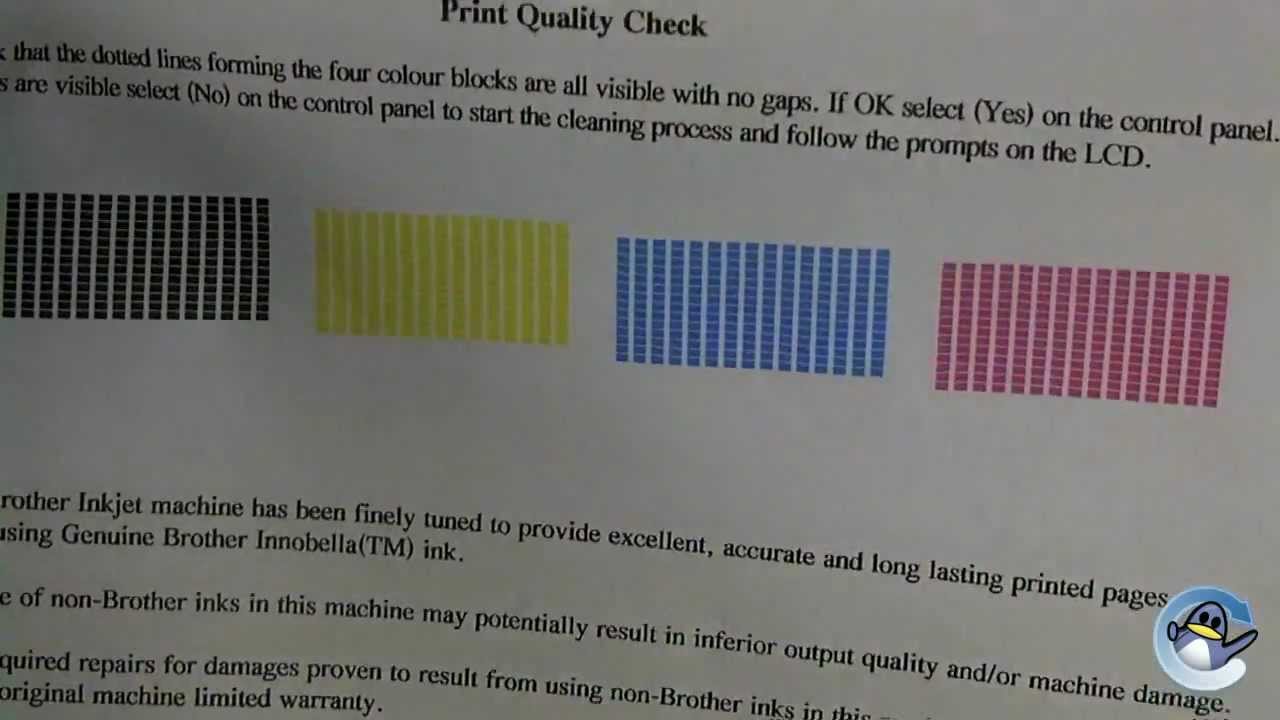
Run a Nozzle Check Pattern
Print a test page or nozzle check from your printer menu: Settings > Maintenance > Print Head Alignment > Nozzle Check. Examine the output carefully. Streaks or missing lines mean air bubbles or clogged nozzles.
Clean the Print Head if Needed
If quality looks poor, run 1–2 head cleaning cycles through the maintenance menu. Wait at least 10 minutes between cycles to avoid overheating the pump. Print another nozzle check after each cleaning. Avoid running more than three cycles in a row, as it wastes ink and strains the print head.
Avoid Common Refill Mistakes That Damage Cartridges
Even experienced users slip up. These errors can ruin cartridges or harm your printer.
Never Mix Dye and Pigment Inks
Using dye-based ink in a pigment-only cartridge causes clumping and permanent clogs. Always match your ink type to the cartridge’s original chemistry. Check the label before buying refill ink.
Don’t Forget the Vent Hole
Some cartridges need a tiny vent hole in the top cap to release internal pressure. If prints come out slow or faded after refilling, carefully drill a pin-sized hole in the center cap. Cover it with tape when the printer is idle to slow ink drying.
Avoid Refilling Too Frequently
Topping off cartridges before they’re truly empty traps air inside and reduces efficiency. Wait until your printer shows a low-ink warning or print quality noticeably drops before refilling again.
Maintain Refilled Cartridges for Long-Term Use
Good maintenance extends cartridge life and keeps prints looking sharp.
Prevent Nozzle Drying During Idle Periods
If you don’t print every week, run a test page every 7–10 days to keep ink flowing. For long storage breaks, remove the cartridge and seal the nozzles in a plastic bag with a slightly damp sponge.
Watch for Early Signs of Wear
Slight fading, banding, or streaking often signals low ink or a forming clog. Address these issues quickly before they become permanent. Running a head cleaning cycle usually fixes minor problems.
Know When to Replace the Cartridge
Most Brother cartridges handle 3–5 refills before seals degrade or nozzles wear out. Pushing beyond this limit risks print head damage. Replace worn cartridges promptly to protect your printer.
Frequently Asked Questions About Refilling Brother Printer Cartridges
Can refilling a Brother cartridge damage my printer?
Refilling is safe when done correctly with compatible ink. Damage usually comes from using low-quality ink, mixing ink types, or overfilling. Follow proper steps and your printer will run fine.
How many times can I refill the same Brother cartridge?
Most Brother cartridges can be refilled 3–5 times before seals weaken or print quality declines. Heavy users may see fewer cycles, while occasional users might squeeze out a few more.
Why does my printer still show “low ink” after refilling?
The smart chip tracks ink usage and doesn’t automatically reset. Use a manual reset button, a chip resetter tool, or enable the “Continue Despite Low Ink” option in your printer menu.
What type of ink should I use for Brother cartridges?
Use ink specifically labeled for your cartridge model. Dye-based ink suits most color cartridges, while pigment-based ink is often required for black cartridges. Check your printer manual for exact specifications.
Is it cheaper to refill or buy new Brother cartridges?
Refilling costs roughly 70–80% less than buying new cartridges, especially for high-yield models. The savings add up quickly for home offices and small businesses.
Will refilling void my Brother printer warranty?
Brother’s warranty generally covers defects in materials and workmanship, not damage from third-party ink. Refilling alone won’t void the warranty, but printer damage caused by poor-quality ink may not be covered.
Final Thoughts on Refilling Your Brother Printer Cartridge
Refilling a Brother printer cartridge is one of the easiest ways to cut printing costs and reduce waste. Start by confirming your cartridge model is refillable, gather quality supplies, and follow each step carefully. Inject ink slowly, reset the chip if needed, and always test print quality before tackling big jobs.
Begin with a single cartridge to build confidence. Once you’ve mastered the process, you’ll refill routinely, save significant money, and keep your printer running smoothly for years.