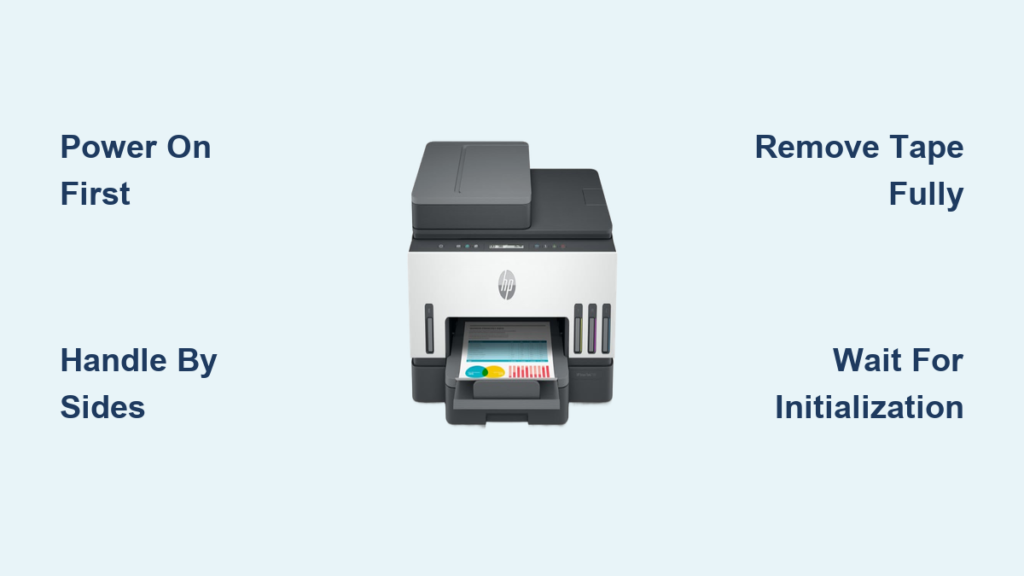
Running out of ink mid-job is frustrating, but knowing how to change ink in Brother printer models turns a potential headache into a two-minute task. Whether you own an MFC-J1205W or MFC-J1215W, replacing cartridges is a simple process that keeps your documents crisp and your workflow uninterrupted.
This guide walks you through every step from opening the cover to resetting the ink counter safely. You will learn how to avoid common installation errors, why color ink depletes even during black-and-white printing, and why genuine supplies matter for your machine’s longevity.
Open the Ink Cartridge Cover Safely
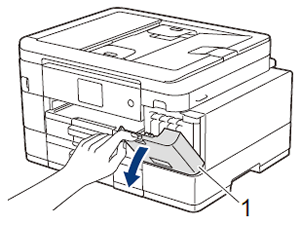
Locate the ink cartridge cover on the front or top of your Brother printer. Gently lift the cover until it locks in the open position. The print head will automatically move to the center replacement position so you can access the cartridges.
Check Display Messages Before Proceeding
Your printer screen often tells you exactly which color is low before you even open the cover. Look for specific “Replace Ink” prompts or blinking lights that indicate whether the black, cyan, magenta, or yellow unit needs attention.
Ensure Proper Lighting and Space
Work in a well-lit area to see the small color labels and lock levers clearly. Having a flat surface nearby helps if you need to set down the old cartridge while handling the new one.
Remove the Depleted Ink Cartridge
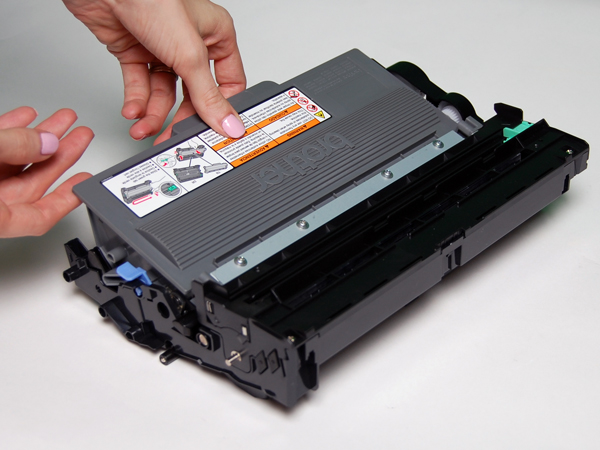
Identify the specific cartridge that needs replacing by matching the color on the unit to the alert on your screen. You only need to remove the empty one unless you are doing a full set replacement.
Press the Lock Release Lever Firmly
Each cartridge slot has a small lock release lever. Press this lever down firmly to unlock the cartridge from the carriage mechanism. Do not force it as the lever should move smoothly with moderate pressure.
Slide the Cartridge Out Straight
Once unlocked, pull the cartridge straight out toward you. Keep the unit level to prevent any residual ink from spilling onto the internal components or your hands.
Dispose of Used Cartridges Responsibly
Place the old cartridge in a sealed bag to prevent ink leakage in the trash. Many office supply stores and Brother recycling programs accept used cartridges for proper environmental disposal.
Prepare the New Ink Cartridge for Installation
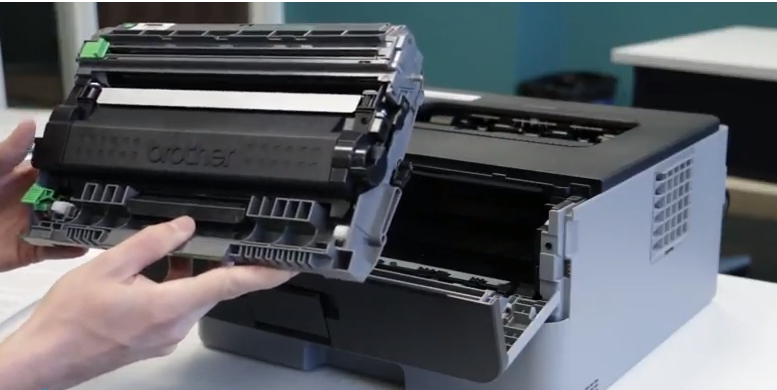
Take the new genuine Brother ink cartridge out of its protective packaging. Handle the unit by the sides only and avoid touching any internal components.
Avoid Touching the Metal Contacts
Never touch the gold-colored metal contacts or the area marked with a warning label. Oils from your skin can interfere with the electrical connection and prevent the printer from detecting the new ink.
Peel Off Protective Seals Carefully
Remove any yellow or orange protective tape covering the ink vent or nozzle area. Ensure all sealing material is gone before attempting to install the unit, as blocked vents cause printing failures.
Verify Model Compatibility
Double-check that the cartridge part number matches your specific Brother model like the MFC-J1215W. Using incompatible cartridges can lead to fit issues or damage the print head mechanism.
Insert the New Cartridge Correctly
Align the new cartridge with the empty slot that matches its color code. The slots are clearly labeled to prevent mixing up black, cyan, magenta, and yellow units.
Follow the Directional Arrow Guide
Look for the arrow printed on the cartridge label to determine the correct insertion angle. Slide the cartridge into the slot following this direction until it seats fully against the back of the carriage.
Push Until You Hear a Click
Apply gentle pressure to the area marked “PUSH” on the top of the cartridge. Listen for a distinct click sound which confirms the unit has locked securely into place.
Close the Cover and Reset the System
Lower the ink cartridge cover until it snaps shut completely. The printer will not begin the reset process if the cover is even slightly ajar.
Wait for the Automatic Reset Cycle
The machine will automatically reset the ink dot counter and prime the new cartridge. This process takes approximately 30 seconds so do not open the cover or turn off the power during this time.
Confirm Successful Installation on Screen
Check the display panel for an “Ink Updated” message or a return to the home screen. If the printer shows an error or continues to display a low ink warning, the cartridge may not be seated correctly.
Troubleshoot Ink Detection Issues
Sometimes the printer fails to recognize a new cartridge immediately after installation. This often happens due to minor installation errors or protective tape left on the contacts.
Reseat the Cartridge if Errors Persist
Open the cover and remove the problematic cartridge then reinsert it firmly. Ensure you hear the locking click and that the cartridge sits flush with the others in the carriage.
Clean Contacts with a Dry Cloth
If reseating does not work, gently wipe the metal contacts on the cartridge with a dry lint-free cloth. Avoid using liquids or solvents which could damage the electronic chip.
Use Genuine Brother Supplies Only
Third-party or refilled cartridges often lack the correct chip calibration required for accurate detection. Non-genuine supplies may cause the machine to malfunction and are not covered under the Brother limited warranty.
Understand Why Color Ink Depletes Fast
You might notice color ink levels dropping even if you only print black and white documents. This is normal behavior for inkjet printers and relates to internal maintenance routines.
Automatic Print Head Cleaning Cycles
Brother printers periodically clean the color nozzles to prevent them from drying out and clogging. This maintenance uses small amounts of cyan magenta and yellow ink regardless of your print settings.
Prevent Permanent Nozzle Damage
Skipping these cleaning cycles would allow ink to harden in the nozzles leading to streaky prints or permanent head damage. The small amount of ink used for maintenance ensures high-quality output when you do need color.
Monitor Levels via Software Tools
Use the Brother iPrint&Scan app or desktop software to track ink levels in real time. Planning replacements before urgent jobs prevents delays caused by unexpected depletion.
Maximize Ink Efficiency and Longevity
:max_bytes(150000):strip_icc()/002-setting-draft-mode-2769006-2ec8602c02e74d92b22df47dbe0b1a51.jpg)
Extend the life of your ink cartridges by adjusting how and when you print. Small changes in habit can significantly reduce consumption rates.
Select Draft Mode for Internal Documents
Choose draft or eco-mode settings for proofs and internal memos to use less ink per page. Reserve high-quality settings for final documents and photos where detail matters most.
Minimize Power Cycling Frequency
Leaving your printer on allows it to perform maintenance efficiently without excessive ink waste. Frequent on-off cycles can trigger extra cleaning routines that deplete ink faster.
Store Spare Cartridges Properly
Keep unused cartridges in their original sealed packaging in a cool dry place. Proper storage prevents the ink from drying out before you ever install it in the machine.
Frequently Asked Questions About Changing Brother Ink
Why do my color cartridges run out if I only print in black?
Your printer automatically cleans color nozzles periodically to prevent clogging. This maintenance routine uses small amounts of color ink even when you are not printing color documents.
What should I do if the printer does not detect the new cartridge?
Remove the cartridge and check that all protective tape is removed. Reinsert it firmly until it clicks and ensure you did not touch the metal contacts with your fingers.
Can I use third-party ink cartridges in my Brother printer?
While third-party cartridges may fit, they can cause poor print quality or machine malfunctions. The Brother warranty does not cover problems caused by non-genuine supplies.
How long does it take to change the ink in a Brother printer?
The entire process typically takes 3 to 5 minutes including the automatic reset cycle. First-time users may take slightly longer to familiarize themselves with the lock levers.
Do I need any tools to replace the ink cartridges?
No tools are required to change the ink. The process is designed to be tool-free using only your hands to unlock and insert the cartridges.
Key Takeaways for Changing Ink in Brother Printers
Replacing ink in your Brother printer is a quick task that requires no special tools or technical skills. By following the specific steps for your model and using genuine supplies, you ensure consistent print quality and avoid costly repairs.
Remember to handle cartridges by the sides, wait for the automatic reset cycle to finish, and keep the cover closed during initialization. With this knowledge, you can confidently manage your printer supplies and maintain optimal performance for years to come.