
You’re printing an important document, and suddenly your printer starts producing faint pages, streaks, or blank outputs. The culprit is often a toner issue. Whether your laser printer is showing a “Toner Low” message or refusing to print altogether, knowing how to fix a toner in a printer can save time, money, and frustration. This guide gives you clear, step-by-step solutions to diagnose and resolve common toner problems without calling a technician.
From resetting toner levels to cleaning spilled powder and replacing cartridges correctly, we’ll walk you through every fix you need. You’ll learn how to tell real toner failure from false alerts, safely handle toner components, and avoid costly mistakes during replacement. Whether you’re using a home HP LaserJet or an office Brother machine, these universal troubleshooting steps apply across most brands.
Check Toner Cartridge Installation
A poorly seated toner cartridge is one of the most common causes of print issues. Even slight misalignment can trigger error messages or cause uneven printing.
Reinstall the Toner Cartridge Properly
Turn off the printer and open the front access door. Carefully remove the toner cartridge by pulling it straight out. Inspect the cartridge for visible damage, such as dents or torn seals. Shake the cartridge gently side to side to redistribute toner powder inside. Then, reinsert it firmly until it clicks into place. Close the printer door and power it back on.
Make sure the cartridge sits flush and doesn’t wobble. If the printer still shows an error, move to the next step.
Align the Cartridge Correctly
Each printer model has specific guides or rails that align the toner. Ensure the cartridge follows these tracks and isn’t forced in at an angle. For dual-component printers where drum and toner are separate, verify both units are properly seated and compatible with your model.
Never touch the drum surface or charging roller, because oils from skin can damage them.
Reset Toner Levels Manually

Many printers display “Toner Low” or “Replace Cartridge” even when there’s usable toner left. Resetting the counter can extend cartridge life and clear false warnings.
Use the Built-in Reset Option
Some Brother, Canon, and Xerox models allow toner reset through the control panel:
- Open the front cover.
- Press and hold the Go or OK button for 10 to 15 seconds.
- Release when all indicator lights stabilize.
- Close the cover.
The toner status should now reset on the display.
Manual Reset for HP Printers
On select HP LaserJets:
- Turn the printer on.
- Press and hold the Cancel (X) button for about 10 seconds.
- Release when the display clears.
Alternatively, go to Settings > Supplies Status > Reset Cartridge if your model supports it.
Note: Resetting does not refill toner. It only clears the alert. Monitor print quality closely afterward to confirm the cartridge still works.
Clean Spilled or Leaked Toner
Toner powder can spill during installation or leak from a damaged cartridge, leading to smudges, black streaks, or internal contamination.
Power Down and Prepare the Workspace
Turn off the printer and unplug it. Put on disposable gloves and a mask, since toner is a fine powder that should not be inhaled. Work in a well-ventilated area away from children and pets.
Remove Excess Toner Safely
Take out the cartridge and place it on a clean sheet of paper. Use a dry lint-free cloth to wipe excess toner from the printer’s interior. Avoid using water or compressed air, because moisture clumps toner and air spreads it further.
For hard-to-reach areas, use a toner vacuum rather than a household vacuum. Regular vacuums can ignite toner dust and create a fire hazard.
Clean the Drum Unit
If your printer uses a separate drum:
- Remove the drum unit carefully.
- Wipe the surface with a dry cotton swab or lint-free cloth.
- Check for scratches or visible wear. Replace the drum if damaged.
Reinstall both the drum and toner cartridge before powering the printer back on.
Replace with the Correct Toner Cartridge
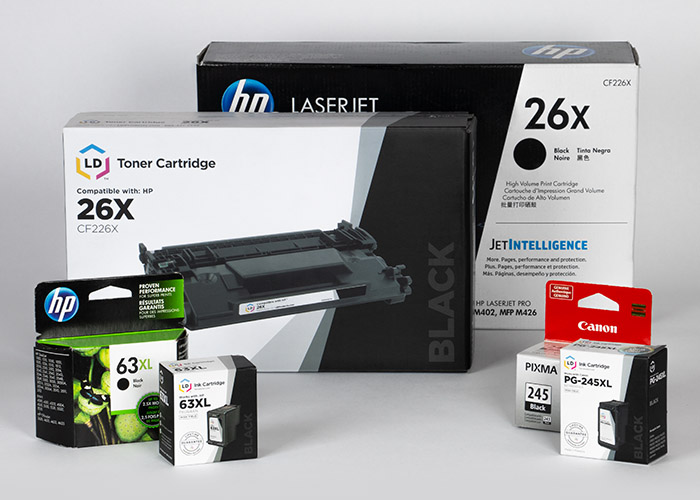
Using incompatible or low-quality toner leads to errors, poor output, and even hardware damage over time.
Match the Model Number Exactly
Check your printer’s manual or the label inside the toner compartment for the correct cartridge number. Cross-reference this number with the manufacturer’s website before buying.
Never assume toner is interchangeable between similar models, because even small differences in design can cause recognition errors.
Choose Between OEM and Third-Party Cartridges
- OEM (Original Equipment Manufacturer): Higher cost, guaranteed compatibility, reliable print quality.
- Third-party or remanufactured: Cheaper, but may lack precision engineering or trigger false errors.
For mission-critical printing, stick with OEM cartridges. For occasional home use, reputable third-party brands can be a cost-effective option.
Diagnose Toner Errors by Indicator Light

Indicator lights help identify specific toner issues without navigating menus or screens.
Solid Red Light Meaning
A solid red light usually signals a critical toner problem such as an unrecognized, empty, or defective cartridge.
Fix steps:
– Reseat the cartridge firmly.
– Clean the chip on the cartridge with a dry cloth.
– Try a known-working cartridge to confirm the issue.
Flashing Toner Light Meaning
A flashing toner light is common in Brother printers and means toner is low or near end-of-life.
Fix steps:
– Press the Clear or Stop button to continue printing temporarily.
– Order a replacement cartridge soon to avoid downtime.
Toner Jam Message Meaning
A toner jam message means excess toner has accumulated in the waste container or on the drum unit.
Fix steps:
– Replace the drum unit if it’s old or worn.
– Clean internal components as described earlier.
– Replace the cartridge if it’s defective or leaking.
Prevent Future Toner Issues
Proper handling and routine maintenance extend toner life and prevent avoidable failures.
Store Cartridges Properly
Keep unused toner in its original sealed packaging, away from heat, direct light, and humidity. Store cartridges horizontally to prevent toner from clumping on one side.
Handle Cartridges with Care
Avoid shaking cartridges excessively or dropping them. Always remove protective strips and packaging tape before installation.
Monitor Print Quality Weekly
Print a test page once a week and look for these warning signs:
– Faint or light text
– Dark streaks across the page
– Repeating marks at regular intervals
Early detection prevents complete print failure and saves you from emergency replacements.
Upgrade or Refill Toner Smartly
Refilling or upgrading toner can cut costs, but only when done correctly.
Refill Kits: Pros and Cons to Consider
Pros:
– Saves 50 to 70 percent compared to buying a new cartridge
– Eco-friendly and reduces plastic waste
Cons:
– Risk of spills and internal printer damage
– May void your printer warranty
– Inconsistent print quality between refills
Use refill kits only with older cartridges and follow the kit instructions exactly for the best results.
High-Capacity Cartridge Upgrades
Some printers support high-yield toner versions, often labeled as XL or High Yield. These last significantly longer and reduce replacement frequency, making them ideal for high-volume users.
Check your printer’s compatibility before purchasing a high-capacity cartridge to ensure proper fit and function.
Frequently Asked Questions About How to Fix a Toner in a Printer
Why does my printer say toner is low after I just replaced it?
This usually happens when the cartridge isn’t seated correctly or the smart chip wasn’t reset. Remove the cartridge, reseat it firmly, and check your printer’s menu for a toner reset option. On some models, you also need to update the supply status manually.
Can I shake a toner cartridge to make it last longer?
Yes, gently shaking a cartridge side to side redistributes the toner powder and can temporarily improve print quality. However, this is a short-term fix. Replace the cartridge soon for consistent results.
Is it safe to use third-party toner cartridges?
Reputable third-party cartridges are generally safe, but they may produce slightly lower print quality and occasionally trigger compatibility errors. OEM cartridges offer the most reliable performance and full warranty protection.
How do I clean up toner spills inside my printer?
Turn off and unplug the printer first. Use a dry lint-free cloth to wipe up loose toner and a toner vacuum for hard-to-reach areas. Never use water or a household vacuum, because both can spread the powder or cause damage.
Will resetting the toner level damage my printer?
No, resetting the toner level only clears the software counter and does not harm the printer. However, it doesn’t add toner, so monitor print quality after resetting to avoid running out mid-job.
Key Takeaways for Fixing Toner Problems in Any Printer
Most toner issues come down to three main causes: poor installation, false low-toner alerts, or actual cartridge failure. Start by reseating the cartridge, then try a manual toner reset before buying a replacement. Always match the cartridge model number exactly and handle toner components with care to avoid spills and contamination.
Your next step is to print a test page right now to check your current print quality. If you see streaks, faint areas, or error messages, work through the steps in this guide starting with reinstallation. Keeping a spare compatible toner cartridge on hand also helps you avoid downtime when a replacement becomes urgent.




