

Your HP Envy 5530 printer sits idle while the print job hangs in limbo and no pages come out. Few things are more frustrating, especially when deadlines are pressing. The good news is that most “HP Envy 5530 printer not printing” problems can be solved at home without calling a technician. This guide walks you through the exact steps to diagnose and fix the issue in under 30 minutes. You will learn how to clear jams, check ink, restart the print spooler, reestablish Wi-Fi, and reset the printer.
Check Basic Printer Status First
Before diving into advanced troubleshooting, confirm the obvious. A silent machine or blinking light often reveals the root cause instantly.
Look for Error Lights or Messages
Check the control panel for blinking lights or error codes. A solid red light may signal low ink, a paper jam, or hardware failure. A flashing light could mean the printer is processing a job or in sleep mode. If the display shows “Offline,” “Paused,” or “No Ink,” address that message first.
Confirm the Printer Is Powered On
Verify the power cable is securely plugged into both the printer and the wall outlet. Press the power button firmly. If the printer does not respond, try a different power cord or outlet. A loose connection or faulty surge protector is a common culprit behind startup failures.
Ensure the Printer Is Not Paused or Offline
On your computer, open the Devices and Printers menu on Windows or Printers & Scanners on Mac. Right-click the HP Envy 5530 and confirm it is not set to “Pause Printing” or “Use Printer Offline.” If either option is active, click to resume. This single fix resolves many “not printing” complaints.
Clear Paper Jams and Feed Issues
Paper jams are a leading cause of print failure. Even a tiny scrap of paper can stop the rollers completely.
Open the Input Tray and Rear Access Door
Pull out the paper tray and remove any stuck, wrinkled, or curled sheets. Open the rear access door and gently pull out any jammed paper. Always pull paper in the direction of the paper path to avoid damaging internal rollers.
Inspect the Rollers for Debris
Use a flashlight to check the feed rollers for dust, paper scraps, or sticky residue. Turn off the printer, dampen a lint-free cloth with water, and wipe the rollers gently. Let them dry completely before restarting the device.
Reload Paper Correctly
Use standard 8.5 x 11-inch paper and avoid overfilling the tray. Align the edges neatly and adjust the paper guides snugly against the stack. Misaligned paper causes repeated jams and feeding errors.
Verify Ink Cartridge Status

Low or faulty ink cartridges can halt printing even if only one color is depleted.
Check Ink Levels via the Control Panel
Navigate to Setup > Tools > Estimated Ink Levels on the printer display. Replace any cartridge showing low or empty ink. The HP Envy 5530 will not print if a cartridge is completely depleted.
Reinstall or Clean the Cartridges
Remove each ink cartridge and inspect the copper contacts on both the cartridge and the slot. Wipe them gently with a dry, lint-free cloth. Reinsert each cartridge firmly until it clicks into place. Dirty or misaligned contacts often trigger communication errors.
Use Genuine HP Cartridges
Aftermarket or refilled cartridges can cause compatibility warnings. If the printer displays “Ink Alert” or “Cartridge Problem,” install genuine HP 62 or 62XL cartridges to restore full functionality.
Restart the Print Spooler Service on Windows
A frozen print queue blocks new jobs from processing, even when the printer is perfectly fine.
Open the Services Manager
Press Windows + R, type services.msc, and press Enter. Scroll down to find Print Spooler in the list.
Stop and Restart the Service
Right-click Print Spooler and select Stop. Wait 10 seconds, then right-click again and choose Start. This action clears stuck print jobs and resets the printing system.
Delete Pending Print Jobs
Navigate to C:\Windows\System32\spool\PRINTERS and delete all files inside that folder. These files represent pending jobs that may be stuck. Restart the spooler service afterward to apply the changes.
Reconnect Wi-Fi and Network Settings
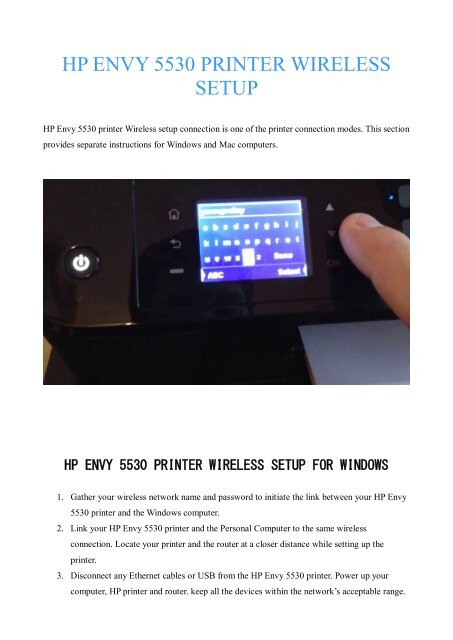
Wireless disconnections rank among the top reasons the HP Envy 5530 stops printing. A stable network is essential.
Run the Wireless Setup Wizard
On the printer control panel, go to Setup > Network > Wireless Setup Wizard. Follow the prompts to reconnect to your Wi-Fi network. Enter the correct password carefully, paying attention to capitalization and special characters.
Check Router Proximity and Signal Strength
Place the printer within 10 feet of the router and avoid walls or metal objects that block signals. A weak Wi-Fi signal causes intermittent print failures. Consider using a Wi-Fi extender if the printer sits far from the router.
Print a Network Configuration Page
From the control panel, go to Setup > Network > Print Network Configuration. This page displays the IP address, signal strength, and connection status. Use it to confirm the printer is connected to your network.
Update or Reinstall Printer Drivers
Outdated or corrupt drivers prevent communication between your computer and the HP Envy 5530. Fresh drivers often fix stubborn issues.
Download the Latest Drivers from HP
Visit support.hp.com and search for “HP Envy 5530.” Download the full feature driver package. Install it even if you believe the current driver is up to date, since reinstalling can replace corrupted files.
Remove Old Printer Entries
On Windows, go to Settings > Devices > Printers & scanners and remove all instances of the HP Envy 5530. On Mac, open System Settings > Printers & Scanners, right-click the printer, and select Remove.
Perform a Clean Installation
After uninstalling, install the new driver and add the printer again. Choose wireless or USB setup based on your connection type. This clean slate approach often resolves persistent “not printing” problems.
Perform a Hard Reset on the Printer
Resetting the printer clears temporary errors and restores default settings. This step is powerful when other fixes have failed.
Power Cycle the Printer
Turn off the printer and unplug the power cord from both the printer and the wall outlet. Wait at least 60 seconds. This allows internal capacitors to discharge fully.
Reconnect and Restart
Plug the power cord back in and turn on the printer. Allow it to boot completely, which may take up to two minutes. The printer will reinitialize and often resume normal operation.
Restore Network Settings if Needed
After a hard reset, you may need to reconnect to Wi-Fi using the Wireless Setup Wizard. Reinstall drivers on your computer if the printer is no longer recognized.
Run HP Print and Scan Doctor
HP offers a free diagnostic tool that automates many of the fixes described above. It is a fast way to identify hidden issues.
Download and Install the Tool
Go to 123.hp.com and download HP Print and Scan Doctor for your operating system. Run the installer and follow the prompts.
Run the Diagnostic Test
Launch the tool and select your HP Envy 5530 from the device list. Click Fix Printing to begin. The tool checks connectivity, spooler status, ink levels, and driver health. It often resolves issues within minutes.
Follow On-Screen Recommendations
If the tool detects a hardware problem, it will suggest service options. For software-related issues, it applies fixes automatically without requiring extra steps.
Prevent Future Print Failures
Avoid recurring problems with simple maintenance habits. A little care goes a long way toward keeping your printer reliable.
Keep Firmware Updated
Enable automatic updates in the HP Smart app or check manually via Setup > Device Settings > Update Now on the printer. Updated firmware prevents known bugs from causing failures.
Print Weekly to Prevent Ink Clogs
Ink dries quickly inside unused cartridges. Print a test page or small document at least once a week to keep the nozzles clear and the ink flowing smoothly.
Use Quality Paper and Ink
Avoid cheap paper that jams easily or leaves residue. Stick with genuine HP ink cartridges for reliable performance and consistent print quality.
Frequently Asked Questions About HP Envy 5530 Printing Issues
Why is my HP Envy 5530 not printing anything?
The most common causes are a paused print queue, offline status, low ink, or a paper jam. Start by checking the printer display for error messages and confirming the printer is not paused in your computer’s settings.
How do I get my HP Envy 5530 back online?
Open Devices and Printers on Windows, right-click the HP Envy 5530, and uncheck “Use Printer Offline.” Make sure the printer is connected to the same Wi-Fi network as your computer.
Why is my HP Envy 5530 printing blank pages?
Blank pages usually indicate empty or clogged ink cartridges. Check ink levels and run a printhead cleaning cycle from the printer menu. You may also need to reinstall the cartridges.
How do I reset my HP Envy 5530 printer?
Turn off the printer, unplug the power cord, and wait 60 seconds. Plug it back in and turn it on. This hard reset clears temporary errors and restores default behavior.
Do I need new ink if my HP Envy 5530 is not printing?
Not necessarily. Remove the cartridges, wipe the contacts, and reinstall them. If ink levels are genuinely low, replace only the empty cartridge with a genuine HP 62 or 62XL.
Final Thoughts on Fixing the HP Envy 5530 Not Printing
The “HP Envy 5530 printer not printing” problem is almost always fixable at home with a methodical approach. Start with the basics: confirm the printer is powered on, online, and free of paper jams. Move on to ink checks, driver updates, and print spooler resets if needed. For stubborn issues, run HP Print and Scan Doctor or perform a hard reset to clear internal errors. With regular maintenance, including weekly test prints and firmware updates, your HP Envy 5530 will deliver reliable performance for years. Try these steps in order, and your printer should be back to work within minutes.




