
You’re ready to print an important document, hit “Print,” and nothing happens. You check your HP printer and see no response. It appears connected to your computer, but the Wi-Fi light is blinking red or off completely. You’re not alone. “HP printer Wi-Fi not working” is one of the most common tech frustrations for home and office users. The issue can stem from router problems, incorrect settings, outdated firmware, or even a simple misstep during setup.
This guide cuts through the confusion. We walk you through proven, step-by-step solutions to restore your HP printer’s wireless connection fast. Whether your printer won’t connect at all, drops connection randomly, or shows “offline” despite being powered on, you will find a fix here. No guesswork, just clear actions that work.
Restart Devices and Network Equipment
Before diving into complex fixes, perform a full system reboot. Many Wi-Fi issues are temporary glitches that a restart resolves instantly.
Power Cycle Your HP Printer and Router
Turn off your HP printer and unplug it from the power source. Do the same for your router and modem. Wait 60 seconds to allow capacitors to discharge and network settings to fully reset. Plug the router and modem back in first. Wait until all lights stabilize, then plug in and power on the printer. Allow it to boot completely before testing.
This simple step clears temporary communication errors and often reconnects a dropped Wi-Fi signal.
Reboot Your Computer or Mobile Device
After restarting the hardware, restart the device you are printing from, whether laptop, phone, or tablet. This clears cached print jobs or network errors that could block communication with the printer.
Wait for the device to fully reboot, then send a test page to confirm the connection.
Check Printer Wi-Fi Status and Lights

Verify your printer’s current connection state before proceeding with deeper troubleshooting.
Read the Wireless Light Indicators
Press the Wireless button on your HP printer. The light should be solid blue or white, meaning Wi-Fi is active. If it blinks, the printer is searching for a network. If it is off, Wi-Fi is disabled.
A blinking or absent light indicates the printer is not connected or is having trouble joining the network.
Print a Network Configuration Report
On the printer’s control panel, navigate to Settings > Network > Print Network Configuration Page. This report shows:
– Current IP address
– Signal strength
– Network name (SSID) it is connected to
– Connection status
If the IP address shows 0.0.0.0 or 169.x.x.x, the printer is not getting a valid network address from your router.
Reconnect Your HP Printer to Wi-Fi
If the printer is disconnected, rejoin the network using one of these methods.
Use the WPS Push Button Method
This is the fastest way to connect if your router supports WPS (Wi-Fi Protected Setup).
- Press the WPS button on your router.
- Within 2 minutes, press and hold the Wireless button on your HP printer for 3 seconds.
- Wait for the light to blink and then stabilize.
The printer will automatically connect to the router without entering a password.
Note: WPS must be enabled on your router. If the connection fails, check your router’s admin page to confirm WPS is active.
Set Up Wi-Fi Manually via Control Panel
If WPS is not available, connect manually through the printer menu.
- Go to Settings > Network > Wireless Setup Wizard.
- Select your Wi-Fi network (SSID) from the list.
- Enter your Wi-Fi password using the on-screen keyboard.
- Confirm and wait for the connection to establish.
Ensure you enter the correct password, since it is case sensitive. A typo is a common reason for failed setup.
Run HP Print and Scan Doctor for Diagnostics
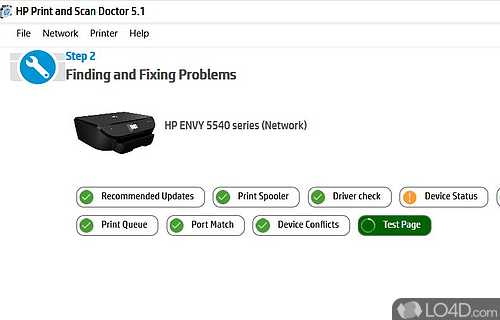
HP provides a free diagnostic tool that automates troubleshooting steps.
Download and Install the Tool
Visit the HP support site and search for HP Print and Scan Doctor. Download and install it on your Windows or macOS device.
Run the Wireless Connection Test
Launch the tool and select your printer. Choose Fix Wireless or Fix Printing. The doctor will:
– Test network connectivity
– Detect configuration issues
– Reset print spooler if needed
– Reinstall network components
Follow the on-screen prompts. The tool often resolves connection problems in minutes.
Update HP Printer Firmware
Outdated firmware can cause Wi-Fi instability and connection drops.
Check Your Current Firmware Version
Print a Configuration Page from Settings > Reports. Look for the Firmware Version entry.
Compare it to the latest version listed on HP’s support site for your exact printer model.
Update via the HP Smart App
Download the HP Smart app from the App Store or Google Play. Connect your phone to the same Wi-Fi network. Open the app, add your printer, and go to Printer Settings > Firmware Update.
The app notifies you if an update is available and guides you through installation.
Tip: Keep automatic updates enabled to prevent future Wi-Fi issues.
Reset Printer Network Settings to Default
If the printer still won’t connect, reset its network configuration.
Restore Network Defaults Only
On the printer control panel:
1. Go to Settings > Network > Restore Network Settings.
2. Confirm the action.
This clears saved Wi-Fi credentials and returns the printer to factory network state.
After resetting, run the Wireless Setup Wizard again to reconnect to your network.
Perform a Full Factory Reset as a Last Resort
Use this only if all other steps fail.
- Go to Settings > Tools > Restore Defaults.
- Confirm the reset.
The printer restarts with all settings erased. You will need to reconfigure language, time, and Wi-Fi from scratch.
Warning: This removes all custom settings. Use only after backing up important configurations.
Optimize Router Settings for Printer Compatibility
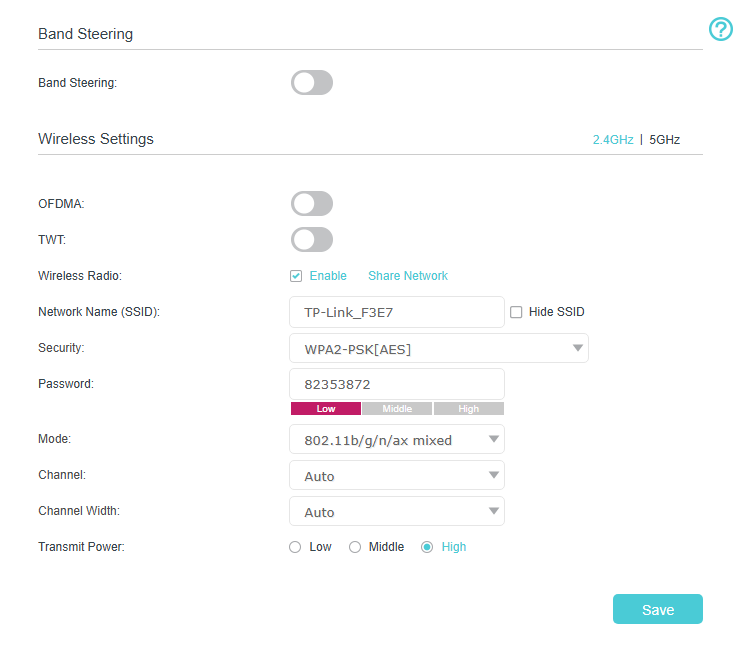
Sometimes the problem is not the printer but the network itself.
Confirm 2.4 GHz Band Compatibility
Most HP printers do not support 5 GHz Wi-Fi. If your router broadcasts a dual-band network, make sure the printer connects to the 2.4 GHz SSID.
Some routers merge both bands under one name. Disable band steering or Smart Connect in your router settings to separate them.
Reduce Wireless Signal Interference
Place your printer within 10 to 15 feet of the router, with minimal walls or large metal objects in between. Avoid placing it near microwaves, cordless phones, or Bluetooth devices, which can disrupt the 2.4 GHz signal.
Assign a Static IP Address to the Printer
Dynamic IP changes can cause connection drops over time.
- Access your router’s admin page (usually
192.168.1.1). - Find DHCP Reservation or Address Reservation.
- Locate your printer by MAC address (from the network config page).
- Assign a permanent IP address.
This ensures the printer always uses the same network address.
Reinstall Printer Software and Drivers
Corrupted drivers can block wireless printing even when the hardware is fine.
Remove the Existing Printer Entry
On Windows:
– Go to Settings > Devices > Printers & Scanners.
– Select your HP printer and click Remove.
On macOS:
– Go to System Settings > Printers & Scanners.
– Right-click the printer and select Remove.
Reinstall Using HP Smart or Full Driver Package
Download the full feature driver from HP’s website for your exact printer model.
Run the installer and choose Wireless Connection when prompted. Follow the setup steps to re-add the printer to your network.
Avoid using basic “Plug and Play” options, since they often skip critical configuration steps.
Prevent Future HP Printer Wi-Fi Issues
Keep your printer running smoothly with these simple habits.
Schedule Regular Maintenance Tasks
- Print a test page weekly to keep components active.
- Update firmware every 3 to 6 months.
- Restart the printer monthly to clear memory.
Use the HP Smart App for Monitoring
The app displays:
– Ink levels
– Connection status
– Error alerts
– Firmware updates
Enable notifications to catch issues early before they cause outages.
Keep Your Router Firmware Updated
Log into your router monthly and check for firmware updates. Outdated router software can cause compatibility issues with printers and other devices.
Frequently Asked Questions About HP Printer Wi-Fi Not Working
Why does my HP printer keep disconnecting from Wi-Fi?
Frequent disconnects usually point to weak signal strength, 5 GHz incompatibility, or dynamic IP changes. Move the printer closer to the router, connect it to the 2.4 GHz band, and assign a static IP to stabilize the connection.
How do I know if my HP printer supports 5 GHz Wi-Fi?
Most HP printers only support 2.4 GHz networks. Check your model’s specifications on the HP support site to confirm. If your router uses band steering, disable it to ensure the printer connects to 2.4 GHz.
What does a blinking Wi-Fi light on my HP printer mean?
A blinking Wi-Fi light means the printer is searching for a network or attempting to connect. A solid light means it is connected. An off light means wireless is disabled or the printer is in a low-power state.
Can I connect my HP printer to Wi-Fi without WPS?
Yes. Use the Wireless Setup Wizard on the printer’s control panel. Select your network name, enter the password, and confirm. This manual method works on any router.
Will a factory reset fix HP printer Wi-Fi not working?
A factory reset can resolve stubborn network issues by clearing corrupted settings. Use it as a last resort after trying restarts, firmware updates, and the HP Print and Scan Doctor tool.
Key Takeaways for Fixing HP Printer Wi-Fi Connection
An HP printer with Wi-Fi not working is usually fixable in under 30 minutes. Start with a full power cycle, verify the wireless light status, and run the HP Print and Scan Doctor for quick diagnosis. Most issues stem from network settings, outdated firmware, or 5 GHz incompatibility.
By following the steps above, you restore reliable wireless printing and avoid future outages with simple monthly maintenance. Begin with the restart method now, and work through each fix in order until your printer reconnects successfully.




