

You’re ready to print an important document or cherished photo, hit “Print,” and nothing happens. Or worse, your Kodak printer starts spitting out blank pages, freezing mid-job, or displaying cryptic error messages. You’re not alone. Millions of users face common Kodak printer issues that disrupt productivity and cause unnecessary frustration. The good news? Most problems have simple, fixable solutions you can handle at home without calling a technician.
This guide delivers fast, reliable Kodak printer troubleshooting steps for the most frequent issues: paper jams, connectivity failures, poor print quality, and unresponsive devices. Whether you own a Kodak EasyShare, Kodak Mini 2, or any all-in-one inkjet model, the solutions here are tailored to restore performance quickly. We will walk you through clear diagnostics, preventive tips, and expert-backed fixes that actually work, saving you time, ink, and money.
Let’s dive into the most common problems and how to resolve them efficiently.
Fix Paper Jams Immediately
Paper jams are one of the top reasons Kodak printers stop working mid-task. They often occur due to incorrect paper loading, humidity-damaged sheets, or worn rollers.
Check Input Tray Alignment
Open the input tray and verify that paper is loaded straight and within the guide marks. Overloading the tray or using curled, torn, or non-standard paper increases jam risks. Use only recommended paper types such as plain 20 to 24 lb paper and fan sheets before loading to prevent sticking.
Never force paper into the tray. Adjust the side guides so they hold the stack snugly without bending the edges.
Clear Stuck Paper Step by Step
- Turn off the printer and unplug it.
- Open all accessible panels, including the rear access door if available.
- Gently pull out any visible paper, always pulling in the direction of paper travel to avoid tearing.
- Inspect rollers and wheels for small paper fragments.
- Use a flashlight to check deep inside the mechanism.
- Once clear, close all doors and power the printer back on.
If the jam message persists after clearing, restart the printer fully. If it continues, move to internal roller inspection or contact support.
Restore Wireless Connectivity

A Kodak printer that won’t connect to Wi-Fi halts wireless printing from phones, tablets, or laptops. This issue often stems from network mismatches, outdated settings, or signal interference.
Reconnect to Wi-Fi Network
From the printer’s control panel:
1. Tap Settings > Network > Wireless Setup.
2. Select your network name (SSID) from the list.
3. Enter the password carefully since passwords are case sensitive.
4. Wait for confirmation showing “Connected” or a solid signal icon.
If the network doesn’t appear, ensure the printer is within range, ideally within 10 feet of the router. Avoid thick walls or electronic interference from microwaves and cordless phones.
Reset Network Settings
When connection fails repeatedly:
1. Go to Settings > Restore Network Settings.
2. Confirm the reset, which erases saved networks.
3. Re-run the wireless setup wizard.
This clears corrupted configurations and forces a fresh connection.
Print a Network Report
To diagnose signal strength and IP status:
1. Press and hold the Wi-Fi button or go to Reports > Network Configuration.
2. Print the report.
3. Check for:
– A valid IP address that is not 0.0.0.0
– An SSID match
– Signal strength above 60%
Use this data to troubleshoot router compatibility or signal issues.
Improve Print Quality Fast

Blurry text, faded colors, or streaky photos indicate print quality problems. These are usually fixable with calibration and routine maintenance.
Clean the Print Head
Clogged nozzles cause missing lines or color gaps. Run the automatic cleaning cycle:
1. Access Settings > Maintenance > Clean Print Head.
2. Select Start and wait for completion.
3. Print a test page to evaluate results.
Limit cleaning cycles to 2 or 3 per week since excessive use wastes ink and may damage components.
Align Cartridges Properly
Misaligned cartridges create blurry or double images. Use the alignment tool:
1. Go to Settings > Maintenance > Align Cartridge.
2. Follow on-screen prompts.
3. Print the alignment page and select the clearest pattern.
Ensure both black and color cartridges are securely snapped in place before starting.
Replace Low or Expired Ink
Faded output often means low ink. Check levels via:
– Settings > Ink Levels, or
– Printer software on your computer.
Replace cartridges showing less than 10% remaining. Also, replace any cartridge older than 18 months, even if unused, as ink dries over time.
Pro Tip: Use genuine Kodak ink for best results. Third-party inks may clog nozzles or trigger false low-ink alerts.
Resolve Power and Startup Failures
When your Kodak printer won’t turn on or freezes during startup, it halts all operations. Power issues are often electrical or firmware-related.
Test Power Source and Cable
Unplug the printer and:
– Try a different wall outlet and avoid power strips.
– Inspect the power cable for bends or frays.
– Swap with a known-working cable if possible.
Ensure the cable is firmly connected at both ends. Some models require specific voltage, so verify compatibility.
Perform a Hard Reset
Clear temporary glitches with a full system reset:
1. Unplug the printer.
2. Wait 60 seconds.
3. Press and hold the power button for 10 seconds.
4. Reconnect power and turn it on.
This resets internal memory and often resolves freezing or boot loops.
Update Firmware Manually
Outdated firmware can cause instability. Check Kodak’s official support site:
1. Enter your model number.
2. Download the latest firmware.
3. Transfer to a USB drive if supported.
4. Install via Settings > Device Update.
Keep firmware updated every 6 months to prevent bugs.
Fix Offline Status on Computer
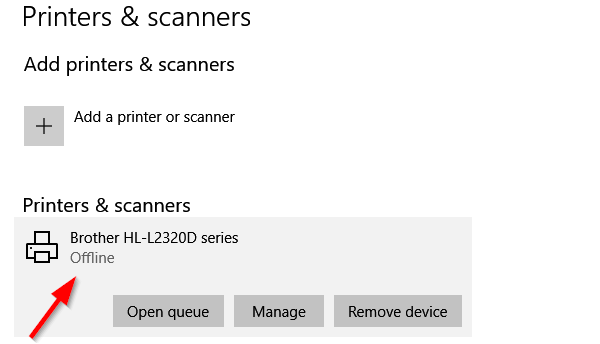
A Kodak printer showing “Offline” in Windows or macOS won’t accept jobs, even if physically connected.
Clear Print Queue
Stuck jobs can force offline status:
1. Open Control Panel > Devices and Printers.
2. Right-click your Kodak printer.
3. Select See what’s printing.
4. Cancel all pending documents.
5. Click Printer > Use Printer Online.
Restart the Print Spooler service if needed:
– Press Win + R, type services.msc, find Print Spooler, and restart it.
Re-Add the Printer
If offline status persists:
1. Remove the printer from Devices and Printers.
2. Reconnect via USB or Wi-Fi.
3. Reinstall using Kodak’s setup assistant or built-in OS tools.
This rebuilds communication channels and fixes corrupted drivers.
Diagnose Error Codes Quickly
Kodak printers display numeric or flashing-light error codes to identify specific faults.
Understand Common Error Messages
- Error 100: Communication failure. Restart printer and computer.
- Error 120: Cartridge issue. Remove, wipe contacts, reinsert.
- Error 143: Ink system failure. Power cycle and clean contacts.
- Flashing Orange Light: General warning. Check for jams or low ink.
Consult your user manual for model-specific codes if not listed here.
Reset After Error Fix
After resolving the root cause, such as clearing a jam or replacing ink, perform a power reset to clear the error from memory.
Never ignore repeated errors, as they may signal hardware wear.
Prevent Future Problems
Regular maintenance keeps your Kodak printer running smoothly and extends its lifespan.
Run Weekly Maintenance
Set a reminder to:
– Print a nozzle check page weekly.
– Clean exterior surfaces with a dry microfiber cloth.
– Run a test print every 7 to 10 days to prevent dried ink.
Even occasional use helps prevent clogs.
Store Properly in Humid Climates
High humidity warps paper and promotes mold inside the printer. Store in a dry, climate-controlled space. Use silica gel packs near storage areas.
Avoid extreme temperatures by keeping printers out of cars or garages.
Use Genuine Supplies
Kodak-branded paper and ink are engineered for optimal performance. While third-party options seem cheaper, they often lead to clogs, smears, and voided warranties.
Stick with OEM supplies for consistent results.
Frequently Asked Questions About Kodak Printer Troubleshooting
Why is my Kodak printer printing blank pages?
Blank pages usually result from clogged print heads or empty ink cartridges. Run the print head cleaning cycle and check ink levels. If the problem continues, inspect cartridge contacts for dirt or dried ink.
How do I get my Kodak printer back online?
Open Devices and Printers, right-click your Kodak printer, and uncheck “Use Printer Offline.” Also clear the print queue and restart the Print Spooler service to refresh the connection.
What does a flashing orange light on my Kodak printer mean?
A flashing orange light typically signals a general warning, such as a paper jam, low ink, or door open. Check for obstructions, verify ink levels, and ensure all covers are closed securely.
How often should I clean my Kodak print head?
Limit automatic cleaning cycles to 2 or 3 per week. Excessive cleaning wastes ink and can wear out components. Print a test page after each cycle to confirm improvement.
Can I use third-party ink in my Kodak printer?
Third-party ink may save money upfront but often causes clogs, smears, and false low-ink warnings. It can also void your warranty. Genuine Kodak ink is recommended for reliable performance.
Why does my Kodak printer keep going offline on Wi-Fi?
Frequent offline status often results from weak signal strength, IP conflicts, or outdated drivers. Move the printer closer to the router, print a network report to verify connectivity, and reinstall the latest drivers from Kodak’s support site.
Key Takeaways for Kodak Printer Troubleshooting Success
Most Kodak printer troubleshooting tasks take under 15 minutes and do not require technical skills. Start by identifying the symptom: paper jams, connectivity drops, poor prints, or startup failures. Apply the targeted fix from this guide, whether clearing a jam, resetting the network, cleaning the print head, or performing a hard reset. Regular maintenance such as weekly test prints, firmware updates every 6 months, and using genuine supplies prevents most issues before they start. Bookmark this guide for fast reference and get back to printing with confidence.




