

You hit “Print” and instantly realize you sent the wrong file or selected the wrong printer. Panic sets in as the machine starts feeding paper while you search for a way to stop printer from printing before wasting more resources.
This guide gives you immediate steps to cancel jobs on Windows using physical buttons or software queues. You will learn how to clear stuck documents and prevent future printing disasters effectively.
Shut Down the Printer to Halt Operations Immediately
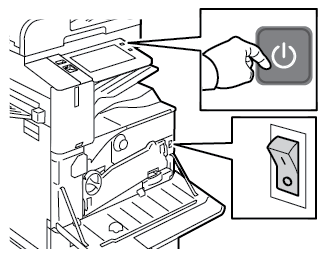
The fastest way to stop printer from printing is cutting power at the source when pages start ejecting. This action stops the mechanical process instantly and prevents further ink or toner usage.
Turn Off the Device Using the Power Button
Press the power button on your printer immediately after spotting an error. This halts all mechanical operations so no more paper feeds through the rollers.
- Do not unplug the cord directly as this can cause hardware issues.
- Use the designated power button for a controlled shutdown sequence.
- Expect the last few pages to eject due to internal momentum.
Cancel the Job via Offline Notification
Windows detects the power loss and displays an “offline” notification near your taskbar. This prompt often includes a direct Cancel button for the active print job.
- Watch for the system notification immediately after turning off the device.
- Click Cancel to remove the job from the queue before restarting.
- Act quickly to prevent the job from resuming when power returns.
Open the Print Queue to Manage Active Jobs

If you miss the physical shutdown window, the Print Queue serves as your central control hub. You can access this interface through several paths on your Windows computer.
Access the Queue via System Tray
Look for the small printer icon located in the system tray near your clock. Double-clicking this icon opens the queue for your default printer instantly.
- This method works best when the printer is actively processing data.
- No icon may appear if the queue is empty or hidden in settings.
- Right-click the icon to see quick management options.
Find Printers Using Start Menu Search
Click the Windows Start button and type “Devices and Printers” into the search bar. Select the Control Panel result to view all connected devices.
- Locate your specific printer in the list of devices.
- Right-click the printer icon to open the context menu.
- Choose See what’s printing to open the job queue.
Navigate Through Control Panel Settings
Open the Start menu and select Control Panel to find older interface options. Go to Devices and Printers or Printers and Faxes depending on your view settings.
- Double-click your printer icon to open its specific queue window.
- Use this path if you prefer structured navigation through system settings.
- This method works even if the printer is not currently active.
Cancel a Single Print Job Quickly
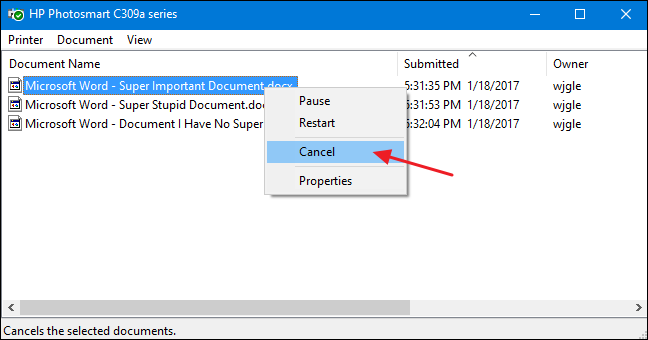
You can stop one specific document without affecting other pending tasks in the queue. This granular control helps maintain workflow while fixing a single mistake.
Select and Cancel the Specific Document
Locate the erroneous document in the list and click it once to select. Navigate to the top menu bar and click Document then choose Cancel.
- Right-click the job entry and select Cancel as a faster alternative.
- Confirm the action by clicking Yes when the dialog box appears.
- The job should disappear from the list within a few seconds.
Understand Post-Cancellation Behavior
The printer may finish the current page or clear its internal buffer before stopping completely. No new pages will print after you confirm the cancellation command.
- Subsequent jobs in the queue will not start unless manually resumed.
- The status may briefly show “Deleting” before the job vanishes.
- This method is ideal when only one file was sent by mistake.
Clear All Print Jobs From the Queue
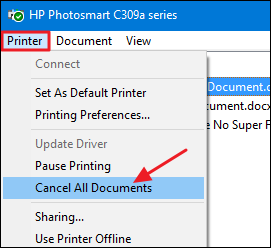
Use this method when multiple incorrect jobs were sent or the entire queue needs clearing. It wipes all pending and active documents from the system memory.
Execute the Cancel All Documents Command
Open the Print Queue and click Printer in the top menu bar. Select Cancel All Documents from the dropdown list to purge everything.
- Click Yes to confirm you want to remove all listed jobs.
- Wait for the list to empty completely before sending new files.
- Verify that no ghost jobs remain in the status column.
Warning: This action cannot be undone and all queued documents will be lost.
Fix Stuck Print Jobs That Won’t Cancel
Sometimes a job stays stuck with a status like “Deleting” or “Paused” despite your efforts. This indicates the Windows Print Spooler service is frozen or corrupted.
Perform a Complete System Hard Reset
A full shutdown sequence forces the spooler service to restart and clear corrupted data. Follow these steps precisely to ensure the process works effectively.
- Turn off the printer completely using the power button.
- Shut down the computer entirely rather than just restarting it.
- Wait at least 10 seconds to ensure all temporary processes end.
- Power on the computer and let the operating system load fully.
- Open the Print Queue to confirm the list is empty.
- Turn the printer back on only after verifying the queue is clear.
Why Full Shutdown Beats Restarting
Restarting the computer sometimes allows spooler processes to survive the reboot cycle. A complete shutdown ensures every temporary process terminates for a fresh start.
- This method clears ghost jobs that standard cancellation cannot touch.
- It resets the communication link between Windows and your hardware.
- Use this technique whenever standard deletion methods fail repeatedly.
Manually Clear the Spooler Folder Files
Delete print files directly from the system directory if jobs remain stuck after a reset. This bypasses the graphical interface to remove data at the source.
Navigate to the Spooler Directory Path
Press Windows + R to open the Run dialog box on your computer. Type C:\Windows\System32\spool\PRINTERS and press Enter to open the folder.
- This directory contains raw print job files waiting to be processed.
- Files here often have no extension and display as generic data types.
- You may need administrator permissions to access or delete these files.
Delete Stuck Print Files Directly
Ensure the printer is off and select all files within the PRINTERS folder. Press Delete to remove them and empty your Recycle Bin to finalize the process.
- Run File Explorer as an administrator if access is denied.
- Do not delete the folder itself, only the files inside it.
- Restart the computer after clearing the folder to refresh the service.
Prevent Future Printing Mistakes Effectively
Stopping a job is a fix, but preventing errors saves time and resources in the long run. Adopt these habits to maintain better control over your printing workflow.
Verify Settings Before Clicking Print
Always double-check the number of copies and page range before confirming. Ensure the correct printer is selected especially in offices with multiple devices.
- Check that you are not printing the entire document by accident.
- Confirm the copy count is set to 1 unless more are needed.
- Review the selected printer name in the final dialog box.
Use Print Preview to Catch Errors
Click Print Preview in your application to see exactly how the document looks. This quick step helps spot formatting errors or wrong content before printing.
- It takes only seconds but can prevent wasting dozens of pages.
- Verify that headers and footers appear in the correct positions.
- Check that images and charts render correctly on the page.
Create a Quick Access Shortcut for Emergencies
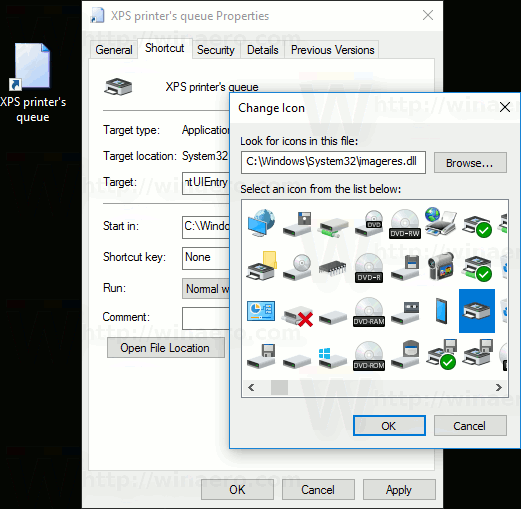
Speed matters when you need to stop printer from printing during a crisis. Create a desktop shortcut to open the print queue instantly without digging through menus.
Make a See What’s Printing Shortcut
Right-click your desktop and select New then Shortcut to begin the process. Enter shell:::{2227A280-3AEA-1069-A2DE-08002B30309D} as the location path.
- Name the shortcut Print Queue for easy identification.
- Click Finish to create the icon on your desktop.
- Double-click this icon to open all printer queues immediately.
Maintain a Healthy Print System Regularly
Regular maintenance prevents stuck jobs and keeps your printing environment running smoothly. Schedule these tasks monthly to avoid future frustrations.
Schedule Monthly Spooler Cleanups
Clear the C:\Windows\System32\spool\PRINTERS folder once a month during downtime. This prevents old data from accumulating and causing system slowdowns.
- Perform this cleanup after a system reboot for best results.
- Check for driver updates that might fix known spooler bugs.
- Monitor your printer status regularly to catch issues early.
Update Printer Drivers for Stability
Outdated drivers often cause communication errors and spooler crashes on Windows systems. Go to Device Manager and update your printer driver automatically.
- Right-click your printer under Print queues and select Update driver.
- Choose Search automatically to let Windows find the latest version.
- Download drivers directly from the manufacturer website for best compatibility.
Frequently Asked Questions About Stopping Printer Jobs
How do I stop a printer that is printing the wrong document?
Turn off the printer immediately using the power button to halt physical output. Then open the Print Queue on your computer and cancel the specific job before powering the device back on.
Why won’t my print job delete from the queue?
The Windows Print Spooler service is likely stuck or corrupted. Perform a full computer shutdown, clear the spooler folder manually, and restart the system to force the job to delete.
Can I cancel a print job after it starts printing?
Yes, you can cancel via the Print Queue, but the printer may finish the current page. Turning off the printer stops the physical process instantly while you cancel the digital job.
What does Cancel All Documents do in the printer menu?
This command removes every active, paused, or pending job from the print queue. Use it when multiple errors occur or when the queue is clogged with failed attempts.
How do I prevent accidental printing in the future?
Always use Print Preview to check your document before sending it. Verify the copy count, page range, and selected printer in the dialog box to avoid mistakes.
Key Takeaways for Learning How to Stop Printer from Printing
Mastering these techniques gives you full control over your printing environment and prevents resource waste. Remember that turning off the printer is the fastest physical method while the Print Queue offers precise software control.
- Act immediately by shutting down the printer or canceling via the queue.
- Perform a full system shutdown if jobs remain stuck in deleting status.
- Use Print Preview and verify settings to prevent errors before they happen.
Start by creating a desktop shortcut to your print queue today so you are ready for any emergency. With these tools, you can stop printer from printing instantly and save time, money, and paper.




