
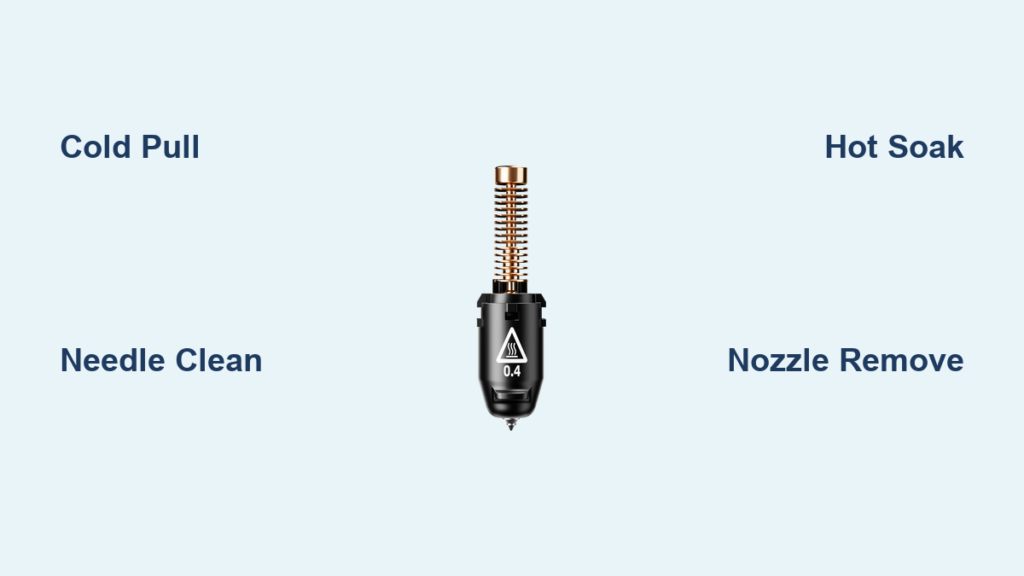
Few things are more frustrating than watching a print fail halfway through because of weak extrusion or stringing. For Flashforge 3D printer users, most of these issues trace back to a clogged or dirty nozzle. Residue from filament buildup, dust particles, and thermal degradation slowly accumulate inside the nozzle, especially with frequent material changes. Whether you own an Adventurer series printer or a Creator 5, proper Flashforge 3D printer nozzle cleaning is the key to reliable performance.
This guide covers everything you need to keep your nozzle clear. You will learn how to spot early clog symptoms, perform cold pulls and needle cleaning, conduct deep maintenance, and prevent future blockages. Each method is designed to protect your print head while restoring smooth filament flow.
Spotting Early Symptoms of a Clogged Nozzle
Inconsistent Extrusion and Layer Gaps
A partially blocked nozzle often shows up as thin gaps in solid infill or weak layer adhesion. This is especially common when switching between PLA and higher-temperature filaments like PETG without proper purging. If your first few layers look under-extruded, the nozzle is likely the cause.
Stringing Between Printed Parts
Excessive stringing or oozing between travel moves usually points to residue around the nozzle tip. While retraction tuning helps, persistent strings after calibration suggest debris interfering with clean filament breaks.
Clicking Sounds from the Extruder
A clicking or grinding noise during printing means the extruder is struggling to push filament through. On Flashforge models, this often follows a failed print or abrupt shutdown. Before assuming a clog, check that the Bowden tube is fully seated. A loose tube creates similar symptoms.
Cold Pull Method for Deep Internal Cleaning
Heat and Load Filament
Preheat your printer to the printing temperature of the currently loaded filament. Set 210°C for PLA or 240–250°C for ABS and PETG. Once heated, manually feed about 10 cm of filament into the extruder to ensure a solid column reaches the nozzle.
Execute the Pull
Remove the filament and immediately lower the temperature to 90°C. Wait for the display to confirm the new setting. As the hot end cools, the filament contracts. At 90°C, pull the filament straight out with firm, steady pressure. A clean pull produces a thin, spear-like tip with visible debris attached.
Repeat for Stubborn Clogs
Perform 3 to 5 cold pulls using the same filament type. For tough blockages, switch to nylon filament. Heat to 245°C, load nylon, wait one minute, then cool to 90°C and pull. Nylon grips internal residue effectively and works well for deep cleaning.
Needle and Exterior Cleaning Techniques

Use a Precision Cleaning Needle
Once the nozzle cools completely, insert a 0.4mm stainless steel needle into the tip. Move it in small circular motions to break up debris. Never force the needle, as this can scratch or deform the precision-machined opening. Flashforge nozzles require careful handling to maintain dimensional accuracy.
Brush the Nozzle Exterior
Use a brass wire brush to remove carbonized filament from the nozzle base and sides. Follow with a lint-free cloth lightly dampened with isopropyl alcohol. Avoid getting liquid near the heater block or thermistor to prevent damage.
Clean Both Nozzles on Dual Extrusion Models
Creator 5 users should clean both nozzles individually. Run separate cold pulls and needle checks for each head. A clog in one nozzle causes layer shifting and failed support structures during dual-material prints. Always verify both nozzles are clear before starting a new job.
Hot Cleaning for Quick Flow Restoration
Heat and Soak Filament
Set the hot end to 230°C and load a short piece of PLA filament. Let it sit inside the melt zone for 60 seconds without extruding. The heat softens built-up residue and primes the nozzle for clearing.
Push Through the Blockage
Manually advance the filament using the feed gear or extruder motor. Apply steady pressure. You may feel resistance followed by a sudden release as the clog clears. Repeat 2 to 3 times until extrusion flows consistently.
Ideal for Routine Maintenance
This method works best for partial clogs with reduced flow. It takes less than 10 minutes and does not require disassembly. Use it between prints to keep the nozzle performing at its best.
Deep Cleaning Through Nozzle Removal
Power Down and Prepare Tools
Turn off the printer and allow the hot end to cool below 40°C. Gather a wrench, needle, tweezers, and a replacement nozzle if needed. Work on a stable, flat surface to avoid losing small parts.
Remove the Nozzle Safely
Use a nozzle wrench to loosen the brass nozzle from the heat break. Hold the heater block steady with a second wrench to prevent stress on internal wiring. Unscrew counterclockwise with gentle, even force.
Soak in Acetone for ABS Only
If you print ABS, soak the removed nozzle in acetone for 1 to 2 hours. This dissolves carbonized residue effectively. Do not use acetone on PLA, PETG, or TPU, as it will not work and may damage components. For other materials, use a dedicated cleaning solution or ultrasonic cleaner.
Reinstall with Proper Torque
Screw the nozzle in finger-tight, then give a quarter turn with the wrench. Over-tightening can crack the heat break. After reinstalling, re-level the bed and run a short test print to confirm proper flow.
Preventing Future Nozzle Clogs
Purge Between Filament Changes
Always perform a hot pull or purge cycle when switching materials. The Creator 5 includes a built-in “Purge” function in the maintenance menu. This clears mixed or degraded filament before it hardens inside the nozzle.
Store Filament in Dry Conditions
Moisture in filament causes bubbles and inconsistent melting, which leads to internal buildup. Store all spools in sealed containers with desiccant packs. PLA and PETG absorb moisture quickly, so proper storage is critical for clog prevention.
Maintain a Clean Print Environment
Dust in the air settles on filament and enters the nozzle during loading. Keep your Flashforge printer in an enclosed, clean space. Adding a particulate filter near the spool area reduces contamination and extends nozzle life.
Upgrades to Reduce Clog Frequency

Install a Volcano-Style Nozzle
Creator 5 users printing large parts can benefit from a Volcano-style nozzle. These wider nozzles (0.6mm or 0.8mm) offer increased melt capacity and faster flow rates. Better heat distribution also reduces clog risk. Check firmware compatibility before making this change, as some settings may need adjustment.
Switch to Hardened Steel Nozzles
Standard brass nozzles wear down quickly with abrasive filaments like glow-in-the-dark or carbon fiber materials. Upgrade to a hardened steel nozzle for longer life and consistent performance. Third-party suppliers offer Flashforge-compatible steel nozzles in various sizes.
Enable a Nozzle Cleaning Tower
When running dual extrusion prints, add a cleaning tower in your slicer settings. The printer automatically purges both nozzles during material switches, minimizing cross-contamination. Enable this feature in Flashprint or third-party slicers like Cura for cleaner transitions.
Troubleshooting Persistent Clog Issues
Nozzle Still Blocked After Standard Cleaning
Try a heat-assisted needle cycle. Heat the nozzle to 250°C, insert the cleaning needle, wait 30 seconds, then gently twist and pull. Repeat several times. If the clog remains, disassemble the hot end and inspect the heat break for carbon deposits that may need manual removal.
Uneven Flow from Dual Extrusion Heads
Run independent extrusion tests from the control panel. Extrude 5mm from each nozzle separately. If one side under-extrudes, repeat cold pulls on that specific nozzle. Also verify Bowden tube seating, as loose connections cause backflow and mimic clog symptoms.
“No Filament” Error After Cleaning
Ensure the filament feeds past the pinch wheel after reinsertion. Sometimes the filament slips and fails to trigger the sensor. Manually guide it until you feel resistance, then use the “Load Filament” function. If the error continues, check sensor alignment.
Frequently Asked Questions About Flashforge 3D Printer Nozzle Cleaning
How often should I clean my Flashforge nozzle?
Perform cold pulls weekly if you print frequently or switch materials often. Clean the exterior monthly, and do a full deep clean every 3 to 6 months depending on usage.
Can I use acetone to clean a nozzle clogged with PLA?
No. Acetone does not dissolve PLA and may push debris further into the nozzle. Use a cleaning needle, cold pulls, or a PLA-specific cleaning filament instead.
What size needle do I need for Flashforge nozzles?
Use a 0.4mm stainless steel needle for standard 0.4mm nozzles. If you have upgraded to a larger nozzle size, match the needle diameter accordingly. Never force a needle that does not fit smoothly.
Is it safe to remove the nozzle while the printer is warm?
Always wait for the hot end to cool below 40°C before removal. Attempting to unscrew a hot nozzle can cause burns and damage thermal components.
Will cold pulls damage my Flashforge hot end?
Cold pulls are safe when performed correctly. Avoid excessive force, and never pull at temperatures below 70°C. The method is widely recommended by 3D printing communities for routine maintenance.
Key Takeaways for Flashforge 3D Printer Nozzle Maintenance
Regular cleaning is the foundation of reliable 3D printing on Flashforge Adventurer and Creator 5 machines. Cold pulls remain the safest and most effective method for internal cleaning, while needle and brush techniques handle exterior buildup. Deep cleaning with nozzle removal should be reserved for severe clogs that resist other methods.
Start by identifying symptoms early, then apply the least invasive cleaning technique that resolves the issue. Schedule weekly cold pulls, store filament properly, and consider hardened steel or Volcano nozzles for demanding materials. These habits will keep your Flashforge running smoothly and your prints looking sharp.
For the best results, set a recurring reminder to inspect your nozzle before long print jobs. A few minutes of preventive maintenance saves hours of failed prints and frustration.




