
Your printer sits there, powered on and connected, yet nothing prints. Jobs pile up in the queue, or worse, your PC doesn’t even see the device. Printer spooling problems are one of the top reasons Windows users can’t print, and they almost always trace back to the Print Spooler service freezing or clogging with corrupted files.
The fix is simpler than you’d think. This guide walks you through restarting the spooler, clearing stuck print jobs, and resetting everything using built-in Windows tools. No downloads, no tech support calls, and no advanced skills required.
By the end, you’ll have a working printer and a clear plan to prevent future spooling issues.
Restart the Print Spooler in Services Manager
The fastest way to clear most spooling issues is restarting the Print Spooler service. This clears the print queue, resets the connection, and resolves common detection errors on Windows 10 and 11.
Open Services in Two Clicks
You have two quick options to reach the service:
- Search method: Press the Windows key, type Services, and click the app
- Run command: Press Windows + R, type
services.msc, then press Enter
Both methods open the Services window listing all background processes.
Find and Restart Print Spooler
Once the Services window opens:
- Press the P key to jump to services starting with “P”
- Right-click Print Spooler in the list
- Select Restart from the context menu
- Wait 10 seconds for the service to stop and restart
✅ Pro Tip: This single step resolves most minor spooling hiccups instantly.
Use Stop and Start If Restart Fails
When the Restart option doesn’t respond:
- Right-click Print Spooler and choose Stop
- Wait until the status column shows “Stopped”
- Right-click again and select Start
- Reboot your computer afterward
This full cycle forces a clean initialization of the spooler and connected drivers.
Clear Stuck Print Jobs in the Spooler Folder
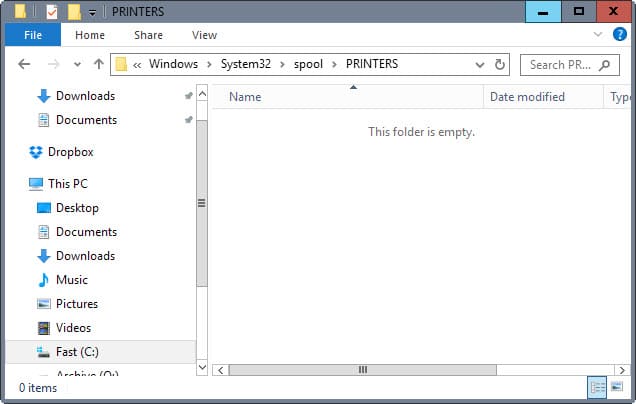
Corrupted or frozen print jobs can block the entire queue. Even after restarting the spooler, these files may linger and cause recurring problems. Clearing the spooler folder removes them completely.
Stop the Spooler First
Before deleting anything, you must stop the service:
- Press Windows + R, type
services.msc, then press Enter - Find Print Spooler in the list
- Right-click it and choose Properties
- Click Stop and keep the window open
Stopping the service prevents new files from being written during cleanup.
Delete Files in the PRINTERS Folder
Now clear the stuck jobs:
- Press Windows + R again
- Type this path and press Enter:
C:\Windows\System32\spool\PRINTERS - If any files appear (usually with
.SPLor.SHDextensions), press Ctrl + A to select all - Press Delete or right-click and choose Delete
⚠️ Warning: These files are temporary print data. Deleting them only removes pending jobs, not your personal documents.
Close File Explorer when finished.
Restart the Spooler and Test
Return to the Print Spooler Properties window:
- Click Start to restart the service
- Click OK to close the window
- Try printing a test page
You should see immediate improvement with no stuck jobs remaining.
Fix Spooling Problems with Command Prompt
For a faster, automated fix, use Command Prompt. This method combines stopping the service, clearing files, and restarting everything in three quick commands.
Run Command Prompt as Administrator
Admin rights are required to modify system services:
- Press Windows + S and type
cmd - Right-click Command Prompt in the results
- Choose Run as administrator
- Confirm the User Account Control prompt
Execute the Spooler Reset Commands
Type each command and press Enter after each one:
cmd

net stop spooler
Stops the Print Spooler service. Wait for the confirmation message.
cmd

del /q /s /f "C:\Windows\System32\spool\PRINTERS\*"
Deletes every file in the spool folder silently:
– /q skips confirmation prompts
– /s includes all subfolders
– /f forces deletion of read-only files
cmd

net start spooler
Restarts the service. Look for: “The Print Spooler service was started successfully.”
✅ Pro Tip: Save these three commands in a text file for future use, especially if you manage multiple PCs.
Power Cycle the Printer and Restart Your PC
Sometimes software fixes aren’t enough. Hardware connections need a reset too, especially when the spooler still misbehaves after a clean restart.
Reset the Printer Hardware
A proper power cycle clears the printer’s internal memory:
- Turn off the printer using the power button
- Unplug it from the wall or power strip
- Wait 10 to 15 seconds
- Plug it back in and power it on
This re-establishes communication with your computer.
Reboot Your Computer
After resetting the spooler:
- Restart your PC to flush residual print processes
- Ensures all drivers reload cleanly
- Resolves deeper system-level conflicts
Wait for the desktop to fully load before testing printing.
✅ Best Practice: Always reboot after a spooler reset, especially if earlier fixes didn’t work.
Update Printer Drivers and Windows
:max_bytes(150000):strip_icc()/windows-update-windows-11-29041fdc666a480786c5d80b36a6a072.png)
Outdated drivers or missing OS updates can trigger spooling errors even after a clean reset. Keeping both current prevents recurring problems.
Update Printer Drivers the Safe Way
Always download from official sources:
- Visit the manufacturer’s website (HP, Canon, Epson, Brother, etc.)
- Enter your printer model number
- Download the latest driver for your Windows version
- Install and follow the setup prompts
Avoid third-party driver tools since they often bundle unwanted software.
✅ Alternative: Use Device Manager:
– Press Windows + X, then click Device Manager
– Expand Print queues
– Right-click your printer and choose Update driver
– Select Search automatically for updated driver software
Install Pending Windows Updates
Windows updates frequently include spooler fixes:
- Press Windows + I to open Settings
- Go to Windows Update
- Click Check for updates
- Install anything available
- Reboot if prompted
Prevent Future Spooling Issues
Fixing the problem once is good. Avoiding repeat issues saves time and frustration in the long run.
Clear the Spooler Folder Regularly
Build a habit of clearing the folder:
- After large print jobs
- Following software updates
- When printing feels slow
Use this one-line Command Prompt shortcut for instant cleanup:
cmd

net stop spooler && del /q /s /f "C:\Windows\System32\spool\PRINTERS\*" && net start spooler
Paste it into an admin Command Prompt window.
Watch for Warning Signs
Catch issues early by monitoring:
- Jobs stuck at “Printing” for several minutes
- Printer suddenly showing “Offline”
- Repeated error messages when sending print jobs
Address these signs before they cascade into bigger problems.
Avoid Overloading the Spooler
Large or complex documents can overwhelm the queue:
- Print one job at a time for big files
- Reduce print quality for draft documents
- Use “Print to PDF” first to test formatting
✅ Pro Tip: For shared office printers, consider a dedicated print server to manage heavy loads.
Verify the Fix Works
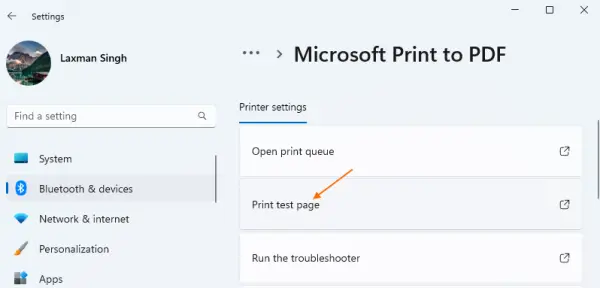
After applying any solution, test thoroughly to confirm everything runs smoothly.
Print a Test Page
Check if the spooler responds:
- Open Settings, then go to Bluetooth & devices and Printers & scanners
- Select your printer
- Click Print test page
Check Printer Status
Confirm the printer shows:
– Ready
– Online
– No warning icons
Submit Multiple Test Jobs
Send two or three small documents to verify:
– Jobs queue properly
– Each prints in correct order
– No delays or freezes occur
Success looks like instant response, clean queue clearing, and zero error logs.
When Basic Fixes Don’t Work
If spooling problems persist after all the steps above, try these advanced solutions:
- Reinstall the printer: Remove it from your devices list, then add it again
- Run System File Checker:
cmd

  sfc /scannow
This repairs corrupted Windows system files that affect the spooler - Create a new user profile: Corrupted profiles can interfere with printing
- Check group policies in enterprise environments where some policies disable spooler services
For network printers, also verify:
– IP address stability
– Firewall settings blocking print sharing
– Router or switch connectivity
Frequently Asked Questions About Printer Spooling Problems
What causes printer spooling problems?
Most spooling issues stem from a corrupted Print Spooler service, stuck print jobs, or temporary print files that have become corrupted. Large print jobs, software updates, and system-level conflicts can also trigger the problem.
How do I know if my Print Spooler is the issue?
Common signs include your printer showing as offline despite being powered on, print jobs piling up without processing, documents failing to print, or your computer not detecting the printer at all.
Is it safe to delete files in the spooler folder?
Yes, deleting files in C:\Windows\System32\spool\PRINTERS is safe. These are only temporary print files. You’ll lose any pending print jobs, but no personal documents or programs are affected.
How long does it take to fix spooling problems?
Most fixes take just 1 to 5 minutes. Restarting the Print Spooler service alone often resolves the issue in under two minutes. Full resets with file clearing and driver updates may take up to 10 minutes.
Do these methods work on both Windows 10 and Windows 11?
Yes, all methods in this guide work identically on Windows 10 and Windows 11. The Services Manager layout and Run dialog are consistent across both versions.
Can I prevent spooling problems from happening again?
Regular maintenance helps significantly. Clear the spooler folder periodically, keep your printer drivers updated, install Windows updates promptly, and monitor the print queue for stuck jobs.
Key Takeaways for Fixing Printer Spooling Problems
Printer spooling problems are almost always fixable, and usually fast. The steps outlined here resolve about 95% of spooling issues on Windows 10 and 11. The core solution is simple: stop the Print Spooler service, clear the temporary files in the spooler folder, then restart the service.
For the quickest results, start with a service restart through Services Manager. If that doesn’t work, move to the full reset with file clearing or the Command Prompt method. Always finish by testing multiple print jobs to confirm the fix holds.
Bookmark this guide for the next time your printer stops responding. With these steps, you can solve most spooling problems in under five minutes, no technician required.




