

You finish your last print job and wonder if you should power down the device or just leave it. Many people struggle with how to turn off HP printer models because the process is not always obvious. Some machines seem to hum forever, while others hide their controls behind touchscreens or lack a physical button altogether. The confusion is common, and you are not alone in searching for the right method.
The good news is that shutting down an HP printer is straightforward once you understand your model and its power behavior. This guide covers where to find the power button, how to use on-screen menus, when to unplug, and how sleep mode differs from a full shutdown. You will also learn when to leave your printer on and how to troubleshoot unresponsive controls.
Locate the Power Button on Your HP Printer

Every HP printer includes a way to power down, though the exact location depends on the model you own.
Check the Front or Side Panel First
Most HP inkjet and laser printers feature a circular power button marked with the standard “1” and “0” symbols. On popular DeskJet models like the 2700 or 3700 series, the button sits on the front right corner. On Envy and OfficeJet Pro machines, look near the display screen or along the side edge. If your device has a touchscreen, the power control often sits just below or beside the panel.
Visual cue: A glowing light or illuminated display confirms the printer is receiving power. If the light is off but the printer still responds to print jobs, the device is in sleep mode, not fully off.
Identify Models Without a Physical Button
Some all-in-one HP printers, especially network-connected units like the HP Tango or HP Smart Tank, skip the traditional power button by design. These models stay in a low-power state and wake when a print job arrives. The only way to fully power them down is to unplug the cord or connect them to a smart plug for remote control.
Pro tip: If you cannot locate a button, check the HP Smart app. The app often shows your model number and current power status, which helps you confirm whether the device is truly off.
Use the Control Panel to Power Down
Even when a dedicated button is missing, you can often shut down the printer through on-screen menus.
Navigate the Settings Menu on Touchscreen Models
On HP printers with a display screen, such as the HP Envy 6000 or HP OfficeJet Pro 9015, follow these steps:
- Tap the Settings gear icon on the home screen.
- Scroll to Device Settings or System Settings.
- Select Power Settings > Turn Off Printer or Shut Down.
The printer stops all operations and powers down within a few seconds.
Common mistake: Selecting “Sleep Mode” instead of “Shut Down.” Sleep mode reduces power use but does not fully turn off the device. Always confirm the screen goes completely dark.
Confirm Shutdown on Touchscreen Displays
After selecting “Shut Down,” some HP printers display a confirmation prompt. Tap Yes or OK to proceed. The screen fades out and any internal fans stop spinning.
Time estimate: A full shutdown takes 5 to 10 seconds. Avoid unplugging during this window to prevent firmware corruption.
Unplug for a Complete Power-Off

When buttons and menus are not available, physically cutting power is the most reliable method.
Safely Disconnect Your HP Printer from Power
- Cancel any active print jobs from your computer or mobile device.
- Wait until the printer is idle with no blinking lights or moving parts.
- Disconnect the power cord from the wall outlet or surge protector.
This method guarantees the printer is 100% off and draws no standby power.
Why this works: Many HP printers, especially older units, never reach a true “off” state through software alone. Unplugging is the only guaranteed way to fully power them down.
Use a Smart Plug for Easy Remote Control
For printers without a power button, such as the HP Tango X, plug the device into a smart plug. Use a smartphone app or voice assistant like Alexa or Google Assistant to cut power remotely.
Benefit: Schedule automatic nightly shutdowns to save energy and extend the life of your printer.
Understand Sleep Mode vs. Full Power-Off
Many users assume their HP printer is “on” when it is actually in sleep mode, a power-saving state that mimics being off.
Recognize Sleep Mode Indicators
- A dim or slowly pulsing light on the control panel
- The printer wakes instantly when you send a print job
- No fan noise, though internal circuits remain active
Sleep mode typically activates after 5 to 30 minutes of inactivity, depending on your settings.
Key difference: A printer in sleep mode can still receive wireless print jobs. A fully powered-off printer cannot.
Disable Auto-Wake to Keep the Printer Off
If you want your printer to stay off after a manual shutdown, disable the features that wake it:
- Open the HP Smart app or HP Printer Assistant on your computer.
- Navigate to Printer Settings > Network > Wake on LAN or Wireless Wake-Up.
- Toggle off Enable Wake on Wireless or Auto-On/Off.
Now the printer will not restart when it receives a print request, giving you true control over its power state.
Adjust Power Settings for Automated Control
You can customize when and how your HP printer powers down using built-in settings.
Set Auto-Off Time in the Printer Menu
- On the printer display, open Settings > Device Settings > Power Settings.
- Select Auto-Off Time or Sleep Mode Timer.
- Choose a duration such as 15, 30, or 60 minutes of inactivity.
After the selected time passes, the printer enters sleep mode. Note that this is not a full shutdown unless you pair the setting with a smart plug.
Recommended setting: 15 to 30 minutes for home use, and 60 minutes for office environments with frequent printing.
Use the HP Smart App to Manage Power Remotely
The free HP Smart app, available for iOS and Android, lets you monitor and control your printer from anywhere.
• View the current power state
• Send a shutdown command on supported models
• Receive notifications when the printer turns on
To start, install the app, connect to your printer over Wi-Fi, and navigate to Printer Settings > Power Management.
Troubleshoot an Unresponsive Power Button
Sometimes pressing the power button does nothing. Before contacting support, try these fixes.
Restart the Printer System
- Unplug the printer from power for 60 seconds.
- Plug it back in.
- Press the power button immediately after reconnecting.
This resets the internal electronics and often restores button responsiveness.
Warning: Avoid using a power strip with heavy surge protection if your printer frequently freezes, since some strips interfere with low-current devices.
Clear the Print Queue Before Shutting Down
An active print job can prevent shutdown. Always:
- Cancel pending jobs from your computer on Windows or Mac.
- Wait for the printer to finish current tasks.
- Then attempt to power it off.
How to check: On Windows, go to Settings > Devices > Printers & scanners, select your HP printer, choose Manage, then click See what’s printing. On Mac, open System Settings > Printers & Scanners, select the printer, and choose Open Print Queue.
Know When Not to Turn Off Your Printer
While you can power down most HP printers, frequent shutdowns are not always wise.
Risks of Frequent Power Cycling
- Printhead drying: Inkjet printers like the DeskJet and Envy rely on regular use to keep nozzles clean. Frequent shutdowns can cause clogs.
- Startup delays: Each cold start takes longer and uses more power than remaining in sleep mode.
- Network reconnection issues: Wireless printers may lose connection and require reconfiguration.
Expert advice: Leave your HP inkjet printer on during the week if you print several times weekly. Power it off only for extended absences such as vacations.
Ideal Times to Power Down
- During maintenance like cleaning printheads or replacing ink
- During electrical storms or power fluctuations
- When storing the printer long-term
- While troubleshooting connectivity or error issues
Unplugging in these situations protects hardware and improves troubleshooting accuracy.
Model-Specific Shutdown Tips
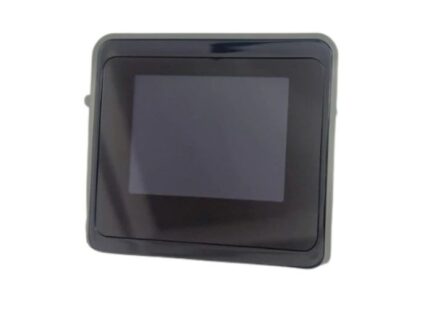
Different HP printers behave differently. Here is how to turn off common models.
HP DeskJet Series (2700, 3700, 4100)
• Power button: front right corner
• Action: press and hold for 1 to 2 seconds until lights turn off
• Note: no shutdown menu exists, so use the button or unplug
HP Envy Series (5000, 6000, 6400)
• Power button: below the touchscreen
• Alternative: open Settings > Device Settings > Shut Down
• Pro tip: disable “Fast Resume” to reduce standby power
HP OfficeJet Pro (6900, 9010)
• Power button: top front near the display
• Auto-off: adjustable from 15 to 120 minutes
• Enterprise use: often left on 24/7 for network printing
HP Tango and Smart Tank Models
• No physical button: designed to stay in low-power mode
• Only full-off method: unplug or use a smart plug
• HP Smart app control: monitor status and schedule downtime
Final Power-Off Checklist
Before turning off your HP printer, run through this quick checklist.
Prepare the Printer
• Cancel all print jobs
• Wait for printhead parking and listen for the final motor sound
• Close the HP Smart app or printer software
Choose Your Shutdown Method
| Method | Best For | Full Power-Off? |
|---|---|---|
| Power Button | Most DeskJet, Envy, LaserJet | Yes |
| Control Panel Shutdown | Touchscreen models | Yes |
| Unplugging | Buttonless models like Tango | Yes |
| Smart Plug | Remote control setups | Yes |
| Sleep Mode | Daily use | No |
After Powering Off
• Remove ink cartridges and cap printheads for long-term storage
• Cover the printer to prevent dust buildup
• Reconnect and run a nozzle check when turning the printer back on
Frequently Asked Questions About Turning Off an HP Printer
Why does my HP printer not turn off when I press the power button?
Your printer may be in sleep mode rather than fully on, or the button may be unresponsive due to a stuck print job. Try canceling pending jobs, unplugging the printer for 60 seconds, then pressing the button again. If the issue continues, check the HP Smart app for an on-screen shutdown option.
Is it bad to leave my HP printer on all the time?
Leaving your HP printer on is generally safe, especially for inkjet models that benefit from regular use. Sleep mode keeps the device ready for print jobs while using minimal power. Constantly power cycling can actually cause printhead clogs and slow startup times.
Can I turn off my HP printer from my phone?
Yes, the HP Smart app supports remote power management on many modern HP models. Open the app, select your printer, and look for power or shutdown options under Printer Settings. For buttonless models, pairing the printer with a smart plug gives you full remote control.
Should I unplug my HP printer when not in use?
Unplugging is the most reliable way to fully power down an HP printer and eliminate standby power draw. However, frequent unplugging can cause wear on the power cord and may disrupt firmware updates. For daily use, sleep mode is more practical. Reserve unplugging for long-term storage, maintenance, or electrical storms.
How long does it take for an HP printer to fully shut down?
Most HP printers complete a full shutdown within 5 to 10 seconds after you press the power button or select “Shut Down” on the touchscreen. Wait until the display goes completely dark and any internal sounds stop before unplugging the device.
What is the difference between sleep mode and turning off my HP printer?
Sleep mode keeps the printer in a low-power state that can still receive wireless print jobs. A full shutdown powers down all internal circuits, and the printer cannot receive jobs until you turn it back on. Sleep mode is best for daily use, while shutdown is best for energy savings and long-term storage.
Key Takeaways for Powering Down Your HP Printer
Knowing how to turn off an HP printer gives you control over energy use, maintenance, and device longevity. Most models shut down with a simple button press or menu command, but modern wireless printers often rely on standby mode instead. Use unplugging or a smart plug for a complete shutdown, and avoid frequent power cycling to protect printheads and internal components.
For the best results, match your shutdown method to your model and usage habits. Leave daily-use inkjets in sleep mode, use on-screen shutdowns for touchscreen models, and reserve unplugging for storage or maintenance. When in doubt, open the HP Smart app to confirm your model and access the right power controls. With the right approach, you can confidently power down your HP printer whenever you need to.




