

You press print, the Jadens label printer powers on, paper feeds smoothly, but the output comes out completely blank. This is one of the most common Jadens printer not printing issues, and the good news is that the fix is usually simple. Most causes fall into four categories: paper orientation, wrong consumables, power supply problems, or printhead damage. This guide walks you through each one so you can get your thermal printer working again in minutes.
Below you’ll find step-by-step troubleshooting for every possible cause, starting with the most common and easiest to fix. No technical background required.
Check Thermal Paper Orientation First
When a Jadens printer feeds paper but prints nothing, incorrect paper orientation is the number one cause. Thermal printers use heat to activate a chemical coating on one side of the paper. If that coated side faces away from the printhead, no image will appear.
Identify the Thermal (Printable) Side
Thermal paper looks identical on both sides, so you need a quick test:
- Lightly scratch the paper surface with your fingernail.
- The side that leaves a dark black mark is the thermal (printable) side.
- This side must face the printhead inside the printer.
Reload the Paper Correctly
- Open the printer cover and remove the paper roll.
- Flip the roll so the scratch-sensitive side faces down.
- Close the cover and send a test print.
✅ Pro Tip: Make scratch-testing a habit every time you load a new roll. It takes two seconds and prevents most blank-page issues.
Confirm You’re Using Real Thermal Paper
Even with perfect orientation, the wrong paper type will produce zero output. Standard office paper and thermal transfer paper both fail in Jadens thermal printers.
Why Non-Thermal Paper Doesn’t Work
- Plain paper has no heat-sensitive coating.
- Thermal transfer paper needs a ribbon, which Jadens printers do not use.
- Without the correct coating, the heated printhead produces nothing visible.
Use Only Direct Thermal Labels
- Look for rolls labeled “thermal” or “direct thermal.”
- JADENS brand thermal labels are tested and optimized for compatibility.
- Avoid inkjet or laser labels, even if the size matches.
⚠️ Warning: Third-party paper may physically fit but underperform. Genuine JADENS paper delivers the most consistent results.
Test the Power Adapter
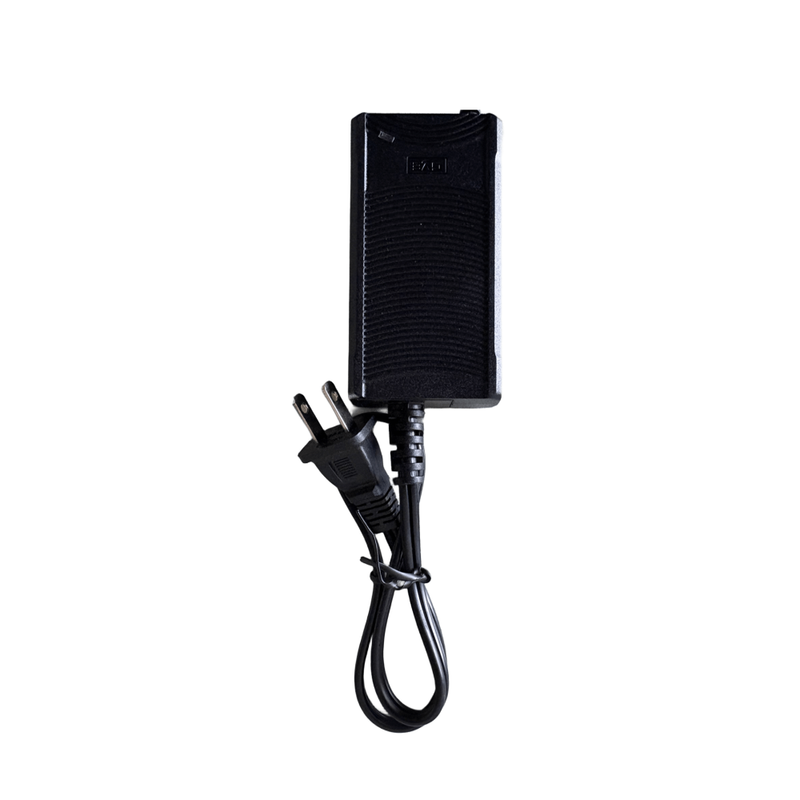
A weak or unstable power supply prevents the printhead from reaching the temperature required to activate the thermal coating. The printer may appear to work, but produce blank output.
Signs of a Power Issue
- Printer turns on but prints blank pages.
- Paper feeds slowly or unevenly.
- The printer shuts off unexpectedly mid-job.
Rule Out Power Problems
- Use only the original JADENS adapter that came with your printer.
- Plug directly into a wall outlet, not a power strip or extension cord.
- Inspect the cable for fraying, bent prongs, or loose connectors.
- Check whether the adapter feels unusually hot during use.
Try a Known-Good Adapter
If you have access to another adapter with matching voltage and polarity, swap it in to test. Mismatched power can cause silent failures that look like hardware damage.
🔌 Quick Fix: Swap outlets before swapping adapters. A faulty wall socket can mimic adapter failure.
Run a Self-Test to Check the Printhead
If paper, consumables, and power all check out, the printhead itself may be the problem. A self-test print is the fastest way to confirm.
How to Run a Self-Test on a Jadens Printer
- Turn off the printer.
- Press and hold the feed button.
- While holding the button, turn the printer back on.
- Release the feed button when paper starts feeding.
The printer will print a test page containing model and firmware information. If this page is completely blank, the printhead is likely damaged.
Clean the Printhead Before Concluding Damage
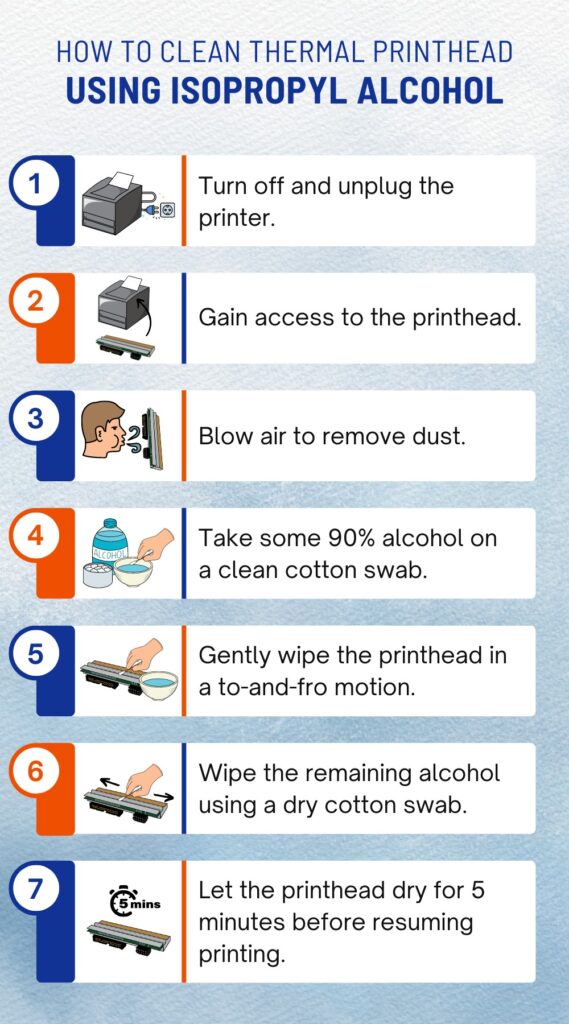
Dust and residue can block the heating elements and mimic hardware failure.
- Power off and unplug the printer.
- Open the cover and locate the shiny metal strip (the printhead).
- Wipe gently with a lint-free cloth lightly dampened with isopropyl alcohol.
- Let it dry fully, then reload paper and test again.
❌ Never use water, paper towels, or excessive pressure. These can scratch or destroy the heating elements.
Contact Jadens Support for Hardware Repair
When the self-test remains blank after cleaning, the printhead heating element is likely permanently damaged. This cannot be repaired at home.
What to Include in Your Support Request
Email support@jadens.com with the following:
- Printer model number (for example, JADENS LP100)
- A short description of the issue
- A list of the troubleshooting steps you’ve already tried
- Photos of the blank output, if possible
Jadens support will respond with repair or replacement options based on your warranty status. Registering your device speeds up this process.
🛠️ Note: Do not attempt to replace the printhead yourself. Static discharge or misalignment can cause permanent, irreversible damage.
Prevent Future Jadens Printer Not Printing Problems
A few simple habits will keep your Jadens printer running smoothly and prevent repeat blank-page issues.
Quick Maintenance Checklist
- Load paper correctly every time. Always scratch-test the thermal side first.
- Use genuine JADENS thermal labels. This avoids compatibility surprises.
- Inspect the power adapter monthly. Look for cable wear or unusual heat.
- Clean the printhead every 30 days. A quick alcohol wipe prevents residue buildup.
- Store paper in a cool, dry place. Heat and sunlight degrade the thermal coating.
Frequently Asked Questions About Jadens Printer Not Printing
Why is my Jadens printer feeding paper but printing blank?
The most common cause is paper loaded with the thermal (printable) side facing away from the printhead. Scratch the paper with your fingernail, then flip the roll so the side that leaves a dark mark faces down.
Can I use regular paper in a Jadens thermal printer?
No. Jadens printers only work with direct thermal paper. Regular paper, inkjet labels, and thermal transfer paper will all produce blank output because they lack the correct heat-sensitive coating.
How do I run a self-test on my Jadens printer?
Turn the printer off, press and hold the feed button, then power the printer back on. Release the feed button when paper begins to feed. The printer will print a diagnostic page with model details.
What does it mean if the self-test page is blank?
A blank self-test after confirming correct paper, compatible consumables, and stable power usually means the printhead heating element is damaged. Contact Jadens support for repair or replacement.
Where do I send my Jadens printer for support?
Email support@jadens.com with your printer model, a description of the problem, and a summary of the troubleshooting steps you have already tried.
Key Takeaways for Fixing a Jadens Printer Not Printing
Most Jadens printer not printing issues come down to four things: paper orientation, paper type, power supply, or printhead condition. Start by scratch-testing the paper and flipping it if needed. Then confirm you’re using genuine JADENS thermal labels. Verify the original adapter is delivering stable power. Finally, run a self-test and clean the printhead before assuming hardware failure.
If the self-test prints blank after all of these steps, the printhead needs professional service. Contact support@jadens.com with your model number and troubleshooting details. Save this guide for next time, and you’ll have your Jadens printer back online in under ten minutes.




