

You are preparing a critical financial report in Sage 300 CRE or finalizing an inspection document when a red message halts progress: printer not activated error code 30. No PDF is created, no email attachment is generated, and your workflow stops completely. This specific error indicates that the virtual PDF printer driver required to convert your reports has failed to activate properly.
This guide provides a precise roadmap to resolve printer not activated error code 30 across Sage 300 CRE, Sage Estimating, and 3D Inspection System v11. You will learn how to verify system compatibility, grant necessary admin rights, re-enable the PDF driver, and configure Remote Desktop settings. Follow these steps to restore your printing capabilities quickly and prevent future interruptions after Windows updates.
Run Software as Administrator to Restore Permissions

The most common cause of printer not activated error code 30 is insufficient user permissions. If the host application lacks elevated privileges, it cannot communicate with the Windows print spooler or load the TS PDF Generator driver. Granting administrator rights often resolves the issue immediately by allowing the software to access required system resources.
Enable Admin Mode for Sage Desktop
Follow these steps to force the application to run with elevated permissions:
- Locate the Sage Desktop executable in
C:\Program Files (x86)\Timberline Office\Sharedor search for “Desktop” in the Start menu. - Right-click the application icon and select Properties.
- Navigate to the Compatibility tab.
- Click Change settings for all users at the bottom of the window.
- Check the box labeled Run this program as an administrator.
- Click Apply and then OK to save changes.
- Restart Sage Desktop and attempt to print your report again.
Pro Tip: If multiple users share the machine, applying this setting ensures everyone runs the app with the required permissions without individual configuration.
Warning: Antivirus software may block elevation requests. Temporarily disable real-time protection during setup if the error persists.
Set Correct Default Printer to Avoid Conflicts
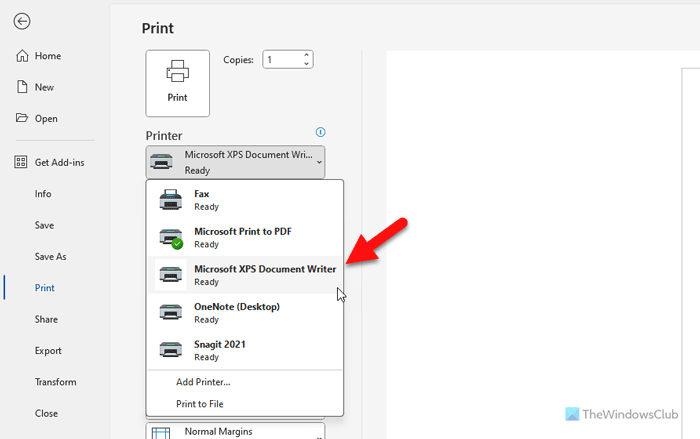
Using the TS PDF Generator as your default printer often triggers printer not activated error code 30. The system expects a standard output device for initial routing, and setting the virtual driver as default disrupts this process. Correcting the default printer selection allows the software to route jobs properly before converting them to PDF.
Avoid PDF Generator as Default Device
Perform this quick configuration change to eliminate routing conflicts:
- Open Sage Desktop and go to Common Tasks > File > Printer Setup.
- Find the Default Printer dropdown menu in the Printer Selection window.
- Select a physical printer like an HP LaserJet or a non-PDF virtual printer such as Microsoft XPS Document Writer.
- Click OK to save your selection.
- Attempt to print your document again.
Time Estimate: Less than 2 minutes.
Visual Cue: A checkmark next to a non-PDF printer in the list confirms success.
Test Printing with XPS Writer to Isolate Failure
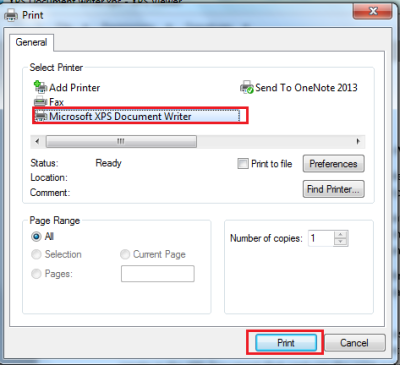
Before reinstalling drivers, verify whether the issue is isolated to the PDF driver or affects the entire printing subsystem. This diagnostic step determines if your Windows printing core is functional or if broader system issues exist.
Isolate Driver Failure Using XPS
Use the built-in Microsoft XPS Document Writer to test the print path:
- Open any report in Sage or 3D Inspection System.
- Click Print and select Microsoft XPS Document Writer from the list.
- Check the Print to File option and choose a save location.
- Click Print to generate the file.
If a .xps file generates successfully, your Windows printing system is functional. This confirms the problem lies specifically with the TS PDF Generator or Amyuni driver. If this fails, investigate broader issues like the Print Spooler service status or user-level print permissions.
Reinstall TS PDF Generator Driver in Sage 300 CRE
Corrupted or incomplete driver installations are a leading cause of printer not activated error code 30. A clean reinstall replaces missing or damaged components that prevent the virtual printer from activating. This process ensures all necessary files are present and correctly registered.
Remove and Reinstall Driver Components
Follow this sequence to perform a clean installation:
- Open Control Panel > Devices and Printers.
- Locate TS PDF Generator or Amyuni Document Converter.
- Right-click each device and select Remove device, then confirm deletion.
- Navigate to your Sage installation path:
\\ServerName\Timberline Office\9.5\Accounting\Wininst\Prerequisites\PDF Converter\. - Run RunAmyunillnst.exe and accept the User Account Control prompt.
- Wait for the installer to complete and verify the printer appears in Devices and Printers.
- Restart Sage Desktop and test printing functionality.
Note: If running locally, copy the installer to the desktop before execution to avoid network timeout errors during installation.
Repair Amyuni Driver in 3D Inspection System
For 3D Inspection System v11, use the built-in repair utility to restore the PDF converter. This method automatically removes old components and reinstalls fresh copies without manual uninstallation steps. It is the preferred method for fixing printer not activated error code 30 in inspection environments.
Execute Built-in Installer Utility
Perform these steps to repair the driver automatically:
- Close all programs and restart the computer to clear locked files.
- Open File Explorer and navigate to
C:\Program Files (x86)\3D Inspection System 11. - Locate the file named install with a shield icon indicating UAC elevation.
- Right-click and select Run as administrator, then click Yes on the prompt.
- Watch the status window as it removes the old driver and reinstalls the Amyuni Document Converter.
- Wait until you see the message “Printer setup succeeded.”
- Click OK, close remaining windows, and launch 3D Inspection System to test.
Success Signal: The message “Printer setup succeeded” confirms a clean install.
Duration: Approximately 1 to 2 minutes.
Handle ARM Processor Incompatibility Issues
Error Code -1797 during installation indicates unsupported hardware architecture. The TS PDF Generator and Amyuni drivers are not compatible with ARM-based processors found in devices like Microsoft Surface Pro X. If your system uses ARM architecture, printer not activated error code 30 cannot be resolved by driver repair alone.
Confirm x86 or x64 Architecture
Verify your system type before attempting further repairs:
- Press Windows + R, type
msinfo32, and press Enter. - Look for System Type in the summary.
- Confirm you see x64-based PC or x86-based PC for compatibility.
- If you see ARM-based PC, native installation will fail.
Workarounds for ARM Devices
Since native installation fails on ARM, consider these alternatives:
- Use a virtual machine running x64 Windows via Parallels or VMware Fusion.
- Access software via Remote Desktop to a server with x64 architecture.
- Switch to a compatible device for report generation tasks.
Critical Note: No driver update will fix this hardware-level incompatibility. Architectural abstraction is required.
Configure Remote Desktop Settings for Printing
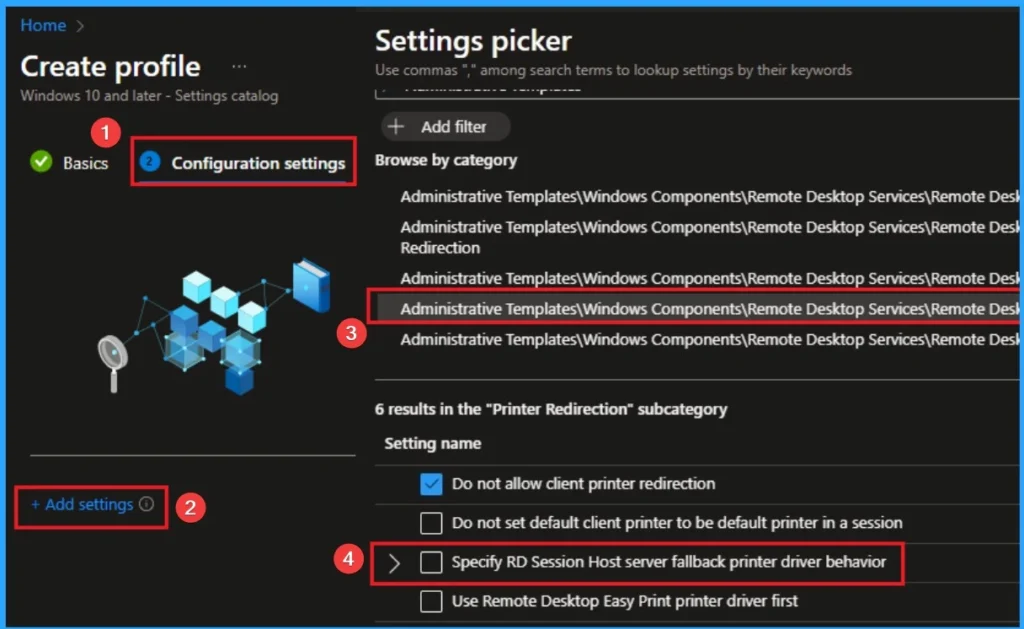
Printer redirection in Remote Desktop Services breaks virtual printer activation. When RDS redirects local printers, the session cannot access the server-side TS PDF Generator, causing printer not activated error code 30. Disabling redirection forces the session to use server-side drivers correctly.
Disable Printer Redirection Policy
Apply this configuration to prevent redirection conflicts:
- Open Administrative Tools on the remote machine or terminal server.
- Go to Remote Desktop Services > Remote Desktop Session Host Configuration.
- Click Connections in the left pane and right-click the active connection.
- Select Properties and go to the Client Settings tab.
- Check Printers under Do not map the following client devices.
- Click Apply and OK, then reconnect your session.
Install PDF Generator Locally on Remote Workstation
If users need PDF creation on their remote desktop, install the driver locally:
- Copy
RunAmyunillnst.exefrom the server to the remote desktop local drive. - Right-click the file and select Run as administrator.
- Confirm the printer appears in Devices and Printers after installation.
Benefit: This ensures the driver runs in the local session, independent of server redirection policies.
Prevent Future Errors After Windows Updates
System patches often break virtual printer drivers, leading to recurring printer not activated error code 30 issues. Establishing a post-update verification routine ensures your printing workflow remains stable after major OS changes.
Post-Update Verification Routine
Adopt these best practices after any Windows update:
- Generate a test report as PDF immediately after updates.
- Re-run the Amyuni installer as administrator if printing fails.
- Schedule monthly checks for PDF generation functionality.
- Disable antivirus temporarily during driver reinstallation.
- Use local copies of installers to prevent network corruption.
Pro Tip: Add the Amyuni installer to your IT deployment toolkit for rapid recovery after system updates.
Frequently Asked Questions About Printer Not Activated Error Code 30
What causes printer not activated error code 30 in Sage 300 CRE?
This error occurs when the application lacks admin rights, the TS PDF Generator driver is corrupted, or the default printer is set incorrectly. Windows updates and Remote Desktop redirection settings can also trigger this failure.
Can I fix printer not activated error code 30 on an ARM processor?
No, the TS PDF Generator and Amyuni drivers are incompatible with ARM-based processors. You must use a virtual machine with x64 Windows or access the software via Remote Desktop to a compatible server.
Why does the error appear only when emailing reports?
Emailing reports in Sage uses the same print-to-PDF backend process as direct printing. If the virtual PDF driver fails to activate due to permissions or corruption, both direct printing and email attachment generation will fail.
How do I know if my printer driver installation is corrupt?
If running the application as administrator does not work and the XPS test succeeds while PDF generation fails, the driver installation is likely corrupt. Reinstalling the TS PDF Generator or Amyuni driver usually resolves this.
Does disabling printer redirection fix Remote Desktop printing issues?
Yes, disabling printer redirection prevents the remote session from hijacking the local print queue. This forces the system to use the server-side or locally installed virtual printer, resolving activation failures.
Key Takeaways for Fixing Printer Not Activated Error Code 30
Resolving printer not activated error code 30 requires addressing permission levels, driver integrity, and system configuration. Running your software as an administrator, setting a physical default printer, and reinstalling the TS PDF Generator or Amyuni driver will fix most cases. For Remote Desktop users, disabling printer redirection and ensuring local driver installation are critical steps.
Remember that ARM-based devices cannot run these legacy drivers nically, requiring virtualization or remote access solutions. Regular verification after Windows updates prevents recurrence and maintains workflow stability. Start by running your application as an administrator, as this simple step resolves the majority of activation failures immediately.




