
You tap “Print” on your iPad, but nothing happens. The printer sits idle, no error appears, and you’re stuck. This frustrating scenario is common: a printer not printing from iPad affects thousands of users daily. The cause is usually a connectivity or compatibility issue, not a broken device.
This guide walks you through every proven fix, from quick checks to advanced network settings. You’ll learn how to restore AirPrint functionality, use alternative printing methods, and prevent future problems. Let’s get your iPad and printer talking again.
Confirm Your Printer Supports iPad Printing

Before troubleshooting, verify your printer can actually receive jobs from an iPad. Most modern wireless printers use AirPrint, Apple’s built-in printing technology.
Check AirPrint Compatibility
AirPrint is the standard method for printing from iOS devices. Without it, your printer won’t appear in the iPad’s print menu.
To verify support:
- Visit Apple’s official AirPrint page on your iPad
- Search for your printer’s exact make and model
- If listed, your device is fully compatible
If your printer isn’t on the list, printing directly from iPad won’t work without third-party software.
Use Manufacturer Apps for Non-AirPrint Printers
Many printer brands offer dedicated iOS apps that bypass AirPrint entirely. Popular options include:
- HP Smart
- Epson iPrint
- Canon PRINT Inkjet/SELPHY
- Brother iPrint&Scan
Download the matching app from the App Store, connect both devices to the same Wi-Fi, and follow the setup wizard.
Verify Both Devices Share the Same Network
A printer not printing from iPad often traces back to a simple network mismatch. Even if both devices show Wi-Fi bars, they might be on different networks or bands.
Check Wi-Fi Network Names
AirPrint requires both devices on the identical network. To confirm:
- Open Settings > Wi-Fi on your iPad
- Note the network name
- Check your printer’s display or settings menu for its network
If names differ, reconnect the printer using its control panel.
Reboot Router, Printer, and iPad
Network glitches block device discovery. A power cycle clears them quickly:
- Turn off the printer
- Unplug your router for 30 seconds
- Plug the router back in and wait for full reboot
- Power on the printer
- Toggle Wi-Fi off and on on your iPad
Test printing once everything reconnects.
Test AirPrint Detection
After confirming network alignment, check whether your iPad can actually find the printer.
Access the Print Menu Correctly
To trigger AirPrint discovery:
- Open any document, photo, or email
- Tap the Share icon (square with upward arrow)
- Scroll down and tap Print
- Tap Select Printer
Your compatible printer should appear in the list within seconds.
Fix a Missing Printer
If nothing shows up, try these adjustments:
- Wake the printer from sleep mode
- Avoid Wi-Fi extenders or mesh systems that isolate devices
- Disable VPN connections temporarily
- Turn off Private Wi-Fi Address under Settings > Wi-Fi > Your Network
After disabling, reconnect and check the printer list again.
Clear Stuck Print Jobs
Pending jobs can block new print commands, even invisibly. Clearing the queue often resolves silent failures.
Cancel Pending Print Jobs
To clear stuck jobs on your iPad:
- Open the Print menu as described above
- Look for any active job and tap Cancel
- Force close the app you were printing from
Restarting the iPad also clears background printing processes.
Simulate a Printing System Reset
iPadOS lacks a dedicated reset option, but you can mimic one:
- Power off the printer
- Restart your iPad completely
- Reconnect to Wi-Fi
- Power the printer back on
- Attempt your print job again
This refreshes AirPrint discovery from scratch.
Update iPadOS and Printer Firmware

Outdated software creates compatibility gaps. Keeping both devices current prevents many printing failures.
Install the Latest iPadOS Version
Apple regularly patches AirPrint bugs through system updates. To check:
- Navigate to Settings > General > Software Update
- Download and install any available update
Even minor releases can resolve stubborn printing issues.
Update Printer Firmware
Manufacturers release firmware updates that improve wireless performance. To update:
- Access your printer’s Settings or Setup menu
- Look for Firmware Update or Check for Updates
- Follow on-screen prompts
Alternatively, search your printer manufacturer’s website using the model number for manual downloads.
Inspect the Printer’s Physical Status
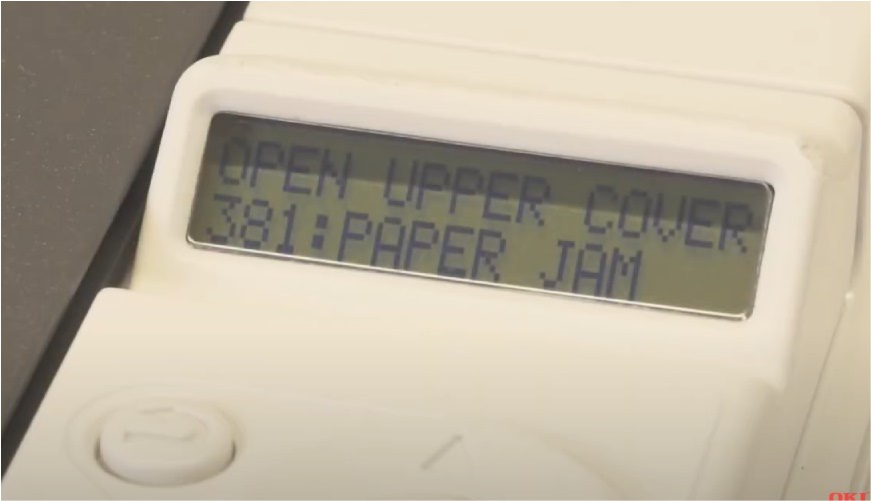
Sometimes the issue isn’t digital at all. Hardware problems silently block print jobs.
Check for Error Indicators
Examine your printer’s display for:
- Paper jam warnings
- Low ink or toner alerts
- Open tray or cover messages
- Maintenance required notifications
Clear any visible errors before attempting to print again.
Print a Test Page Directly
Confirm the printer itself works by printing a self-test page:
- Press and hold the Power or Go button
- Or navigate to Settings > Reports > Network Configuration
If the test page prints successfully, your hardware is fine. The problem lies in iPad-to-printer communication.
Optimize Router Settings for AirPrint
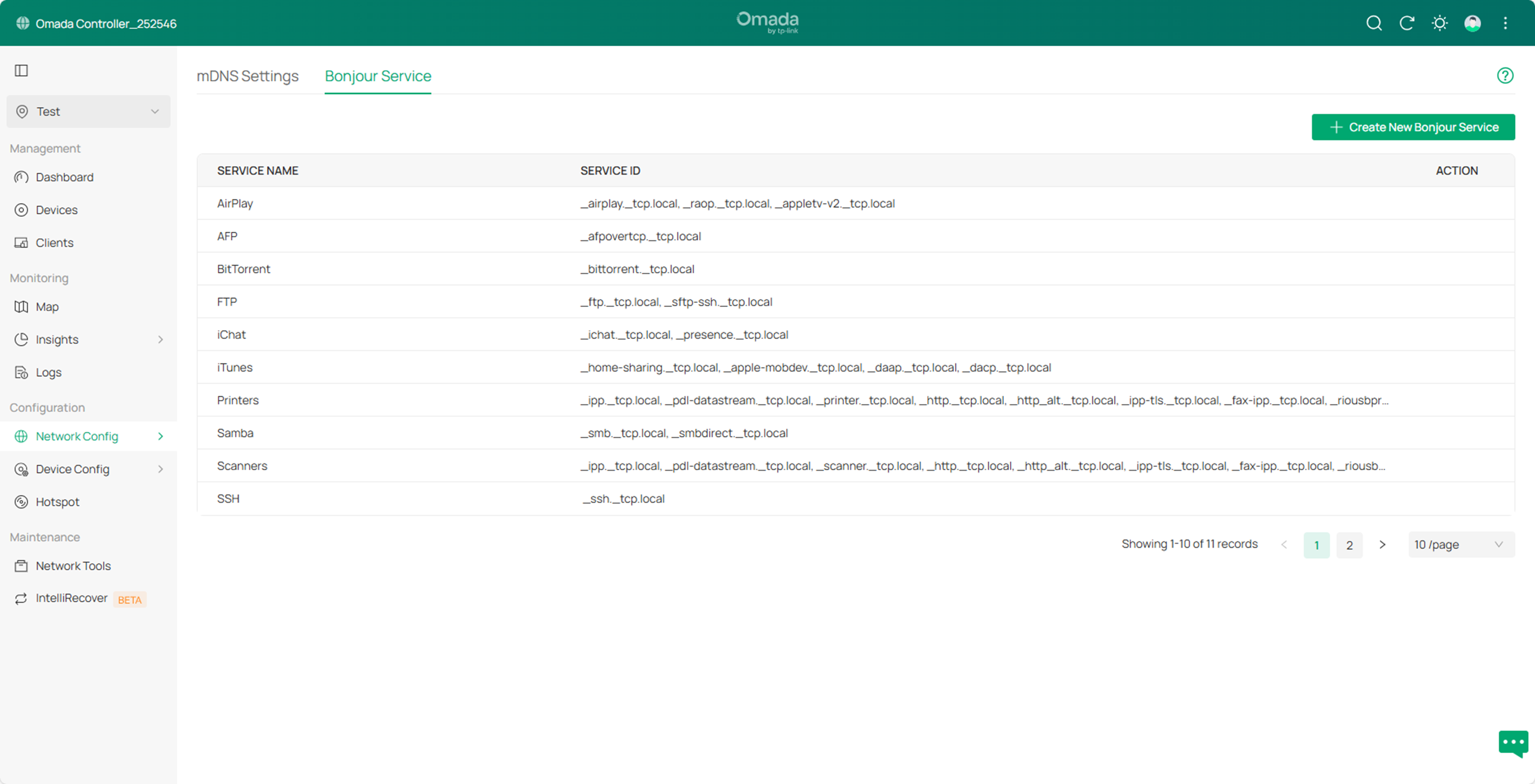
Certain network configurations block AirPrint traffic entirely. Adjusting these settings often solves persistent issues.
Enable mDNS and Bonjour
AirPrint uses mDNS (also called Bonjour) to locate printers on local networks. If your router disables this feature, discovery fails.
To enable it:
- Log into your router’s admin panel
- Find mDNS, Bonjour, or Service Discovery settings
- Activate mDNS reflector or Bonjour forwarding
This allows all devices on your network to communicate properly.
Disable Network Isolation Features
Routers sometimes separate devices for security. Features that block printing include:
- Guest networks
- AP isolation
- Client isolation
Disable these for your primary network if AirPrint fails repeatedly.
Use Alternative Printing Methods
When AirPrint won’t cooperate, these workarounds ensure you can still print from your iPad.
Save Documents as PDF First
Convert files to PDF and email them to a connected computer:
- Open the Share sheet and tap Print
- Pinch outward on the print preview to save as PDF
- Email the PDF to yourself
- Print from any computer on the same network
Try Cloud Printing Services
Several cloud options bypass local network issues:
- Email-to-Print: Some HP and Epson models accept print jobs via email
- Google Chrome: Print from any device using Chrome’s built-in feature
- Cloud storage apps: Open files in Dropbox or OneDrive and print from there
Check your printer’s manual for supported cloud features.
Prevent Future iPad Printing Problems
Proactive maintenance keeps your wireless printing setup reliable long-term.
Optimize Your Wi-Fi Setup
For consistent results:
- Connect both iPad and printer to the 2.4 GHz band (better range)
- Name your 2.4 GHz and 5 GHz networks differently to avoid confusion
- Keep your iPad within reasonable range of the router
Create a Monthly Maintenance Checklist
Stay ahead of problems with these habits:
- Restart your router and printer monthly
- Install iPadOS updates promptly
- Check for printer firmware updates quarterly
- Clear print queues after heavy use
- Monitor ink and paper levels regularly
Frequently Asked Questions About iPad Printing Issues
Why is my printer not showing up on my iPad?
Your printer likely isn’t AirPrint-compatible, or both devices are on different Wi-Fi networks. Check Apple’s AirPrint list and confirm network names match exactly.
Do all printers work with iPad?
No. Only AirPrint-enabled printers work natively with iPad. Non-compatible printers require manufacturer apps or cloud printing services.
How do I reset AirPrint on my iPad?
iPadOS has no direct reset button. Power cycle your iPad, turn off the printer, restart your router, then power everything back on in sequence.
Can I print from iPad without AirPrint?
Yes. Use manufacturer apps like HP Smart or Epson iPrint, save documents as PDF and email them, or use cloud printing services supported by your printer.
Why does my iPad say “No AirPrint Printers Found”?
This message appears when your iPad detects no compatible printers on the current network. Verify Wi-Fi alignment, check that the printer is powered on, and ensure mDNS is enabled on your router.
Does a VPN block iPad printing?
Often yes. VPNs route traffic through external servers, preventing local device discovery. Disable your VPN temporarily to test AirPrint functionality.
Key Takeaways for Fixing iPad Printing Problems
A printer not printing from iPad usually stems from network mismatches, outdated software, or disabled router features. Start by confirming AirPrint compatibility and verifying both devices share the same Wi-Fi network. Reboot your equipment, update iPadOS and printer firmware, and enable mDNS if needed.
For ongoing reliability, maintain separate network names for 2.4 GHz and 5 GHz bands, keep software current, and use manufacturer apps when AirPrint isn’t available. With these strategies, you’ll enjoy seamless wireless printing and avoid frustrating downtime. Try these fixes today and experience stress-free iPad printing once again.




