
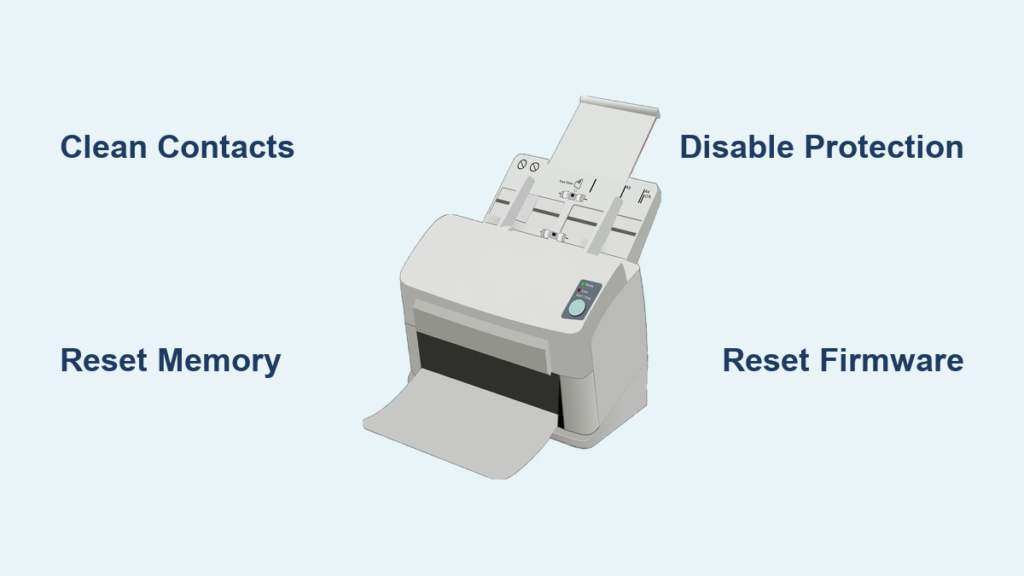
Your printer suddenly refuses to recognize a new ink cartridge. The screen flashes “Cartridge not recognized” or “Replace cartridge,” even though the ink is brand new. You are not alone, as this is a frequent issue across HP, Canon, Epson, and Brother models. Most of the time, the fault lies with dirty contacts or firmware glitches rather than a broken printer.
This guide shows you how to fix a printer not recognizing ink cartridge issues safely and effectively. You will learn to clean metal contacts, reset printer memory, and override protection settings on major brands. Follow these steps to restore functionality without buying unnecessary replacements or calling a technician.
Identify Why Your Printer Rejects New Cartridges
Printers use microchips on cartridges to communicate ink levels and identity to the main board. When communication fails, the printer assumes the cartridge is missing or defective. Identifying the root cause helps you apply the correct solution immediately.
Firmware Updates Blocking Third-Party Ink
Manufacturers often release firmware updates that block non-original cartridges. These updates flag refilled or third-party inks as incompatible, triggering error messages. This is a common cause for HP, Canon, and Epson users who recently updated their software.
Dirty or Oxidized Contact Points
Metal contacts on the cartridge and inside the printer transfer data and power. Dust, dried ink, or oxidation can create a barrier that stops this communication. If the printer cannot read the chip, it displays a “printer not recognizing ink cartridge” error.
Mechanical Installation Errors
Sometimes the cartridge is simply not seated correctly. Protective tape left on the nozzle or a misaligned chip prevents proper connection. Always verify the physical installation before attempting complex software fixes.
Decode Common Printer Error Messages
Your printer uses specific alerts to tell you what is wrong. Understanding these messages saves time during troubleshooting.
“Ink Cartridge Not Recognized” Alerts
This message indicates the printer sees the physical object but cannot read its data chip. It usually points to dirty contacts, firmware blocks, or incompatible chips. Cleaning the contacts is often the fastest solution for this specific error.
“Cartridge Problem” or “Replace Cartridge” Warnings
These alerts appear even with fresh ink if the chip communication fails. They often follow a firmware update or occur when the printer memory holds old data. Do not discard the cartridge yet, as a reset may solve the problem.
Blinking Ink or Stop Lights
Flashing orange or red lights on the ink or stop button signal detection failure. On Canon and Brother models, rapid blinking often means the printer cannot identify the installed unit. Check the seating and run a power reset if lights persist.
Reset Printer Memory to Clear False Errors

Resetting the internal memory clears false “low ink” alerts and forces the printer to re-scan installed units. This is a critical step when a printer not recognizing ink cartridge errors occur after a cartridge swap.
Reinstall the Old Cartridge First
If the printer remembers the old cartridge, it may reject the new one. Reinstalling the used unit tricks the system into clearing its memory cache.
- Remove the new cartridge causing the error.
- Insert the previous used cartridge back into the slot.
- Wait two to three minutes for the printer to recognize the old unit.
- Remove the old cartridge and install the new one immediately.
- Check if the error message disappears.
Perform a Full Power Cycle
A complete power discharge clears temporary logic board glitches. This method is highly effective for stubborn detection issues.
- Remove the new cartridge and place it on a paper towel.
- Turn off the printer using the power button.
- Unplug the power cord directly from the wall outlet.
- Wait at least ten minutes to let internal circuits discharge fully.
- Plug the printer back in and turn it on.
- Reinstall the cartridge while the printer is off, then power up.
Clean Metal Contacts on Cartridge and Printer

Dirty contacts are a leading cause of recognition failure. Cleaning them takes only a few minutes and resolves many connectivity issues.
Step-by-Step Cleaning Process
Both the cartridge and the printer slot have small copper or gold strips. These must be spotless for data transfer.
- Remove all cartridges and place them on a clean surface.
- Turn off and unplug the printer for safety.
- Locate the metallic contact strips inside the cartridge slot.
- Dampen a lint-free cloth with isopropyl alcohol (70% or higher).
- Gently wipe the contacts on the cartridge and inside the printer.
- Let the alcohol dry for one to two minutes completely.
- Reinstall the cartridges and power on the device.
Note: Never use water or paper towels, as they leave lint or cause corrosion.
Visual Cues for Success
After cleaning, inspect the area for any remaining grime. The cartridge should click firmly into place without resistance. If the printer still fails to recognize the ink, proceed to firmware solutions.
Reinstall or Downgrade Printer Firmware
Firmware updates can accidentally block working cartridges. Reinstalling or downgrading the software often restores compatibility with your current ink.
Uninstall Existing Printer Software
Residual files can interfere with proper communication between the computer and printer.
- Go to Control Panel and select Devices and Printers.
- Right-click your printer and choose Remove Device.
- Uninstall the printer software via the Apps and Features menu.
- Search for leftover folders named after your brand and delete them.
Download and Install Correct Drivers
Use the official manufacturer website to get the right software version.
- Visit the support page for your specific printer model.
- Download the latest driver and firmware package.
- Connect the printer via USB cable instead of Wi-Fi during setup.
- Install the software and follow all on-screen prompts carefully.
Run Manual Firmware Update
If the printer still struggles, manually force a firmware refresh.
- Open the firmware updater tool on your computer.
- Follow the instructions displayed on the screen.
- Do not interrupt the process even if lights flash unexpectedly.
- Wait for the completion message and automatic restart.
Override Cartridge Protection by Brand
Many manufacturers include protection features that block non-original ink. You can often disable these settings to fix a printer not recognizing ink cartridge problems.
Disable HP Cartridge Protection
HP printers frequently block third-party cartridges after updates. You can disable this feature through the settings menu.
For Offline Printers:
* Open the Printer menu and select Printer Settings.
* Find “HP Cartridge Protection” in the list.
* Select “Disable” and save your changes.
For Online Printers:
* Find your printer’s IP address in Network Settings.
* Enter the IP address into a web browser to open the server.
* Go to Settings and select HP Cartridge Protection.
* Choose “Disable” and click Apply.
Bypass Canon Recognition Errors
Canon printers may reject cartridges following a software update. Disabling auto-updates prevents future blocks.
- Go to Control Panel and open Devices and Printers.
- Right-click your Canon printer and select Printer Properties.
- Click the Software tab and uncheck “Automatically Update.”
- Click Apply to save the setting.
- Hold the Stop button for 15 seconds to reset the error state.
Reset Brother Printer Detection
Brother models allow manual resets of the ink detection counter. This is useful for refilled or third-party cartridges.
- Press and hold Cancel and Print buttons simultaneously.
- Lift the printer cover to access the internal menu.
- Press the Clear or Back button on the panel.
- Use arrow keys to scroll to Reset Options.
- Select the specific cartridge you want to reset.
- Press OK, then press 1 to confirm the reset.
- Press Clear to exit the menu.
Fix Epson Ink Detection Issues
Epson errors often stem from installation oversights or aggressive firmware.
- Ensure all protective tape is removed from the cartridge bottom.
- Reinstall the cartridge firmly until you hear a click.
- Hold the Stop button for five to ten seconds to bypass errors.
- Disable automatic firmware updates in the Epson software suite.
Prevent Future Cartridge Recognition Failures
Adopting smart habits prevents recurring issues with ink detection. Proper maintenance extends the life of your printer and cartridges.
Store Cartridges Correctly
Keep unused ink in a cool, dry place away from direct sunlight. Heat and humidity damage the chip and dry out the ink. Store them upright in their original sealed packaging.
Inspect for Leaks and Damage
Check every cartridge before installation for cracks or leaks. Damaged housing can drip ink onto electrical contacts, causing shorts. A leaking cartridge often causes permanent detection failure.
Perform Regular Maintenance
Run cleaning cycles monthly to keep printheads and contacts clear. Wipe exterior contacts with alcohol every few months to prevent oxidation. Print a test page weekly to keep ink flowing smoothly.
Avoid Unnecessary Firmware Updates
Disable automatic updates if your printer is working well. Many updates add restrictions rather than performance improvements. Check your brand settings to ensure updates are manual only.
Frequently Asked Questions About Printer Ink Errors
How do I fix a Canon printer not recognizing ink?
Disable automatic updates in the printer properties menu. Then, hold the Stop button for 15 seconds until the error light stops blinking. This forces the printer to accept the current cartridge.
Why does my HP printer say cartridge not recognized?
HP firmware often blocks third-party ink. You can fix this by disabling “HP Cartridge Protection” in the printer settings or via the web server using your printer’s IP address.
Can cleaning contacts fix ink recognition errors?
Yes, dirty contacts are a primary cause of failure. Gently wipe the gold strips on the cartridge and inside the printer with isopropyl alcohol to restore communication.
What does it mean when my printer light blinks orange?
An orange blinking light usually signals a cartridge detection error or low ink. Try removing and reinstalling the cartridge or performing a full power cycle reset.
Will a firmware update fix my cartridge issue?
Sometimes, but often updates cause the issue by blocking non-original ink. If problems started after an update, try reinstalling the previous firmware version or disabling auto-updates.
Key Takeaways for Fixing Printer Ink Recognition
A printer not recognizing ink cartridge issues are rarely fatal to the device. Most problems stem from dirty contacts, memory glitches, or firmware blocks that you can fix at home. Start by cleaning the metal contacts and performing a full power reset to clear internal errors.
If basic resets fail, try disabling cartridge protection features specific to your brand like HP or Canon. Reinstalling firmware or bypassing updates often restores compatibility with third-party inks. With these steps, you can avoid unnecessary service calls and keep your printer running smoothly.




