

Nothing halts productivity like a sudden paper jam, especially when you need an urgent document printed. If you are searching for how to remove stuck paper from Canon printer models, you likely face crumpled sheets and flashing error lights right now.
This guide provides a safe, step-by-step method to clear jams in general Canon units and specific Pixma TR3720 or TR3722 models. You will learn the correct extraction angles, safety protocols, and the critical reset trick needed to clear persistent error messages.
Power Down Your Canon Printer Immediately

Safety is your absolute priority before attempting any physical repair on your device. A live printer can activate rollers unexpectedly, risking injury or further damage to internal components.
Unplug from the Wall Outlet
Disconnect the power cord directly from the wall socket, not just the back of the unit. This ensures no residual electricity remains in the system to trigger mechanical movement. Never attempt to reach inside while the device is plugged in.
Prevent Accidental Activation
Internal circuits often stay active even when the screen looks dark. A sudden power surge during removal could spin rollers and trap your fingers or tear paper deeper into the mechanism. Unplugging eliminates this risk entirely.
Open the Output Cover to Access Jammed Paper
With the power disconnected, locate the paper output cover on the front or side of your machine. Gently release the latches to expose the internal paper path where jams typically occur.
Locate the Obstruction Visually
Shine a flashlight into the interior to find crumpled or partially fed paper. Common trouble spots include the area near the rollers, under the print head, and the exit point. Check the rear tray if you do not see anything immediately.
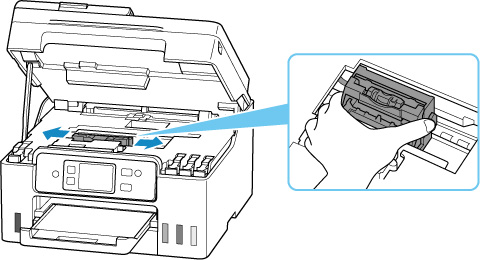
Adjust the FINE Cartridge Holder Position
The FINE cartridge holder often blocks access to stuck sheets. You must manually reposition this component to create space, but only do this when the printer is completely off.
Move Holder Based on Jam Location
- Slide the holder to the right if paper is stuck on the left side.
- Move the holder to the left if paper is stuck on the right side.
This shift opens clearance so you can pull the paper straight out without hitting the print head. Never force the holder as it should glide smoothly along its rail.
Pull Stuck Paper at a 45-Degree Angle
The angle of extraction determines whether you clear the jam or create more debris. Yanking paper straight up or outward often tears the sheet, leaving fragments that cause future errors.
Use Two Hands for Even Pressure
Grasp the visible edge of the paper firmly with both hands. Pull gently toward you at a precise 45-degree angle. This diagonal motion aligns with the paper path and reduces friction against rollers and guides.
Stop If You Feel Resistance
Do not force the paper if it does not come free easily. Recheck the cartridge holder position or look for hidden tears. Forcing the sheet increases the chance of breakage and may damage sensitive internal parts.
Inspect for Leftover Paper Fragments
Removing the main sheet does not guarantee the path is clear. Small pieces of paper often remain lodged in rollers or guides, invisible without proper lighting.
Use Flashlight and Tweezers for Cleanup
Illuminate the entire paper path with a bright light. Look for tiny scraps near roller edges or under the print head. Use tweezers or a dry lint-free cloth to remove debris without scratching surfaces.
Avoid Touching Sensitive Internal Areas
Do not touch the following components with bare fingers:
* The transparent film inside the printer.
* The metal rails guiding the cartridge holder.
Skin oils degrade these surfaces, leading to print quality issues or mechanical errors over time.
Clear Jams in Canon Pixma TR3720 and TR3722
These specific models often trap paper near the print head mechanism and require attention to the front input tray. Follow these targeted steps for the Pixma TR3720 and TR3722.
Inspect the Print Head Carriage Area
Lift the top lid to expose the ink cartridge area. Shine a light into the center where small scraps commonly get stuck. Gently extract any visible paper using tweezers while avoiding contact with metal rails.
Check the Front Input Tray
Pull out the front paper input tray completely to check for misaligned sheets. Remove any crumpled paper or partially fed pages stuck at the entry point. Reload your stack properly without overfilling the tray.
Perform a Hard Reset on TR3720 and TR3722 Models

If the “paper jam” error persists after physical removal, a standard power cycle will not clear it. These models require a specific hard reset to reset internal memory effectively.
Unplug and Wait Two Minutes
- Disconnect the power cord from the wall.
- Wait at least 120 seconds for capacitors to discharge.
- Reconnect the power and turn the printer on.
Skipping this wait time renders the reset ineffective. This step is critical for clearing stubborn error states on these specific units.
Diagnose Persistent Paper Jam Errors
If the error light remains after your reset attempt, the issue may not be fully resolved. You must investigate less obvious areas before assuming mechanical failure.
Search Rear and Side Feed Paths
Open all access points including rear feed trays or duplex units. A tiny scrap in the back can trigger a front-panel error message. Inspect these areas thoroughly with your flashlight.
Check for Mechanical Sensor Issues
If no paper is found but the error persists, the problem may be a faulty sensor or roller. Consult your printer manual or contact Canon support for model-specific diagnostics if the issue continues.
Prevent Future Paper Jams Effectively
Avoiding jams is easier than fixing them. Adopting a few simple habits can drastically reduce downtime and frustration with your Canon printer.
Match Paper Settings to Loaded Sheets
Verify that the paper type and size in your settings match the physical paper in the tray. Printing on “A4” when you have loaded “Letter” size causes misfeeds and jams.
Use High-Quality Dry Paper
Damp, curled, or low-quality paper jams more easily. Store paper in a cool, dry place and fan the stack before loading to separate sheets. This reduces static cling and feeding errors.
Run a Cleaning Cycle After Removal
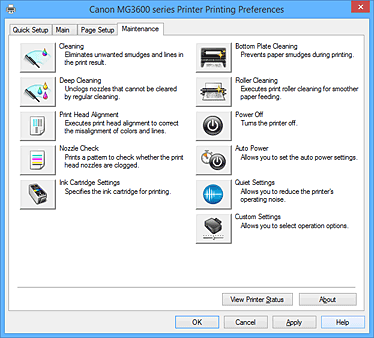
After clearing a difficult jam, run a printer maintenance cycle to ensure optimal performance. This helps clear dust and debris from rollers that may have accumulated.
Access the Maintenance Menu
- Open printer settings on your computer or device.
- Navigate to Maintenance or Tools.
- Select Clean Print Heads or Roller Maintenance.
This process clears residual debris and ensures your printer feeds paper smoothly next time.
Common Mistakes to Avoid When Removing Paper
Even experienced users make errors when stressed. Avoid these common pitfalls to protect your device.
Pulling Paper Straight Up
This is the number one cause of torn paper. Always use the 45-degree pull toward you to keep the sheet intact.
Skipping the Two-Minute Reset
For TR3720 and TR3722 models, a quick unplug-and-replug will not clear deep errors. The two-minute wait is essential for a successful reset.
Ignoring Small Scraps
A tiny 1cm paper fragment can trigger a full system error. Always inspect thoroughly before closing covers.
Frequently Asked Questions About Removing Stuck Paper
Can I remove stuck paper while the printer is on?
No, you must always power down and unplug the device first. Leaving it on risks electrical shock and accidental activation of rollers that can injure you or tear the paper further.
Why does my Canon printer still say paper jam after I removed the paper?
Small fragments often remain hidden in the rollers or guides. You may also need to perform a hard reset by unplugging the unit for two minutes to clear the error memory.
What angle should I use to pull out stuck paper?
Pull the paper at a 45-degree angle toward you. Pulling straight up or at sharp angles increases the risk of tearing the sheet and leaving debris inside.
How do I reset a Canon Pixma TR3720 after a jam?
Unplug the printer from the wall and wait at least two minutes before plugging it back in. This specific duration allows the internal capacitors to discharge and resets the error state.
Can touching internal parts damage my Canon printer?
Yes, touching the transparent film or metal rails with bare fingers transfers oils that damage print quality. Always use tweezers or a lint-free cloth for internal cleaning.
Key Takeaways for Fixing Your Canon Printer
Clearing a paper jam requires patience and strict adherence to safety steps. Always unplug your device, adjust the FINE cartridge holder for clearance, and pull paper at a 45-degree angle to prevent tearing.
For Pixma TR3720 and TR3722 owners, remember the critical two-minute wait during a hard reset. By following these precise steps and avoiding common mistakes like touching sensitive rails, you can resolve jams quickly and return to printing.




