
Is your Samsung printer suddenly showing a toner error? Jamming paper repeatedly? Or refusing to power up despite the light being on? You’re not alone. Thousands of users face similar Samsung printer problems every year, especially with older models now supported through third-party repair services since HP acquired Samsung’s printer division in 2016. Whether you troubleshoot at home or manage office equipment, knowing how to diagnose and fix common issues saves time, money, and frustration.
This guide delivers actionable steps for diagnosing and repairing Samsung printers, from simple DIY fixes to knowing when it’s time to call a professional. You’ll learn how to identify your model, resolve frequent errors like paper jams and toner incompatibility, and decide whether repair or replacement makes financial sense. With insights into parts availability, service response times, and model-specific support, this is your complete resource for Samsung printer repair with no fluff, just results.
Identify Your Samsung Printer Model
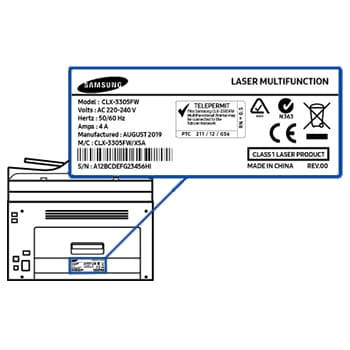
Before attempting any repair, confirm your printer model. This ensures compatibility with replacement parts, drivers, and repair guides.
Locate the Model Number
Check the front or back panel of your device for a label displaying the model number. Most Samsung printers show the model clearly beneath or beside the Samsung logo, which appears on the front center of every unit. Common formats include:
– SL-C3060FW/XAA (Color Multifunction ProXpress)
– SL-M2070W/XAA (B&W Multifunction Xpress)
– CLP-775ND/XAC (Color Laser)
If the label is worn, find your model through your computer:
1. Open Control Panel, then go to Devices and Printers
2. Right-click your Samsung printer
3. Select Printer Properties
4. View the model under the “General” or “Details” tab
Recognize Supported Models
Even though Samsung exited the printer market in 2016, many models remain under professional repair support. HP now manufactures new units, but legacy Samsung devices stay repairable. Currently repairable categories include:
– ProXpress series (SL-C3010DW, SL-M3870FW)
– Xpress series (SL-C480FW, SL-M2835DW)
– Legacy models like ML-2510 and CLX-3175FN
Repair and disassembly guides exist for over 7 older models, including instructions for fuser and roller replacements.
When to Repair vs Replace Your Samsung Printer
Spending $200 to fix a $120 printer rarely makes sense. Use these rules to decide your next move.
Apply Replacement Thresholds
Replace instead of repair if the printer meets any of these criteria:
– The printer is older than 7 years
– The original cost was under $150
– The repair cost exceeds 50% of replacement value
For example, a 9-year-old Samsung ML-2020W with a failing fuser may cost $180 to fix, which is more than buying a new equivalent.
Evaluate Repair Value
Ask yourself these questions:
– Is the printer used daily?
– Does it have network or duplex printing features?
– Are toner cartridges still available?
If you answered yes, professional repair may extend the printer’s useful life by 2 to 3 years.
Fix Toner Compatibility Errors
One of the most reported Samsung printer issues is sudden “toner not compatible” messages, even with cartridges that worked before.
Diagnose Aftermarket Toner Problems
Low-quality third-party toner often triggers compatibility errors due to faulty chip communication, incorrect voltage resistance, or poor internal circuitry.
Common symptoms include:
– Intermittent printing
– Blank pages after startup
– Error codes like “Replace Toner” or “Cartridge Error”
Pro Tip: Swap in an OEM (original equipment manufacturer) cartridge temporarily. If the error disappears, the aftermarket unit is the culprit.
Reset the Toner Chip
Some Samsung models allow manual chip reset:
1. Open the front cover
2. Hold the Go or Cancel button for 10 seconds
3. Close the cover and test print
This bypasses chip detection temporarily but works best with high-quality remanufactured cartridges.
Clear Paper Jams Quickly
Paper jams are the number one reason for Samsung printer service calls, especially multiple-sheet feeding and tray-specific blockages.
Stop Multiple Sheet Pickup
If your printer grabs two or more sheets at once, worn feed rollers are likely to blame. This is one of the most common Samsung paper jam causes.
Replace Feed Rollers (DIY)
- Time: 20 minutes
- Difficulty: Moderate
- Tools Needed: Phillips screwdriver
Steps:
1. Power off and unplug the printer
2. Open the front tray and remove paper
3. Locate the feed roller assembly behind the pickup roller
4. Unscrew and remove the old rollers
5. Install the new set (available from repair suppliers)
6. Reassemble and run a test print
Warning: Don’t touch roller surfaces with bare hands, as skin oil reduces grip.
Clear Tray 1 Jam (SL-C460W and Similar Models)
This issue commonly affects Xpress C460FW and ProXpress models.
Step-by-Step Clearance
- Turn off the printer
- Pull out Tray 1 gently
- Check for torn paper stuck under the pickup roller
- Use tweezers to remove fragments
- Inspect the separation pad and replace it if cracked or worn
- Reload paper, ensuring it’s flat and not overfilled
Visual Cue: Look for crumpled paper near the fuser entrance. This signals misalignment.
Fix Samsung Printer Won’t Warm Up

When the printer powers on but won’t heat up, no warm-up means no toner fusion, so nothing prints. This issue generates significant community discussion.
Test the Fuser Assembly
The fuser melts toner onto paper using heat and pressure. If it fails, the printer halts operation.
Signs of Fuser Failure
- Long warm-up delays exceeding 3 minutes
- “Warm-up” light stays on indefinitely
- Error codes including UE, FE, or Fuser Error
Replace the Fuser Unit
- Time: 30 minutes
- Difficulty: Intermediate
- Parts Needed: Fuser kit (such as SUF-55 for SL-M3870FW)
Steps:
1. Unplug the printer
2. Open the side or rear access panel
3. Release the fuser locking tabs
4. Slide out the old fuser
5. Insert the new unit until it clicks
6. Close the panel and power on
Expert Note: Technicians stock fusers locally, so same-day repair is possible in Los Angeles areas.
Use Quality Toner to Prevent Damage
Aftermarket toner may save $20 upfront but cause $200 in damage later. A significant rise in Samsung printer service requests has been observed for printers with poor print quality, attributed to low-quality aftermarket toner cartridges.
Risks of Cheap Cartridges
- Leaking toner inside the printer
- Drum unit scratches
- Corrupted firmware
- Permanent error locks
Choose Reliable Alternatives
- OEM (Samsung/HP): Guaranteed compatibility and clean output, but higher cost
- Premium Remanufactured: Lower price and eco-friendly, but quality varies by brand
- Budget Aftermarket: Cheapest option, but comes with a high failure rate
Recommendation: Use OEM for mission-critical printing and premium remanufactured for light use.
Call a Professional Samsung Printer Repair Service
Some issues require expert tools and parts. Don’t risk further damage.
When to Call for Help
- Internal error codes like Engine Error or PCU Failure
- Repeated jams after roller replacement
- Network connectivity loss
- Complete power failure
What Professionals Can Fix
- Fuser assemblies
- Transfer belts
- Power supply units
- Control boards
Technicians carry common parts like feed rollers and maintenance kits, reducing downtime. Professional services may also hold the HP US Qualified Supplies Partner designation, indicating trusted reseller status.
Get Fast Service in the Los Angeles Area
Need same-day repair? Local providers offer rapid response across Southern California.
Covered Service Areas
Professional Samsung printer repair covers more than 30 cities, including:
– Los Angeles
– Beverly Hills
– Long Beach
– Inglewood
– Torrance
– Glendale
– Whittier
– Downey
– Pasadena
– Santa Monica
– Compton
– Carson
Standard response: within 4 hours
Hours: 8AM to 5PM, Monday through Friday
Tip: Call early, as same-day slots fill fast.
Access Repair Guides and Support Resources
Don’t guess your way through disassembly. Use trusted resources for Samsung printer troubleshooting.
Free Repair and Disassembly Guides
Available online for models including:
– Samsung CLX-3175FN
– Samsung CLX-3185FW
– Samsung ML-2510
– Samsung C410W
– Samsung SCX-3401
– Samsung Xpress C410
– Samsung Xpress C430
These guides include step-by-step photos, torque specs, and part diagrams across 8 categories.
Join Community Forums
User-powered forums help solve obscure issues:
– Toner compatibility fixes
– Firmware reset procedures
– DIY calibration tricks
Look for threads with high answer counts and scores to find proven solutions.
Maintain Your Samsung Printer Long-Term
Prevent future breakdowns with routine care.
Monthly Maintenance Checklist
- Clean paper feed rollers with a lint-free cloth
- Remove dust from internal components
- Run a test page to check alignment
- Update firmware through official support channels
Consider Service Agreements
Businesses benefit from:
– Scheduled maintenance visits
– Priority response times
– Discounted parts
– Annual cost savings of 30 to 50%
Custom plans are available based on print volume.
Download Samsung Printer Drivers and Software
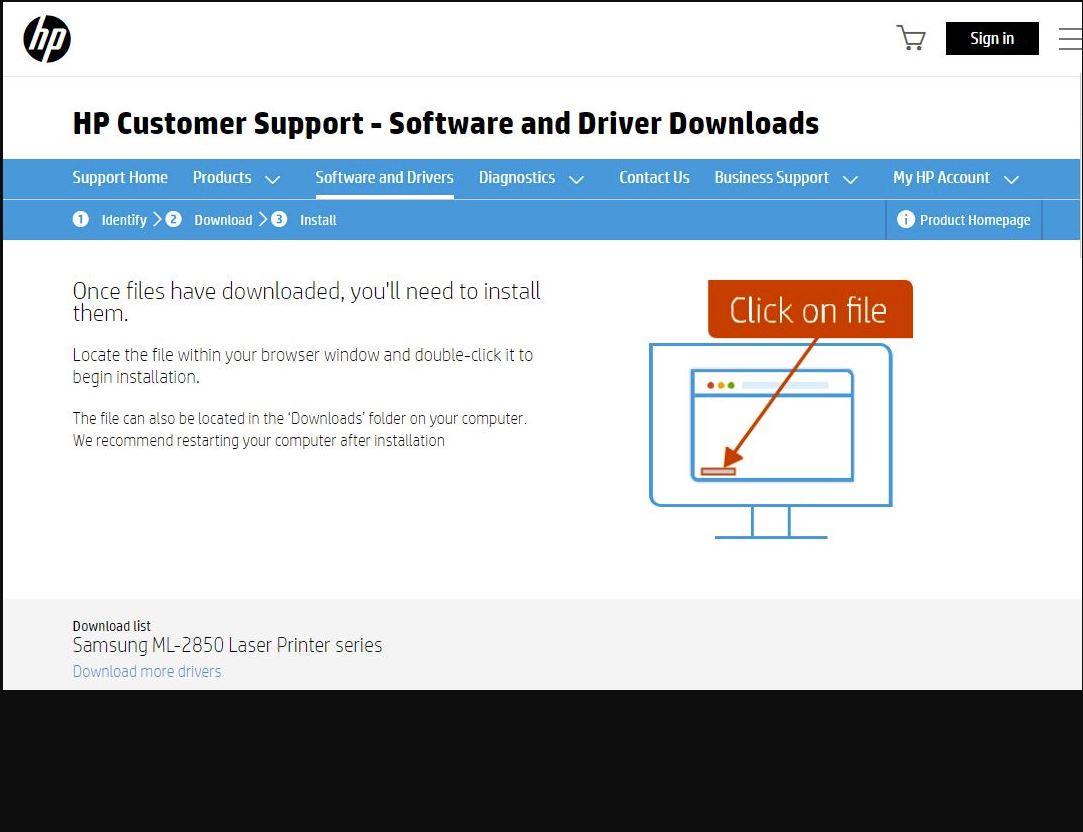
Even repaired printers need correct software to function properly.
Get Official Drivers
Since HP owns Samsung’s printer division, visit HP’s official support site for drivers:
1. Enter your Samsung model number
2. Select your operating system (Windows or Mac)
3. Download the full feature driver
Note: Avoid third-party driver sites, which often bundle malware.
Frequently Asked Questions About Samsung Printer Repair
Is it worth repairing a Samsung printer older than 7 years?
Generally, no. As a replacement rule, if a Samsung laser printer is older than seven years or cost less than $150 originally, consider replacement instead of repair. Repair costs often exceed the printer’s remaining value.
Why does my Samsung printer show a toner compatibility error with a cartridge that worked before?
Low-quality aftermarket toner cartridges commonly cause this issue due to faulty chip communication or incorrect voltage resistance. Try swapping in an OEM cartridge to confirm whether the aftermarket unit is the culprit.
What causes a Samsung printer to pick up multiple sheets at once?
Worn feed rollers are the most common cause. The rubber surface loses grip over time, causing the printer to grab two or more sheets. Replacing the feed roller assembly usually resolves this issue.
Can I still get Samsung printer repaired after HP acquired the division?
Yes. Even though Samsung exited the printer market in 2016, many models remain under professional repair support. ProXpress, Xpress, and legacy models like ML-2510 and CLX-3175FN are all still serviceable.
How fast can I get same-day Samsung printer repair in Los Angeles?
Standard response time for professional Samsung printer repair in the Los Angeles area is within 4 hours. Service hours run 8AM to 5PM, Monday through Friday. Call early in the day, as same-day slots fill quickly.
What information do I need to get a repair estimate?
You’ll need your printer model number and a clear description of the specific problem. Free estimates are typically available by phone, though final pricing depends on the parts required and repair complexity.
Final Thought: Make Smart Samsung Printer Repair Decisions
Samsung printer repair remains viable even after HP’s 2016 acquisition. With the right knowledge, you can fix common issues like toner errors, paper jams, and warm-up failures. For older models, weigh repair cost against replacement value using the 7-year rule. When in doubt, call a certified technician, especially if you’re in the Los Angeles area, where same-day service is available.
Use OEM or high-quality toner, follow maintenance schedules, and leverage free repair guides to keep your device running. Whether you’re fixing a home office Xpress M2070W or servicing a ProXpress C3060FW in a business environment, smart decisions today mean reliable printing tomorrow.
Your next step: Call a professional with your model number and issue for a free estimate, or try one of the DIY fixes above to get back online now.




