

Nothing halts productivity like a sudden printer paper jam preventing your urgent documents from printing. Whether you face a stubborn sheet or a confusing error code, knowing how to fix a printer paper jam saves time and prevents hardware damage.
This guide details safe removal steps, fragment extraction, and error clearing procedures. You will learn to power down correctly, access hidden paper paths, and reload media to stop future jams from occurring.
Power Down and Unplug for Safety
Electrical safety is your absolute priority before reaching inside any machine. Skipping this step risks electric shock or accidental motor activation while your hands are near moving parts.
Turn Off the Device
Press the power button to shut down the printer completely. This stops all internal operations and halts the roller mechanisms immediately.
Disconnect the Power Cord
Pull the power cord from the wall outlet or power strip. This ensures no electricity flows to the unit while you work inside the chassis.
Allow Time to Settle
Wait about 15 seconds before opening panels. This brief pause lets internal systems reset and ensures motors are fully inactive.
Open All Printer Access Panels
You must locate every possible entry point to the paper path to find the stuck sheet. Most printers have multiple doors designed specifically for clearing obstructions.
Check Input and Output Areas
Open the front input tray and the rear output cover. These flaps often reveal jams occurring at the very beginning or end of the feed cycle.
Remove the Bottom Panel
Some models like the HP DeskJet 2827e feature a removable underside panel. Press the side clips gently and lift the panel to expose the lower rollers.
Inspect Front Trap Doors
Look for small access doors on the front face of the unit. These often provide a direct line of sight to the central print path.
Position the Print Carriage Correctly
The moving print carriage can block your view or trap paper if not positioned properly. You must move it manually to access hidden areas safely.
Wait for Carriage to Stop
Never reach in while the carriage is moving. Wait until it sits completely still to avoid pinching your fingers or damaging the mechanism.
Shift Carriage to Expose Jam
If the paper is stuck on the left, gently slide the carriage to the right. If the jam is on the right, move the carriage to the left side.
Avoid Touching Sensitive Parts
Do not touch the metal guide rails or the transparent encoder strip. Skin oils on these components cause tracking errors and print quality issues.
Extract Jammed Paper Without Tearing
Pulling paper incorrectly often leads to tears that leave fragments behind. Use the proper grip and angle to remove the sheet in one piece.
Grip Firmly with Both Hands
Hold the exposed edge of the paper with both hands. This distributes pressure evenly and prevents the sheet from ripping under tension.
Pull at a 45-Degree Angle
Tug the paper toward you at a 45-degree angle. This specific direction reduces friction against internal guides and minimizes the risk of tearing.
Stop If You Feel Resistance
Apply steady gentle pressure but never force the paper. If it resists, stop immediately and check a different angle or access point to avoid damage.
Clear Hidden Fragments and Debris
Small torn pieces often remain after removing the main sheet. These tiny fragments trigger recurring jams and persistent error codes if not removed.
Remove Ink Cartridges Temporarily
Take out the ink cartridges to see the area underneath them. Small scraps frequently hide near the print head or in the carriage corners.
Use Tweezers for Precision
Use clean non-magnetic tweezers to grab tiny paper bits. Your fingers cannot reach deep into roller mechanisms or tight rail corners effectively.
Inspect High-Risk Zones
Check the corners of the carriage rail and roller surfaces carefully. Use a flashlight to spot any slivers that might block sensors.
Clean and Reassemble Components
Once the path is clear, you must clean up debris and reassemble the unit correctly. Proper reassembly ensures the printer initializes without errors.
Wipe Interior with Dry Cloth
Use a lint-free dry cloth to remove dust or loose particles. Never use water or cleaning solutions as moisture damages internal electronics.
Avoid Critical Sensor Areas
Ensure you do not touch the transparent film or metal rails during cleaning. Contamination on these parts leads to carriage movement errors.
Reinstall Cartridges and Close Panels
Slide cartridges back until they click securely. Close all access doors including the bottom panel until they latch firmly to allow operation.
Reload Paper to Prevent Future Jams
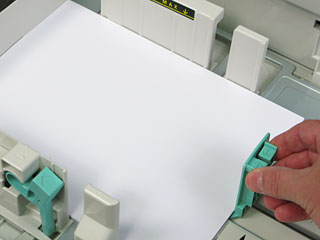
How you load paper directly impacts whether jams happen again. Proper loading techniques reduce static and ensure smooth feeding.
Fan the Paper Stack
Flip through the sheets before loading to separate them. This action reduces static cling that causes multiple sheets to feed at once.
Align Edges Neatly
Place the paper stack squarely in the tray. Misaligned stacks cause the paper to skew during the feeding process.
Adjust Paper Guides Properly
Slide side guides so they fit snugly against the paper without bending it. Over-tightening guides warps the paper and causes feed failures.
Respect Tray Capacity Limits
Do not fill the tray past the maximum capacity line. Overloading strains the feed mechanism and leads to frequent jams.
Restart Printer and Clear Error Codes
The printer software needs a reset to recognize that the obstruction is gone. Follow the correct restart sequence to clear error flags.
Plug In and Power On
Reconnect the power cord and press the power button. Hold the button for two seconds to initiate a full restart sequence.
Wait for Initialization
Allow up to two minutes for the self-check routine. The printer recalibrates internal systems and checks sensors during this time.
Monitor for Persistent Errors
Watch for lights like the E4 error which indicates a remaining blockage. If the error stays, re-open panels to check for missed fragments.
Verify Repair with Test Print
A test print confirms that the paper path is clear and the printer functions normally. This final step ensures your repair was successful.
Print a Demo Page
Run a nozzle check or demonstration page from your computer. This verifies that paper feeds smoothly and print quality is intact.
Observe Feed Behavior
Watch the paper enter and exit the machine during the test. If it drags or skews, recheck your loading technique or roller cleanliness.
Frequently Asked Questions About Printer Paper Jams
What should I do if the paper tears while removing it?
Stop pulling immediately and open all access panels. Use tweezers to carefully extract every small fragment from the carriage rail corners and rollers.
Why does the E4 error persist after clearing the jam?
A tiny hidden fragment may still block a sensor or the printer needs a full power cycle. Remove cartridges to inspect under the print head and wait two minutes after restarting.
How can I stop multiple sheets from feeding at once?
Fan the paper stack thoroughly before loading to reduce static. Ensure your paper is stored in a dry place and adjust tray guides so they are snug but not tight.
What causes recurring jams in the same spot?
Debris buildup or worn rollers often cause repeat jams in specific areas. Inspect the spot for accumulated dust and consider professional service if rollers appear worn.
Can I use water to clean the inside of my printer?
No, never use water or liquid cleaners inside the printer. Use only a dry lint-free cloth to avoid damaging electrical contacts and sensitive components.
Key Takeaways for Fixing Your Printer Paper Jam
Successfully clearing a jam requires patience and strict adherence to safety steps like powering down and pulling paper at a 45-degree angle. Always inspect for tiny fragments and reload paper correctly to prevent the issue from returning.
Follow these procedures to keep your device running smoothly for months. If jams persist despite following this guide, your printer may require professional servicing for worn components.




