
If your Canon printer is printing streaks, you are likely facing a frustrating disruption caused by clogged nozzles or airflow issues. This common problem affects many PIXMA and MegaTank models but often has a simple solution you can perform at home.
This guide walks you through diagnosing the issue, running automated cleaning cycles, and performing manual maintenance if needed. You will learn how to restore crisp print quality and prevent future streaks from ruining your documents.
Run a Nozzle Check Pattern to Diagnose Streaks
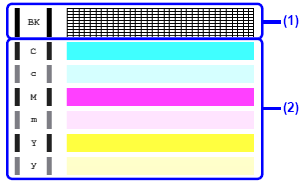
You must confirm the specific nature of the blockage before attempting any repairs. Running a diagnostic test prevents unnecessary ink waste and ensures you target the correct problem area.
How to Print the Test Pattern
- Press the
Homebutton on your printer display. - Navigate to Settings then select Maintenance.
- Choose Nozzle Check Pattern and confirm the command.
- Wait for the printer to produce the test page with color and black lines.
Interpret Your Test Results
- Gaps in black lines: Indicates clogged black nozzles, low ink, or an airflow blockage.
- Missing color sections: Suggests multiple clogged nozzles or cartridge installation errors.
- Solid continuous lines: Means hardware is fine, and the issue may lie with print settings or paper type.
Pro Tip: Always run a nozzle check before and after every cleaning cycle to measure your progress accurately.
Verify Ink Cartridge Status and Installation

Faulty or improperly installed cartridges are a leading cause of streaks on Canon devices. A quick visual inspection can save you from performing unnecessary deep cleaning cycles.
Identify Empty or Blinking Cartridges
Open the front cover of your printer to inspect the ink levels visually. Look specifically for a blinking light on the black cartridge, which signals that the ink is completely depleted. Replace any empty cartridges with genuine Canon ink immediately to restore flow.
Remove Protective Tabs from New Cartridges
New cartridges often come with a small plastic tab covering the air vent. If you leave this tab on, it creates a vacuum inside the cartridge that stops ink from flowing to the print head.
- Remove the suspect cartridge from the printer.
- Inspect the top or back for a small plastic protective tab.
- Peel off the tab completely before reinserting the cartridge.
- Close the cover and run another nozzle check to verify the fix.
Common Mistake: Many users install new ink but forget to remove the tab, causing streaks that mimic a severe clog.
Execute Automated Cleaning Cycles Effectively
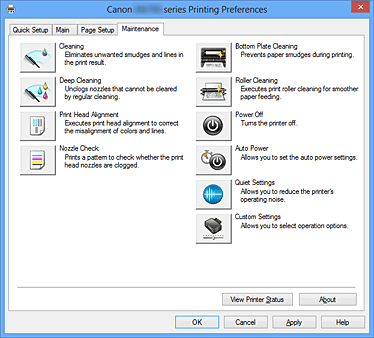
If your ink levels are good and tabs are removed, run the built-in automated cleaning cycles to clear minor blockages. This is the safest first step for resolving Canon printer printing streaks.
Perform a Standard Cleaning Cycle
Use this method for minor clogs or slight gaps in your test pattern.
- Go to
Maintenanceon your screen and selectClean Print Head. - Confirm the action and wait for the cycle to finish.
- The process takes about one to two minutes to complete.
- Print a new Nozzle Check Pattern to inspect the results.
Repeat this process up to two times if streaks persist, but avoid overuse as it wastes ink.
Run Deep Cleaning on MegaTank Models
For stubborn streaks on models like the G3270 or G4770, the Deep Cleaning option provides a more powerful flush.
- Press
Homethen navigate toMaintenanceand selectDeep Cleaning. - Choose Black or All Colors depending on where you see streaks.
- Confirm the warning message regarding high ink consumption.
- Wait three to five minutes for the cycle to complete.
- Print a test pattern to verify if the streaks are gone.
When to Use: Try this after two failed Standard Cleans or if the printer has been inactive for a long time.
Apply Manual Print Head Cleaning Techniques
When automated methods fail to fix Canon printer printing streaks, you may need to clean the print head manually. This requires care and specific supplies to avoid damaging sensitive components.
Gather Required Cleaning Supplies
You will need the following items for safe manual cleaning:
* Lint-free cloth or cotton swabs
* Cleaning solution such as Canon official cleaner or compatible third-party kits
* Alternative solvents like ammonia-free Windex or diluted isopropyl alcohol
Warning: Never use tap water, acetone, or excessive liquid as these can permanently damage the nozzles.
Use the Tapping Method for Clogs
- Open the printer cover and remove all cartridges to expose the print head.
- Lightly dampen a paper towel with your cleaning solution without soaking it.
- Gently tap the towel against the black nozzle area to dissolve dried ink.
- Allow the dissolved ink to absorb into fresh towels until no more residue appears.
- Reinstall cartridges, close the cover, and run a Nozzle Check.
Success looks like a solid black line with absolutely no gaps in the pattern.
Soak the Head for Severe Blockages
For hardened ink that resists tapping, an overnight soak may be necessary to dissolve the obstruction completely.
- Soak a lint-free cloth in your chosen cleaning solution.
- Place the cloth carefully under the print head while the printer remains open.
- Let it sit for eight to twelve hours to allow the solution to work.
- Wipe the area gently, reassemble the printer, and test the output.
Critical Note: Never touch the nozzles with your fingers because skin oils can cause further clogging.
Prevent Streaks from Returning in the Future
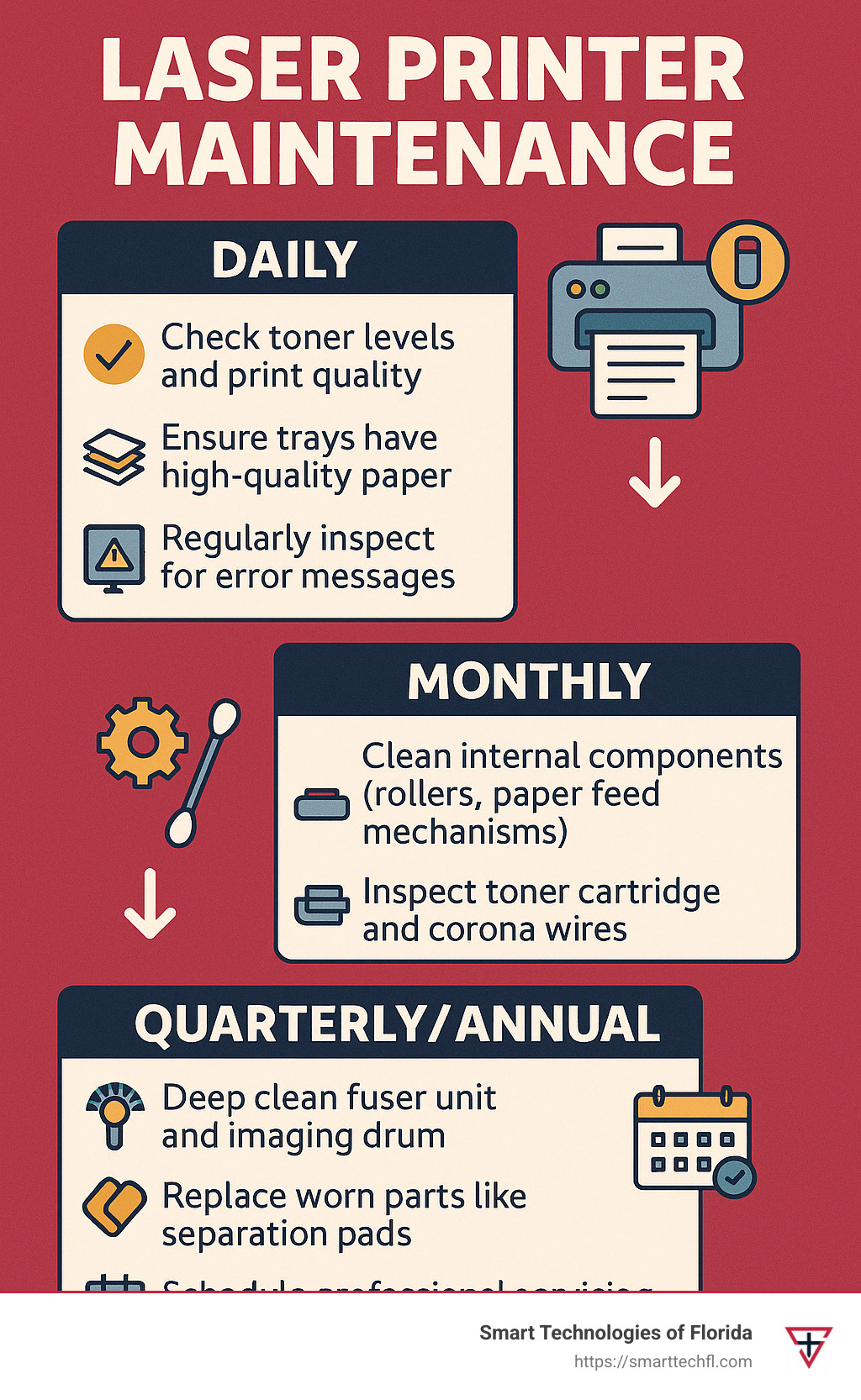
Fixing the current issue is only half the battle, so you must adopt smart habits to keep your Canon printer printing streaks-free permanently.
Keep Your Printer Powered On
Canon printers perform automatic maintenance cycles only when they remain powered on. These cycles uncap and clean nozzles regularly to prevent ink from drying out.
- Never unplug the printer directly from the wall.
- Avoid using power strips with switches that cut power completely.
- Let the printer enter its natural sleep mode instead.
Print Regularly to Maintain Flow
Print at least once a week to keep ink flowing through the nozzles. This habit is essential for home offices or printers that do not see daily use.
Schedule Preventative Maintenance
| Frequency | Action Required |
|---|---|
| Every 1–2 months | Run Deep Cleaning or Standard Clean |
| After 1 week idle | Print a nozzle check pattern |
| After cartridge change | Run one cleaning cycle |
Pro Tip: Set a monthly calendar reminder to perform these maintenance tasks consistently.
Troubleshoot Specific Streak Symptoms

Match your specific printing issue to the fastest recommended solution to save time and effort.
Horizontal Black Streaks
Likely Cause: Empty black cartridge or severely clogged nozzles.
Fix: Check for a blinking light, replace the cartridge if empty, and run a Deep Cleaning cycle.
Fading or Intermittent Streaks
Likely Cause: Protective tab still attached to a new cartridge.
Fix: Remove the cartridge, confirm the tab is gone, reinstall it, and test again.
Minor Gaps in Nozzle Check
Likely Cause: Slight clog from recent inactivity.
Fix: Run a Standard Clean one or two times and print a test pattern.
Persistent Streaks After Cleaning
Likely Cause: Hardened ink deposits or potential print head failure.
Fix: Try manual tapping, soak overnight if needed, and consider print head replacement if issues persist.
Avoid These Common Maintenance Mistakes
Even experienced users make errors that worsen Canon printer printing streaks or damage the device.
Using Non-Canon Ink Supplies
Third-party inks often dry faster or have inconsistent viscosities that clog nozzles. Stick to genuine Canon cartridges for the best reliability and longevity.
Over-Cleaning the Print Head
Running too many cleaning cycles in a row wastes ink and can flood the print head. Limit yourself to two Standard Cleans or one Deep Clean per session.
Touching Nozzles Directly
Finger oils block nozzles and introduce contaminants. Always use lint-free tools and never touch the print head with bare hands.
Skipping Verification Steps
Never assume the problem is fixed without proof. Always verify your work with a test print after each step.
Know When to Replace the Print Head
If all cleaning methods fail, the print head unit itself may be damaged beyond repair.
Signs of Print Head Failure
- No improvement after overnight soaking
- Visible physical damage to nozzle areas
- Printer displays persistent error messages or fails to initialize
Replacement Options
- Canon Service Center: Recommended for complex models or under-warranty devices.
- DIY Kits: Available for some PIXMA models if you follow video guides strictly.
Note: Print head failure is rare with regular use and proper maintenance protocols.
Frequently Asked Questions About Canon Printer Streaks
Why does my Canon printer print horizontal lines?
Horizontal lines usually indicate clogged nozzles, low ink levels, or a protective tab left on a new cartridge. Run a nozzle check to identify the specific cause.
How many times should I run the cleaning cycle?
You should run the standard cleaning cycle up to two times. If streaks persist, try one Deep Cleaning cycle before attempting manual methods.
Can I use water to clean my Canon print head?
No, you should never use tap water. Use Canon official cleaning fluid, a compatible third-party kit, or ammonia-free window cleaner instead.
What causes faded black output on new cartridges?
Faded output on new cartridges often results from leaving the protective air vent tab on, which creates a vacuum and stops ink flow.
How often should I print to prevent streaks?
Print at least once a week to keep ink flowing through the nozzles and prevent drying. Keeping the printer powered on also helps.
Is it safe to touch the print head nozzles?
No, never touch the nozzles with your fingers. Skin oils can cause clogs, so always use lint-free cloths or cotton swabs for cleaning.
Key Takeaways for Fixing Canon Printer Printing Streaks
Resolving Canon printer printing streaks usually requires a systematic approach starting with a nozzle check and cartridge inspection. Most issues resolve quickly by removing protective tabs or running automated cleaning cycles.
For stubborn cases, manual tapping or overnight soaking can dissolve hardened ink effectively. Remember to keep your printer powered on and use it weekly to prevent future clogs and maintain optimal performance.




