

Your HP printer suddenly displays a carriage jam error right when you need an important document. The print carriage holding your ink cartridges has stopped moving, halting all operations and causing immediate frustration. Whether you own a DeskJet, ENVY, or OfficeJet model, this specific error requires prompt attention to restore functionality.
You can fix HP printer carriage jam issues by checking for obstructions, resetting components, and ensuring proper alignment. Most jams result from paper fragments or misaligned parts rather than permanent hardware failure. This guide provides clear steps to resolve the problem in under 30 minutes without needing a service call.
Power Down and Unplug for Safety
Safety is your top priority before touching any internal printer components. A powered-on device poses risks of electric shock or mechanical damage during your repair attempt.
Turn Off the Printer Completely
Press the power button to shut down the unit fully. Wait until every light turns off and all internal noises cease completely. Never attempt to open or clean the printer while it is still running or in sleep mode.
Disconnect the Power Cord
Unplug the power cord directly from the wall outlet to prevent accidental startup. This step protects internal circuits while you inspect the machine. For all-in-one models, disconnect USB or Ethernet cables as well.
Pro Tip: Hold the power button for 10 seconds after unplugging to discharge residual power. This often resets minor electronic glitches causing the error.
Open Access Panels Safely
You must gain clear access to the print carriage to identify the root cause of the jam. Most HP printers feature specific front and rear access points designed for this purpose.
Lift the Scanner or Top Cover
Gently raise the scanner unit or top lid on your all-in-one or inkjet model. Look inside the carriage path immediately for visible blockages like torn paper or debris.
Remove Input and Output Trays
Slide out the main paper tray and open any rear output doors. This action provides better visibility and allows easier removal of stuck paper from either direction.
Visual Cue: If the carriage is frozen to one side, usually the far right parking position, do not force it to move manually yet.
Inspect for Physical Obstructions

Physical barriers blocking movement cause the majority of carriage jam errors. A thorough inspection often reveals the culprit quickly.
Check for Stuck Paper Fragments
Look along the entire paper path and around the carriage rails. Even tiny scraps of paper can trigger a jam error. Use tweezers to remove fragments carefully and avoid sharp tools that could damage sensors.
Remove Foreign Objects
Coins, staples, or adhesive labels sometimes fall into the printer interior. Inspect under and around the carriage assembly with a flashlight. Remove any non-paper items using gloved hands.
Examine Ink Cartridges for Damage
Take out each ink cartridge to inspect for cracks or dried ink buildup. Damaged cartridges can physically interfere with carriage motion.
Common Mistake: Forcing a stuck cartridge back into place. Always replace cracked or swollen units immediately.
Manually Move the Carriage
Test the carriage movement once you have cleared all visible obstructions. This step confirms if the mechanical path is clear.
Gently Slide Carriage Left to Right
Use two fingers to nudge the carriage along its rail with the printer off and unplugged. It should move smoothly without significant resistance.
- Stiff Movement: Indicates dried lubricant or debris on the rail.
- Grinding Noise: Suggests gear damage or a foreign object lodged deeper.
Warning: Never force the carriage. If it will not budge, skip to cleaning the rail section.
Clean the Carriage Rail
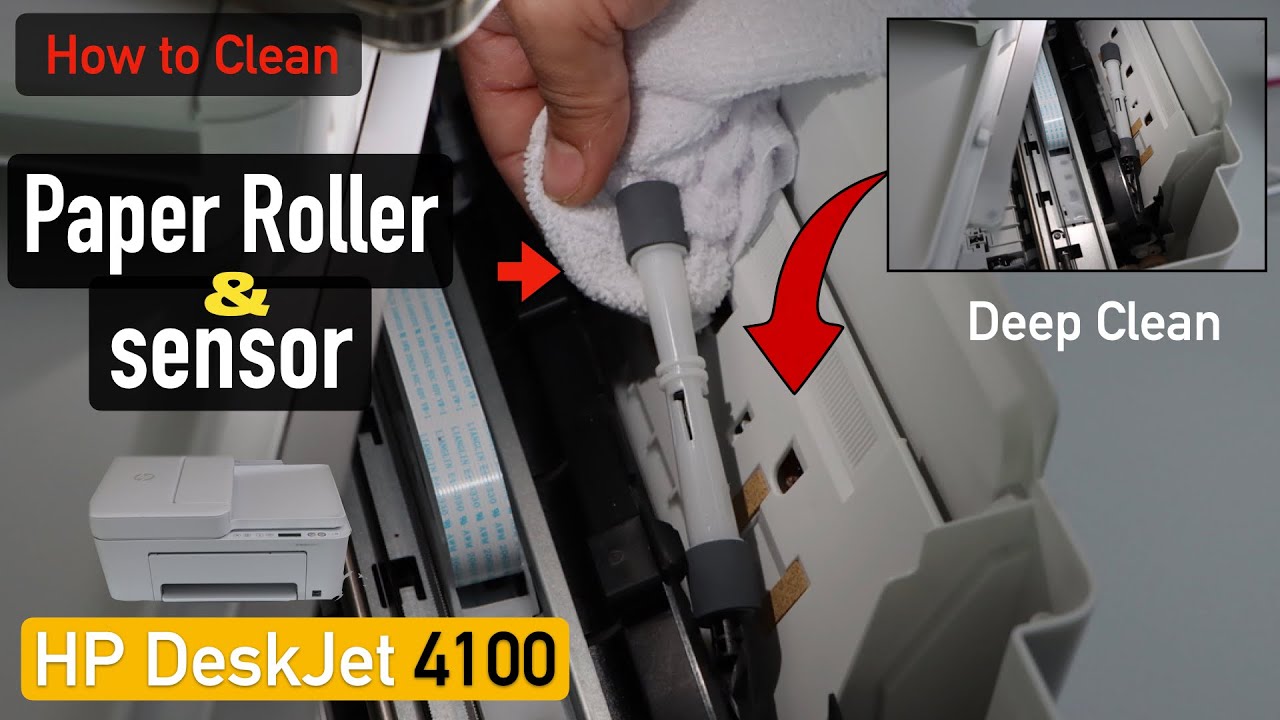
Dirt and dried ink on the metal carriage rail cause sticking issues.
- Dampen a lint-free cloth with distilled water.
- Wipe the entire length of the rail gently.
- Move the carriage back and forth while wiping to ensure full coverage.
- Dry the rail with a clean section of the cloth.
Pro Tip: Apply a tiny amount of printer-safe lubricant only if the rail is excessively dry. Most HP printers come pre-lubricated from the factory.
Reset the Printer System

Resetting the printer clears stored error states after you have cleaned and cleared obstructions. This step is crucial for the system to recognize the fix.
Perform a Hard Reset
- Ensure the printer is unplugged.
- Wait at least 60 seconds.
- Plug the power cord back in.
- Turn on the unit without pressing any other buttons.
This process clears temporary firmware errors that may persist even after physical fixes are complete.
Cancel the Print Queue
Prevent the printer from resuming a job that could retrigger the jam error.
- Open Devices and Printers on Windows or Printers & Scanners on Mac.
- Right-click your HP printer icon.
- Select See What’s Printing and choose Cancel All Documents.
Reload Cartridges and Paper
Correct reassembly prevents repeat jams and ensures smooth operation. Follow these steps to reload your supplies properly.
Reinsert Ink Cartridges Properly
- Open the cartridge access door.
- Align each cartridge with its correct color slot.
- Press down firmly until it clicks into place.
- Close the cover securely.
Ensure cartridges are seated fully because loose ones disrupt carriage balance.
Reload Paper Tray Correctly
- Fan the paper stack to prevent sheets from sticking together.
- Adjust the side guides snugly against the paper without bending it.
- Insert the tray until it clicks.
Avoid: Overfilling the tray or using wrinkled, torn, or non-standard paper types.
Test Print and Monitor Results

Verify your repair work with a real test print to ensure the fix HP printer carriage jam process was successful.
Print a Self-Test Page
Press and hold the Start or Cancel button for 5 seconds on most HP printers. Alternatively, navigate to Settings > Print Quality Tools > Print Self-Test. Watch closely to see if the carriage moves freely and if paper feeds without hesitation.
Run a Nozzle Check
Use the HP Smart app or control panel to print a nozzle check pattern. This ensures print heads are aligned and functioning correctly post-repair.
Success Signal: Smooth carriage motion and clean test output mean the jam is resolved.
Address Recurring Jam Errors

Dig deeper if the error returns after your initial repair attempts. Persistent issues often point to firmware or sensor problems.
Update Printer Firmware
Outdated firmware can misreport jams even when the hardware is fine.
- Open the HP Smart app.
- Select your specific printer.
- Go to Settings > Printer Updates.
- Install any available updates immediately.
Check for Sensor Malfunctions
HP printers use optical sensors to detect carriage position accurately.
- Dirty Sensors: Clean with compressed air or a cotton swab dampened with rubbing alcohol.
- Blocked Light Path: Ensure no tape, label, or paper fragment covers sensor windows near the carriage path.
Inspect Timing Belt and Gears
Open the rear panel on older models if accessible. Look for a loose, frayed, or broken timing belt. Check plastic gears for cracks or stripped teeth.
Expert Note: Replacing internal belts or gears requires technical skill. Consider professional repair if you confirm damage.
Prevent Future Carriage Jams
Proactive maintenance helps you avoid repeat issues and extends the life of your device.
Clean Printer Monthly
Schedule regular cleaning sessions to keep the interior free of dust. Wipe exterior vents, clean paper feed rollers with a damp cloth, and inspect the carriage area for buildup.
Use High-Quality Paper
Stick to 75–90 gsm paper without bends or moisture. Avoid recycled paper with loose fibers that can shed into the mechanism and cause future jams.
Keep Cartridges Updated
Replace empty or expired cartridges promptly. Dried-out print heads increase drag and strain on the carriage motor, leading to potential failures.
Pro Tip: Run a cleaning cycle monthly, even if not printing often, to keep ink flow and mechanics active.
Frequently Asked Questions About Fixing HP Printer Carriage Jams
What causes an HP printer to display a carriage jam error?
Physical obstructions like paper fragments, foreign objects, or misaligned ink cartridges usually cause this error. Dried lubricant on the carriage rail can also prevent smooth movement.
Can I force the carriage to move if it is stuck?
No, you should never force the carriage as this can damage gears or the timing belt. Gently nudge it after clearing obstructions and cleaning the rail.
How do I reset my HP printer after clearing a jam?
Unplug the printer for 60 seconds, then plug it back in and turn it on without pressing other buttons. This hard reset clears stored error codes.
Why does the carriage jam error return after cleaning?
Recurrence often indicates dirty optical sensors, outdated firmware, or damaged internal components like timing belts. Check these areas if basic cleaning fails.
Is it safe to use lubricant on the carriage rail?
Yes, but only use a tiny amount of printer-safe silicone-based grease. Most HP printers come pre-lubricated, so this is rarely needed unless the rail is extremely dry.
Key Takeaways for Fixing HP Printer Carriage Jam Issues
Most carriage jam issues resolve quickly with careful inspection and cleaning of the internal path. By powering down safely, removing obstructions, and performing a hard reset, you can restore your printer to full working order. Regular maintenance and using quality paper will help prevent these errors from happening again.
If your printer still displays errors after following all steps, the issue may involve damaged internal gears or sensors requiring professional attention. Contact HP support or an authorized service center for further hardware diagnostics and repair options.




