

Your important document waits while the HP printer power button blinking refuses to stop. This annoying flash signals a specific error rather than a simple power glitch.
You will learn to decode blink patterns, clear paper jams, and reset your device to stop the flashing. Follow these proven steps to restore normal printing function quickly.
Decode the Specific Blink Pattern on Your HP Printer
HP printers use light sequences as a diagnostic language to tell you exactly what is wrong. Understanding whether the light is slow, rapid, or colored helps you identify the root cause immediately.
Analyze the Speed of the Flash
A slow blink often means the printer is warming up or processing data. A rapid flash usually indicates a critical error like a paper jam or hardware failure that needs immediate attention.
Identify the Color of the Light
Models with color indicators use specific hues to categorize issues. An amber light suggests a hardware warning while a blue light points to connectivity problems.
Match the Sequence to Error Codes
Some printers flash a set number of times to denote specific parts failures. Counting these blinks allows you to search for the exact error code for your specific model number.
Perform a Hard Reset to Clear Temporary Errors
A hard reset forces the printer to clear its memory and restart all internal systems. This simple step resolves many blinking light issues caused by software glitches or power surges.
Power Down and Disconnect Completely
Turn off the device using the main button if possible. Unplug the power cord from both the wall outlet and the back of the printer to ensure total power drainage.
Wait for Capacitors to Discharge
Leave the printer unplugged for at least 60 seconds. This waiting period allows internal electrical charges to dissipate fully which clears temporary fault flags.
Reconnect Power and Test Functionality
Plug the cord back in firmly and press the power button once. Watch the light closely as most transient errors disappear after this complete power cycle.
Pro Tip: Avoid plugging your printer into power strips with auto-shutoff features as they can interrupt power flow and trigger false blinking alerts.
Check for and Remove Paper Jams Immediately
Paper jams are the most frequent cause of a blinking power button on HP devices. Even a tiny scrap of paper can trigger sensors and stop the machine from working.
Open All Accessible Printer Doors
Start with the rear tray then open the front output cover and any internal panels. Look carefully for torn paper pieces or foreign objects blocking the path.
Extract Stuck Paper Gently
Pull any visible paper straight out slowly without tearing it. Yanking the paper can leave fragments behind or damage the delicate internal rollers.
Inspect Rollers for Debris
Use a flashlight to check the entire paper path for small scraps. Clean the rollers with a lint-free cloth slightly dampened with water if they appear dirty or dusty.
Warning: Never use sharp tools like tweezers or knives inside the printer because you could scratch sensors or damage internal components permanently.
Examine and Reinstall Ink Cartridges Properly
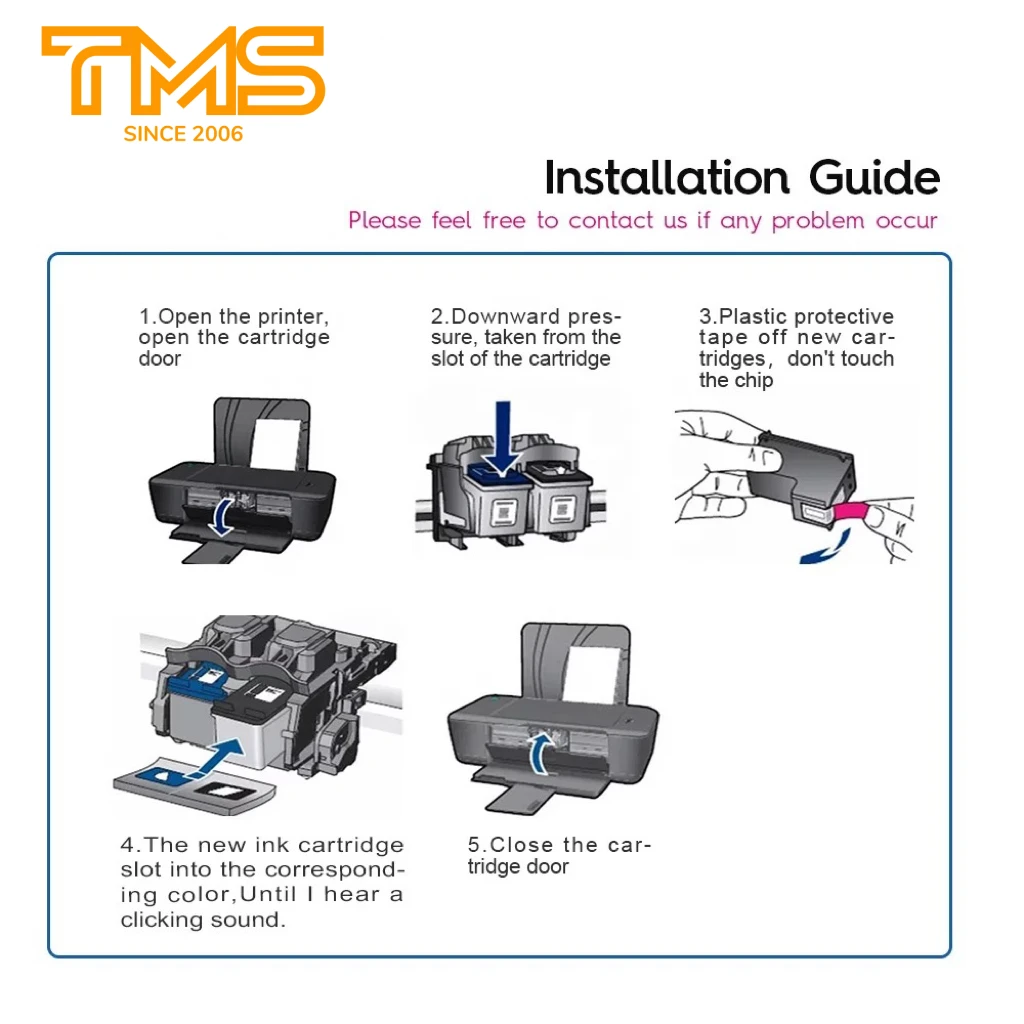
Faulty or loose cartridges often confuse the printer sensors causing the power light to blink continuously. Ensuring proper installation is a critical troubleshooting step.
Access the Carriage Area Safely
Open the cartridge access door and wait for the carriage to stop moving. If it is stuck in place unplug the printer and gently nudge it to the center.
Remove and Snap Cartridges Back In
Take out each cartridge and reinstall it firmly until you hear a click. Misaligned cartridges are a very common reason for persistent blinking lights.
Verify Cartridge Compatibility and Condition
Check for cracked housings or missing chips on your cartridges. Ensure you are using HP-approved models since some third-party options trigger error states.
Clean Copper Contacts Carefully
Wipe the copper contacts on cartridges and inside the printer with a dry lint-free cloth. Dirty contacts prevent proper communication between the printer and ink supply.
Inspect Printer Doors and Cover Sensors
The printer thinks a door is open if the latch does not engage fully. This safety feature stops operation and causes the power button to blink until resolved.
Close All Panels Firmly
Press down on the top cover output tray and rear access door until they click. Sometimes a latch looks closed but has not engaged the sensor mechanism fully.
Remove Obstructions Blocking Latches
Look for paper scraps labels or debris preventing doors from closing tight. Even a small obstruction can stop the door from sealing properly.
Test Internal Door Sensors
Some models have specific sensors that detect door position. If the door seems closed but the light blinks a reset may help recalibrate the sensor.
Troubleshoot Wireless and Network Connectivity
Wireless models often blink when they lose connection to your home network or computer. Diagnosing these issues requires checking both the printer and your router.
Confirm Wi-Fi Status Light Behavior
Check if the wireless icon is also blinking alongside the power button. This combination usually means the printer has lost its network connection.
Reconnect to Your Network
Navigate to Settings > Network > Wireless Setup Wizard on the control panel. Select your network name and enter the password to re-establish the link.
Utilize the HP Smart App
Download the HP Smart app on your mobile device for guided troubleshooting. The app can diagnose connection drops and walk you through reconnection steps easily.
Expert Note: Printers in power-saving mode may blink blue while waking up so wait 30 seconds to see if it connects automatically before panicking.
Update or Reinstall Printer Firmware
Outdated firmware can cause erratic behavior including unexplained blinking lights. Keeping your software current ensures compatibility and stability.
Check for Available Updates
Visit the official HP support website and enter your specific printer model. Download the latest firmware file if one is available for your device.
Install Updates via Computer Connection
Connect the printer to your computer using a USB cable for stability. Run the update through HP Support Assistant or the downloaded installer file.
Prevent Power Interruptions During Updates
Never unplug the printer while firmware is installing. A failed update due to power loss can corrupt the system and worsen the blinking issue.
Clear Print Queue and Restart Spooler Service
Sometimes the error originates from your computer sending corrupted print jobs. Clearing the queue stops the printer from receiving bad data.
Cancel All Pending Print Jobs
On Windows go to Control Panel > Devices and Printers and right-click your printer. Select See what’s printing and cancel every document in the list.
Restart the Print Spooler Service
Press Windows + R type services.msc and hit enter. Find Print Spooler in the list right-click it and select Restart to refresh the service.
Reboot Both Computer and Printer
Turn off both devices completely and turn them back on. Try a test print to see if the power button stops blinking after the fresh start.
Run HP Diagnostic Tools for Deep Analysis
HP provides built-in and downloadable tools designed to identify hardware and software faults automatically. These tools can find issues manual checks might miss.
Access Built-in Self-Test Modes
Press and hold the Cancel and Start Copy Black buttons for five seconds on many models. This action often triggers an automatic self-test routine.
Print a Diagnostic Page
Go to Settings > Tools > Print Diagnostic Page from the control panel. Review the printed page for any specific error codes or warnings listed.
Use HP Print and Scan Doctor
Download this free utility from the HP website for automated troubleshooting. It detects connectivity problems cartridge errors and hardware faults automatically.
Determine When to Contact HP Support
Persistent blinking after all troubleshooting steps may indicate a serious hardware failure. Knowing when to seek professional help saves time and prevents further damage.
Identify Persistent Blink Codes
If the printer repeats a specific pattern like five blinks repeatedly it indicates major component failure. This often points to a bad printhead motherboard or power supply.
Verify Your Warranty Status
Visit the HP support website and enter your printer serial number. If your device is under warranty HP may repair or replace it at no cost to you.
Evaluate Professional Repair Options
For out-of-warranty models compare repair costs against buying a new printer. Some internal electrical issues are not safe or practical for users to fix themselves.
Frequently Asked Questions About HP Printer Power Button Blinking
Why is my HP printer power button blinking orange?
An orange blinking light typically indicates a hardware error such as a paper jam open door or cartridge issue. Check these physical components first before attempting software fixes.
What does a slow blinking power light mean?
A slow blink usually means the printer is processing a job warming up or in sleep mode. If it persists without printing check for connectivity delays or stuck print jobs.
How do I stop my HP printer from blinking blue?
A blue blink suggests a network or Bluetooth pairing issue. Reconnect to your Wi-Fi network using the control panel or HP Smart app to resolve the connection.
Can old ink cartridges cause the power button to blink?
Yes faulty incompatible or improperly installed cartridges often trigger blinking lights. Remove and reinstall cartridges or replace them with genuine HP models to fix the error.
What should I do if the power button blinks after a reset?
If a hard reset fails to stop the blinking check for paper jams and update your firmware. Persistent blinking after these steps likely requires professional service.
Is it safe to print when the power button is blinking?
No you should not attempt to print while the light is blinking as it indicates an unresolved error. Printing in this state can cause paper jams or damage internal components.
Key Takeaways for Fixing HP Printer Power Button Blinking

A blinking power button is a diagnostic tool not a death sentence for your printer. By decoding the blink pattern checking for jams and performing a hard reset you can resolve most issues quickly.
Regular maintenance like cleaning contacts and updating firmware prevents many common errors. If the light continues to blink after following these steps contact HP support for potential hardware repair.




