

Your Rollo printer sits silent while shipping deadlines loom, creating immediate stress for any business owner. This common Rollo printer not printing issue often stems from simple connection errors or driver glitches that you can fix quickly.
This guide provides a step-by-step path to restore your label printing functionality without wasting hours on support calls. You will learn specific troubleshooting methods for USB, Bluetooth, and software conflicts to get your workflow moving again.
Verify Physical Connections and Power Supply
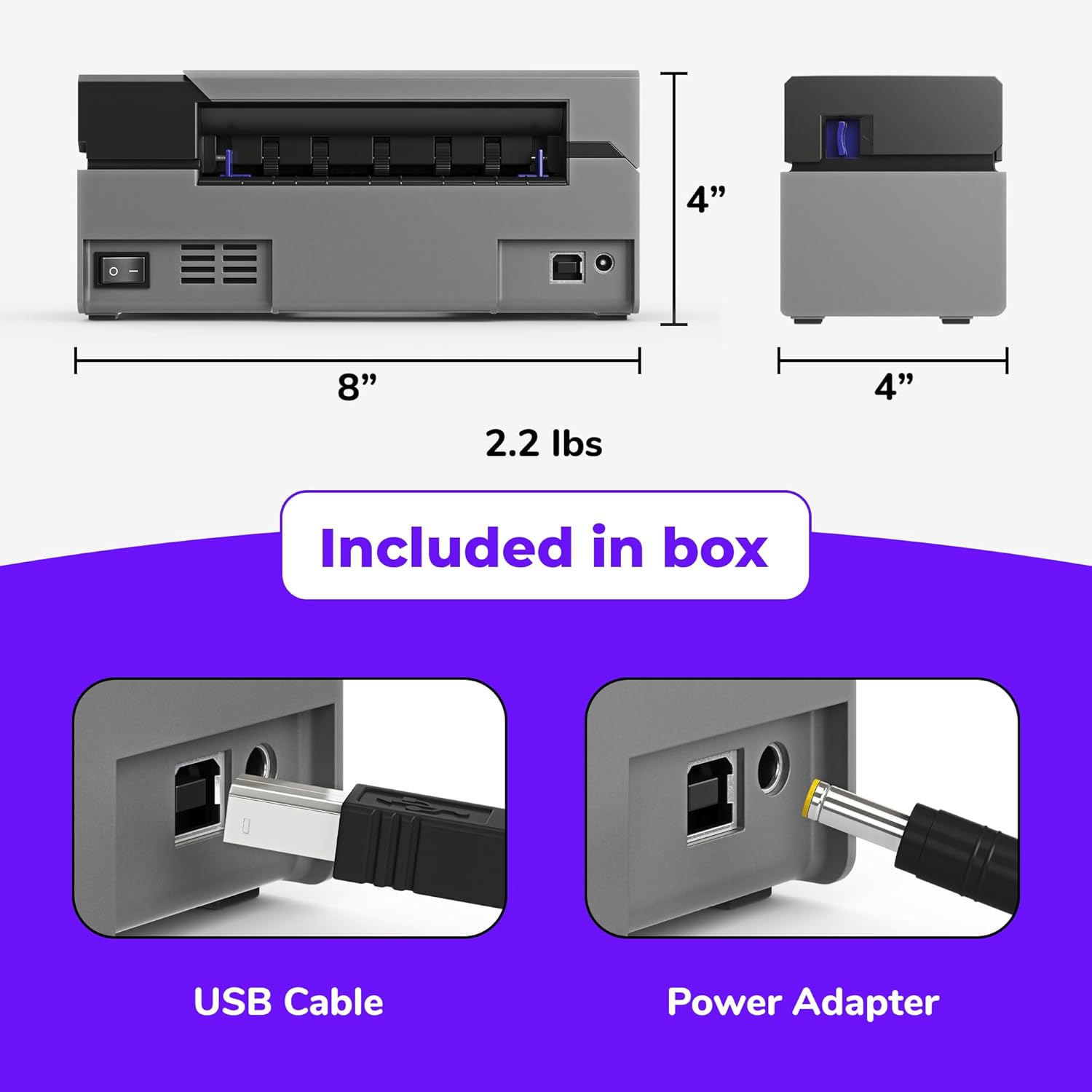
Loose cables or insufficient power are the most frequent causes of sudden printing failures. Before adjusting software settings, you must ensure the hardware has a stable foundation.
Inspect USB and Power Cables
Unplug both ends of your USB cable and reconnect them firmly to eliminate loose contact points. If you use a USB hub, bypass it by plugging the printer directly into a USB 3.0 port on your computer.
* Check that the power LED shows a solid color rather than flashing.
* Swap the USB cable with a known working one to rule out internal wire damage.
* Avoid using extension cords that may degrade voltage delivery to the print head.
Clear Paper Jams and Sensor Blocks
Open the printer cover to inspect the feed path for torn label fragments or debris. Even a tiny piece of paper blocking the sensor window will prevent the Rollo printer not printing error from resolving.
* Remove the label roll completely to check the interior.
* Gently wipe the sensor slot with a dry cotton swab to remove dust.
* Reload the roll ensuring the labels feed smoothly under the guide.
Configure Windows Printer Settings Correctly
Your computer might be sending jobs to the wrong device or holding them in a paused state. Correcting these status flags often resolves the issue instantly.
Set Rollo as Default Device
Navigate to Settings > Bluetooth & devices > Printers & scanners on your Windows PC. Select your Rollo model and click Manage to access the primary control options.
1. Click the Set as default button to prioritize this device.
2. Attempt a test print to verify the change takes effect immediately.
3. Ensure no other label printer is selected as the system default.
Resume Paused or Offline Status
Check the printer queue window to see if the status reads Paused or Offline. Click See what’s printing and uncheck Pause Printing if the option is active.
* Right-click the printer icon and select Use Printer Online if it appears grayed out.
* Cancel any stuck documents sitting at the top of the queue.
* Restart the print spooler service if the status does not update automatically.
Reinstall Rollo Printer Drivers

Corrupted or outdated drivers frequently cause communication breakdowns between your OS and the hardware. A clean installation removes conflicting files that generic Windows updates might leave behind.
Download Official Driver Package
Visit the official Rollo support website to download the specific driver for your model series. Running the installer as an administrator ensures all necessary components register correctly with Windows.
* Select your exact model like X10 or H1000 from the dropdown menu.
* Save the file to your desktop for easy access during installation.
* Disconnect the USB cable before running the setup file if prompted.
Remove Legacy Driver Files
Use the Print Server Properties tool to completely wipe old driver packages before reinstalling. This step prevents the system from defaulting to a broken configuration.
1. Press Win + R and type printui.dll,PrintUIEntry then hit Enter.
2. Navigate to the Drivers tab and locate your Rollo entry.
3. Click Remove and select Remove Driver and Driver Package.
4. Reboot your computer before installing the fresh driver download.
Troubleshoot Bluetooth and Wi-Fi Connectivity
Wireless models like the H1000 require stable connections to function properly. Interference or pairing errors often mimic hardware failures when the link is simply interrupted.
Re-establish Bluetooth Pairing
Open your computer’s Bluetooth settings and ensure the toggle is switched to On. If your printer shows as connected but will not print, remove the device and pair it again.
* Place the printer within three feet of the computer during pairing.
* Watch for the blue blinking LED which indicates pairing mode.
* Restart the Bluetooth Support Service in Windows if the device disappears.
Optimize Wi-Fi Signal Strength
Ensure your printer connects to a 2.4 GHz network since many thermal printers do not support 5 GHz bands. Physical obstacles like walls or microwaves can disrupt the signal required for data transfer.
* Move the printer closer to your wireless router temporarily.
* Avoid placing the unit near cordless phones or large metal objects.
* Check the Rollo Print app to confirm the printer shows a strong signal icon.
Test Printing with Rollo Label Manager
Isolating the problem helps determine if the issue lies with your shipping software or the printer itself. Using the native application bypasses third-party complications.
Install Diagnostic Software
Download the Rollo Label Manager from the support site if you have not already installed it. This lightweight tool communicates directly with the printer driver to test basic functionality.
* Launch the application after installation completes.
* Create a new blank label project within the interface.
* Type a simple test string like “Hello World” on the canvas.
Analyze Test Print Results
Click the print button within Label Manager to send a direct job to the device. If the label prints successfully here, your shipping platform settings are likely the culprit.
* Reconfigure your shipping software to select the Rollo driver explicitly.
* Check that label dimensions in your shipping app match the physical roll.
* Update the integration plugin if you use tools like ShipStation or Shopify.
Clear Stuck Print Queue Manually
Residual data in the print spooler folder can block new jobs from processing. Flushing this cache forces the system to start fresh with your next command.
Stop Spooler and Delete Files
Access the Services menu by typing services.msc in the Run dialog box. Locate Print Spooler in the list and right-click to select Stop.
1. Open File Explorer and navigate to C:\Windows\System32\spool\PRINTERS.
2. Delete every file found inside this folder to clear the backlog.
3. Return to the Services window and click Start on the Print Spooler.
Update Firmware for Stability
Manufacturers release firmware updates to patch bugs that cause connectivity drops or printing errors. Keeping your device current ensures compatibility with the latest operating system updates.
Check for Updates in App
Open the Rollo Print mobile or desktop application to check the current firmware version. Navigate to settings and look for a Firmware Update option to download and install patches.
* Ensure the printer battery is charged or plugged in during this process.
* Do not disconnect the power source until the update finishes completely.
* Restart the printer after the installation concludes to apply changes.
Disable Power Saving Features
Windows power management settings may cut power to the USB port to save energy. This action can disconnect the printer unexpectedly and cause the Rollo printer not printing problem to recur.
Adjust USB Selective Suspend
Go to Control Panel > Power Options and click Change plan settings. Select Change advanced power settings to access detailed configuration menus.
* Expand the USB settings category in the list.
* Set USB selective suspend setting to Disabled.
* Apply the changes and restart your computer to ensure they take effect.
Perform Factory Reset on Printer

Resetting the device clears internal memory errors that standard troubleshooting cannot fix. This step returns all settings to their original state and often resolves persistent glitches.
Execute Hard Reset Sequence
Turn off the printer completely before pressing and holding the feed button. Power the unit on while continuing to hold the button until the LED flashes red and green.
* Release the button once the lights change color pattern.
* Reinstall the driver and re-pair any wireless connections.
* Print a test label to confirm the reset was successful.
Frequently Asked Questions About Rollo Printer Issues
Why is my Rollo printer blue light flashing but not printing?
A flashing blue light usually indicates the printer is in pairing mode or has lost its connection to the computer. Reconnect the USB cable or re-pair the Bluetooth device in your system settings to restore communication.
How do I force Windows to recognize my Rollo printer?
Open Device Manager and look for unknown devices, then right-click and select Update driver to browse your computer for the software. If that fails, uninstall the device from Device Manager and unplug then replug the USB cable.
Can third-party labels cause printing failures?
Yes, non-genuine labels often have uneven adhesive or core sizes that trigger sensor errors. Using official Rollo labels ensures the sensor detects the gap correctly and prevents feed jams.
What should I do if the print queue says “Error – Printing”?
This error typically means the print spooler service has stalled or the driver is corrupted. Stop the print spooler service, delete files in the PRINTERS folder, and restart the service to clear the error.
Does the Rollo printer work with Mac and Linux?
Rollo provides specific drivers for macOS, but Linux support relies on generic thermal printer drivers. Always download the latest Mac driver from the website, while Linux users may need to configure CUPS manually.
Key Takeaways for Fixing Rollo Printer Not Printing Errors
Most Rollo printer not printing issues resolve by checking physical connections, clearing the print queue, or reinstalling the official driver. Start with simple cable checks and default printer settings before moving to complex resets or firmware updates.
Regular maintenance like cleaning sensors and updating software prevents future interruptions to your shipping workflow. Keep this guide accessible so you can quickly restore productivity whenever connectivity issues arise.




