

Your document is ready to print, yet nothing happens when you click the button. The printer stays silent even after you check connections and restart the device. Chances are the real culprit is not your hardware but the fact that your printer spooler keeps crashing. This common Windows issue halts all printing tasks instantly.
The print spooler is a background service managing your entire print queue. When it fails, every job from a single page to a large report gets stuck forever. This guide shows you how to diagnose the crash, clear stuck files, and remove faulty drivers to restore reliable printing. You will learn actionable steps using built-in Windows tools without needing advanced technical skills.
Why the Print Spooler Service Stops Working Suddenly
The print spooler acts as a traffic controller between your computer and your printer. It holds print jobs in a line and sends them one by one to prevent system overload. When this service crashes, the communication line breaks completely.
Devices from major brands like HP, Canon, Brother, and Epson all rely on this service. If the printer spooler keeps crashing, your specific printer model cannot function regardless of its quality. Understanding this role helps you see why fixing the service is more important than rebooting the hardware.
How Print Jobs Get Stuck in the Queue
A single corrupted file can freeze the entire queue. When the spooler encounters a bad data packet, it often stops processing everything else. This results in documents sitting in the status bar with no movement.
- Corrupted print jobs block the queue immediately.
- Large files may timeout and cause the service to hang.
- Multiple simultaneous requests can overload the buffer.
Clearing these stuck jobs is often the fastest way to get things moving again.
Clear Stuck Print Jobs to Stop Spooler Crashes
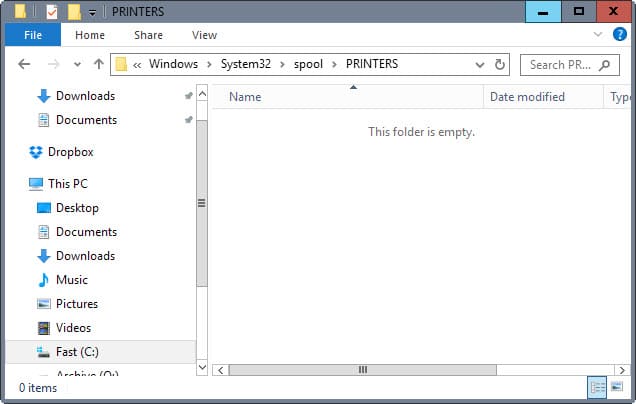
One jammed document is a frequent cause when the printer spooler keeps crashing. You must remove these blocked files to reset the system. This process clears the temporary storage where print data waits.
Delete Files from the Spool Folder
You can manually remove stuck files using the Run command. This method bypasses the standard interface that might be frozen.
- Press Win + R on your keyboard to open the Run box.
- Type the path to the spool folder and press Enter.
- Select all files in the folder and delete them.
- Open the Services menu from the Start search bar.
- Locate Print Spooler, right-click it, and select Restart.
This sequence clears the backlog and gives the service a fresh start.
Restart the Service via Command Prompt
Using the Command Prompt offers a cleaner reset than the graphical interface. It forces the service to stop and start with administrative privileges.
- Search for cmd in the Start menu.
- Right-click Command Prompt and choose Run as administrator.
- Type
net stop spoolerand press Enter to halt the service. - Type
net start spoolerand press Enter to launch it again.
This method is ideal when the local print spooler service is not running unexpectedly.
Remove Corrupted Drivers Causing Spooler Failures
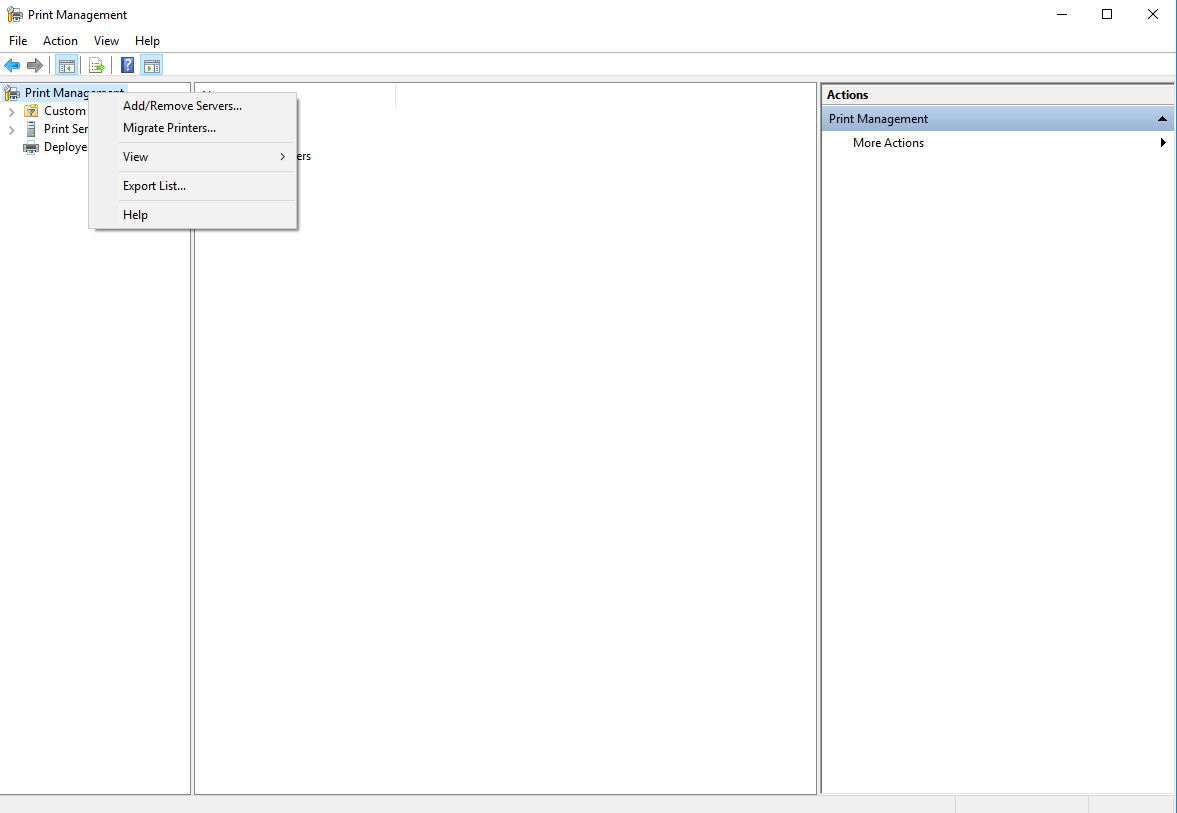
Faulty or outdated drivers are a leading cause when the printer spooler keeps crashing. Windows updates sometimes create conflicts with existing printer software. Removing these bad drivers stops the cycle of failure.
Delete Bad Drivers Using Print Management
You can use the Print Management tool to identify and remove problematic drivers. This prevents the system from loading broken software automatically.
- Press Win + R, type
printmanagement.msc, and press Enter. - Expand Print Servers and then Drivers.
- Right-click on drivers that are unused or marked with errors.
- Select Delete to remove them from the system.
If your original driver fails, you can install a generic Windows driver temporarily to test functionality.
Disable Driver Isolation for Testing
Some older printer drivers do not work well with modern isolation features. Disabling this setting can help you determine if isolation is causing the crash.
- Go to Device Manager and find your printer properties.
- Navigate to the Advanced tab in the settings.
- Uncheck the box for Driver Isolation.
- Test the printer to see if the crash stops.
Note: Turn this setting back on after testing. Driver isolation protects your system from unstable code.
Reinstall Your Printer to Fix Persistent Errors
If the printer spooler keeps crashing despite clearing queues and drivers, a full reinstall may be necessary. This ensures you have a clean configuration without leftover corrupt files.
Uninstall Device and Driver Software
Start by removing the printer completely from your Windows settings. This deletes the current configuration and associated software.
- Open Settings and go to Devices then Printers & scanners.
- Click on your printer model and select Remove device.
- Open Device Manager to find remaining printer drivers.
- Right-click and uninstall any related driver software found.
Install Fresh Drivers from Official Sources
After removal, download the latest driver package directly from the manufacturer. Using official sources ensures compatibility with your current version of Windows.
- Visit the support site for HP, Canon, Brother, or Epson.
- Download the specific driver for your model and OS version.
- Run the installer and reconnect your printer when prompted.
- Print a test page to verify the printer spooler keeps crashing issue is resolved.
This method resolves deep conflicts that simple restarts cannot fix.
Use Advanced Tools to Diagnose Spooler Root Causes
When basic fixes fail, you need to look deeper into system health. System file corruption or hidden errors often cause the printer spooler keeps crashing loop. Advanced tools can identify these underlying issues.
Run System File Checker and DISM Scans
Corrupt Windows system files can disrupt essential services like the print spooler. The System File Checker (SFC) and DISM tools repair these damaged files automatically.
- Open Command Prompt as an administrator.
- Type
sfc /scannowand press Enter to scan and repair files. - If errors remain, type
DISM /Online /Cleanup-Image /RestoreHealth. - Restart your computer after the process completes.
These scans are crucial when clearing the printer spooler does not help.
Check Event Viewer for Error Codes
The Event Viewer logs detailed information about why a service failed. Reviewing these logs provides specific error codes for troubleshooting.
- Press Windows + X and select Event Viewer.
- Navigate to Windows Logs and then System.
- Filter the log by searching for
spoolsv.exeor “spooler”. - Look for error codes indicating driver conflicts or file access issues.
This step helps you pinpoint exact causes when the local print spooler service is not running.
Run the Built-in Printer Troubleshooter
Windows includes an automated tool designed to fix common configuration issues. It is a good first step before attempting manual repairs.
- Go to Settings > System > Troubleshoot.
- Select Other troubleshooters.
- Click Run next to Printer.
- Follow the on-screen instructions to apply fixes.
While it cannot fix deep corruption, it resolves many temporary service failures quickly.
Frequently Asked Questions About Printer Spooler Crashes
Will restarting my printer fix the printer spooler issues?
Not always. Restarting the hardware helps with minor glitches but rarely fixes corrupted drivers or service failures. You usually need to clear the spooler queue or update drivers for a permanent solution.
Do I have to reinstall my printer every time the spooler crashes?
No. Reinstalling should be a last resort. Most crashes are fixed by restarting the service, deleting stuck jobs, or updating the driver software without removing the device.
Can I fix print spooler errors myself without a tech expert?
Yes. Windows provides built-in tools like the Printer Troubleshooter and Command Prompt commands. With step-by-step guidance, anyone can troubleshoot these issues safely.
Why does the printer spooler keep stopping after a Windows update?
Updates sometimes replace system files with versions that conflict with old drivers. This incompatibility causes the service to crash until you install updated driver software from the manufacturer.
How do I know if a specific document is causing the crash?
If printing stops only after sending a specific file, that document is likely corrupted. Try printing a different file or converting the document to PDF before sending it to the queue.
Key Takeaways for Fixing Your Printer Spooler
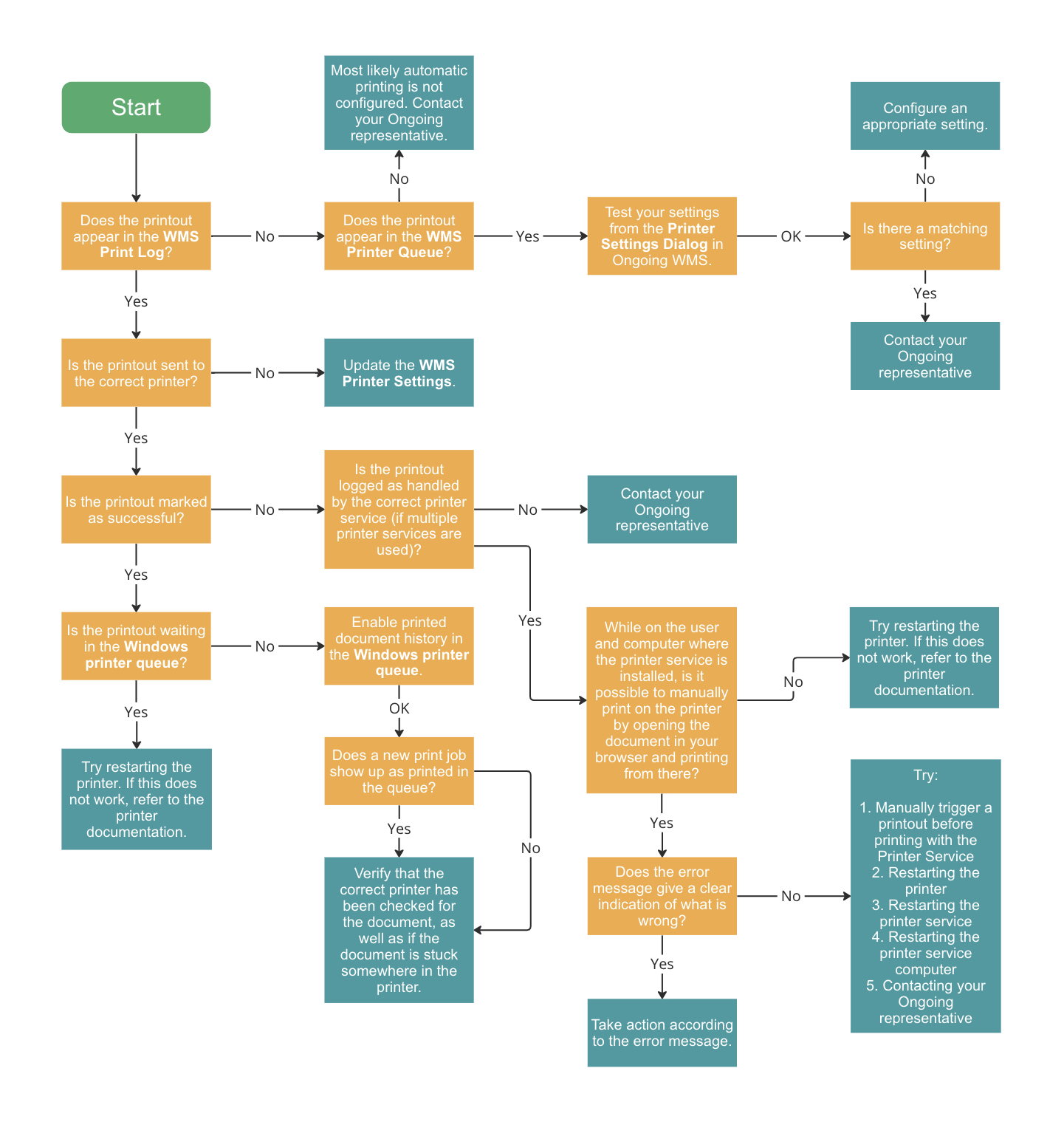
When your documents will not print, the printer spooler keeps crashing is often the root cause. This small background service manages all print jobs, and its failure stops everything from working. Common triggers include stuck files, outdated drivers, or corrupted system components that require manual intervention.
You can resolve most issues by clearing the print queue, restarting the service via Command Prompt, or reinstalling fresh drivers. Advanced users may need to run system scans or check Event Viewer logs for deeper errors. Start with the simple restart methods and move to driver updates if the problem persists to get your printer working again.




